

Demander App Help center
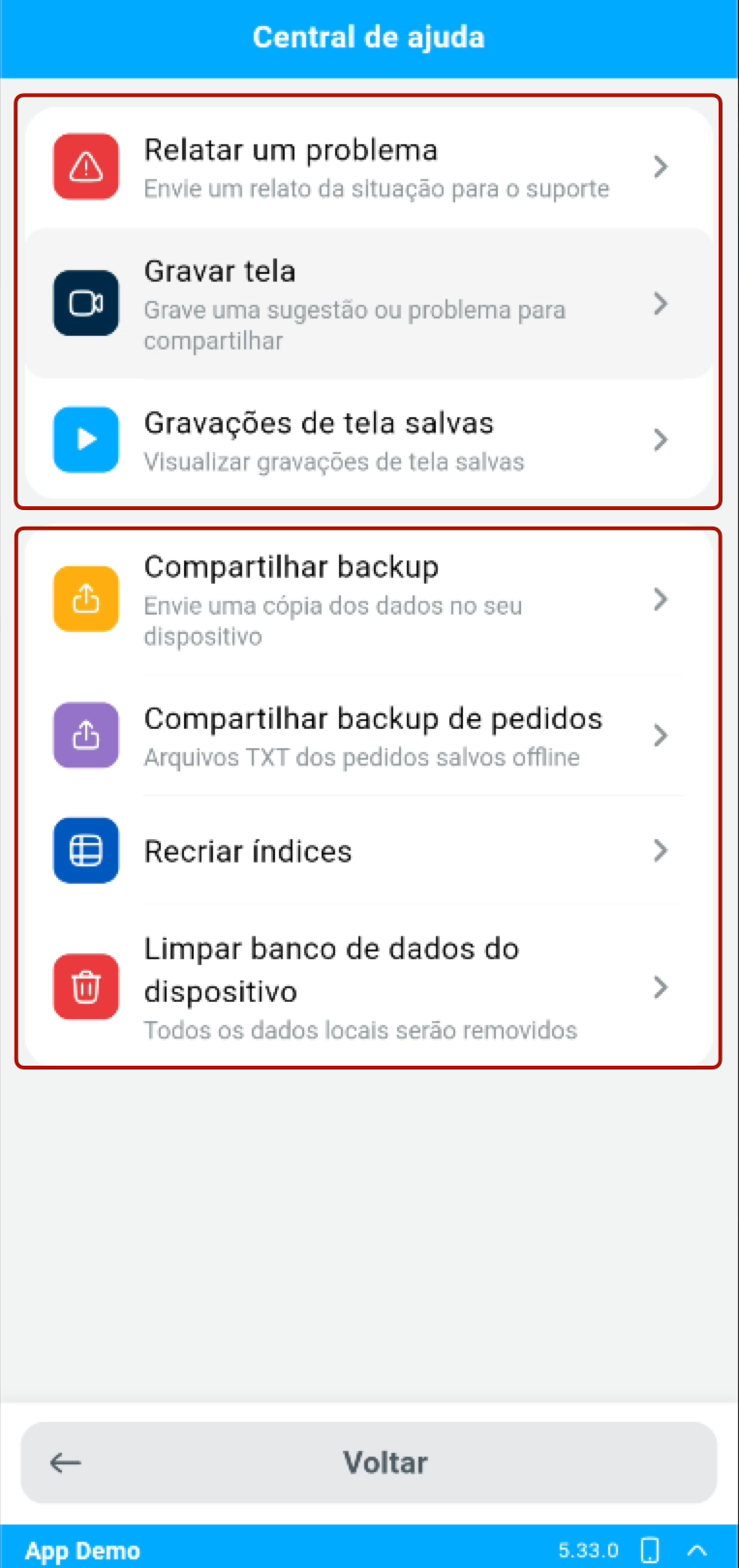
The Help center brings together tools to contact support, share what happens on screen and maintain local data in the Demander App.
How to access it
Section titled “How to access it”- Tap the identification bar at the bottom of the app, where the user and version appear.
- In the About me area, tap Help center.
- Choose the tool you need. Scroll to see the maintenance tools.
Report a problem and record the screen
Section titled “Report a problem and record the screen”| Option | Purpose |
|---|---|
| Report a problem | Describe a situation to support and, when available, include a screen recording. |
| Record screen | Demonstrate a problem, suggestion or procedure to share. |
| Saved screen recordings | View, play, share or delete videos saved on the device. |
See How to report a problem and record the screen for the steps, permissions and recording limits.
Backup and data maintenance
Section titled “Backup and data maintenance”These tools appear when the app uses the Flutter local database. Availability also depends on the version in use.
| Option | Purpose and precautions |
|---|---|
| Share backup | Generate and share a copy of the device data, for example for an analysis requested by support. |
| Share order backup | Share TXT files of orders saved offline. If no files are available, the app informs you. |
| Rebuild indexes | Rebuild the indexes used in local database queries. This does not clear the database. Wait for confirmation from the app. |
| Restore product photos | Remove local product photos and download them from the server again. An internet connection is required for the new download. |
| Restore all images | Remove and download product photos and company and branch logos again. |
| Clear device database | Remove the local database and start a new sync. Records not yet sent may be lost. See the cleanup steps. |
The Import database backup option, when displayed, is restricted to access with the master password and should be used with guidance from support.
Example scenarios
Section titled “Example scenarios”- An order behaves unexpectedly: use Report a problem and describe the order and what happened. If recording is available, include a demonstration.
- Product photos need to be downloaded again: choose Restore product photos, without clearing the rest of the database.
- Support requested a copy for analysis: use the backup option indicated and finish sharing through your chosen app.
- Support instructed you to reload the local database: sync first and follow the app database cleanup article.
Frequently asked questions
Section titled “Frequently asked questions”Why can’t I see all options?
Section titled “Why can’t I see all options?”Tools vary according to the version, company settings and app storage mode. Recording options depend on company settings; maintenance tools depend on the Flutter local database. Importing a backup requires access with the master password.
Does Share backup send data to support automatically?
Section titled “Does Share backup send data to support automatically?”The option opens the device sharing interface. Choose the channel and finish sending to the recipient indicated by support.
Is restoring images the same as clearing the database?
Section titled “Is restoring images the same as clearing the database?”No. Restoration removes image files and starts a new download. Database cleanup removes records from the local database and affects unsynced data.