

Opportunities module
Available at:


This article aims to explain the Opportunities Module in the mobile app.
About the Opportunities Module
Section titled “About the Opportunities Module”- With this module it is possible to display sales opportunities for your salespeople/representatives directly in the app, so that contact with the customer is not lost and the timing of the sale to the customer is not missed.
- Starting with version 4.25 of Demander Android, we started offering the opportunities module, which will be on the app’s home screen as a button.
Video Explaining:Other Demonstration Scenarios
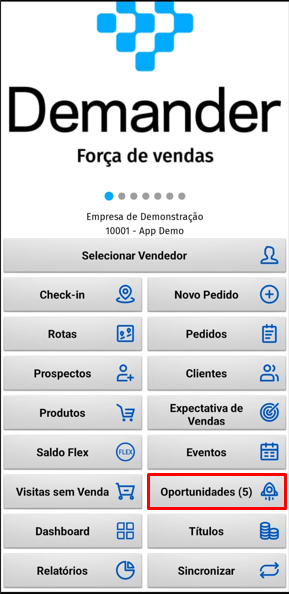
Section titled “Video Explaining:Other Demonstration Scenarios”- With the module activated, when accessing the app you will see an Opportunities button followed by a number, which is the number of available sales opportunities.
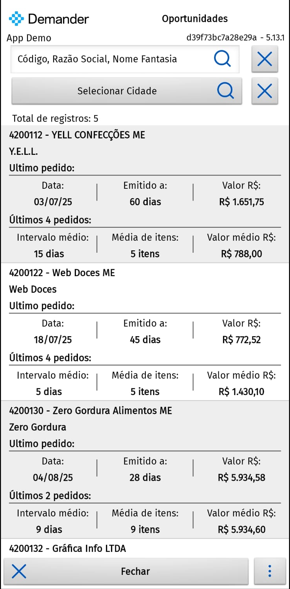
- When clicking on the opportunities button, the opportunities are displayed, each one is shown on a card with information that can be filtered, for example.
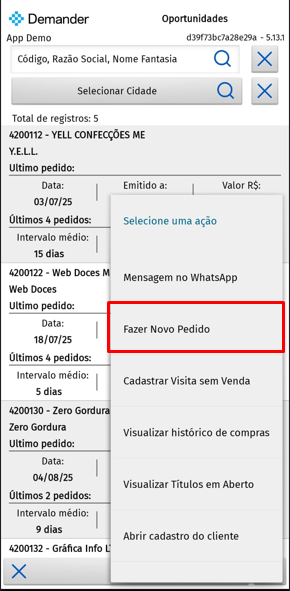
- By clicking on an opportunity, it is possible to perform several actions, such as placing an order with the customer, viewing the map, purchase history and others.
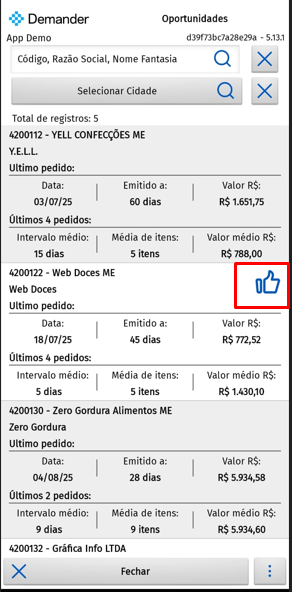
- When placing an order, the customer is marked in this way.
Frequently asked questions
Section titled “Frequently asked questions”What metrics are taken into account to display an opportunity?
Section titled “What metrics are taken into account to display an opportunity?”- The list of opportunities considers:
- Only active customers
- Customer who has at least 2 orders (so we can calculate the average interval)
- Only “sales orders” are considered
- For calculations of average range, average value and number of items, the customer’s last 10 orders are considered
What information is displayed on the opportunities screen?
Section titled “What information is displayed on the opportunities screen?”- The following information is displayed:
- Code, Name and Business Name of the Customer
- Last order data
- Date:
- Issued X days ago
- Value
- Data from the customer’s latest orders (maximum 10; if there are fewer, the app uses the ones that exist)
- Average interval between purchases
- Average items
- Average value
Opportunities screen filters
Section titled “Opportunities screen filters”There are several filters that help you see the most important opportunities at the top, display the client’s address, filter by neighborhood.
To access the filters, click on the button with 3 dots.
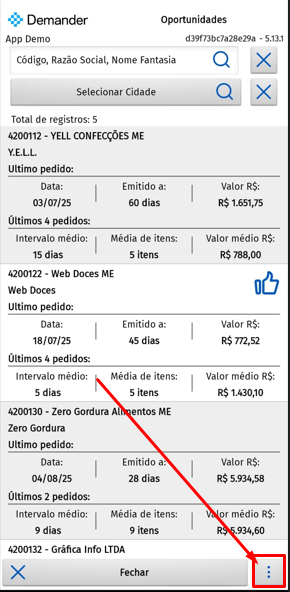
Clicking Sort
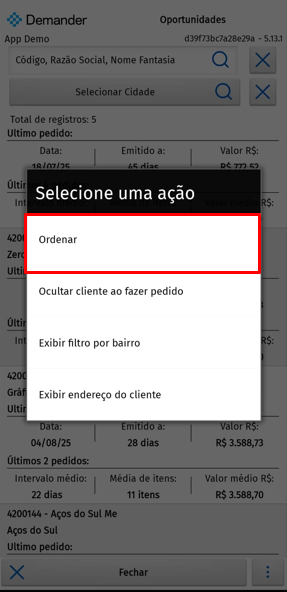
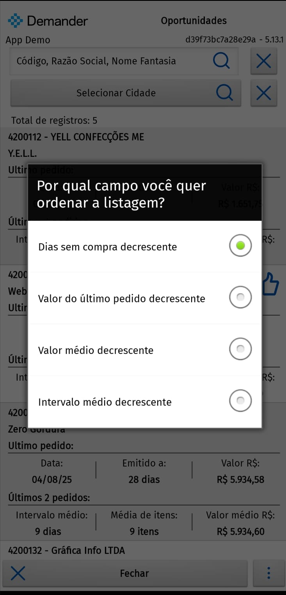
Opportunity sorting filters will be shown. When using filters, opportunities are filtered and those with the highest values are shown at the top, for example, if you choose the “Decreasing average value” filter, the opportunity with the highest average value will be at the top.
By default, an opportunity that had a sale is marked with a green icon, as shown below, and the opportunity remains in the listing.
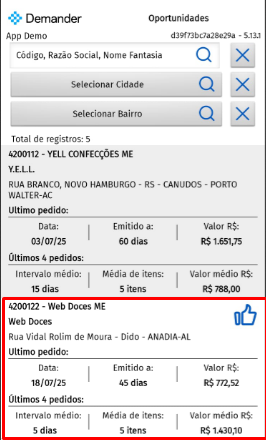
But by selecting this option, when placing an order for a customer with an opportunity, the opportunity will disappear from the list.
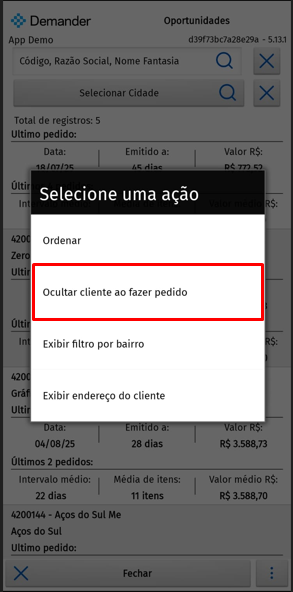
It is also possible to display the filter button by neighborhood and display the customer’s address, which is hidden by default.
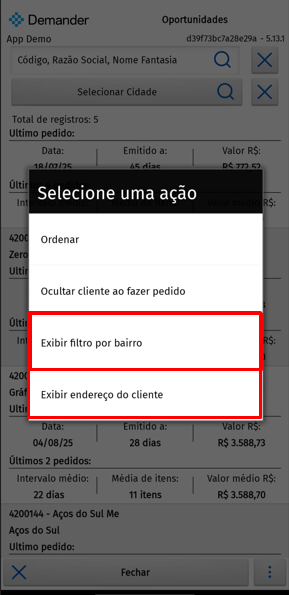
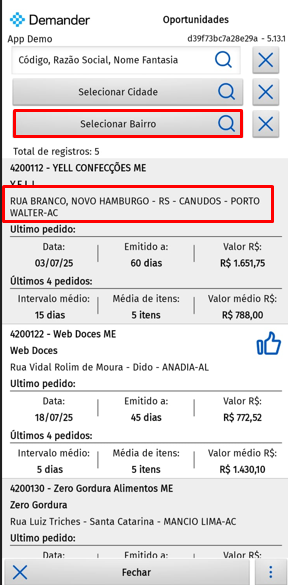
The filter by neighborhood is shown below the filter by city and the customer’s address is shown below the customer’s code and name.
How to activate the opportunities module
Access company settings, in the Additional settings tab, set both settings to Yes.
