

Auxiliary Fields
Auxiliary Fields record additional information on Demander screens according to each company’s needs.

About Auxiliary Fields
Section titled “About Auxiliary Fields”Use Auxiliary Fields to capture data that is not part of the standard record. They can be configured for orders, customers, prospects, order items, and events. The setup is centralized in Demander Web and sent to the app.
Auxiliary Field Groups
Section titled “Auxiliary Field Groups”Create or select a group before creating a field. Groups organize fields on the screen.
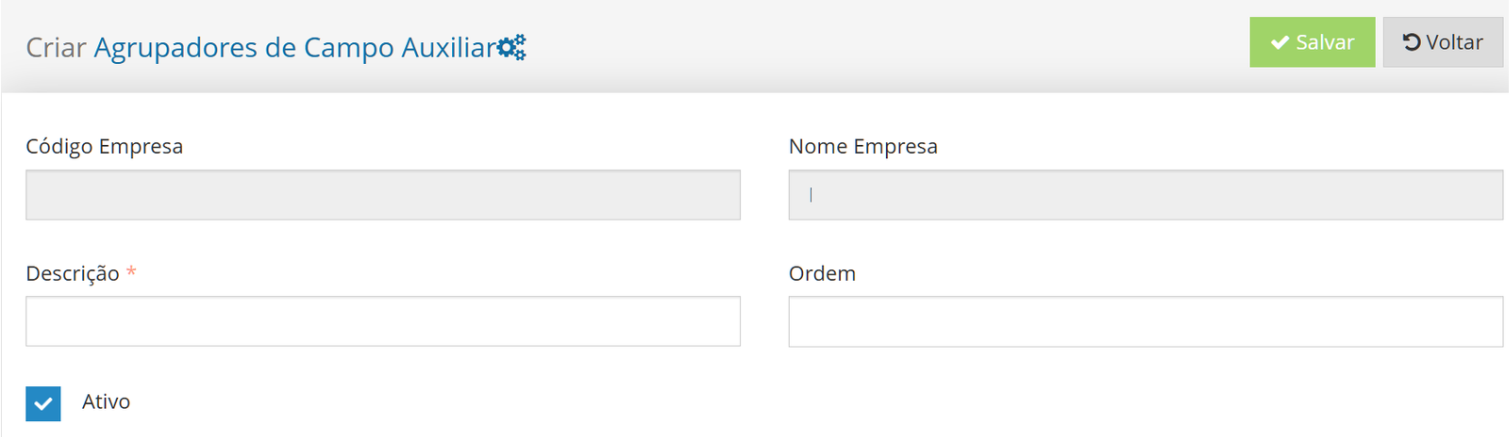
- Open Auxiliary Field Groups.
- Enter a clear description and display order.
- Save the group to use it in field registration.
Creating an Auxiliary Field
Section titled “Creating an Auxiliary Field”- Open Auxiliary Fields.
- Add a new field or edit an existing one.
- Fill in the information and save the configuration.
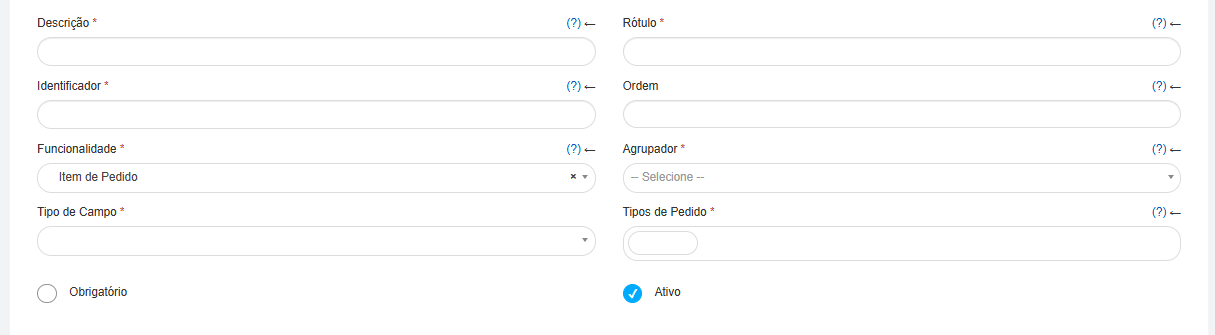
- Description: administrative identification, not shown during completion.
- Label: name shown on the screen.
- Identifier: unique field key in the same functionality; use lowercase letters without accents, spaces, or special characters.
- Order: lower numbers appear first.
- Functionality: screen where the field is shown, such as order, customer, prospect, order item, or event.
- Group: section where the field is organized.
- Field Type: input format, such as text, integer, decimal, date, option list, photo, or signature.
- Required and Active: respectively require a value and make the field available.
Options and display rules
Section titled “Options and display rules”Option list
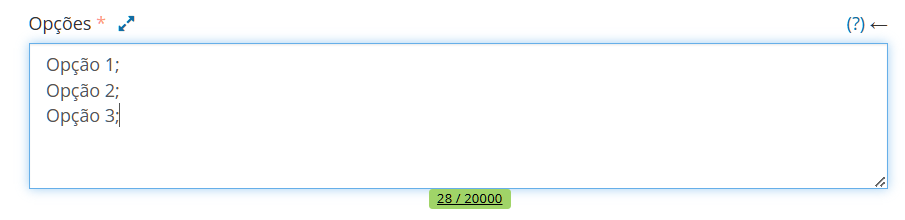
Section titled “Option list”For Option list, enter the choices in Options, separated by semicolons (;). Example: Campaign;Regular Order;Stock Replacement;Special Order.
Miscellaneous Data list
Section titled “Miscellaneous Data list”For Miscellaneous Data list, set the Miscellaneous Data Classifier, which identifies the classification that provides its choices.

Order and Event Types
Section titled “Order and Event Types”For an Order screen or Order item, select the applicable Order Types. For an Event screen, select the applicable Event Types. If no types are selected, the field has no restriction by type.


Numeric configuration
Section titled “Numeric configuration”Integer and Decimal fields can have a minimum value, a maximum value, or both. Enter the rule in jsonConfiguracao.

Validating numeric limits
Section titled “Validating numeric limits”{ "valorMinimo": 10000, "valorMaximo": 20000}- valorMinimo: optional lower limit.
- valorMaximo: optional upper limit.
Do not use thousands separators or currency symbols. Use a period for decimal values. Values outside the configured range cannot be saved; values within it, including the limits, can. Empty JSON or other field types keep their existing behavior.
Example scenarios
Section titled “Example scenarios”{"valorMinimo": 10000, "valorMaximo": 20000}accepts 10,000 through 20,000.{"valorMinimo": 1}blocks lower numbers only.{"valorMaximo": 100}allows values up to 100.
Exporting information
Section titled “Exporting information”- Table 350 - Order Auxiliary Fields
- Table 351 - Customer Auxiliary Fields
- Table 353 - Event Auxiliary Fields
- Table 354 - Order Item Auxiliary Fields
Frequently asked questions
Section titled “Frequently asked questions”Can I set limits for a text field or list?
Section titled “Can I set limits for a text field or list?”No. Limits apply only to Integer and Decimal fields.
Do I need to fill in both limits?
Section titled “Do I need to fill in both limits?”No. You can configure the minimum, maximum, or both.
What if the JSON is invalid?
Section titled “What if the JSON is invalid?”Review the braces, property-name quotes, and unformatted numeric values before saving. Test values below, within, and above the range before release.