

How to block orders without stock?
To prevent orders without stock across all environments, set the stock control to “Validate” — and not just “display” or “alert”.
In Demander Web
Section titled “In Demander Web”- Access Company Settings.
- Go to the Orders tab.
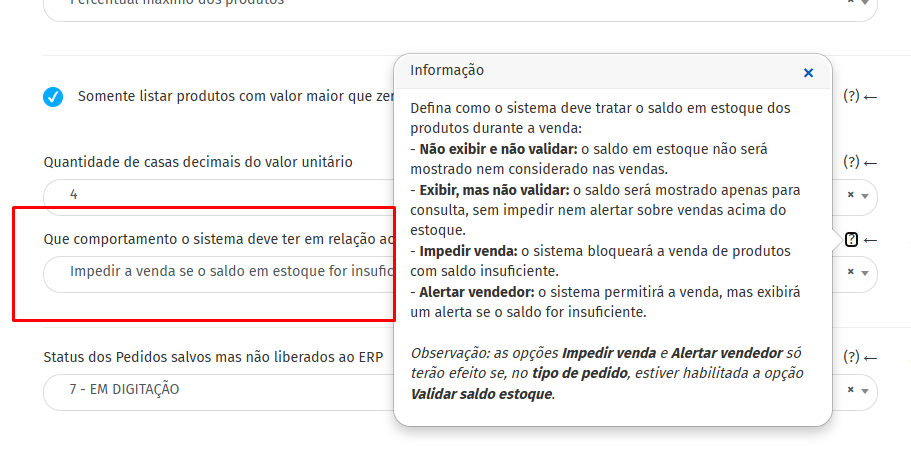
- In the Additional modules section, locate Stock control.
- Choose the appropriate option:
- Validate company stock
- Validate order branch stock
- Validate stock by order type and seller
- Save the settings.
- Ensure inventory is updated in Demander.
Which option to choose?
Section titled “Which option to choose?”The option should be chosen according to the origin of the balance:
- Company stock: Use when all orders should consider a general inventory.
- Order branch stock: Use when the order must respect the balance of the selected branch.
- Order type and seller: Use when the balance is controlled by specific ready-delivery inventories.
Behavior in Mobile Apps and Virtual Store
Section titled “Behavior in Mobile Apps and Virtual Store”This setting is applied by Demander Web and mobile apps. In the Android app, for example, the control can also filter the listing to display only products with stock, but this filter alone does not replace validation upon closing the order.
In the Virtual Store, in addition to configuring stock display, enable “Hide out-of-stock products in the virtual store” so that products without balance are not displayed. The documentation itself distinguishes between “show stock” and “validate stock”.
Technical details
Section titled “Technical details”The documentation confirms that control is configured in Company Settings > Additional Settings > Additional Modules > Stock Control and offers the three validation modes above.
To learn more about the general concept and stock sources, visit: