

RFV Customer Report in Demander Mobile
The RFV Report helps prioritize customer relationships using three indicators: Recency, Frequency, and Value. It is available in Demander Mobile when the company or seller is enabled to use it.
Understand the RFV indicators
Section titled “Understand the RFV indicators”- Recency (R): shows how many days have passed since the most recent order considered in the query. The shorter the interval, the better the classification.
- Frequency (F): shows the number of orders considered in the selected period.
- Value (V): shows the total value of orders considered in the selected period. It is not the same as the value of the latest order displayed in the list.
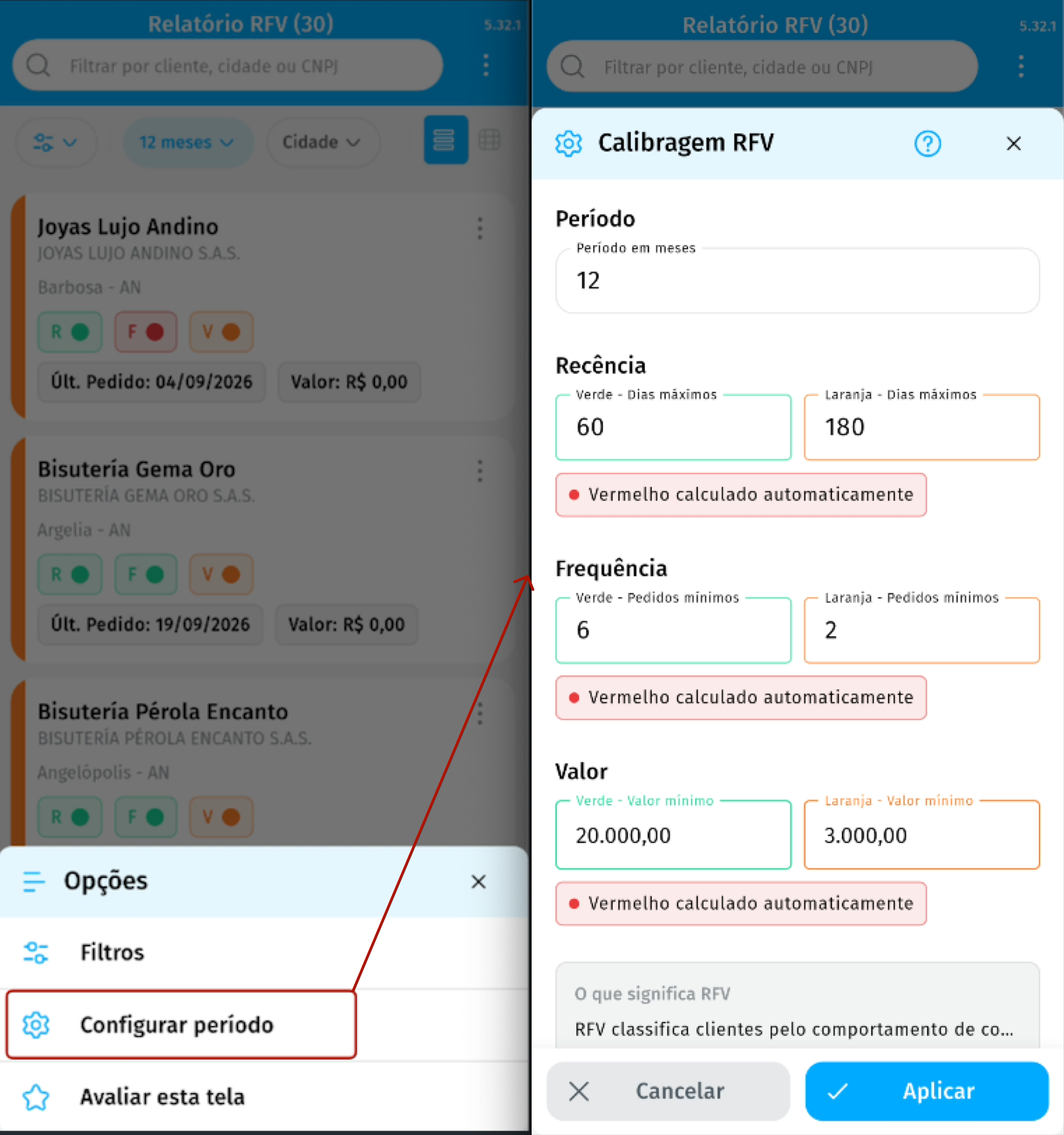
Each indicator has its own classification. In the report legend, green represents the best configured range, orange represents the intermediate range, and red indicates the range that needs attention. The limits used for each range can be adjusted in the query itself.
When a customer appears as no purchases in the period, it means that they did not place an order during the selected interval. This does not confirm that they have never purchased from the company.
Enable the RFV Report
Section titled “Enable the RFV Report”Report visibility can be set for the entire company or overridden for a specific seller.
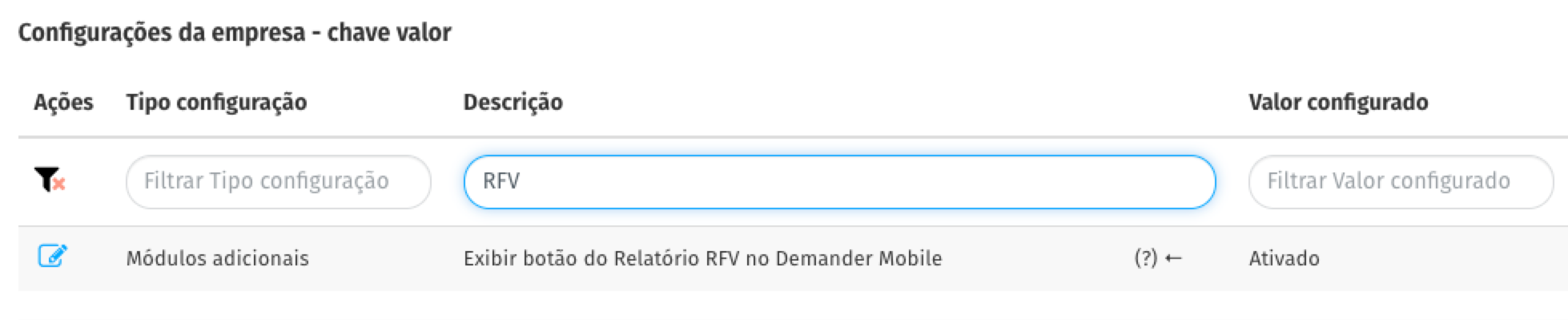
- In Demander Web, open Company Settings on the Additional settings tab and enable Show RFV Report button in Demander Mobile.
- To define an exception, open the seller record, go to the Settings tab, and adjust Show RFV Report button on mobile.
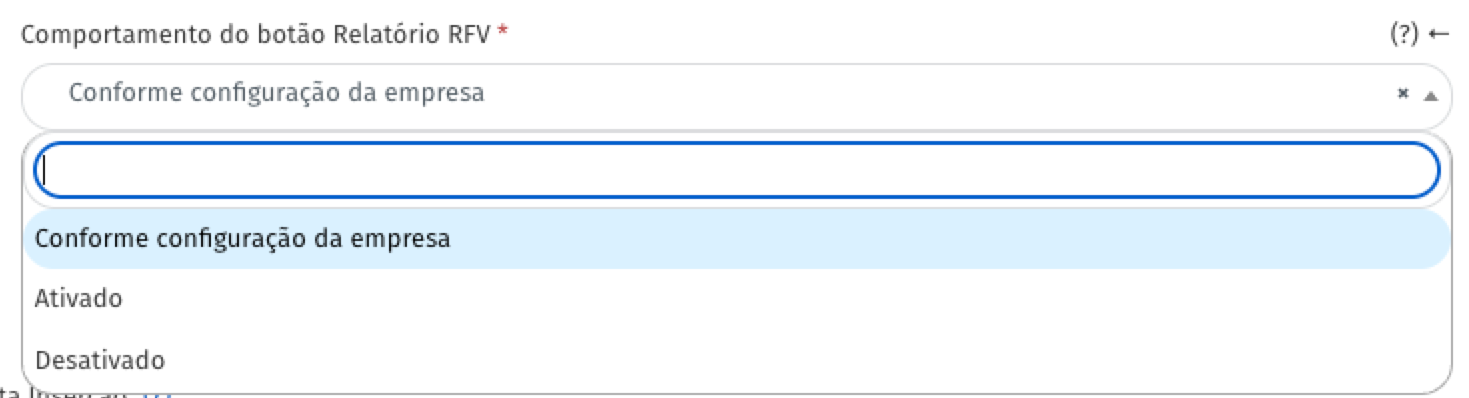
The seller options have the following precedence:
| Seller option | Result |
|---|---|
| According to company settings | Uses the company setting. |
| Enabled | Shows the report for the seller, even if it is disabled for the company. |
| Disabled | Hides the report for the seller, even if it is enabled for the company. |
After changing the setting, complete application synchronization so that the button is updated.
Access and query the report
Section titled “Access and query the report”In the application, open Home > RFV Report. The button is only displayed when the user’s effective setting is enabled.
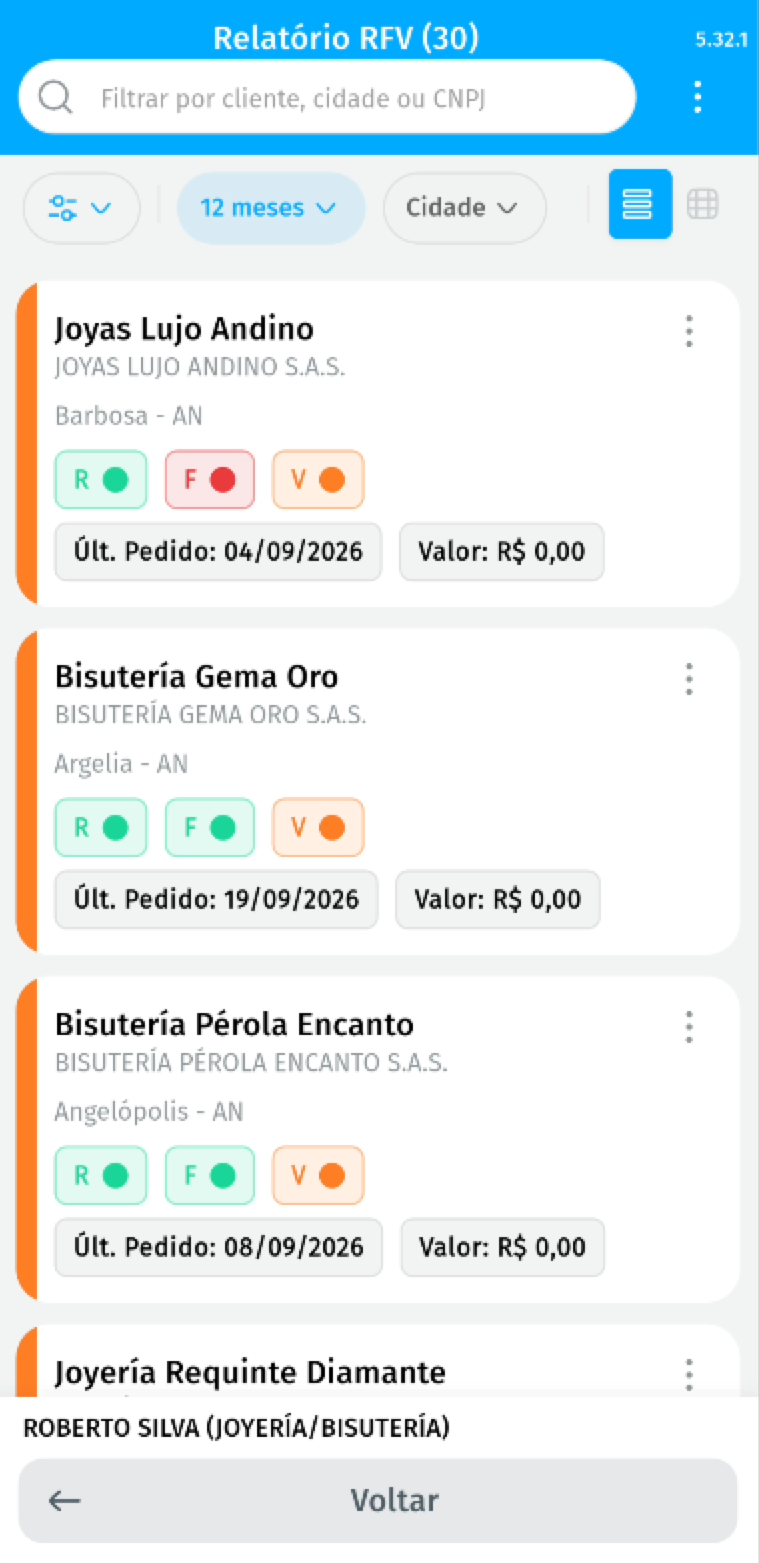
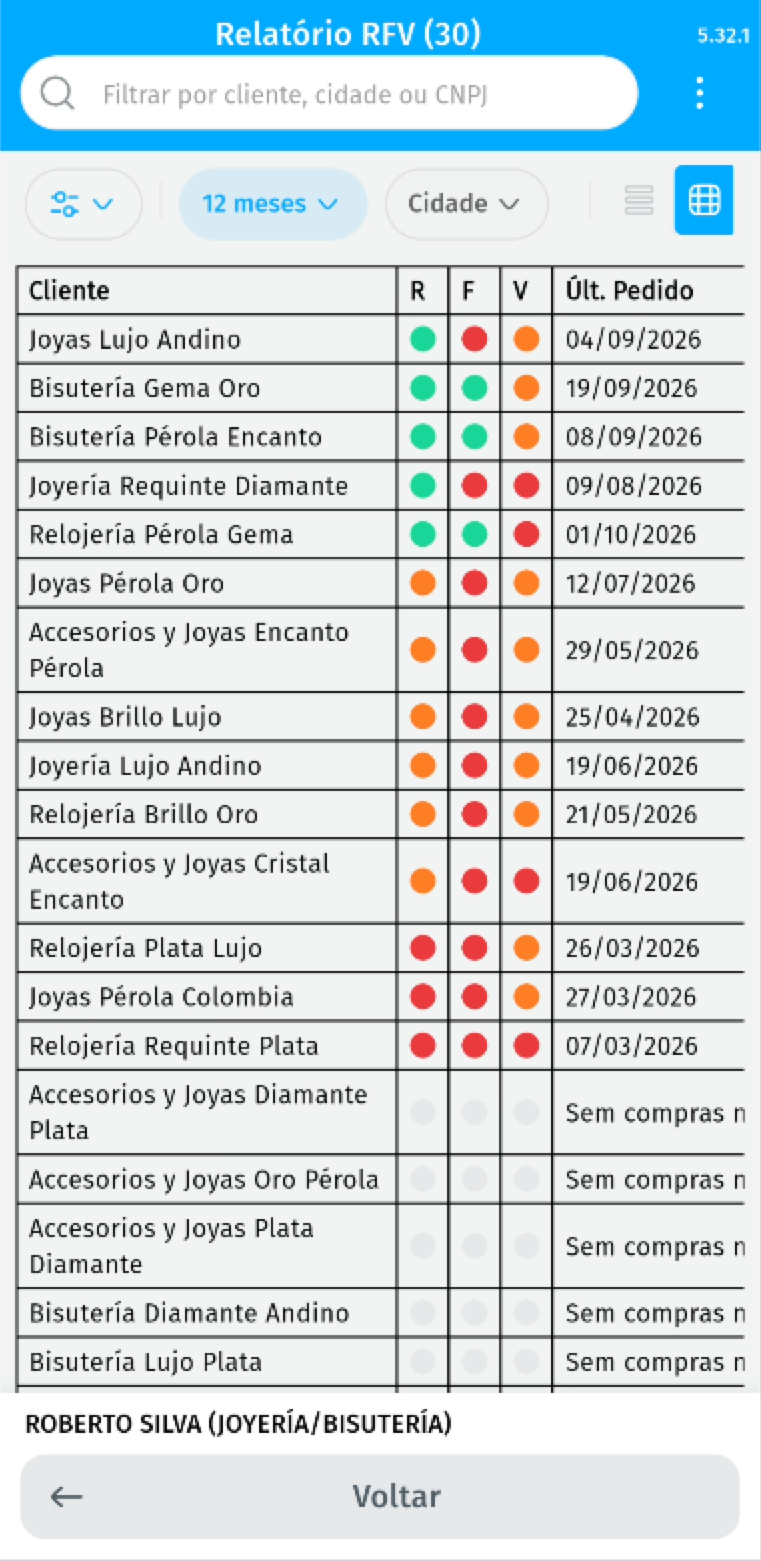
On this screen, you can:
- Search for a customer by name or other available search information.
- Filter by city, neighborhood, and Recency, Frequency, and Value levels.
- Switch between list and table views.
- Open Configure period to define the number of months analyzed and the RFV classification limits.
Interpret the results
Section titled “Interpret the results”In addition to the R, F, and V indicators, the list can show the latest order and its value. Use this information along with the filters to identify customers who need renewed contact or have good relationship potential.
When the manager selects a seller in the application, the query considers the selected seller.
Frequently asked questions
Section titled “Frequently asked questions”The RFV Report button does not appear on Home. What should I check?
Section titled “The RFV Report button does not appear on Home. What should I check?”Confirm the company setting and the seller’s individual setting. If the seller is set to According to company settings, the company setting is used. Then synchronize the application again.
Why does a customer appear with no purchases in the period?
Section titled “Why does a customer appear with no purchases in the period?”The customer did not place an order in the selected month interval. Change the query period if you need to analyze a longer history.
Why did an indicator color change?
Section titled “Why did an indicator color change?”Colors depend on the limits defined in Configure period. When you adjust the period or the Recency, Frequency, and Value limits, the classification can change.
Why is the offline result different from the online result?
Section titled “Why is the offline result different from the online result?”Offline queries use the history available on the device. Online queries use the data available on the server. Compare the same settings and synchronize the application before assessing the difference.
Related articles
Section titled “Related articles”- How to register customers in Demander: see the data that makes up the customer record and purchase history.
- Opportunities module: identify sales opportunities and take commercial actions in the application.