

Credit limit
Available at:

This article aims to explain the concept and use of the credit limit in Demander.
Definition
Section titled “Definition”The credit limit allows financial control when issuing orders.
It can be evaluated according to:
- Order type
- Order status
- Payment condition
- Payment method
Each of these records has a field to indicate whether the credit limit should be considered.
For the credit limit to be validated in an order, all related records (order type, order status, payment condition and payment method) must have the “Consides credit limit” field activated.
Furthermore, it is necessary to define the credit limit value for the customer (Financial Customer).
How to configure
Section titled “How to configure”Go to Company Settings > Additional Settings, where you will find two options related to the credit limit:
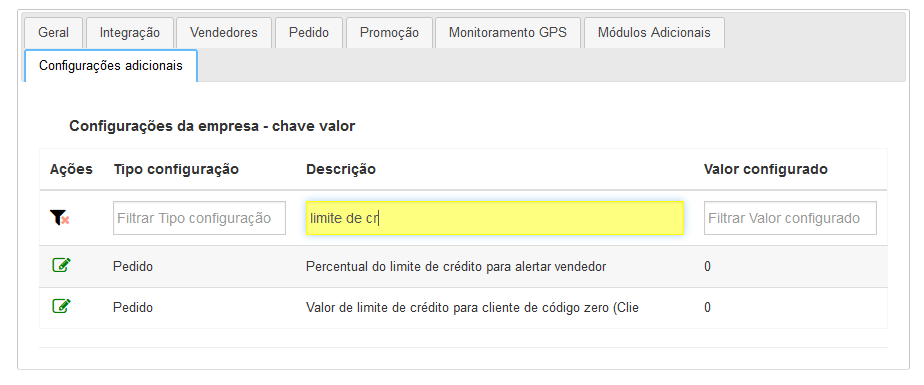
- Percentage of credit limit to alert seller: When placing an order, if the customer has already exceeded the defined percentage, the system will alert the representative. With this setting active, credit limit control is enabled.
- Credit limit value for customer with code zero (new customer): Defines the default credit limit for new customers.
Warning and block
Section titled “Warning and block”The control turns on when Percentual do limite de crédito para alertar vendedor is greater than zero.
While the customer is still inside the limit, Demander only warns and the order can be saved.
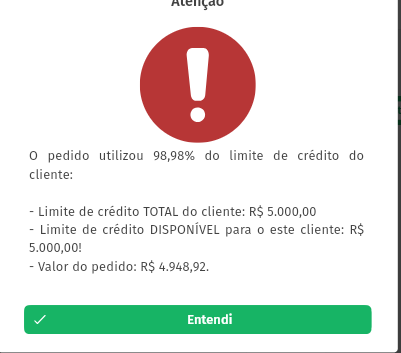
- On Demander Web, the warning appears when usage reaches the percentage (equal or above). The message ends with “Isto é só um aviso!”.
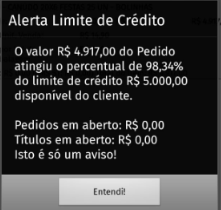
- On the app, the warning appears when usage goes over the percentage.
When the open amount goes over the customer’s limit, the order is not saved.
- On Demander Web, the message is “O limite de crédito do cliente que é de R$ … foi atingido.”
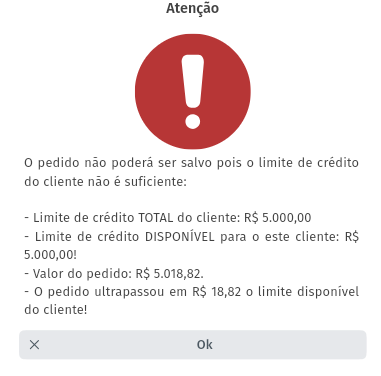
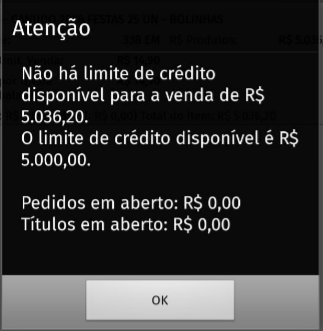
- On the app, the message starts with “O pedido não poderá ser salvo pois o limite de crédito do cliente não é suficiente”.
There is no option that lets the order go over the limit and only warn.
What the Consider credit limit field does
Section titled “What the Consider credit limit field does”The field exists on the order type, on the order status, on the payment term and on the payment method.
On the app, the current order is validated only if the type, the term and the method consider the limit. If one of those three does not consider it, this order does not generate a warning or a block. The current order status is not part of that decision.
On Demander Web, if the type, the term, the method or the current order status does not consider the limit, this order’s amount does not enter the calculation. Orders and titles that already consume limit stay in the calculation. If that sum already went over the limit, Demander Web still blocks saving.
Orders already saved enter the sum when the type considers the limit and the term, the method and the status also consider it, or when term, method or status are empty. On the app, an order with an empty type also enters.
On the app, a customer limit of zero or empty does not validate the order. On Demander Web, an empty limit counts as zero: with the control on and an open amount, the order is not saved.
Integration
Section titled “Integration”To activate the functionality via integration, see the tables below:
- Table 10 - Order Status Types
- Table 04 - Payment Conditions
- Table 06 - Payment Methods
- Table 18 - Customers
Order type has no integration, configuration must be done directly in Demander Web, just access the Order Types. screen
How available credit is calculated
Section titled “How available credit is calculated”Available credit is the customer’s limit minus what is still open.
This includes:
- orders that are not canceled and still count toward the limit
- active, unpaid receivables, including late fees and interest
An order is included when the order type counts toward the limit and the payment term, payment method, and status also count. If the term, method, or status is empty, the order is included too.
Example:
| Item | Amount |
|---|---|
| Customer limit | R$ 10,000.00 |
| Active, unpaid receivables | R$ 3,000.00 |
| Orders that still count toward the limit | R$ 4,000.00 |
| Available credit | R$ 3,000.00 |
The math is 10,000 − 3,000 − 4,000 = 3,000. Someone who looks only at receivables expects R$ 7,000.00.
Available credit is lower than expected
Section titled “Available credit is lower than expected”The math is not only the limit minus the receivables. Orders that still count toward the limit are subtracted too.
This shows up when the order was already invoiced in the ERP. The receivable was created, but the order in Demander still has a status that counts toward the limit. The same amount is counted twice: once on the order and once on the receivable.
To find those orders, open the customer’s orders and check the status. A status that counts toward the limit, or an order with no status, still consumes credit. Move the order to a status that does not count, as described in How to stop validating the credit limit.
Where the salesperson sees the limit
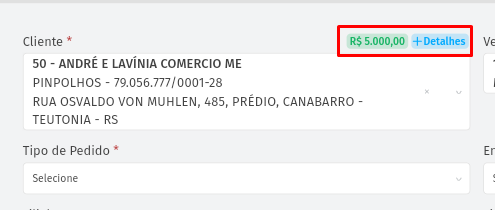
Section titled “Where the salesperson sees the limit”On the order screen, the available amount appears next to the customer.
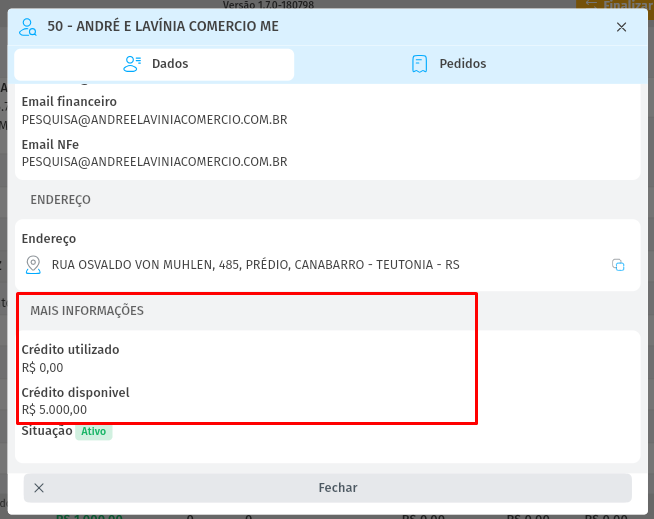
- In Demander Web, the amount is shown in green beside the customer. +Details shows credit used and available credit.
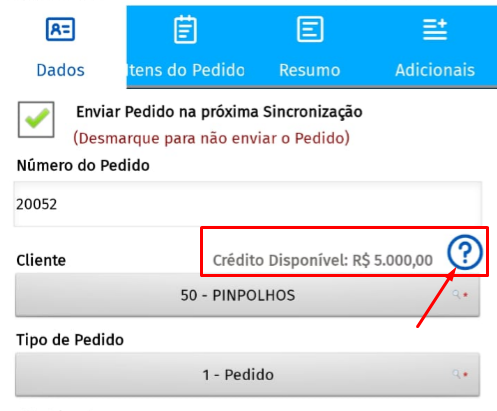
- In the app, on the Data tab, the Available credit line sits next to the customer.
These screens show the amount. They do not list order by order. To see what is still consuming the limit, check the customer’s orders and the open receivables.
Validation
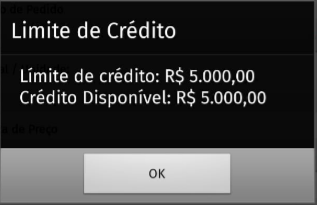
Section titled “Validation”On both Demander Web and Demander mobile, there will be informative or restrictive alerts. The images below show the available limit and the warning and block messages.
- Demander Web
- To check available limit
- Message that appears to warn the seller that the limit is close.
- Message that appears when exceeding the limit
- Demander mobile
- To check available limit
- To check available limit
- Message that appears to warn the seller that the limit is close.
- Message that appears when exceeding the limit
How to stop validating the credit limit
Section titled “How to stop validating the credit limit”For an order to stop consuming the credit limit and free up the balance for new orders, it must have a status that does not consider the credit limit.
However, when activating this functionality, all orders — including old ones — that have a status that validates the credit limit (or that have no status configured, but with the other fields active) will have an impact on the limit calculation.
Therefore, it is essential to ensure that the integration of the status of old orders (especially those already invoiced) is updated in Demander. This avoids undue blocking due to limit consumption that should no longer be considered.
The status update is done through Table 22 – Order Status Update.
Financial Securities
Section titled “Financial Securities”Financial securities are also considered when calculating the customer’s credit limit. They only stop impacting the limit after they are paid off or inactive in Demander.
The integration of securities can be done through Table 19 – Financial Securities
Title paid in part
Section titled “Title paid in part”The limit adds, for each active and not settled title, the amount stored on the title plus the fine and the interest. The sum is not split by salesperson.
A partial payment does not reduce that sum. The amount already received does not enter the calculation. The title leaves the limit when it is settled or inactive.