

How to report a problem and record the screen
Use the Help Center to send reports and suggestions to support with text, video or both. You can also record a demonstration to train your team, explain a process or share a tip.
Open the Help Center
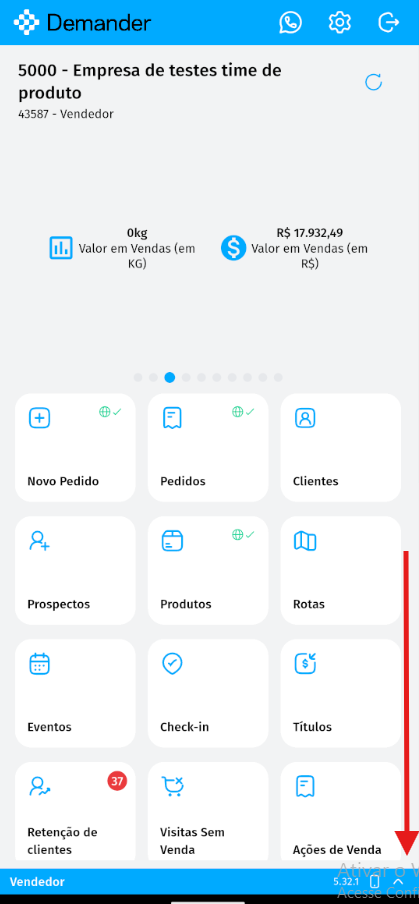
Section titled “Open the Help Center”Tap the help button in the lower right corner of the app, marked by the arrow.
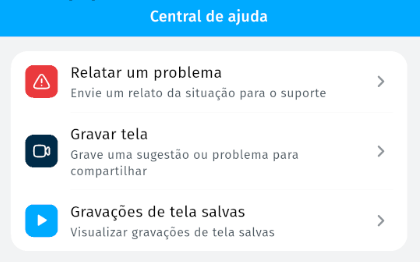
In the Help Center, choose Report a problem, Record screen or Saved screen recordings.
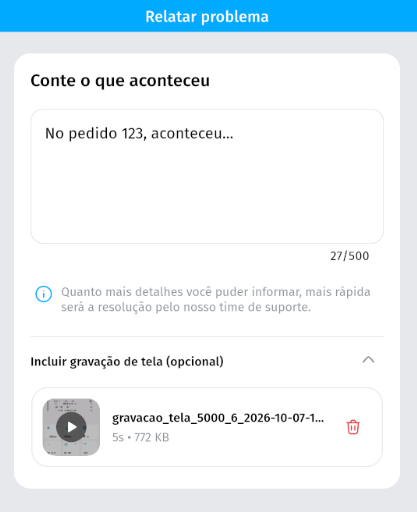
Send a report
Section titled “Send a report”- Open the Help Center from the app help button.
- Tap Report a problem.
- Describe what happened in up to 500 characters. If available, enter a phone number for a callback — it is optional.
- To include a video, open Attach a screen recording (optional) and follow the steps below.
- Tap Send report and wait for confirmation. You need to be connected to the internet.
Example: “On order 12345, I changed the quantity from 2 to 5. When I opened the order again, it was back to 2.”
Record the screen
Section titled “Record the screen”- Tap the record button and allow the microphone and screen capture.
- Show in the app what you want to present: a problem, a suggestion or a step-by-step.
- Tap Finish recording or the floating stop button. Recording stops automatically after 3 minutes.
- Review the attached video and tap Send report.
On iOS, the recording captures the app itself. You do not have to narrate the video.
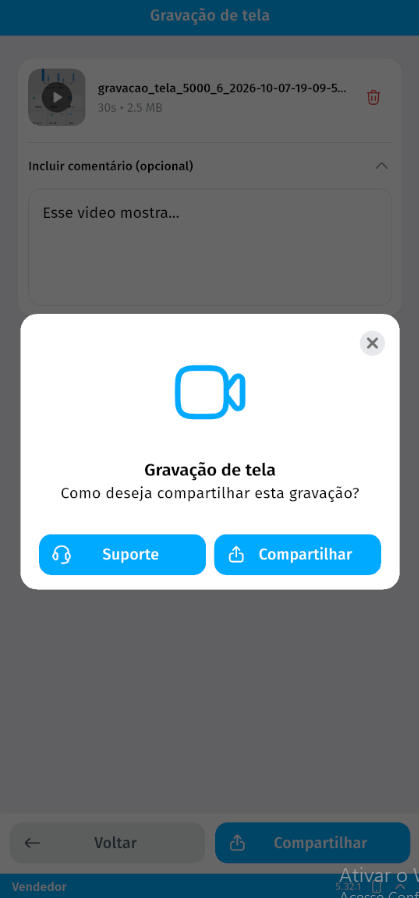
To record before you write, use Help Center → Record screen. When you finish, tap Share → Support to send it to Demander or Share to choose another app.
Use a video you already recorded
Section titled “Use a video you already recorded”In the report, open Attach a screen recording (optional) → Use a saved recording and choose the video. This option appears when there are local recordings and no video is attached.
The report accepts one video at a time. Removing the attachment does not delete the saved recording.
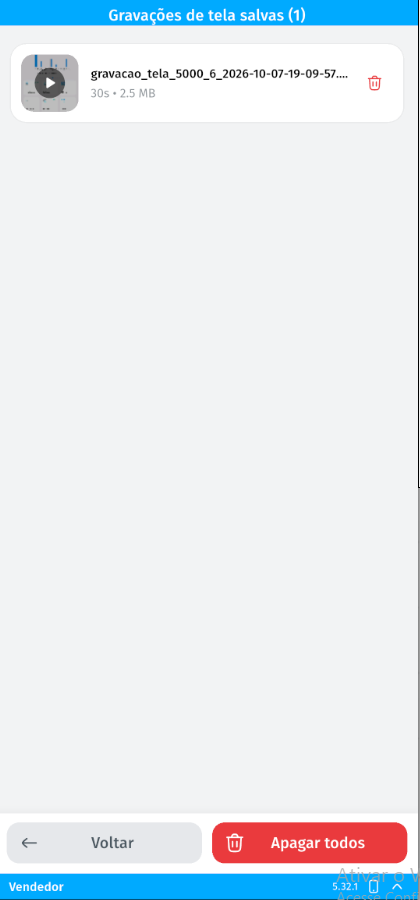
To view, share or delete the videos, open Help Center → Saved screen recordings. There is a cleanup routine for videos older than 7 days; keep the ones you need to preserve.
If sending fails
Section titled “If sending fails”The text and the video stay in the report. Check the connection and try again.
When you leave, the app asks you to confirm discarding the content. The draft is not recovered after you close the app.
Frequently asked questions
Section titled “Frequently asked questions”Can I use the recording for training and suggestions?
Section titled “Can I use the recording for training and suggestions?”Yes. Record a step-by-step and use Share to send it to your team through the app you prefer. To forward a suggestion to Demander, use Support or Send report.
Do I need to record a video to send a report?
Section titled “Do I need to record a video to send a report?”No. You can send text only. You can also send only a video or combine both.
Do I need to talk during the recording?
Section titled “Do I need to talk during the recording?”No, but you must allow the microphone to start recording. You can explain the situation in the text field.
Can I record for more than three minutes?
Section titled “Can I record for more than three minutes?”Each video is limited to 3 minutes. For a longer training, split the content into short videos and share each one with the team.
Does removing the video from the report delete the recording?
Section titled “Does removing the video from the report delete the recording?”No. The file stays in Saved screen recordings until it is deleted or removed by the automatic cleanup.
Does sharing a video also send it to support?
Section titled “Does sharing a video also send it to support?”Only if you choose Support. If you choose Share, finish sending in the app and to the recipient you want.
I denied a permission. How do I continue?
Section titled “I denied a permission. How do I continue?”Allow the microphone in the device settings and try again. When the system asks for screen capture, allow it. You can still send a written report.
The record option does not appear. What should I do?
Section titled “The record option does not appear. What should I do?”Check whether your version and the company settings allow recording. In the browser, the feature also depends on the Web update and on screen-capture support.
Availability
Section titled “Availability”The options depend on the app version and the company settings. The first deliveries for Android and iOS are waiting to be published.
Recording in the browser and the optional phone number are part of an update in development. When it is available, allow capture and the microphone in the browser, choose the screen, window or tab and follow the same flow. Videos stay saved in that browser and can be removed when you clear the site data.
Related links
Section titled “Related links”-
Help center — learn about maintenance and backup tools.
-
Clear the app database — see the precautions and steps for reloading local data.
-
Support and service policy — see the channels, hours and service rules.
-
AIrton — support assistant — ask questions through automated service.
-
Recovery of unsynced orders — another help option available in the app.