

Seller Registration
In Demander Web, you can register new sellers and edit existing records. The seller registration centralizes all configuration settings for mobile app access, order numbering ranges, authorized price lists, branches, and commercial rules.
Access Path
Section titled “Access Path”In Demander Web, navigate to:
Registrations > Sellers
- To register a new seller, click New.
- To edit an existing record, locate the seller in the list and click Edit.
To save successfully, all mandatory fields (marked with an asterisk *) must be filled in.
🗂 Data Tab
Section titled “🗂 Data Tab”This tab defines the basic identification details and system credentials for the seller.
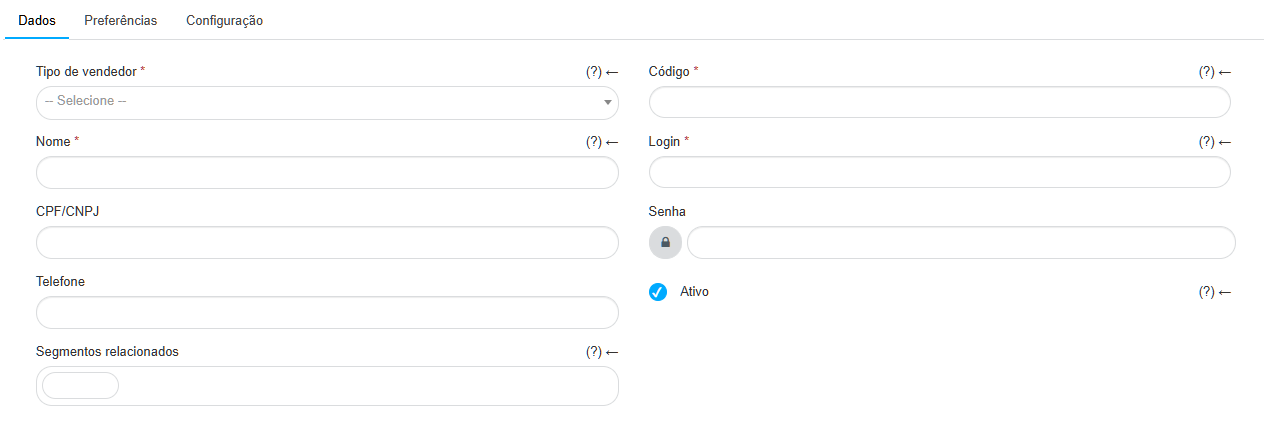
- Code*: Unique seller identifier. For companies integrated with an ERP, this must match the code in your management software exactly. Code duplicates are not permitted.
- Name*: Full name displayed in the mobile app, Demander Web, customer records, and orders.
- Login*: Email address used as the username for both the mobile app and Demander Web. It cannot be duplicated across users in the system.
- Password*: Access password for the platforms. Must meet all minimum security standards.
- Seller type*: Defines the role of the professional:
- Seller: Operates in the field issuing orders and visiting customers.
- Manager without team: Holds managerial privileges and views data for all salespeople not assigned to a specific sales team.
- Manager with team: Exclusively views data and orders for salespeople linked to their team (learn more in Registering Sales Teams).
- Active: Determines whether the seller can access the system. Inactive sellers cannot sync the app or create new orders, and do not appear in managerial operational lists.
- CPF/CNPJ: Tax registration document of the seller.
- Phone: Contact phone number.
- Related segments: Customer market segments associated with the seller.
⚙️ Preferences Tab
Section titled “⚙️ Preferences Tab”Settings regarding order numbering sequences and authorized hardware devices.

- Initial order range: The starting number for the order sequence generated by the seller in the app.
- In Company Settings (Seller tab), there is an option “Use order number range by seller”:
- If checked: Each seller must have an exclusive range, and number overlaps between different salespeople are not allowed.
- If unchecked: Numbering follows an independent sequential counter per seller, allowing identical numbers between distinct salespeople.
- In Company Settings (Seller tab), there is an option “Use order number range by seller”:
- Current order range: Indicates the next order number that will be issued by the app.
- Final order range: Sets the maximum order number ceiling for the seller.
- When this limit is reached, issuing new orders is blocked until an updated range is set in Demander Web and synchronized by the seller in the app.
- IMEI: If specified, restricts app access exclusively to the mobile device with this IMEI.
- Flex Balance: Available balance to be applied as discounts by the seller, according to company guidelines.
🧩 Configuration and Security Tab
Section titled “🧩 Configuration and Security Tab”Defines permissions for price lists, branches, and mobile app behavior.
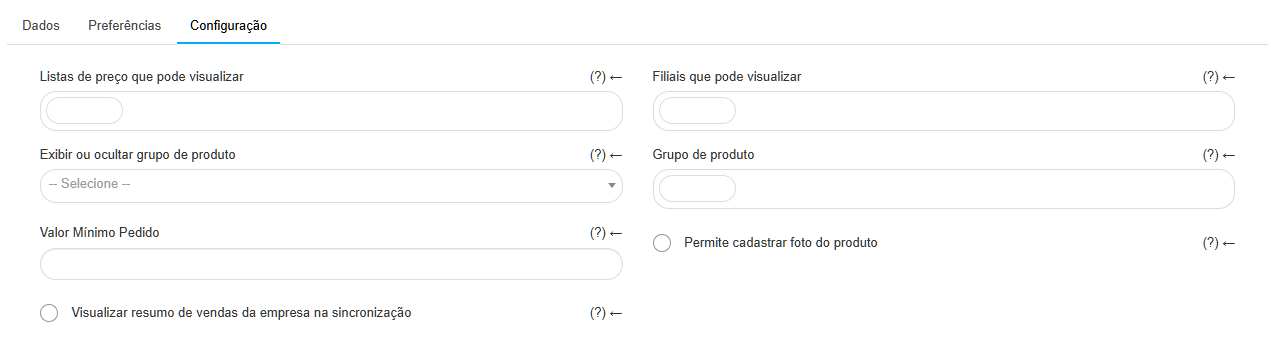
- Price lists they can view: Defines which price tables the seller can use in orders. If left blank, all registered price lists will be visible.
- Branches they can view: Sets which company branches the seller can access. If left blank, all registered branches will be available.
- Product group: Allows linking specific product groups to the seller.
- Show or hide product group: Controls group visibility in the Virtual Store.
- Allow registering product photo: Enables uploading product pictures via Demander Web.
- View company sales summary in sync:
- Available only on Demander Android and for users with the Manager role.
- Displays total sales metrics on the synchronization screen (today, current month, previous month), calculated from Demander orders.

- Allows you to edit customers: Grants permission to edit customer master data from both the app and Demander Web. Must also be enabled in company-wide settings.
- Allows you to register customers: Allows creating new customers directly from the mobile app.
- Thermal printing type*: Sets printer output formatting for Bluetooth portable printers:
- According to Company Configuration: Follows the company’s default setting.
- Activate the new printing model: Sends raw text line-by-line; special characters and accents are stripped or converted.
- Keep the old printing model: Renders the receipt as an image; preserves accents and graphics.
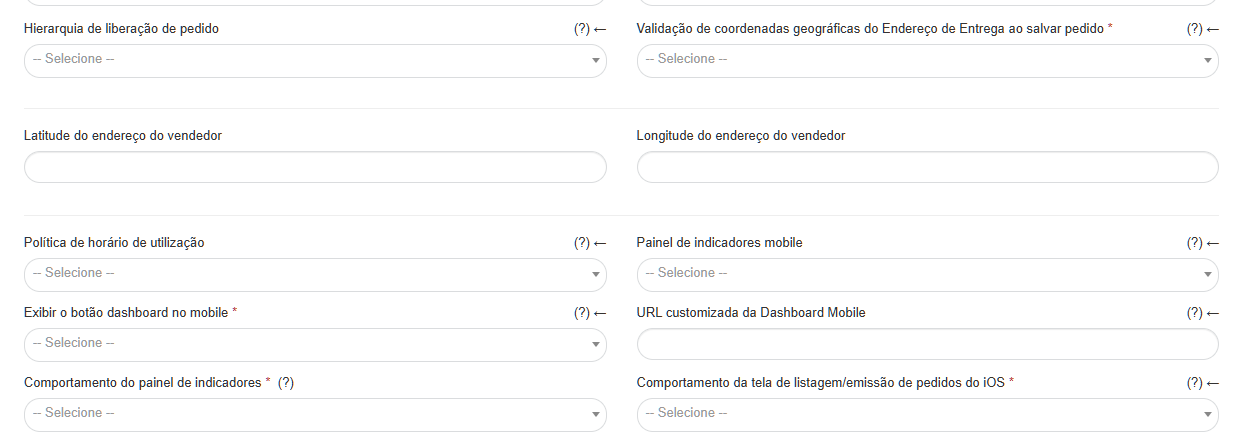
- Validation of geographic coordinates when saving order*: Requires confirming device location when saving an order.
- Show Dashboard button on mobile*: Adds a direct dashboard shortcut on the mobile app home screen.
- Indicator panel behavior*: Defines how metric widgets behave in the app.
- Order listing/issuance screen behavior on iOS*: Sets the order screen engine on Apple devices.
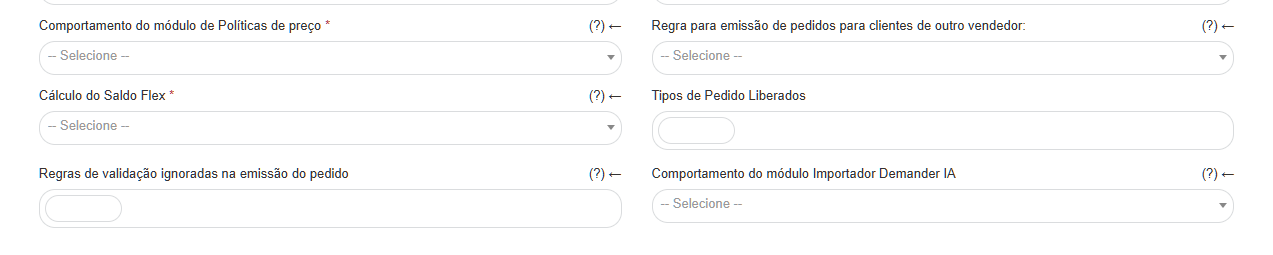
- Pricing Policies module behavior*: Determines whether standard rules apply, if the module is disabled, or if manual rule adjustments are allowed.
- Flex Balance Calculation*: Configures how flex discounts are computed (company default, enabled, or disabled).
Commercial Rules and Permissions
Section titled “Commercial Rules and Permissions”Customers and Routes
Section titled “Customers and Routes”- Enable creating and editing routes via the mobile app.
- Allow associating or reordering customers within routes.
- Allow editing customer details and creating new customer records.
Orders
Section titled “Orders”- Capture geographic position: Captures GPS coordinates at the exact moment the order is saved.
- Minimum amount: Enforces a minimum total order value for the seller.
- Released order types: Selects which order types the seller can use. If none is checked, all are available.
- Release hierarchy: Defines designated approvers if order discounts exceed limits or minimum margins are not reached.
Sales to Customers of Other Sellers
Section titled “Sales to Customers of Other Sellers”Controls whether the seller can create orders for customers assigned to other colleagues:
- Active only
- Active and inactive
- Inactive only
- Never
Visits and Events
Section titled “Visits and Events”- Check-in and Checkout: Defines whether check-in is mandatory and sets the allowable tolerance radius (in meters) from the customer’s coordinates.
- Check-in — days: Validity period or schedule rules for customer check-ins.
- GPS and Photos: Logs location and requires attaching photos when recording visits or events.
Ignored Validation Rules
Section titled “Ignored Validation Rules”Allows bypassing certain system checks for this specific seller:
- Minimum payment condition amount: Allows finalizing orders below the condition’s threshold.
- Quantity per package: Allows non-standard packaging multiples.
Checklist Before Saving
Section titled “Checklist Before Saving”Before finalizing the registration, verify that:
- Code, Name, Login, and Password are correct.
- Seller type (Seller or Manager) fits the team structure.
- The record is set to Active.
- Appropriate Price lists and Branches have been granted.
- Order ranges (initial, current, final) are properly filled and do not conflict with others.
Import via ERP Integration
Section titled “Import via ERP Integration”Integrated companies can automate seller registration and updates through file feeds or API: