

Billing Statement
Through the billing statement screen, the Partner can monitor their billing, with information from all associated Companies, as well as usage details for each Company.
It is also possible to consult the Billing Statement via API, see more at Partner API
Access profile
Section titled “Access profile”- To access the billing statement, you must have a user on Demander Web, who is of the Type“Partner” and who is in the User Group“Partner”.
- Each user is an email, and each different email that accesses will be counted towards the charge.
Module Release
Section titled “Module Release”- If the Partner already has Partner Type access, he or she can create other users who have access to the billing statement.
- If the Partner does not yet have a user, they must contact Support.
Billing statement information
Section titled “Billing statement information”- To access the module, search for billing statement in the Demander search field and click.
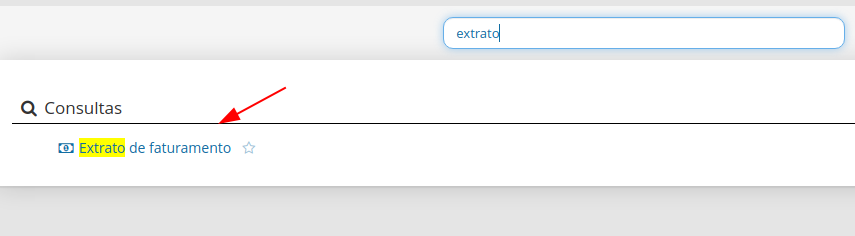
- A screen like this will be displayed.
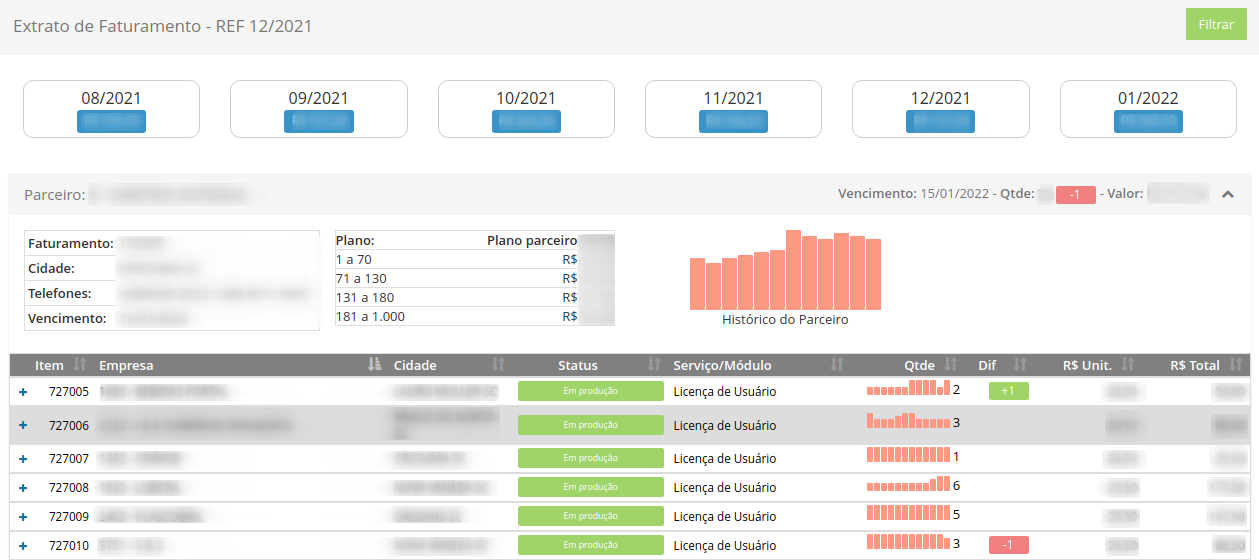
Now let’s detail each part.
- At the top of the screen, the last 6 months and their respective values (partner billing values) are shown.

- Below you can identify the name of the Partner, expiration date, quantity (User Licenses) and Value (Partner Billing). It is also possible to observe the Partner’s billing data and which plan they are on. Beside a graph that shows the Partner’s History, each bar shows a number of User Licenses and their evolution.

- Below you can see all the Companies associated with the partner. It is possible to see the name of the Company, City, its current status, the number of User Licenses that this Company has, the unit value of each license and the total value of each Company. By clicking on the + button, you can open a breakdown by Company.

- In this detail it is possible to identify the name of the Seller, the E-mail used, the current Status, the Number of authentications and the dates of the First and Last authentication in the month.
