

Product Observation Policy Concept
In this article, we will present the “Product Observation Policy” functionality, which allows companies to provide strategic information directly on the order screen, associated with each product and personalized by customer.
You will learn where this functionality appears, how data can be integrated via ERP, the format and frequency of updating information, as well as important details about its use to support salespeople’s business decisions.
Available at:


What you will find in this article:
- 1- What is the Product Observation Policy?
- 2- Benefits
- [3- How does it work?](#how-it works)
- 4- How to register product observation policies through Demander web?
- 5- How to view product observation policies?
- 6- How to integrate product observation policies?
- 7- How to exclude product observation policies through integration?
1- What is the Product Observation Policy?
The Product Observation Policy allows you to display personalized messages by customer and product when adding items to the order. These observations are used to provide strategic information to the seller at the time of sale, such as commercial guidance, operational alerts or relevant data based on the customer’s history.
The information can be updated periodically through integration with the ERP, ensuring that the data presented is always aligned with the needs and particularities of each client.
This policy is especially useful when communication needs to be contextualized by item and adapted to different customer profiles, reinforcing personalization in the commercial process.
2- Benefits
Using the Product Observation Policy brings several benefits to companies and commercial teams, such as:
- Display of specific messages by customer and product.
- Support the seller’s decision during the order.
- Reduction of errors with alerts and guidance.
- Automatic integration via ERP.
- Information always up to date.
- More personalized selling experience.
3- How does it work?
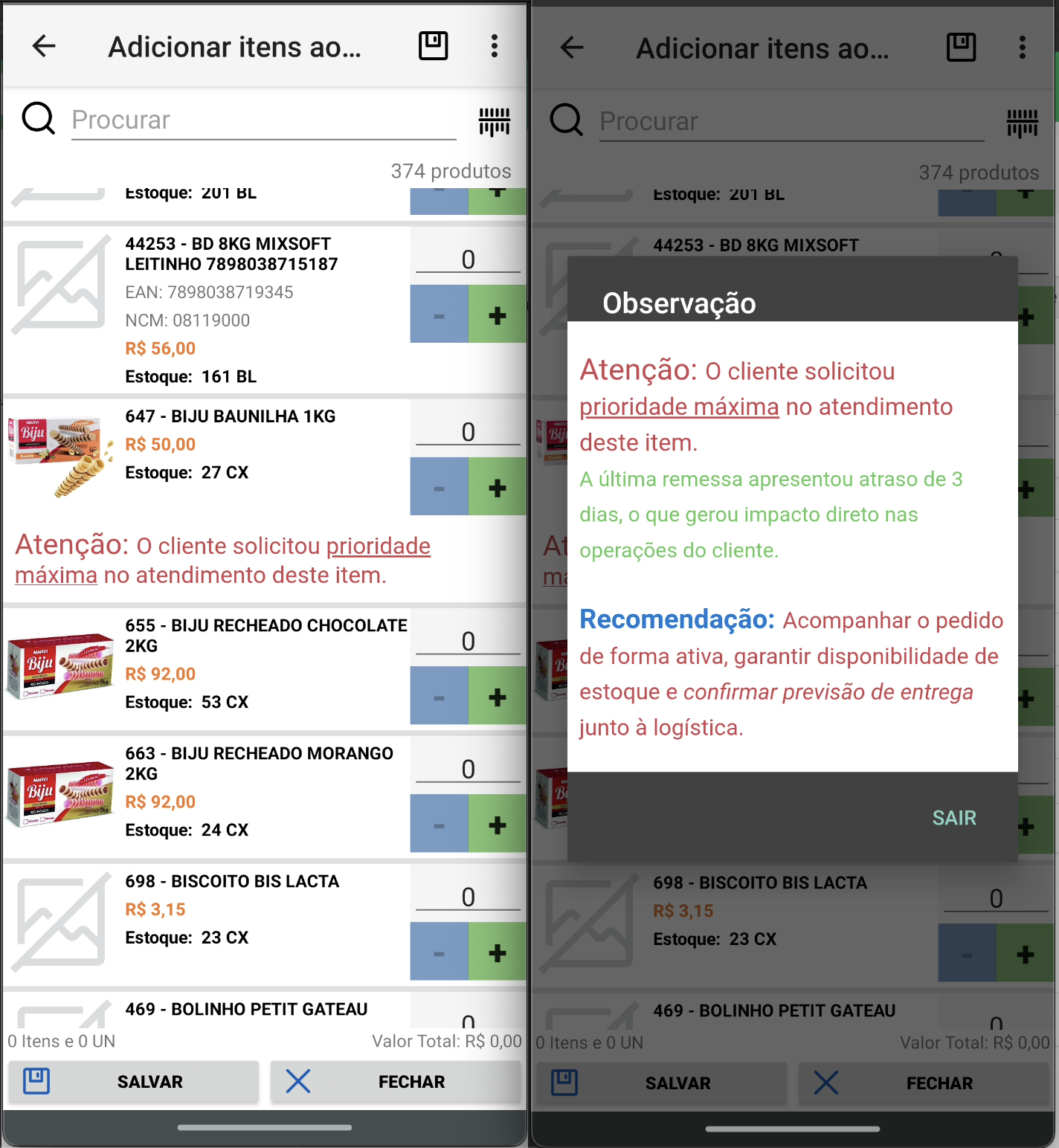
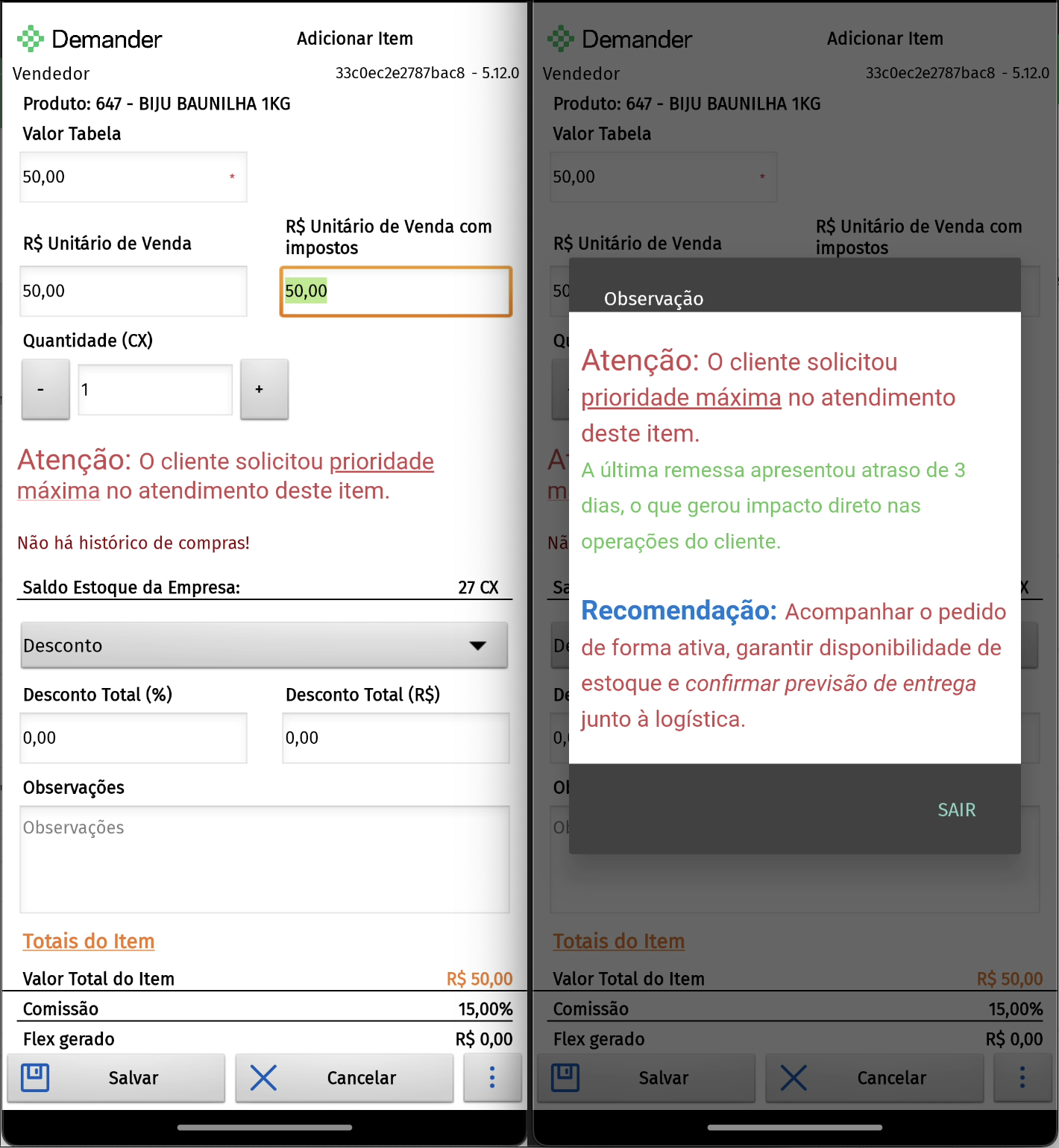
When viewing a product, the system checks whether there is an observation registered for the product customer. If it exists, part of the text is displayed and, upon clicking, the seller accesses the complete observation on a dedicated screen. Content may contain HTML and is rendered by the application.
4- How to register product observation policies through Demander web?
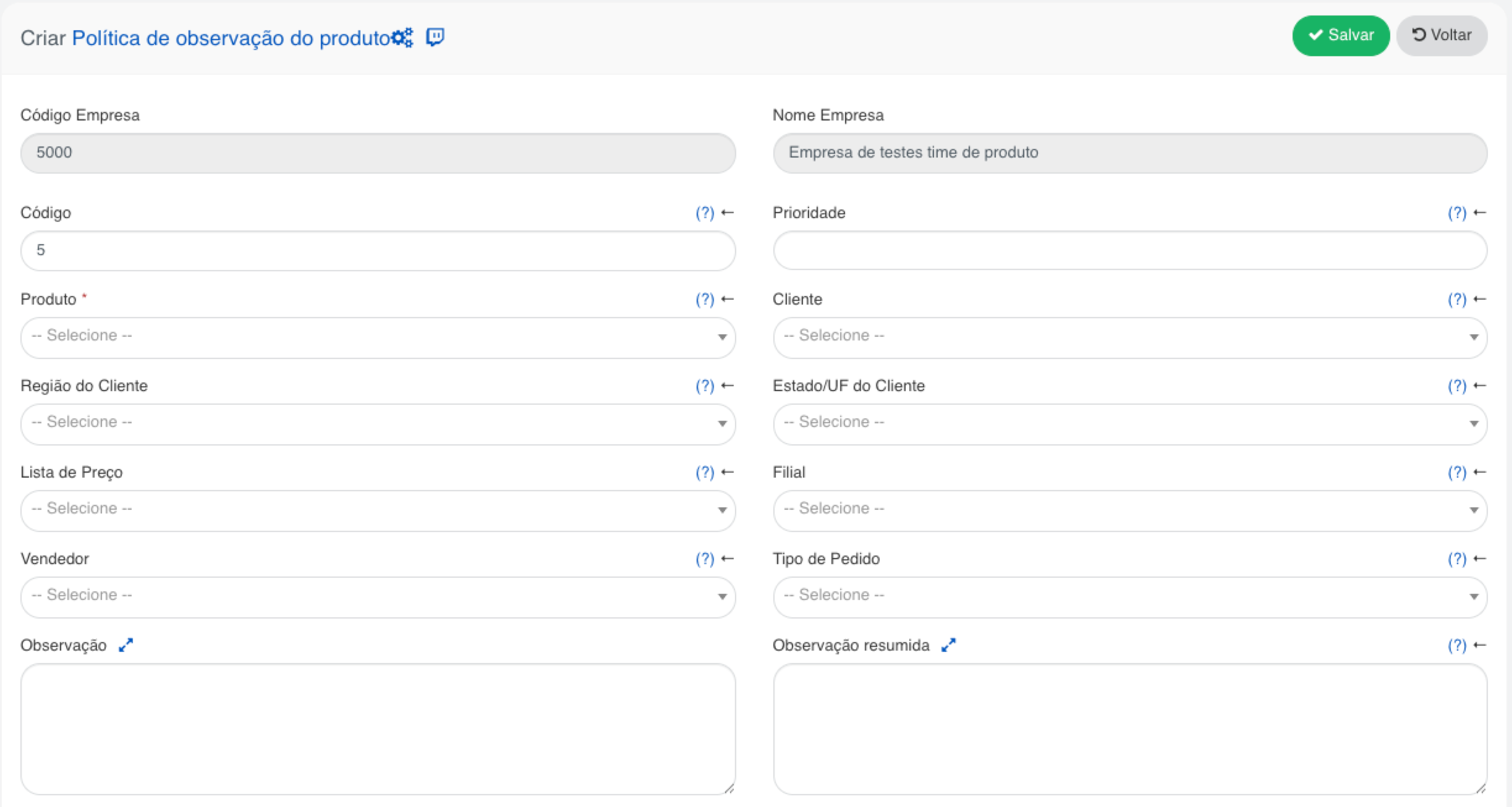
To register Product Observation Policies on Demander Web, the process is simple. Access the Product Observation Policies screen and click on the “New” button, located in the top right corner.
Then the screen shown in the image below will be displayed. Just define the product, the customer and the desired observation.
The code is automatically generated but can be changed manually if necessary.
5- How to view product observation policies?
When it is identified that a product has a note, part of the text will be displayed directly on the product. This area of the text is clickable and, when clicked, opens the full observation, as shown in the images below.
6- How to integrate product observation policies?
To integrate Product Observation Policy data with Demander, simply follow the layout of Table 240 - Product Observation Policy
7- How to exclude product observation policies via integration?
Just follow the layout of Table 403 - Exclusion of Product Observation Policy, entering the Product Observation Policy code.
Product Blocking by Seller and Affiliate