

Product Configurator Module
Available at:


This article aims to explain the concept and how to use the Product Configurator in Demander.
What is the Product Configurator?
Section titled “What is the Product Configurator?”The Demander has the functionality to configure products according to pre-established characteristics and options, resulting in a customized product according to the customer’s choices. The Product Configurator allows a configurable item to be assembled, validated and priced in real time, as shown below:
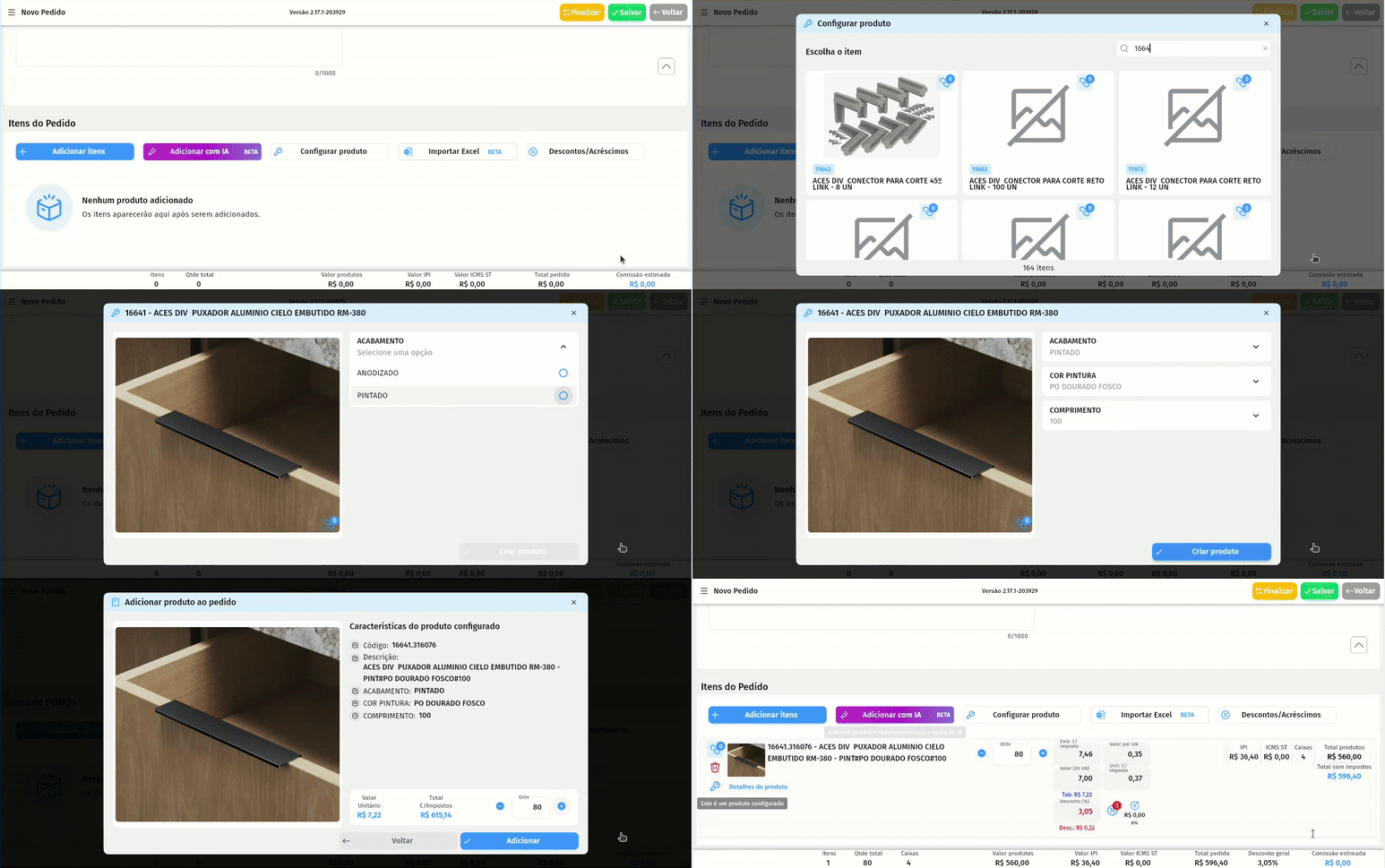
- Note: This is currently an exclusive module for Focco integrations.
In this module, some new terms are introduced to the Demander system, they are:
- Characteristic: The product characteristic concerns the customization to be made, for example: “COLOR”, “LENGTH”, “SERIAL NUMBER”, “LANGUAGE”, among others;
- Configurable Product: It is the base product capable of being customized;
- Configured Product: It is the product resulting from the configuration of the base product. Characterized by having a mask;
- Mask: Unique identifier of the combination of characteristics and their respective responses. Example:
Configurable product: | Configured Product (with mask): |
|
|

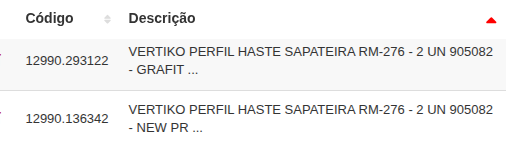
Explanation: Note that the product code is the same (12990), and the masks (293122 and 136342) are unique identifiers, generated by the ERP - according to the answers given to the characteristics - which is concatenated to the code to differentiate configured variations of the same base product.
How to configure a product?
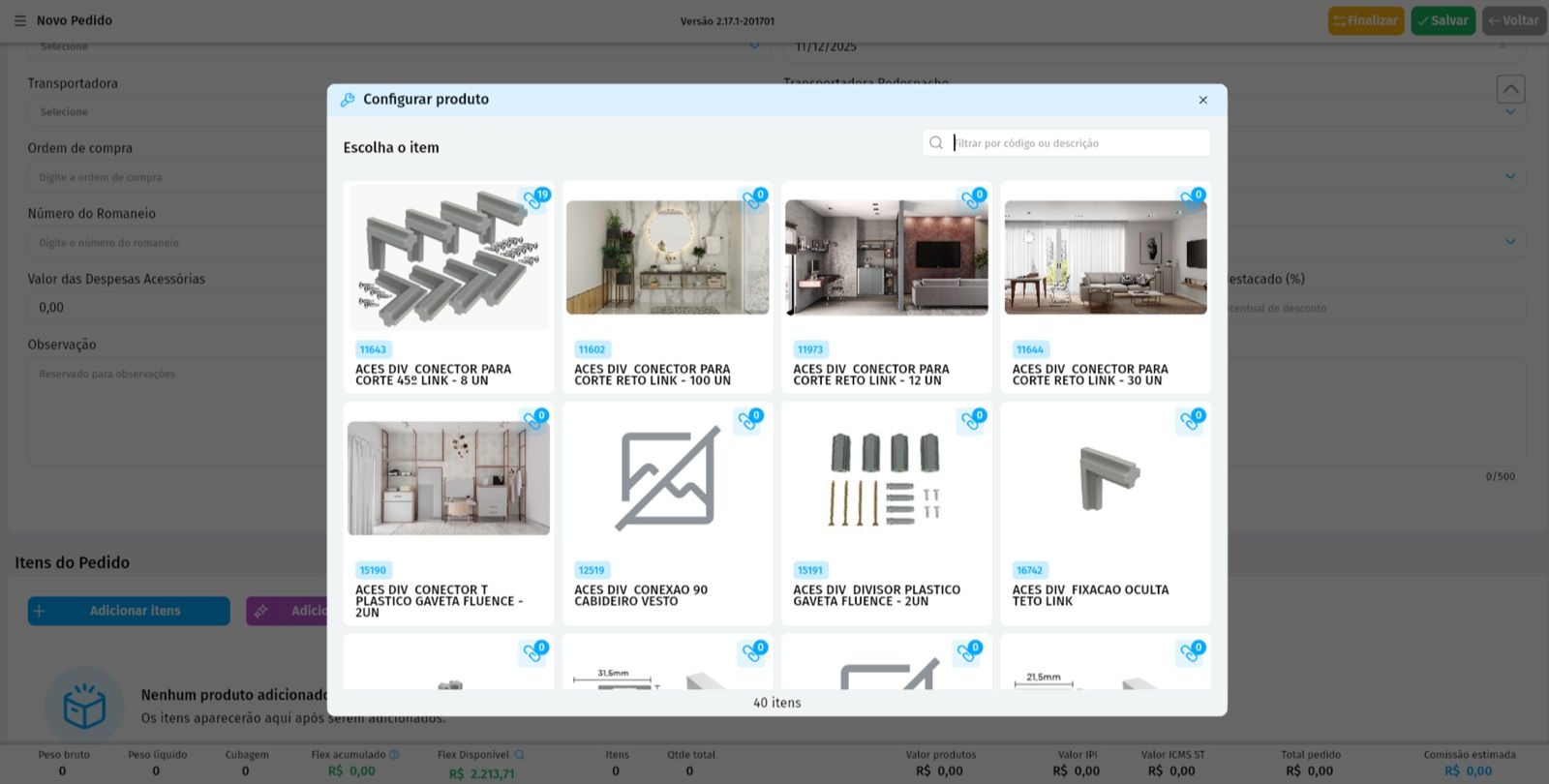
Section titled “How to configure a product?”When clicking on the “Configure Product” button, the user will be redirected to select a product they want to customize, as in the following image:
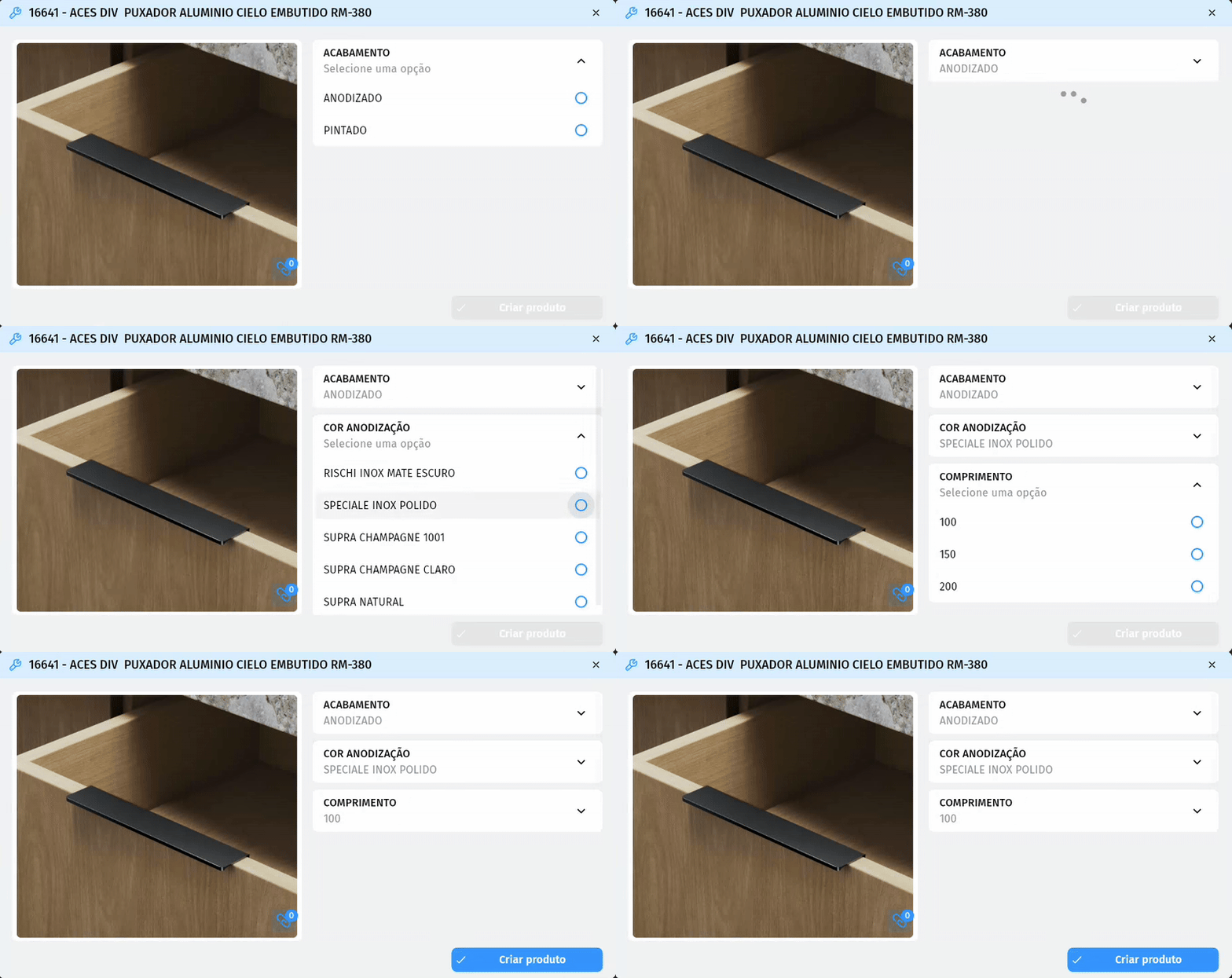
After the initial selection, the user will be directed to a page where the Features and their respective options are presented. Only one characteristic is displayed at a time; the rest are released as the user responds to the previous ones, as shown below:
After answering all the characteristics, the “Create product” button will be released to generate the Configured Product. A last page is displayed containing both the description of all Characteristics with their respective answers given during the configuration process, as well as the Unit Value and Total Value according to the desired quantity. Only at this stage can the item be added to the order. This behavior is shown below:
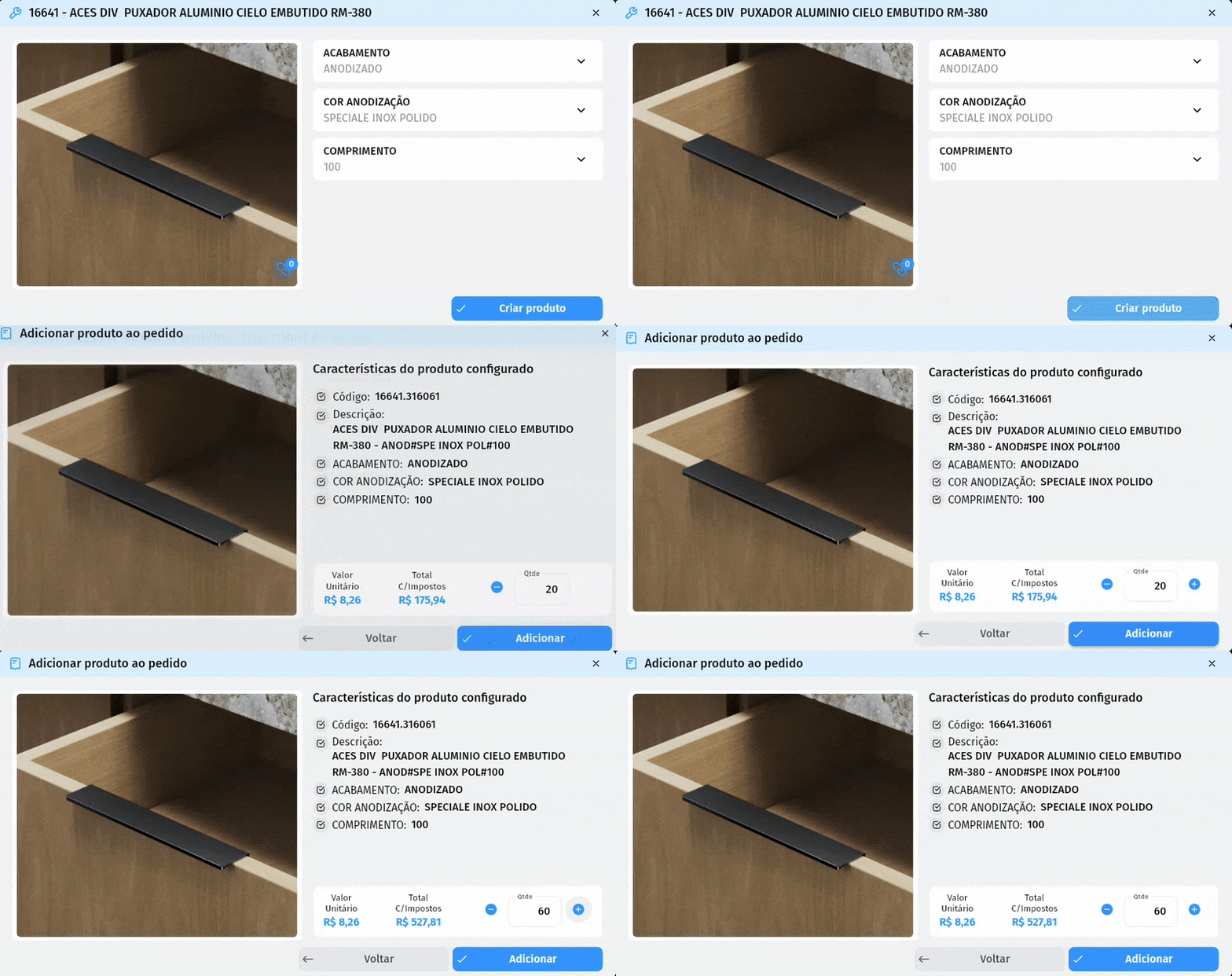
In short, the Product Configurator coordinates the customization experience: brings features and options according to rules pre-established by the ERP, validates responses in real time, creates the official mask and ensures that the product and price of this combination are in accordance with the current order.
How to enable the module?
Section titled “How to enable the module?”The configuration responsible for activating the module must only be enabled by an internal sector of the Demander - since integration adjustments are necessary for correct operation - therefore, contact support so that the request can be created.
Below are some adjustments that must be made for this module to function correctly.
Company Configuration
Section titled “Company Configuration”On the Company Settings → Additional Settings screen, it is mandatory to select:
- Enable Product Configurator Module (Focco)

With this configuration active, the Configure Product button will appear on the order screen.
The “Configure Product” button is only enabled when all of the following conditions are met:
- The order has a selected Customer;
- The order has a Seller selected;
- The order has a selected Order Type;
- The order has a selected Price List;
- The order has a selected Branch;
Button locked Button released 
However, this does not guarantee that products will be listed to be configured after clicking the button, as:
- Products may have a commercial product restriction policy (to do this, check Product Restriction Policy);
- Products can be associated with a specific Order Type (to do this, check Product by Order Type);
- Products do not have prices configured with the Price List selected in the order (to do so, check Product Prices);
- The product may be inactive (to do this, check Products);
- The customer has a price list that does not contain configured prices (to do this, check Price Lists);
- Products without a price and the company has configured “Only list products with a value greater than zero (R$0.00)” in Company Settings in the order tab;
- Product Type of products (coming from the ERP) may not be configured. The currently existing types are:
TYPE_NOT_CONFIGURABLE = 1;
CONFIGURABLE_TYPE = 2;
JA_CONFIGURADO_TYPE = 3;
Auxiliary configuration
Section titled “Auxiliary configuration”On the Company Settings → Additional Settings screen:
- Hide configured products from listings

When activated, configured products will not be displayed on the products screen or on the add items to order screen. They will only be visible in the configurator.
Note: This configuration can only be used when the Product Configurator Module is enabled.
Types of Features
Section titled “Types of Features”These are the types of answers to the questions. Currently, the Demander system supports the following types:
- LIST OF OPTIONS: List with more than two options; Only one can be selected;
- MULTIPLE SELECTION: It is a list of options but several can be selected;
- INTEGER: Integer input field - Not used, but supported;
- DECIMAL: Field for entering decimal numbers (allows commas) - Not used, but supported;
- FIXED OPTIONS: Only two options to choose from; Only one can be selected;
- TEXT: Character entry field;
Other Information
Section titled “Other Information”- Product Configurator works only on devices connected to the Internet, that is, only Online;
- There is the possibility of integrations with ERP APIs. At the moment, the configurator only works with integrations with Focco. To evaluate the compatibility of integrating with your ERP, contact support.