

Registering Cities
In Demander Web, it is possible to register, edit, delete, activate, and deactivate cities.
Registering a city has three mandatory fields: Code, Description, and UF (State). It is also possible to define whether the city will be Active or Inactive using the Active field.
To perform the registration, follow the path:
Registrations > Cities
Then, fill in the fields as needed:
- *Code: city identifier in your company. It can be the IBGE code or a custom code.
- *Description: name of the city, which will be displayed in records that have the City field.
- *UF: acronym of the state to which the city belongs.
- IBGE Code: municipality code from the IBGE database. It is not required. ZIP code (CEP) and CNPJ lookup use this field first to find the company city.
- Active: when unchecked, the city becomes inactive and cannot be used in customer registration.
* Required fields.
Generate IBGE cities
Section titled “Generate IBGE cities”It is also possible to automatically generate all cities according to the IBGE database, making it easier to fill out the registration.
To do this, on the city management screen:
- Click the options menu in the upper-left corner:

- Select the Copiar Cidades IBGE (Copy IBGE Cities) option:
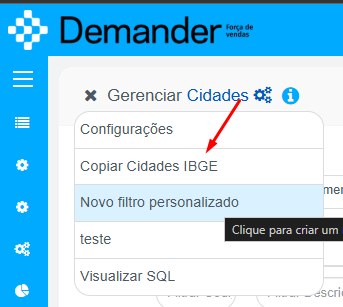
- On the confirmation screen, click Sim (Yes) to confirm copying the cities:
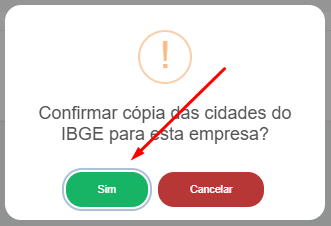
Each copied city receives the IBGE municipality code in Code and IBGE Code. Cities the company already has (same code) are not duplicated.
Import via integration
Section titled “Import via integration”If the company uses integration, cities can also be imported through Table 03 – Cities.
To check the layout and integration guidelines, access the article: