Segment Functionality
Available at:


This article aims to explain the concept and usability of the segment.
Definition
Section titled “Definition”Segments are a division of people belonging to your target audience or products into groups that have some characteristics in common. Example: Your company sells bread, your customers have different segments, Bakeries, Markets, Cafeterias. Each customer can have multiple segments. In products, the segment can be used in the same way.
How to register
Section titled “How to register”The registration of one or more segments can be done directly through Demander Web, simply access the “Segment” screen Clicking on the option

on the upper right side of the screen, will open the screen for a new entry.
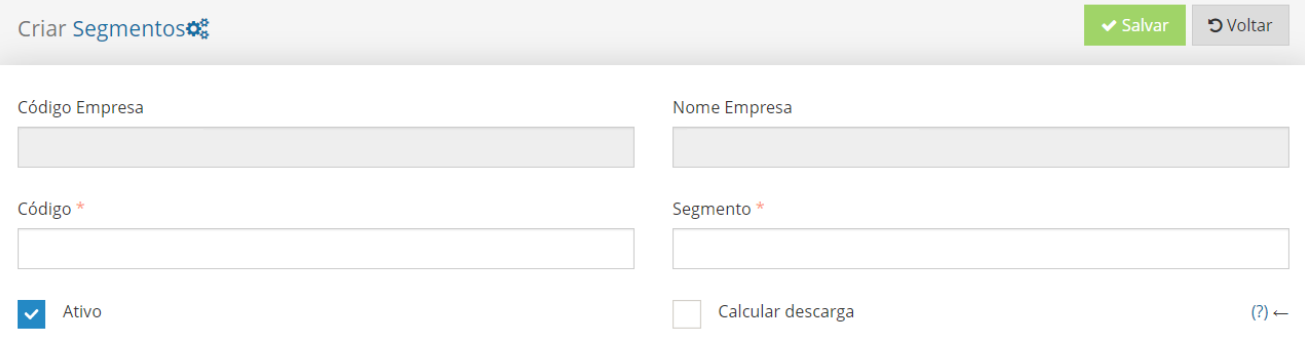
Code: Segment Identifier; Segment: Name of the Segment to be registered; Active: Inactive segments cannot be used; Calculate discharge: Defines whether the Demander will calculate the discharge value of the order, used in the “Discharge Value” functionality *Required fields
How to configure
Section titled “How to configure”In Company Settings > Additional Settings, we have 3

settings relating to the Segment, the first two of which are fundamental for using the functionality.
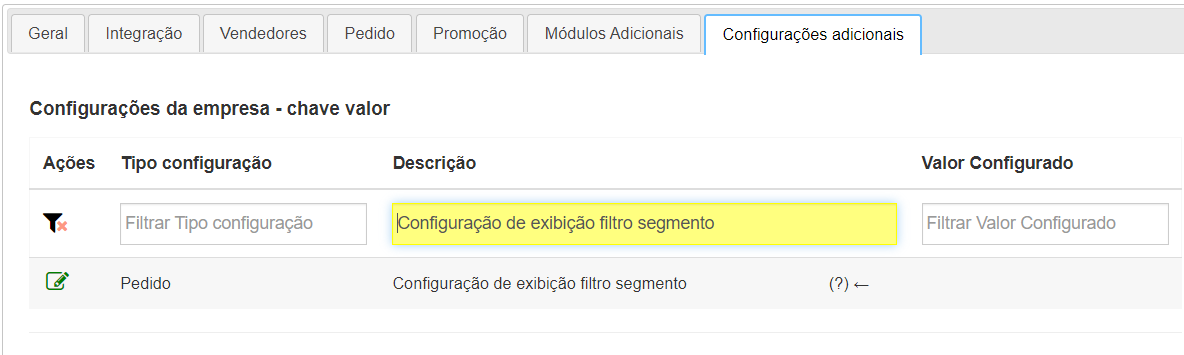
- **Segment filter display configuration:
-
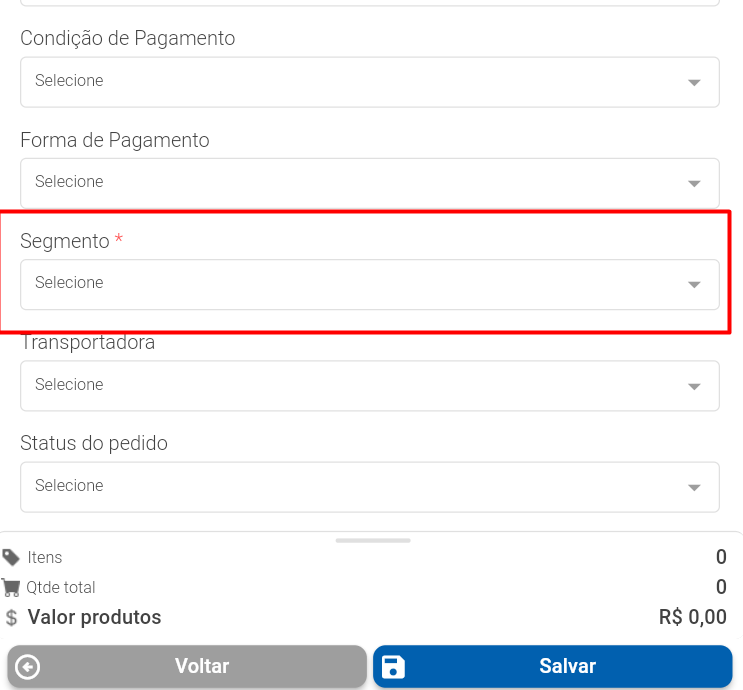
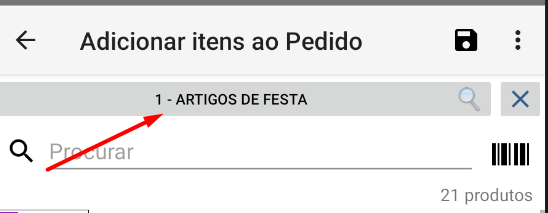
Demander Pattern: Does not show field or apply filter. Applies filter and does not show the field: Does not show the field but applies the filter, customer or seller segment, when there are no segments registered, all products are shown, when more than one segment is registered, all products within the configured segments are shown. Applies filter and shows the field: Applies the filter by customer or seller and shows the segment field within the order items screen, it is possible to change between the registered segments from this order items screen. Applies filter, shows the field and saves the segment: Applies the filter by customer or seller, shows a segment field on the order screen, which must be filled in, the chosen option is taken to the order items screen and it is not allowed to change between other segments, it is only possible to change the segment through the order screen.
-
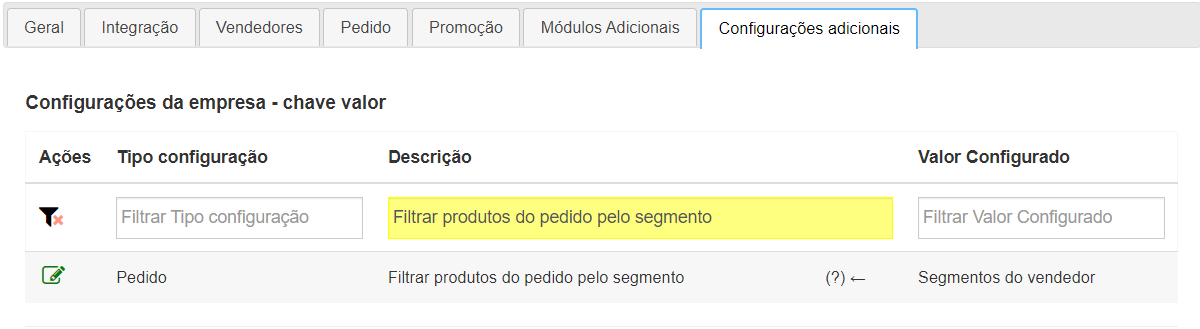
**Filter order products by segment:
-
Customer Segments: Shows products based on the segments released in the customer registration. Seller Segments: Shows products based on the segments released in the seller’s registration.
-
What should the Segment field be called Configuration valid only for Android
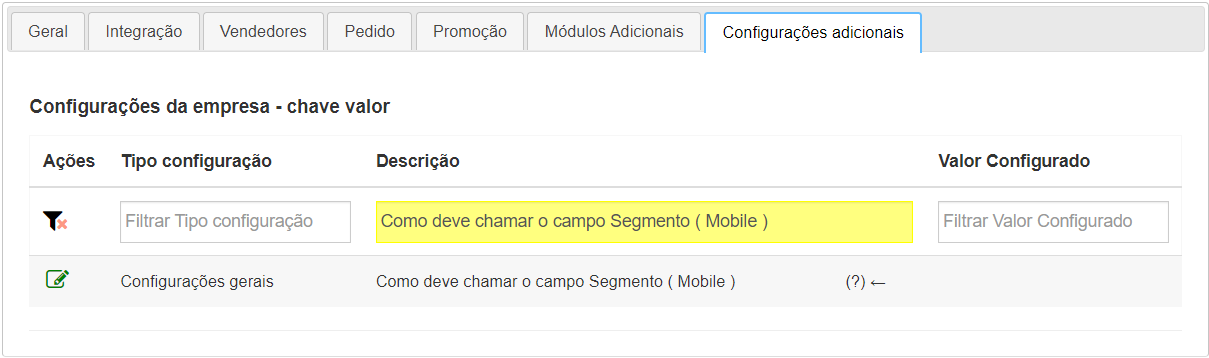
Defines how the field should be called: Segment or Family.
Integration
Section titled “Integration”To export and import segments via integration, access the article below:
Usability
Section titled “Usability”The functionality of the Segment can be linked to the Product, the Customer and the Seller. However, on Android, for example, if used in Products, in order for only products linked to a certain segment to appear in the list, all products must be linked to at least one segment. Unlinked products also appear in the list, even with the filter active
- To link a segment to the seller, simply access the “Sellers” screen, in the Data tab;
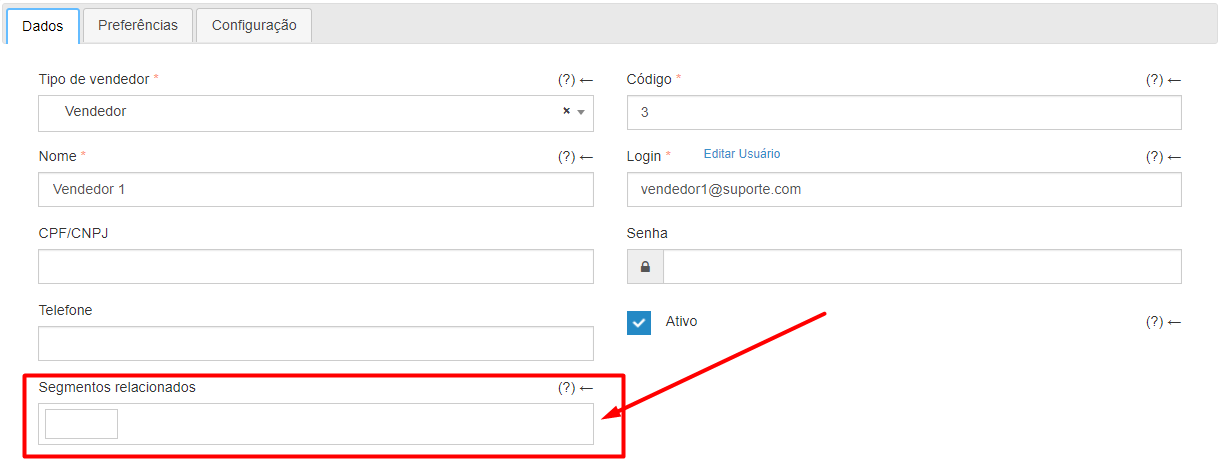
Or via integration > Field 17 of table 02 - Salespeople.
- To link a segment to the client, simply access the “Client” registration screen, in the Data tab;
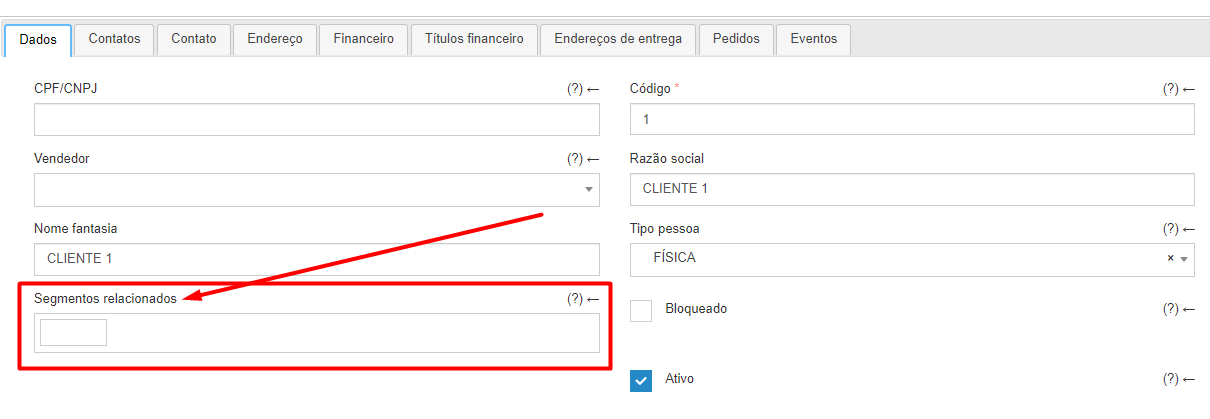
Or via integration > Field 47 of table 18 - Customers. If your company uses integration with Demander, it is mandatory to integrate this information!
- To link to the product, simply access the “Products” registration screen, in the Data tab
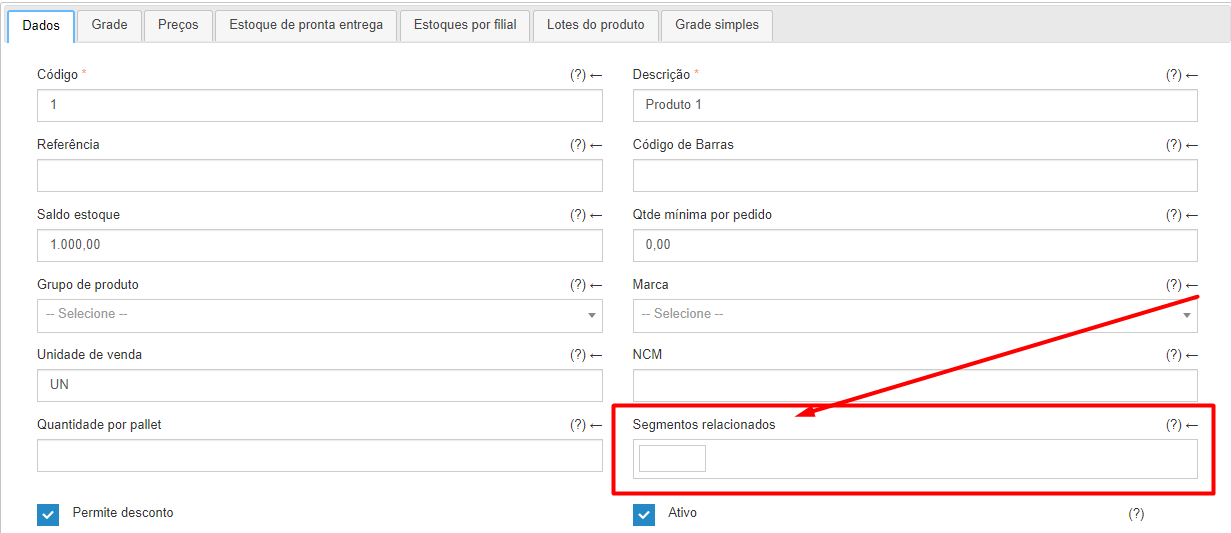
Or via integration > Field 30 of table 15 - Products.
How it will appear to place an order
Section titled “How it will appear to place an order”On the order item entry screen - Android:
On the order data screen in Demander Web: