Order picking module configuration
This article aims to explain how to configure and activate the Order Picking Module.
How to enable the module?
Section titled “How to enable the module?”- The Order Picking Module can only be enabled by Demander support, or by contacting Demander Partners.
Module Configuration (partners only)
Section titled “Module Configuration (partners only)”- Access the [Order Picking Configuration] page (https://sistema.demander.com.br/dinamico/configuracao-separacao-pedidos);
- Click on New at the top right;
- Module configuration;
- Define the module status;
- When it comes to testing the module, set a test deadline.
- Define the module status;
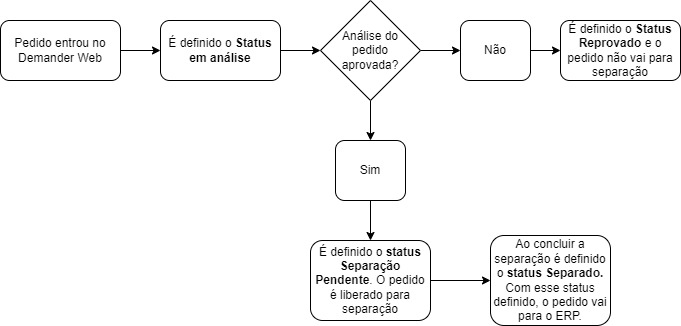
- The entire picking cycle is based on order status.
- Each step the order goes through, the order status is changed, following the Order Statuses defined in the configuration, as explained below:
- Configuration screen:

- Separation order;
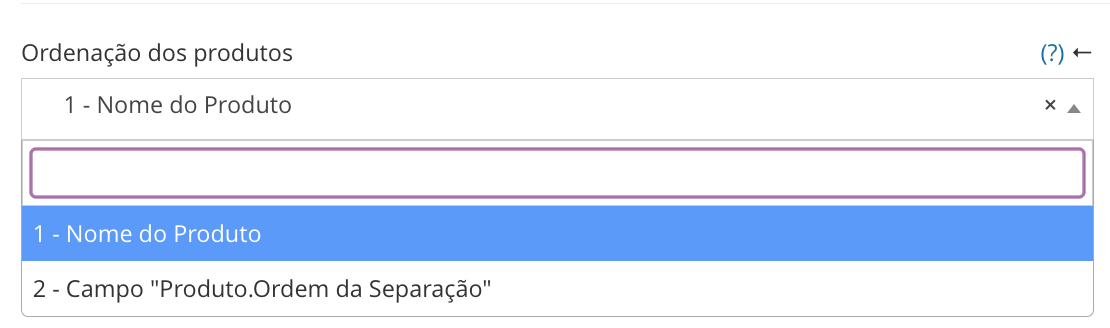
- It is possible to define a picking order for order items. Defining this order adjusts the listing of items in the App, thus facilitating separation, as the items will be in the order defined by the company.
- To define the separation order, find the “Product Order” setting and select the desired option.
- The “Separation Order” field, option 2, can be integrated into Table 15 - Products, field 40.
- Cutting of merchandise;Understand how it works on the App
- When enabling the “Merchandise Cut” option in the app, the picker may indicate that a specific item does not have sufficient stock, resulting in a “Merchandise Cut”. As a result, the item is removed in whole or in part from the order and a cut record is maintained in the Merchandise Cut Log.
- Find the “Enable Merchandise Cutting function” setting, if you want to enable it, check the checkbox, if it does not apply to your needs, leave the checkbox unchecked.

About order statuses
Section titled “About order statuses”- We recommend that specific Order Status be created to use in the separation module. These statuses will help control the order analysis process. For those who do not work with order analysis, any status can be reported.
- Status under analysis- This status will be defined when orders are under analysis and have not yet been released. See the Separation Release Screen documentation.
- Rejected status- This status will be defined when, on the separation release screen, the user informs that the order is rejected.
- Pending Separation Status- This status will be used after analysis. In this status, the order is released in the app so that the picker can carry out the separation. See the documentation for Separate Orders Screen
- Separation Status- In the separation application, when the picker starts the separation, this is the status that will be defined in the order. It is important to highlight that only the user who initiated the separation can see this order.
- Separated Status- After the separation is completed, the order assumes this status, from this moment on, the order goes to the ERP. *Only orders with this status go to the ERP.