Grid Mobile
To learn more about Grid, visit:
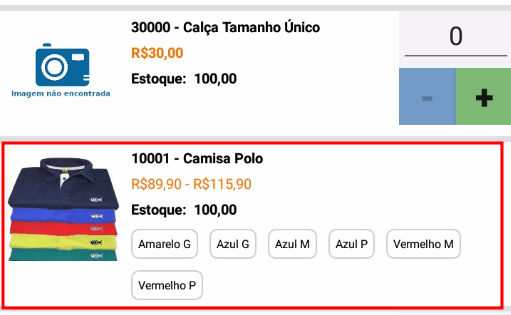
As of version 4.14, when a product has a correctly configured grid, it is displayed this way in the app. Some information is shown:
- Code and name of the main product
- Price variation (Variation in prices of Grid products, the price of the main product is not taken into account)
- Stock (The stock of the main product is shown. The stock of the products in the grid is shown when opening the grid)
- Variations available
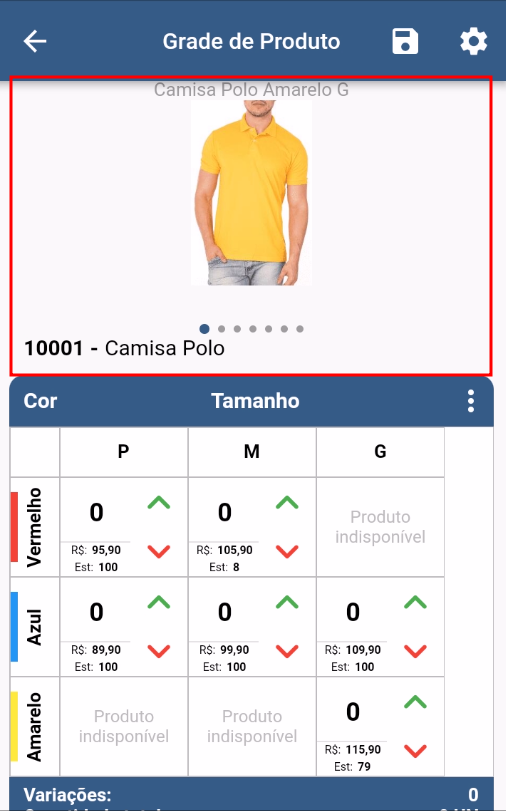
When clicking on the Product that has a grid, the product grid screen opens. In the main part of the screen, the photos of the products are shown at the top and the product grid is shown at the bottom with its variations, prices, stocks and buttons to add/remove quantities. You can also click on the quantity field and enter the quantity.
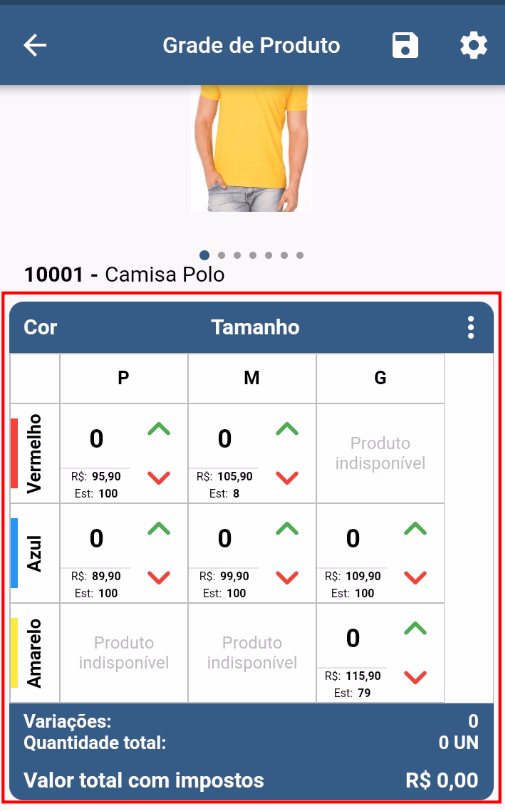
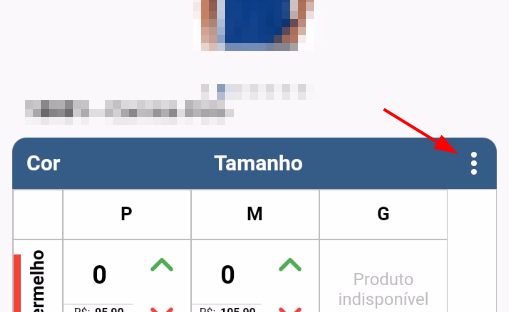
In the product grid there are some mass change options, by clicking on the 3 dots.
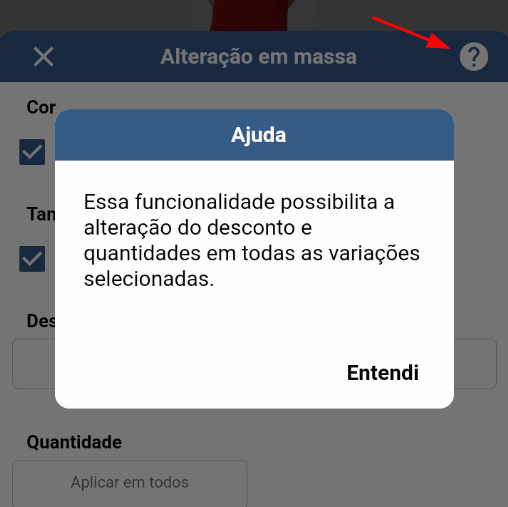
On the Mass Change screen there is a help button that informs you of the purpose of this screen.
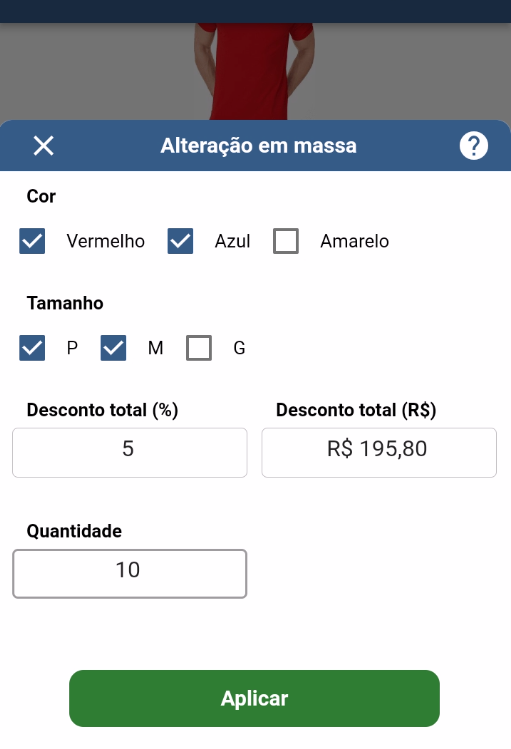
It is possible to select the registered variations so that the Discount (% or in R$) and also the Quantity can be applied. For example, in the image below for the Colors Red and Blue, in Sizes S and M a 5% discount will be applied, and 10 quantities of each variation will be added.
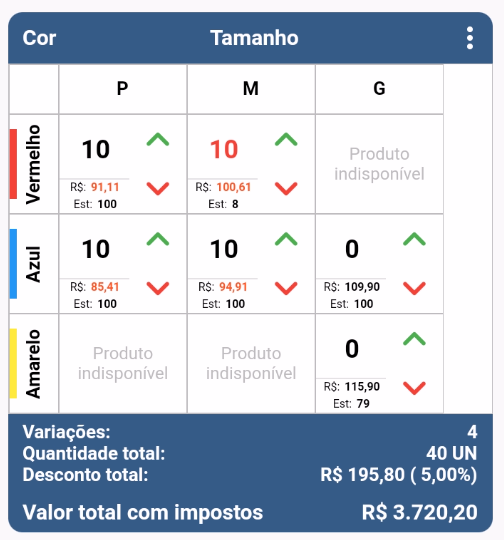
After applying, the Grid will be shown like this. Detail for the Red M variation, where the quantity is in red, this happens because the quantity (10) is greater than the available stock (8).