

Prospects Module (Leads)
Available at:


This article aims to explain the concept and use of prospects in Demander.
Section titled “This article aims to explain the concept and use of prospects in Demander.”What are Prospectuses?
Section titled “What are Prospectuses?”Prospects are potential customers – that is, people or companies that have not yet made purchases, but have an initial interest in the brand, product or service.
They represent commercial opportunities that could become real customers in the future. In other words: the prospect is in the pre-sales phase, and does not yet have all the information to be considered a formal customer in Demander/ERP.
Prospectuses are used for:
- register interested parties
- organize sales opportunities
- monitor initial negotiations
- register preliminary data (contact, company, region, etc.)
- identify opportunities not yet confirmed as “client”
When the prospect actually starts buying, he can be converted to a customer within Demander.
Purpose of the functionality
Section titled “Purpose of the functionality”The Prospects functionality allows the company to have commercial control over leads, with a different form of registration, monitoring, history and integration, without mixing with already consolidated customers.
How to configure
Section titled “How to configure”Prospects can be registered on both Demander Web and Demander Mobile. However, for proper use it is necessary to enable some settings.
These options are:
System Settings → General Settings → Prospectus

Available configurations:
Section titled “Available configurations:”Make the button visible on Demander mobile
Section titled “Make the button visible on Demander mobile”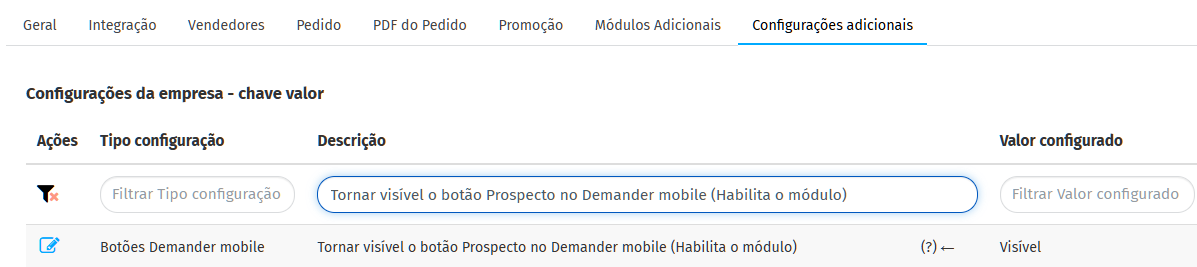
It allows the seller to register prospects directly through the application, using a smartphone/tablet.
When enabled:
- The “Prospects” menu appears on mobile
- the salesperson registers leads in the field
- registration takes place without access to the ERP
Show prospective customers on the order screen
Section titled “Show prospective customers on the order screen”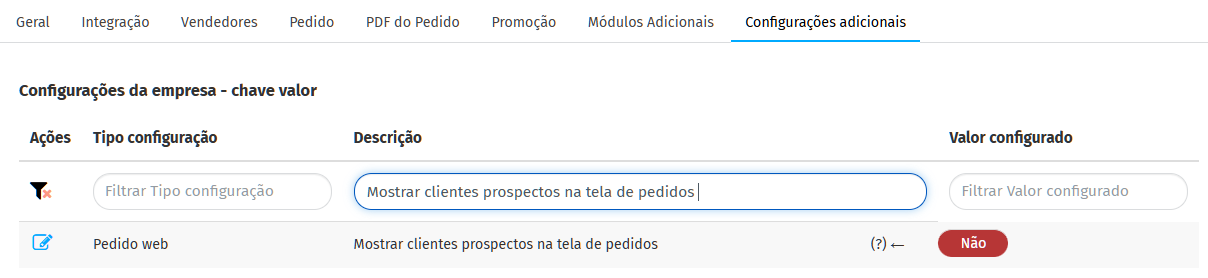
When registering a Prospect, he is not a customer. Therefore, it is not possible to place orders for it. When this configuration is enabled, this Prospectus will appear on the order screen, making it possible to place orders for prospects.
Note:
This option does not affect Mobile, only the Web.
Export prospects
Section titled “Export prospects”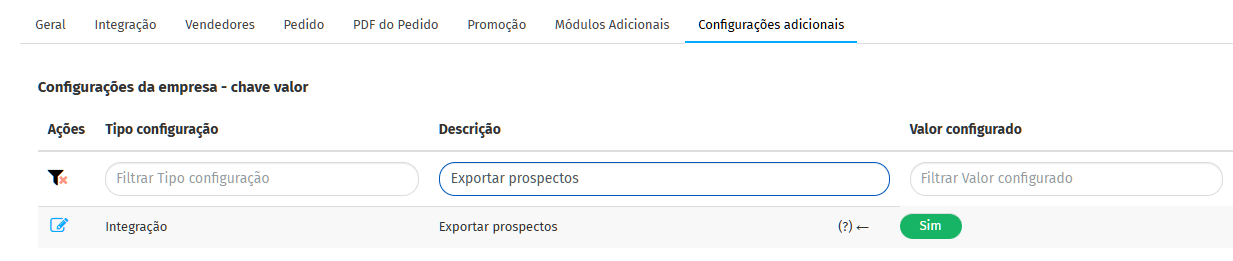
Defines whether the prospectus will be exported to the ERP or will only remain in Demander.
- Yes → sends the prospectus to the ERP
- No → it’s only on Demander
Where to register prospects
Section titled “Where to register prospects”No Demander Mobile
Section titled “No Demander Mobile”Menu → Prospects
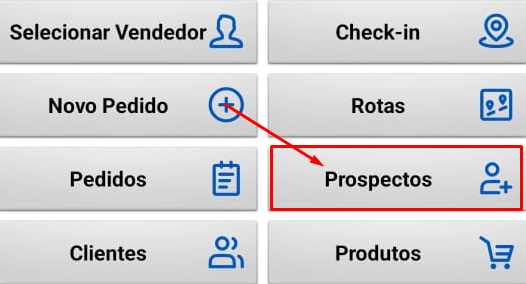
(Appears only with permissions enabled)
Within this option it is possible:
- register
- edit
- view
- change data
- add observations
On Demander Web
Section titled “On Demander Web”CRM → Prospects (Leads)
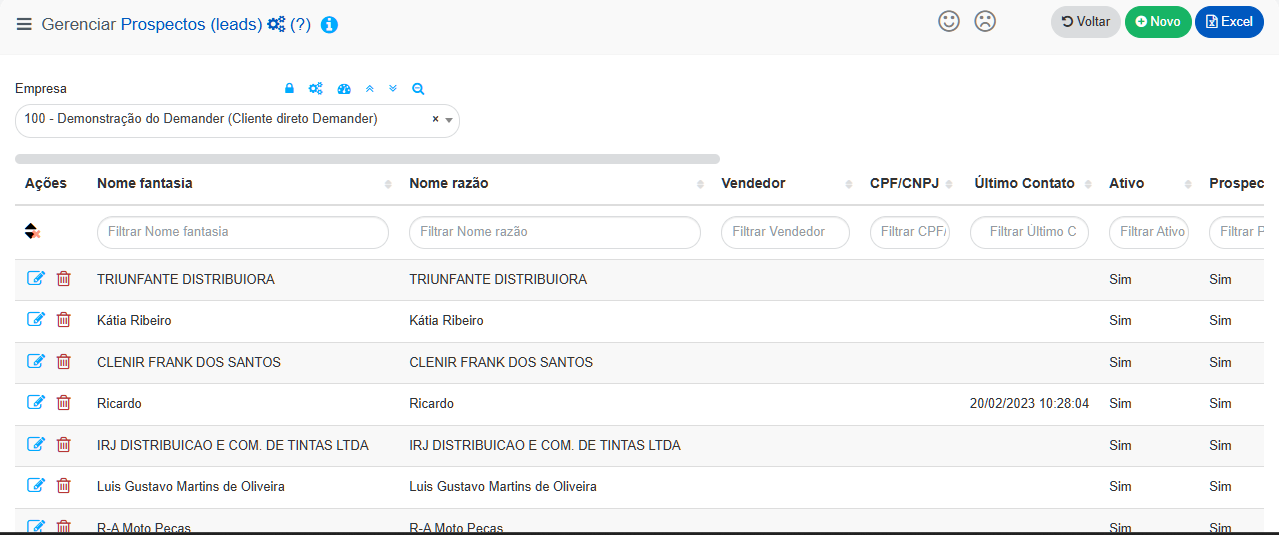
Allows:
- full consultation
- detailed editing
- customer conversion
- commercial link
- contact and history
Turning prospect into customer
Section titled “Turning prospect into customer”When the prospect actually becomes a customer, it will be necessary to deselect the Prospect field in the registration.
Path: Demander Web → CRM →Prospects (Leads) → Edit
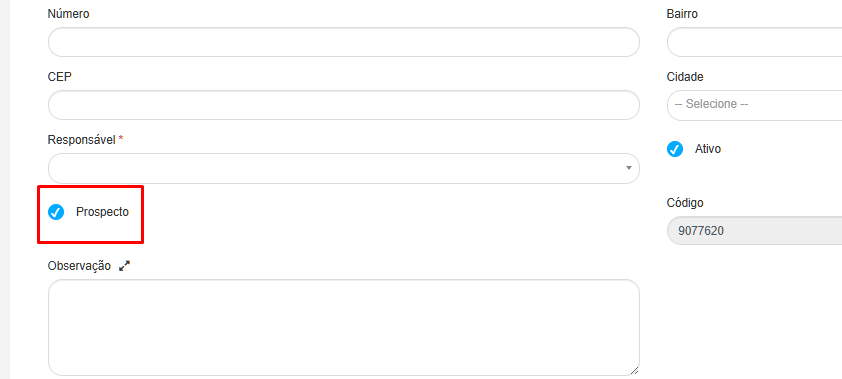
When deselecting, the system automatically considers that record as a customer and is treated as a customer in commercial operations.
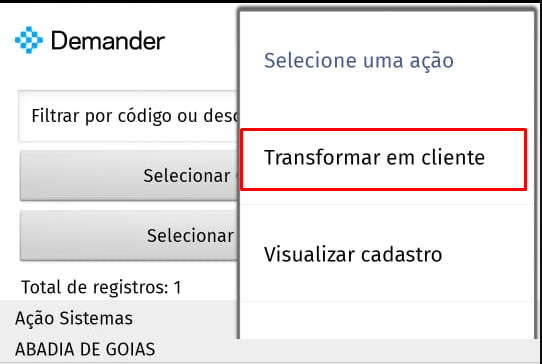
Or you can do it via mobile:
Prospectus button → Press prospectus
Integration
Section titled “Integration”To use via integration, it is necessary to consider the customer table:
Relevant field:
- Field 41 → indicates whether the record is a prospectus (yes/no)
This field controls the entire behavior of the functionality via integration.