Product Catalog
Available at:

This article aims to explain the concept of Product Catalog in Demander and how to generate it:
Product Catalog Concept
Section titled “Product Catalog Concept”Demander offers a function called “Product Catalog”, a page available for export that contains a list of products, with their descriptions, product images, prices, stock and other additional information available as well.
How to generate a Product Catalog
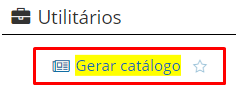
- When accessing Demander Web, the first step is to locate the “Generate Catalog” screen
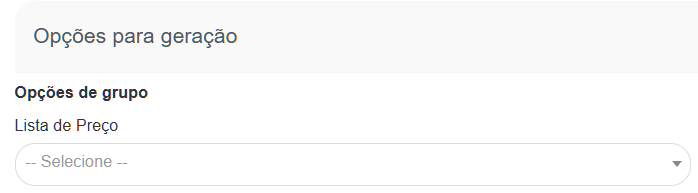
- After accessing the “Catalog Generation” screen, the next step is to select the Price List you want to view the products. You can select** only** one price list per catalogue.
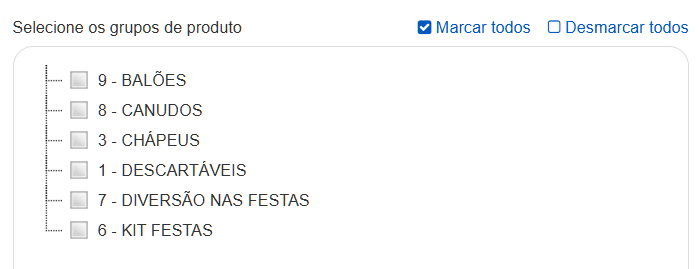
- When choosing the Price List, in the field below, all Product Groups of the products that are linked to the Price List will appear. One or more Groups can be selected, to do so simply click on the box next to the group nomenclature or on the “Mark all” option, which appears on the top right side of the product groups box, as shown in the image below:
- Then it will be possible to generate it by clicking on the button:

Additional options within the Catalog
Section titled “Additional options within the Catalog”Within the catalog functionality there are advanced options for better detailing, which appear on the right side of the screen.
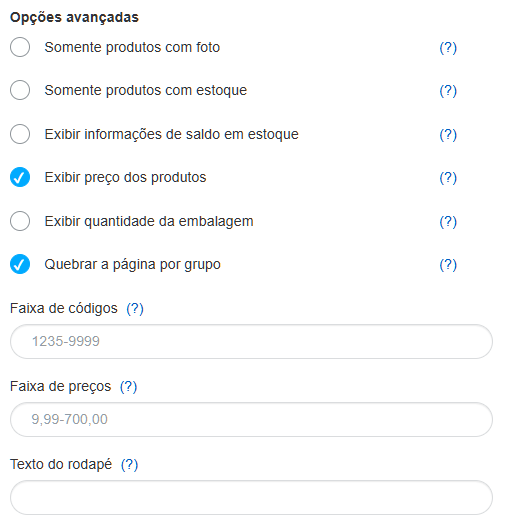
-** Only products with photos: If checked, it does not display products without a registered photo in the catalog. - Only products with stock:** If checked, it does not display products without stock balance in the catalog. -** Display stock balance information: If checked, prints the product stock in the catalog. - Display product prices: If checked, displays the price of each product in the catalog. - Display packaging quantity: If checked, displays the quantity of units in the product packaging in the catalog. - Code range: Will only display products filtered by code range. The format should be, for example: 1235-9999 - Price range: Will only display products filtered by price. The format should be, for example: 9.99-700.00 - Footer text: **Text that will appear in the footer of each page.
Layout Types in Product Catalog Generation
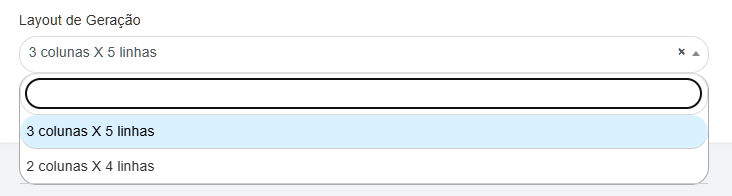
Section titled “Layout Types in Product Catalog Generation”It is also possible, within the functionality, to define the type of Layout you want to view:
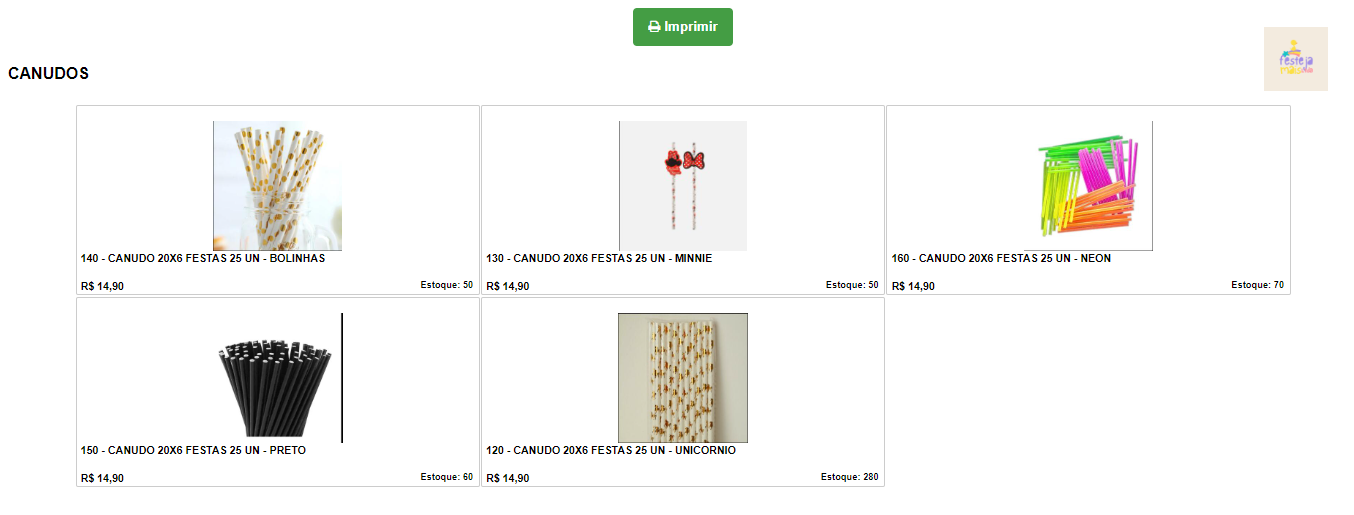
- If you choose the Layout 3 columns by 5 lines, it will be as shown in the image below:
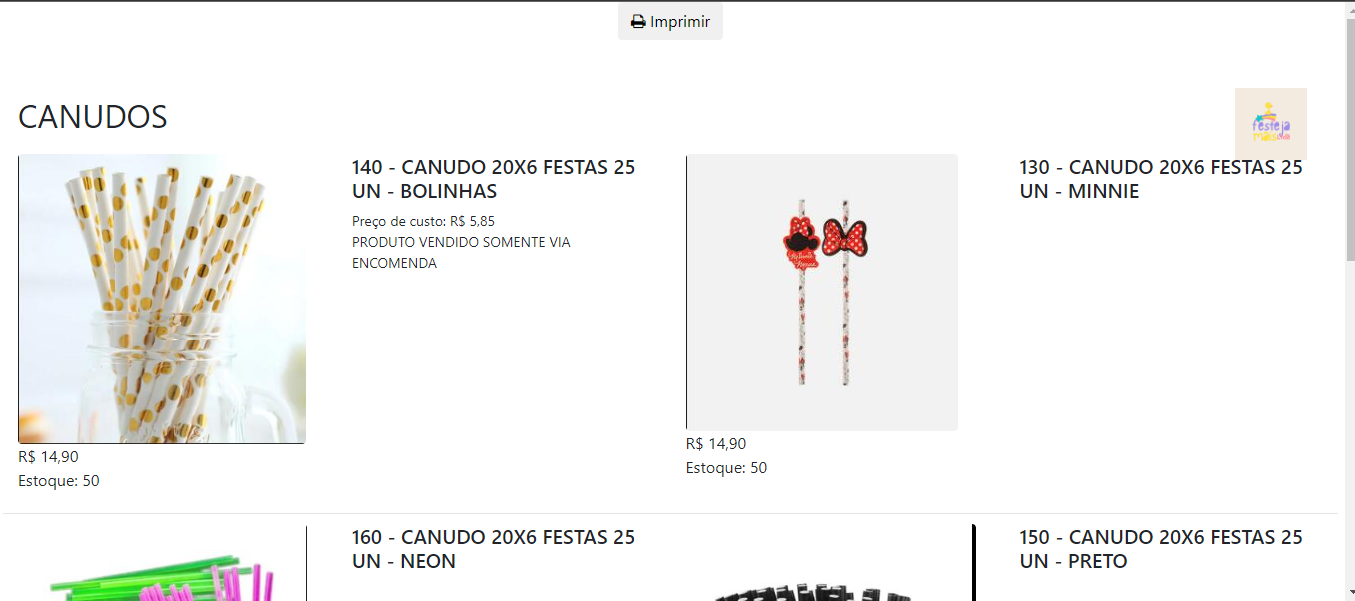
- If the Layout 2 columns by 4 lines is chosen, the option will appear to print the data additionally from the Free Fields next to the Product description.

It will look as illustrated in the image below:
To export the catalogue, the “Print” option will appear at the top of the page.