

How to register customers on Demander
Available at:


This article aims to explain how customer registration is carried out within Demander.
What are customers
Section titled “What are customers”Customers are people or companies that buy products or hire services from another company. In other words, they are the main focus of any business, as they are where the revenue that keeps the company running comes from. 💼
In sales systems, the customer record usually contains information such as:
- Name, CPF/CNPJ
- Address and contacts
- Payment terms and delivery method
- Associated price list
- Order and payment history
This information allows the company to:
- Apply personalized commercial rules (discounts, deadlines, special prices);
- Track your purchase history;
- Organize loyalty strategies.
👉 Maintaining complete records is essential to ensure accurate ordering and reporting
How to configure to register or edit customers
Section titled “How to configure to register or edit customers”Within Demander, customer registration can be done via the web platform or mobile application (Android or iOS).
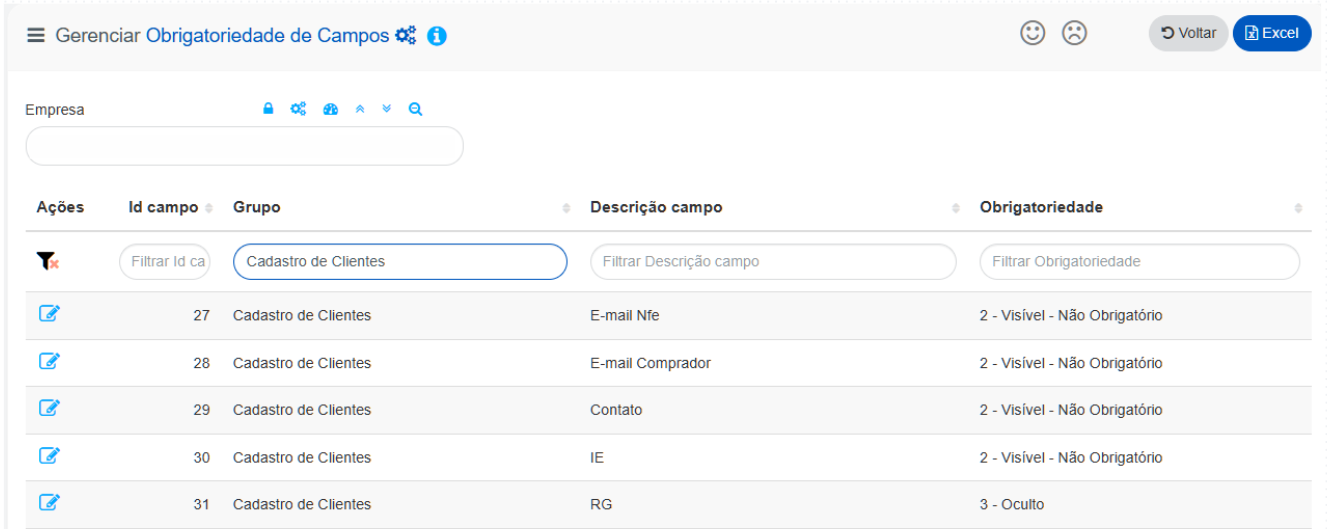
The fields available on the screen — as well as whether they are mandatory — depend on the company’s parameterizations. These fields are defined on the Field Requirement screen, where you can determine whether they will be:
- Mandatory
- Visible (but not mandatory)
- Hidden
- Or blocked for change
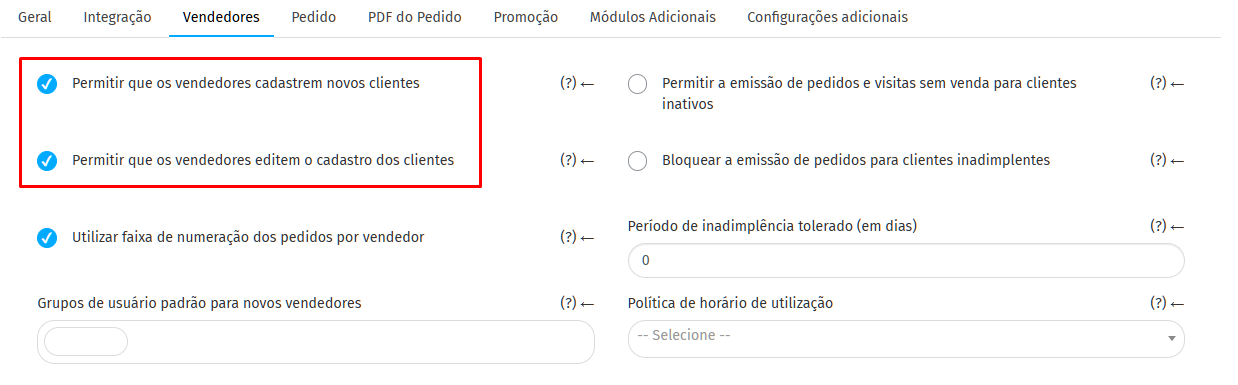
After defining the fields, it is possible to configure which sellers can register or edit customers (valid for mobile).
There are two ways of configuration:
- General: on the Company Settings > Sellers Tab
- Individual: in Sellers > Settings tab, defining who can register/edit
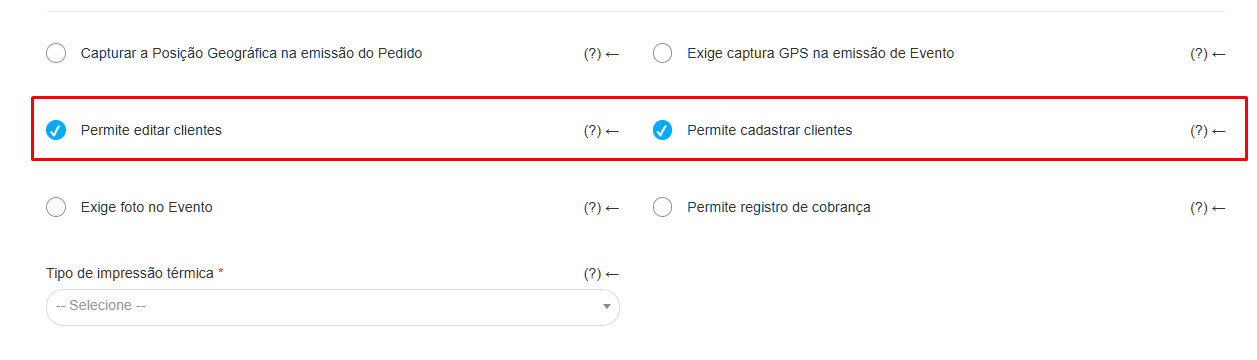
On Demander Web, if you want to prevent a seller from making edits or registrations, you need to limit access via user groups. 👉 See the article about how to adjust seller releases within Demander Web.
How to register a customer
Section titled “How to register a customer”In Demander, customer information is divided into tabs. On the Web platform, there are some additional fields (mainly in the Financial tab).
The main fields are: Code, Company Name (or Name, if PF), Trade Name (or Surname, if PF), CNPJ/CPF, IE/RG, Address, Contact and Commercial Settings.
On Demander Web
Section titled “On Demander Web”Access the Customers screen and click New. Below, see an explanation of the main fields:
🗂️ Data Tab
Section titled “🗂️ Data Tab”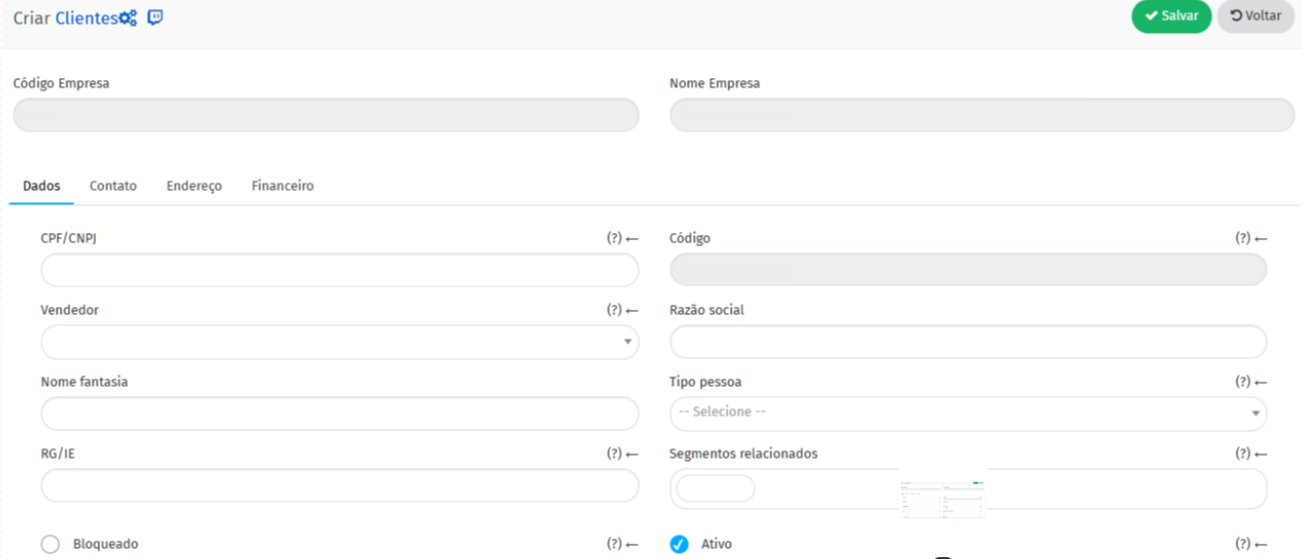
- CPF/CNPJ: according to the type of person (natural or legal).
- Code: unique customer identifier.
- Seller: associated seller; if not defined, the client appears to everyone.
- Corporate Name / Name: corporate name (PJ) or name (PF).
- Status: according to the interaction status list.
- Fantasy Name / Nickname: fantasy name (PJ) or nickname (PF).
- Type of person: automatically defined according to CPF/CNPJ.
- RG/IE: RG (PF) or IE (PJ).
- IE natural person: exclusive to natural persons.
- Date of foundation/birth: depending on the type of person.
- CRO: number of the Regional Dentistry Council.
- Related segments: allows more than one.
- Unique customer ID: unique identifier.
- Active: Inactive customers appear in apps, but only generate orders if the company allows them.
- Blocked: appear in the list, but do not allow new requests.
☎️ Contact Tab
Section titled “☎️ Contact Tab”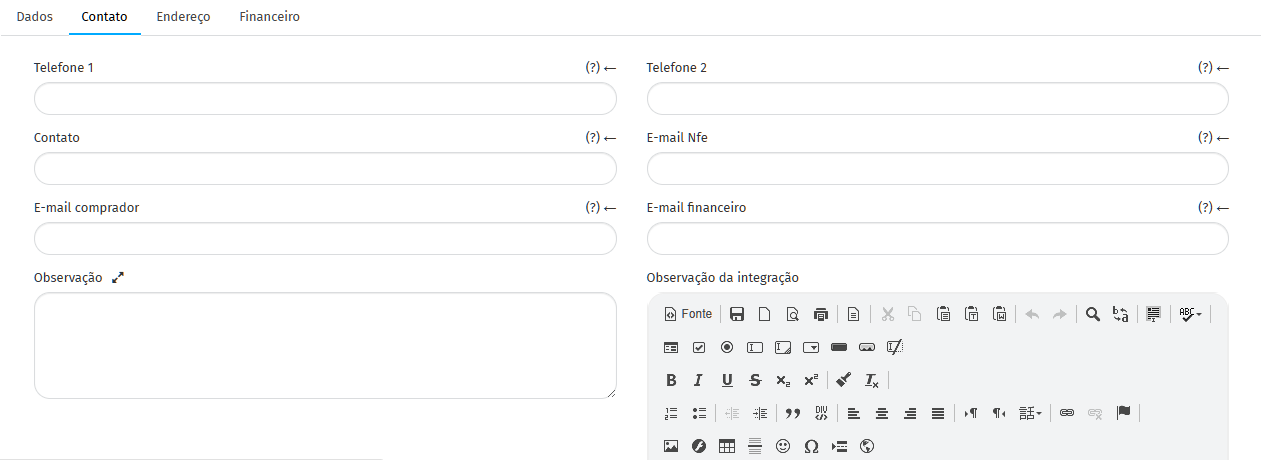
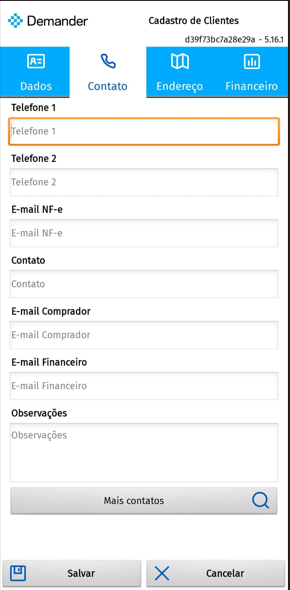
- Telephone 1 and 2: main and secondary contacts.
- Contact: name of person responsible.
- NF-e email: email intended for invoices.
- Buyer email: receives PDF copy of orders.
- Financial email: for billing communications or invoices.
- Notes: fields for general notes
- Note Integration: information that appears in the customer list and when adding it to the order, an eye appears next to the registration.
📍 Address Tab
Section titled “📍 Address Tab”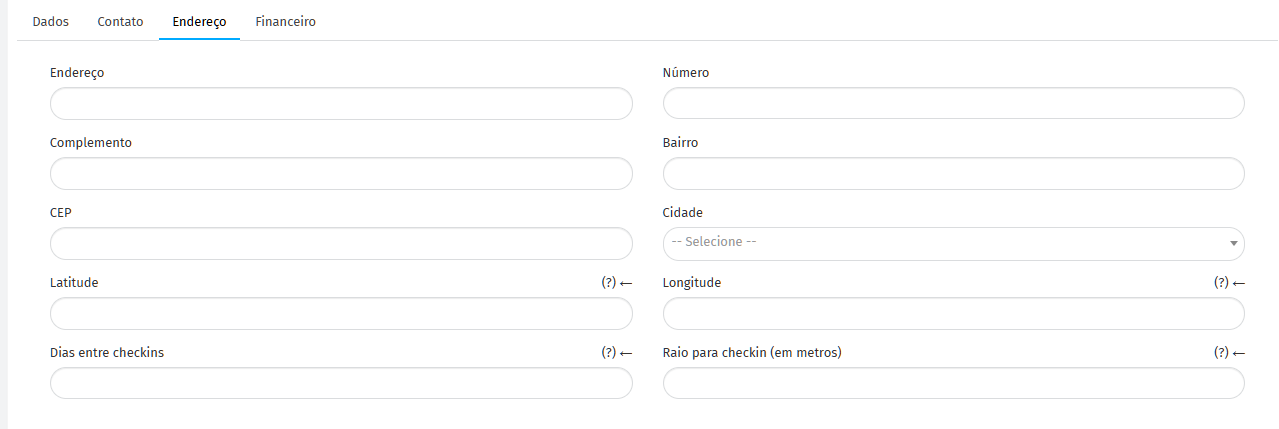
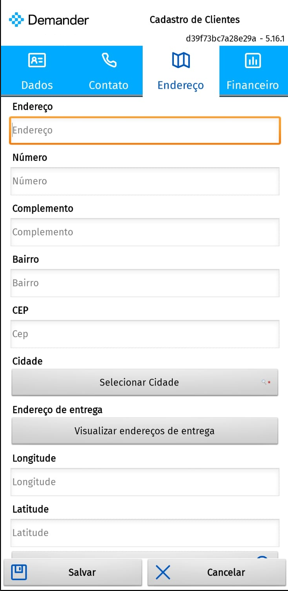
- Address, number, complement, neighborhood, zip code, city, UF
- Latitude / Longitude: used in check-ins and routes.
- Days between check-ins: defines minimum interval between visits.
- Check-in radius: defines maximum distance to appear on the seller’s map.### 💰 Financial Tab
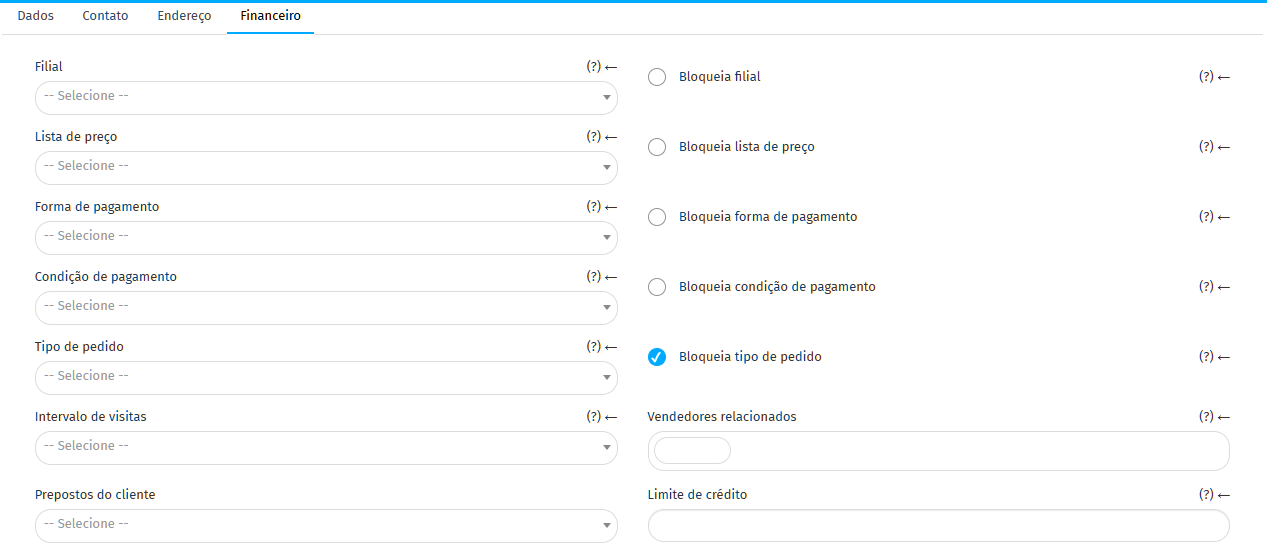
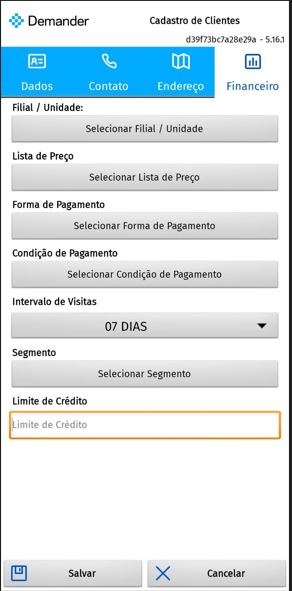
- Branch: restricts the customer to one branch.
- Price list: defines the default price list.
- Payment method and conditions: standards used in orders.
- Locks: prevent changes to these fields in the order.
- Tax client type: defines tax rules (Taxpayer, Simple, etc.).
- Discount group: customer default.
- Visit interval: displays recent visits to the app.
- Related sellers: allows more than one linked seller.
- Discount and credit limits: automatically applied to orders.
- Shipping range: requires prior registration.
- Additional conditions and lists: alternatives permitted to the customer.
- Requires purchase order: requires this field to be completed in orders.
- Carrier and redispatch: define delivery standards.
- Display only prices negotiated in the Online Store: only displays products with a price defined for the customer.
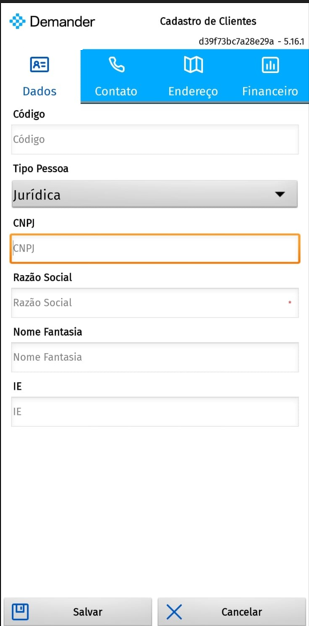
📱 In the app (Android or iOS), the fields are essentially the same, with small visual variations.
How clients can be used
Section titled “How clients can be used”After registration, customers can be used to:
- Issue orders;
- Define specific prices and conditions;
- Consult reports and purchase histories;
- Apply custom business policies.