

3 - Sales Expectation Value
Available at:
This article aims to explain what Sales Expectation Values are and how to register them in Demander.
What are Sales Expectation Values
Section titled “What are Sales Expectation Values”Sales Expectation Values represent the goal itself that the seller must meet — and can be defined by value and/or quantity. This is where it is determined who or what the expectation is related to, such as seller, product, brand, branch, among others.
How to register them
Section titled “How to register them”To register a Sales Expectation Value, you must have previously created:
- The Perspective of Sales Expectations;
- The Sales Expectation Perspective Levels.
At this stage, the Sales Expectation is effectively created, as it is where the values and goals are defined.
Registration offers several configuration possibilities. Below are the main fields available — fill in the mandatory ones (marked with *) and the others as needed to personalize your goals.
Registrations → Sales Expectations → Value
Main fields:
Section titled “Main fields:”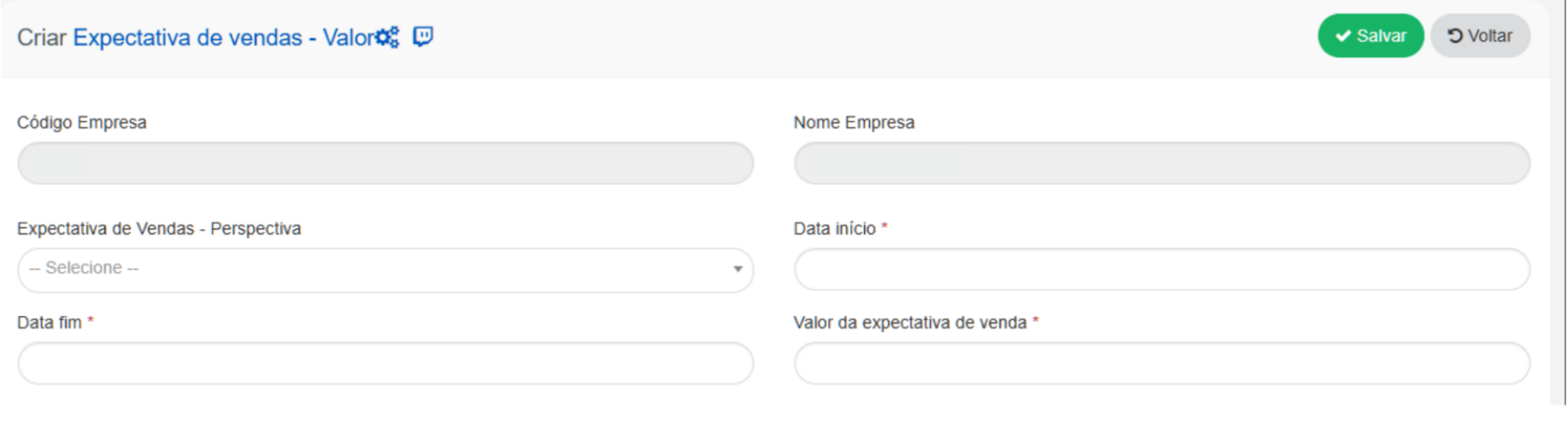
- Sales Expectation Perspective* → Select the previously created Perspective.
- Start Date* → Goal start date.
- End Date* → End date of the goal.
- Sales Expectation Value* → Goal value in reais (R$).
- Seller* → Select the seller to whom the Sales Expectation will be assigned.
Other available fields:
Section titled “Other available fields:”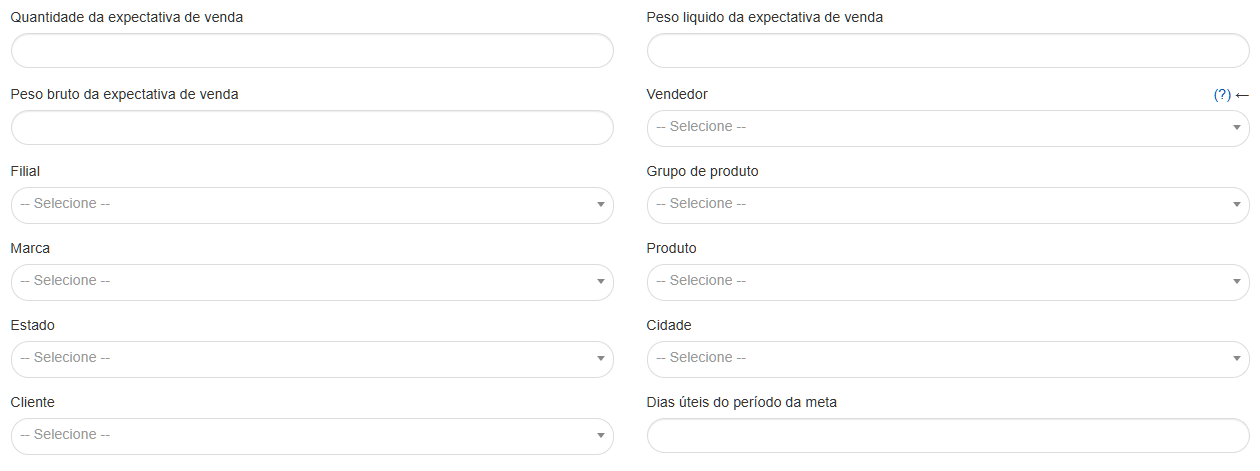
- Sales Expectation Quantity → Sets a target based on quantity.
- Net Weight of Sales Expectation → Defines the target for net weight sold.
- Gross Weight of Sales Expectation → Defines the target for gross weight sold.
- Branch → Allows you to create Sales Expectations per branch.
- Product Group → Defines the goal based on a group of products.
- Brand → Creates specific Sales Expectations for a brand.
- Product → Sets the goal for a specific product.
- State → Create Sales Expectations by state.
- City → Create Sales Expectations by city.
- Customer → Defines specific Sales Expectations per customer.
- Business days of the target period → Defines the business days that the Sales Expectation considers
💡 Example: The seller expects to sell R$5,000.00 of the “Catchup Sache” product in the state of RS. Another possibility would be to remove the product and state and insert just one brand, making the goal: “The seller expects to sell R$5,000.00 of a certain brand.”
🔗 Integration
Section titled “🔗 Integration”To import goal values via integration, access the article below: ➡️ Integration Layout: Table 62 - Sales Expectation - Value
Registration via Excel
Section titled “Registration via Excel”It is also possible to register the values of Sales Expectations by importing them via an Excel spreadsheet. Important: Perspectives and Perspective Levels must be previously registered — import via Excel is intended only for registering values.
Step by step:
- In Demander Web, go to Import → Expectations.
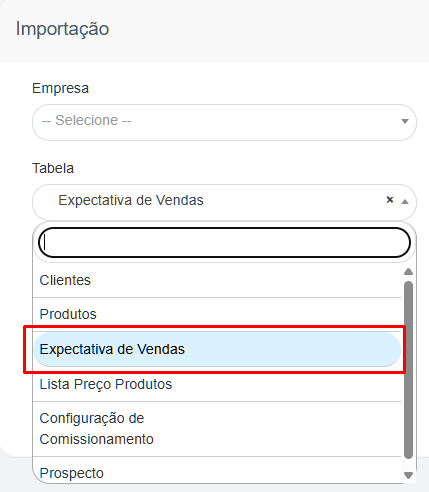
- Use the model spreadsheet available for download.
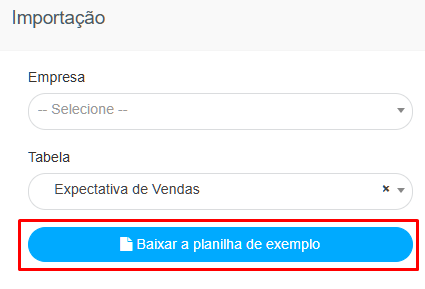
- Don’t change the spreadsheet layout — keep the columns, first and second rows exactly as they are. Fill in only the necessary fields with the desired information.
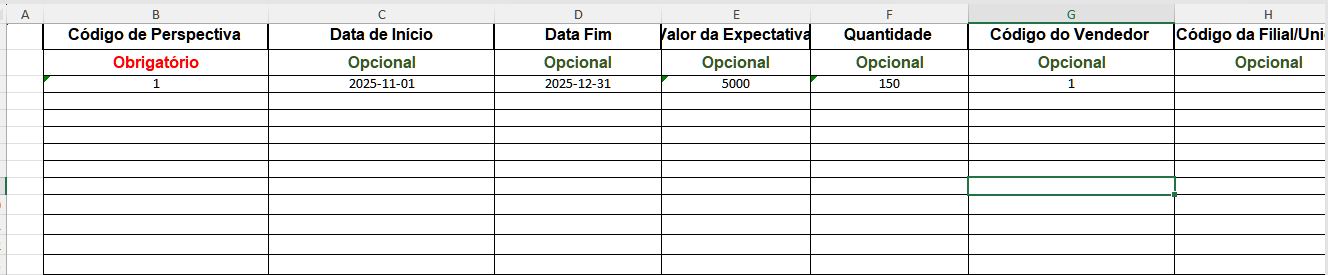
- After finishing, import the file in the indicated field.
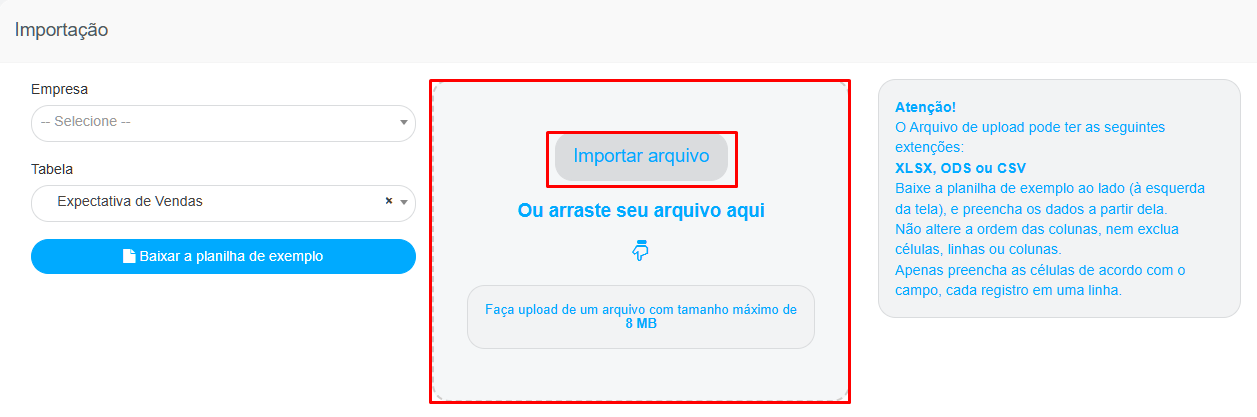
The values will be automatically added to the Sales Expectation → Demander Value screen.