

Using the Order Release Hierarchy
It is very simple to use, but requires some settings that can be found in the article “Order Release Hierarchy”.
Watch the module demo.
After configuring the module, the seller must synchronize to receive the new settings. From that moment on, when he places an order that exceeds the maximum discount or is a type of order that always requires release, a message will appear informing him that the order was saved pending and the reason. It is also possible to monitor on the order screen whether or not the order item exceeded the configured contribution margin. (When the value is in green, it is within the configured margin, in which case the order is not retained, when it is in red, it is below the configured margin, in which case the order is redacted)
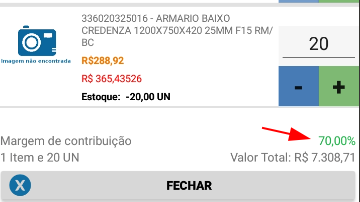
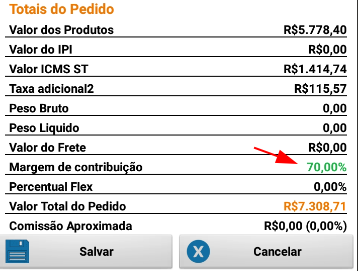
It is possible to see the Contribution Margin in 3 different places.
- On the Item screen
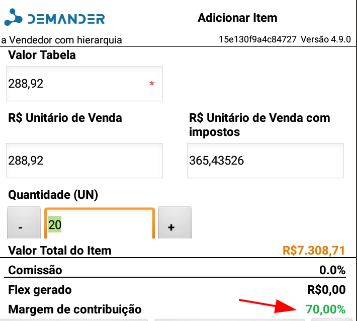
- On the Order Items screen (At the bottom of the page)
- On the Order Summary screen
- Validation of excess order discount
When validation is based on the maximum discount allowed on the order, the message will be displayed.
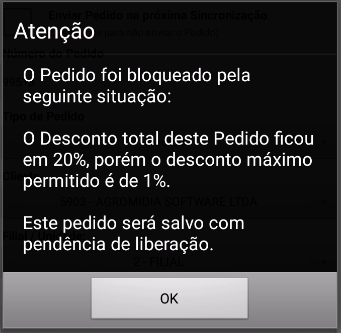
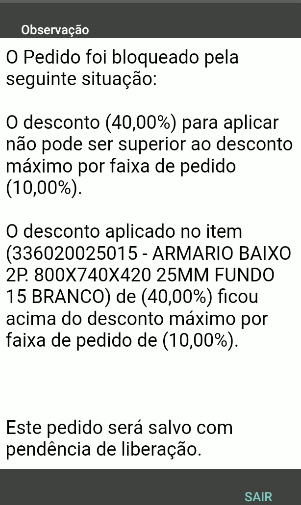
A message will also be inserted in the order note (eye icon), to remind the seller that this order has not yet been approved.
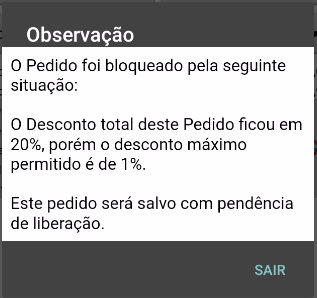
- Validation of excess order discount
When validation is based on the maximum discount allowed on the product, the message will be displayed.
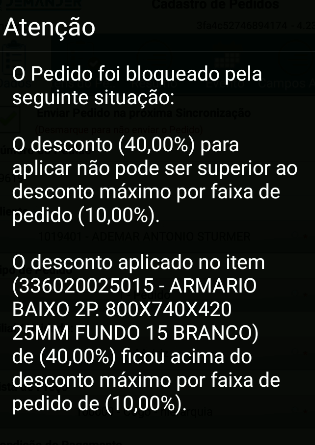
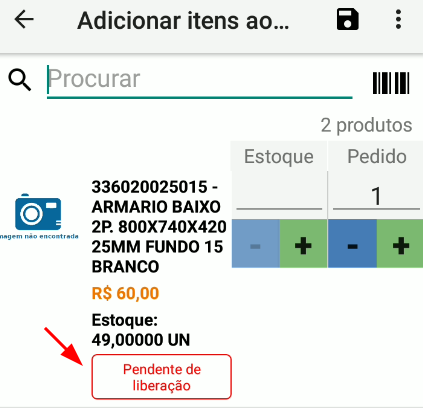
The item list shows which item is pending release
A message will also be inserted in the order note (eye icon), to remind the seller that this order has not yet been approved.
- Validation by Order Type
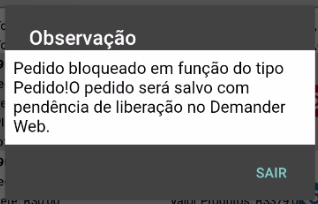
When validation is by Order Type, this message will appear in the app.
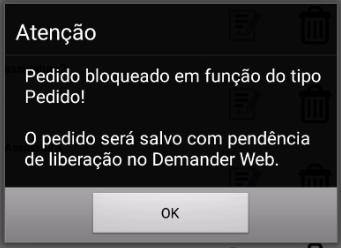
A message will also be inserted in the order note (little red eye), to remind the seller that this order has not yet been approved.
- Validation by contribution margin
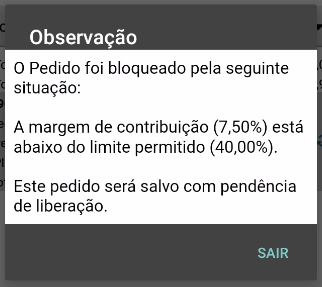
When validation is by contribution margin, this message will appear in the app.
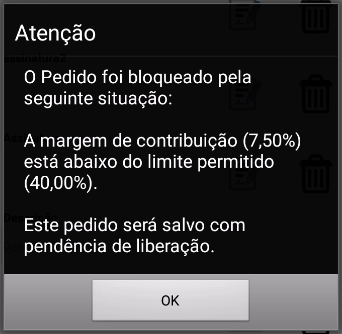
A message will also be inserted in the order note (little red eye), to remind the seller that this order has not yet been approved.
- Release/rejection of Orders
With the orders awaiting release and synchronized, the user with release permission can access the “Pending release orders query” screen to view the pending release orders and in which user the release of the order is ‘stopped’.
IMPORTANT: From version 4.5 of Demander Android and version 1.29 of Demander iOS, it is possible to release orders through the application, for this purpose a new “Release order” button is shown for users who are authorizers.
On the “Order Release” screen, the user accesses to Release/Reject orders that are pending for their user.
It is possible to Release/Reject orders in two ways.
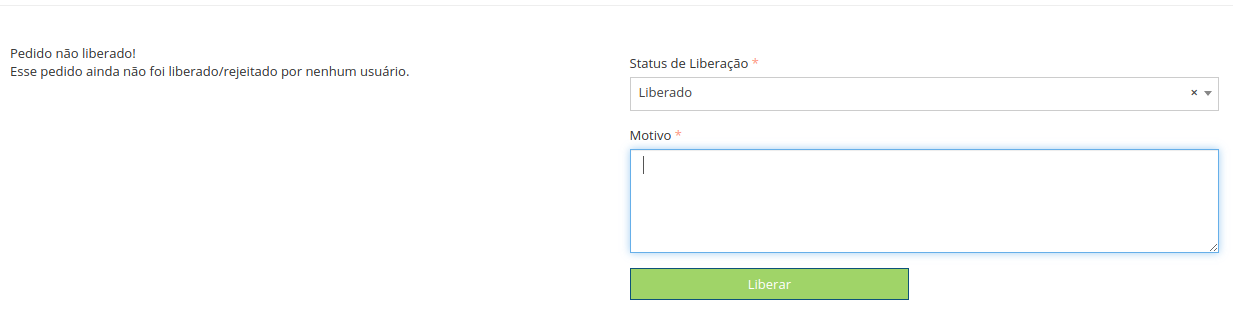
- By clicking on the Edit Record icon.
At the end of the page, you must define a Release Status, which can be (Pending, Released or Rejected) and also a Reason, after clicking on “Save Release Status”.
- On the Order Release listing screen
A popup will appear, here we can define whether the order will be Released or Rejected and enter a reason.
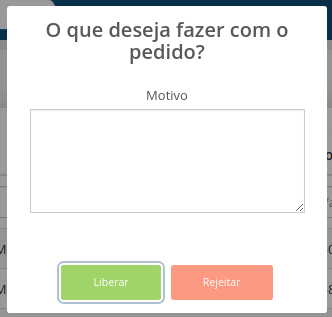
Clicking on “Release” or “Reject” will display a message confirming that the order has been released/rejected. The order then follows the flow, falling to another user to release or being released to the ERP and the seller.
Finishing the entire flow, when the seller synchronizes, he will update the orders that were blocked, he will know if the order was released or rejected, by the order status or by observing the order.