

Discount About Discount
Available at:

This article aims to explain the usability of Discount on Discount, as well as teach how to configure it.
What is Discount on Discount?
Section titled “What is Discount on Discount?”The percentage of discount on discount works as follows, the discount used will be applied to the net value of the products in the order, that is, on the value of the products already discounted, thus characterizing a discount on discount.
How to configure it?
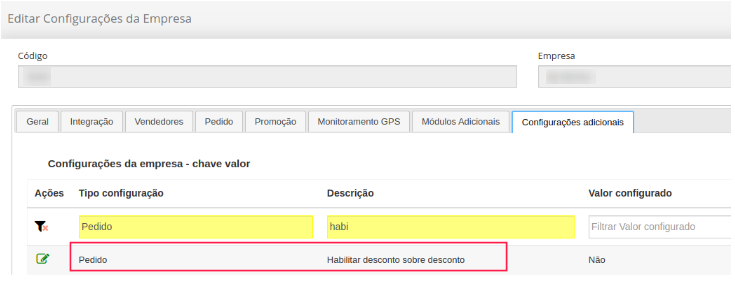
Section titled “How to configure it?”To enable the discount on discount field, simply go to Company Settings  Additional settings, and look for the option “Enable discount on discount”, as in the example below.
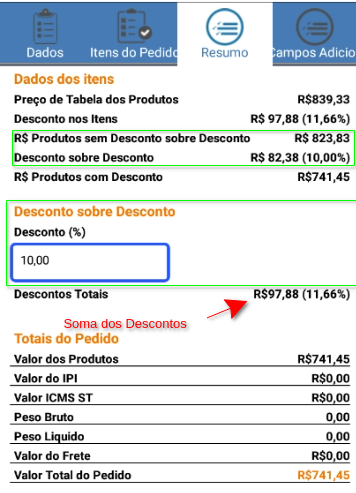
After setting it to “Yes” and synchronizing, some fields will be shown on the Android App. It is worth noting that the fields will only appear if the Discount About Discount setting is enabled.
Behaviors of this configuration
It is possible to apply a % discount, even before adding an item to the order. When adding the % off on top of the discount and adding a new item, this item will already come with that discount.
Display of order items
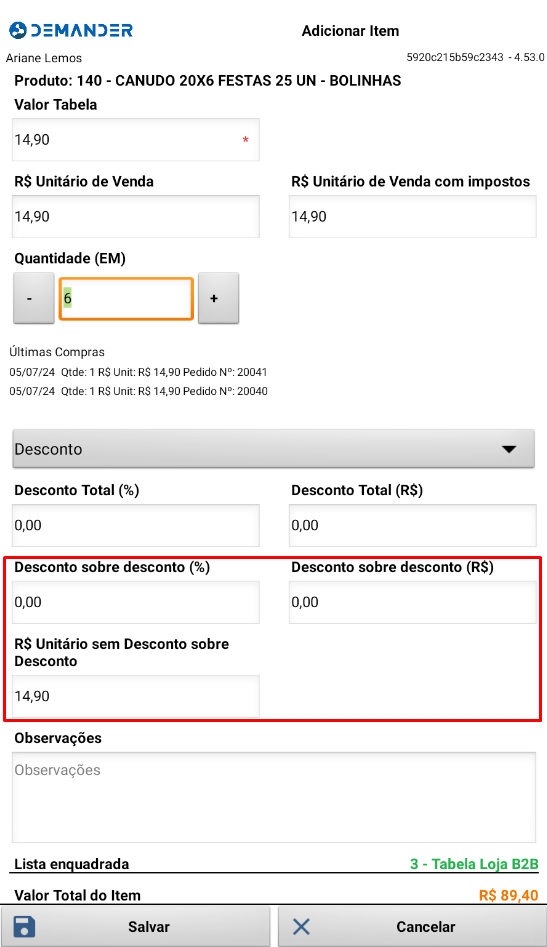
Section titled “Display of order items”The “Discount on discount (%)” field will be added to the order items screen, on this screen the field cannot be changed as this discount will be applied to all order items directly through the Order Summary screen. On this screen, the Item’s unit value calculation must be adjusted, as per the example below.
Displaying the value of products in product search
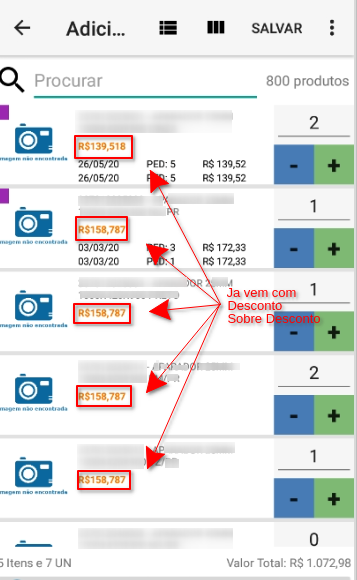
Section titled “Displaying the value of products in product search”The list of items in the order “R$ Unit. Sale” will display the value with the Discount on Discount applied. This will be the default in all Demander locations, that is, the display of the Unit Value without the “Discount on Discount” is not considered in any location or system report. When searching for products to add to the order, the value that will be displayed to the seller will already come with the “Discount on Discount applied”. EX: List Price: R$50.00, discount on discount: 10%, will display the unit value of R$45.00.
Working example:
List Price: R$50.00.
Normal discount: 10% (R$5.00).
Normal discounted price: R$45.00.
Discount on discount: 5% (resulting in R$4.50).
R$ Unit Sales: 50.00-5.00-4.50 = R$ 40.50.
Behaviors:
Section titled “Behaviors:”Behavior along with “Max item discount”
Section titled “Behavior along with “Max item discount””In Demander it is possible to configure the “maximum discount %” for each product. Considering the possibility that a certain product may be configured with a “maximum % discount” equivalent to 5%, if the seller tries to apply a discount on a discount greater than 5% (ex: 10%), the Demander will apply a “Discount on Discount” of a maximum of 5% on this product.
Behavior along with “Last price suggestion”
Section titled “Behavior along with “Last price suggestion””In Demander it is possible to enable the customer’s last price suggestion, where with this behavior the initial price of the product starts with the last sale price for the customer in question. This configuration will somehow conflict with the highlighted discount, so let’s consider the following behavior: If the seller did not apply any discount on discount, then the customer’s last price is suggested. If the seller has applied any Discount upon discount, then the last price suggestion is ignored;
Validation of the maximum Order discount
Section titled “Validation of the maximum Order discount”All existing maximum discount validation rules in Demander will remain as they are. For these rules, it will be considered as Total Discount: Item Discount + Discount on discount + Highlighted Discount.
Below is a brief detail of the existing maximum discount rules.
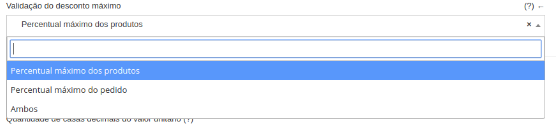
This setting determines which rule the system should use to calculate the maximum allowable discount. Maximum percentage of products: System calculates maximum discount for the order based on the maximum discount for the items. EX: Product A, value R$ 100.00, maximum discount 10% order: The maximum discount is a percentage configured below:

System disregards product discount configuration. EX: even if the product only allows 5%, if 20% is configured in the order, it leaves a discount of up to 20% Both: Discount is limited to the lower of the two percentages.
Calculations of commission, taxes, flex balance and others
Section titled “Calculations of commission, taxes, flex balance and others”All existing routines and calculations in Demander that currently consider the “Unit Sales R$” (also called “Unit R$ of discounted products”) will continue to consider this field, however the formula for this field will be changed to List Price - Item Discount - “Discount on discount”.