

How to register Order Types
Available at:
This article aims to explain what Order Types are and how to register them within Demander.
Order Type Concept
Section titled “Order Type Concept”The Order Type is a classification or differentiation applied to orders, allowing the generic concept of an order to be specialized to meet the company’s specific rules and needs.
In essence, an order is a purchase request registered within Demander. The “Request Type” categorizes this request according to its purpose, origin, desired behavior or associated business rules.
Examples: Sale, Budget, Sample, Bonus.
⚠️ Within Demander, the Order Type is a mandatory field when issuing the order.
How to Configure
Section titled “How to Configure”To register or edit an Order Type, go to: Menu → Order Types
🗂️ Data Tab
Section titled “🗂️ Data Tab”
- Code: must be unique per Order Type (duplicate codes are not allowed).
- Description: name to identify the Order Type (e.g. Sale, Bonus, Exchange).
- Active: defines whether the Order Type will be available when issuing new orders.
📦 Stock Tab
Section titled “📦 Stock Tab”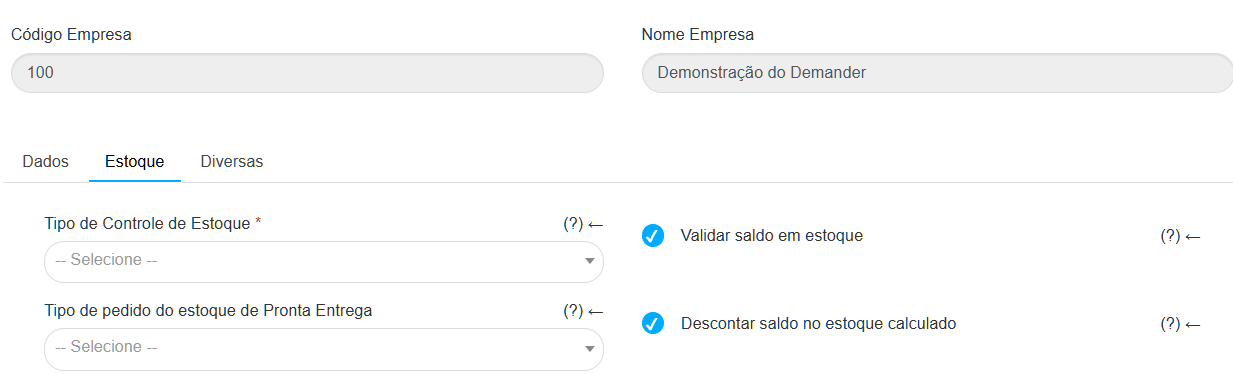
Inventory Control Type * Defines the inventory control behavior for this order type:
- According to company configuration: follows the control defined in Company Settings → Additional Modules.
- Product Stock: validation carried out directly by the product stock.
- Stock by Branch: validation based on the branch’s stock.
- Ready-to-deliver stock: validation based on ready-to-deliver stock.
Ready Delivery stock order type: (Exclusive to the Android application) Defines which order type will be used in the “Stock by Order Type x Seller” (Ready Delivery) control. It is necessary that, in Company Settings → “Additional Settings”, the “Inventory Control” option is marked as “Validate stock by order type x seller”, and that ready-to-deliver stock is registered.
Validate stock balance: Enables product balance validation. It must be combined with the option “Prevent sale if balance is insufficient” in company settings → Order.
Discount balance in calculated stock: Considers orders of this type when calculating the available stock balance.
⚙️ Miscellaneous Tab
Section titled “⚙️ Miscellaneous Tab”Flex Balance operation type: Determines how the Flex Balance will be treated in this type of order:
- Default behavior: calculation per order item.
- Credit total to order: adds the positive Flex value to the total.
- Debit total on order: subtracts the negative Flex value.
- Do not calculate Flex: ignores the Flex calculation.
More details in the article: Flex Balance on Demander.
Statuses that allow editing: Defines which order statuses can be edited after synchronization.
- Requires the “Allow editing after synchronized order” option checked.
Released Price Lists: Restricts which price lists can be used for this order type.
- If no value is set, all lists will be available.
Update issue date when finished: Updates the order issuance date when it is finalized by the seller.
Example: order started on Monday and completed on Friday — the date will be updated to Friday, if this setting is active.
Consider as Order (Sales): Defines whether the type will be considered as a sales order.
Affects several system functions:
- Flex Balance Calculation
- Last price suggestion
- Commission calculation
- Sales goals and expectations
- Inventory validation
- Product suggestion
⚠️ Types that do not “consider as requested” are treated differently in validations.
Consider recent sales: Allows you to include or exclude the order type from the last sales history.
Requires link with order: Defines whether the new order must be linked to a previous one (last 2 days).
Example: “Bonus” type requires link with a “Sale” order.
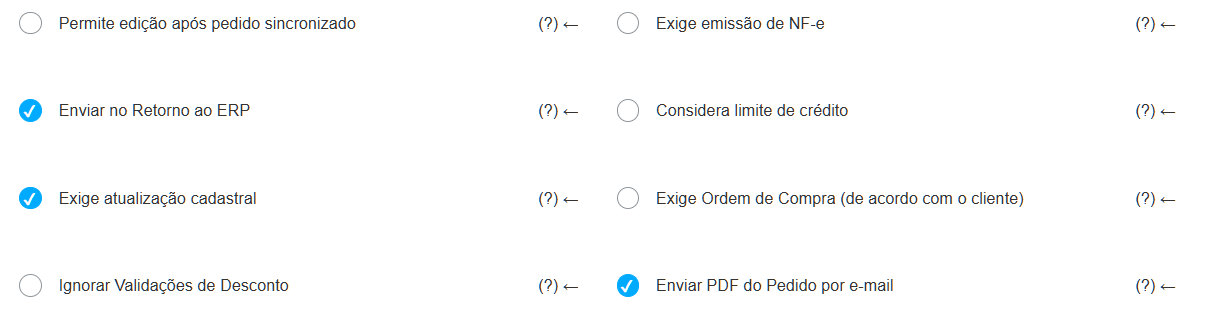
Allows editing after synchronization: Allows you to edit orders even after they are synchronized. It can be limited by specific statuses.
Requires issuance of NF-e: Makes the issuance of an invoice mandatory for new orders of this type.Send upon return to ERP: Defines whether the order will be sent back to the ERP.
Considers credit limit: Prevents issuing orders that exceed the customer’s credit limit.
Requires registration update: Requires updating registration before issuance. Requires use of the Registration Update module.
Requires Purchase Order (according to the customer): Determines whether the “Purchase Order” field will be required to be completed.
Skip Discount Validation: Completely disables discount validations on orders and items.
Send PDF of the Order by email: Defines whether the PDF of the order will be sent automatically.
Consider the value of the related order as a discount for the main order: This configuration is only applicable when the order type has the “Requires link to order” option checked.
- When enabled, the system considers the value of the related order as a discount for the main order during discount validation. In this way, the total value of the linked order is subtracted from the main order for the purpose of calculating and checking discount limits.
- When disabled, discount validation is done independently between the main order and the related order, without any influence between them.
.
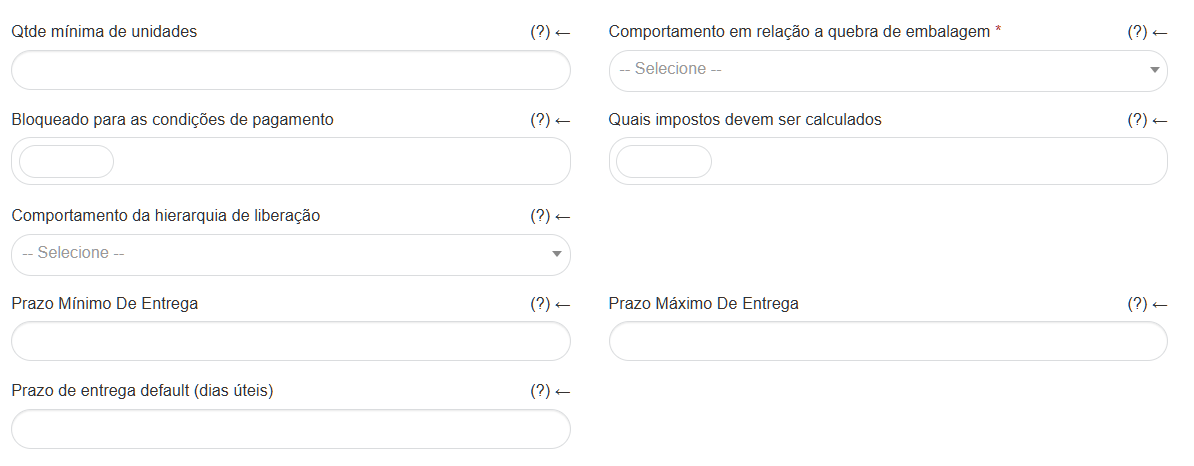
Minimum quantity of units: Defines the minimum quantity of items per order.
Behavior regarding the sale of package breakage: Defines what the system does if the seller sells quantities outside the package multiple.
- Do not validate
- Prevent sale
- Alert the seller without impeding
Blocked for payment terms: Restricts which payment terms can be used for this type of order.
What taxes should be calculated: Allows you to define which taxes are applicable (IPI, ICMS ST, Additional fee, etc.).
Release hierarchy behavior: Controls when the order will need to be released.
- Does not require release
- Always demands
- Only when extrapolating contribution margin
- When extrapolating maximum discount or average margin
Delivery times:
- Minimum deadline: minimum delivery days.
- Maximum term: maximum days allowed.
- Default deadline: days automatically suggested in the order.
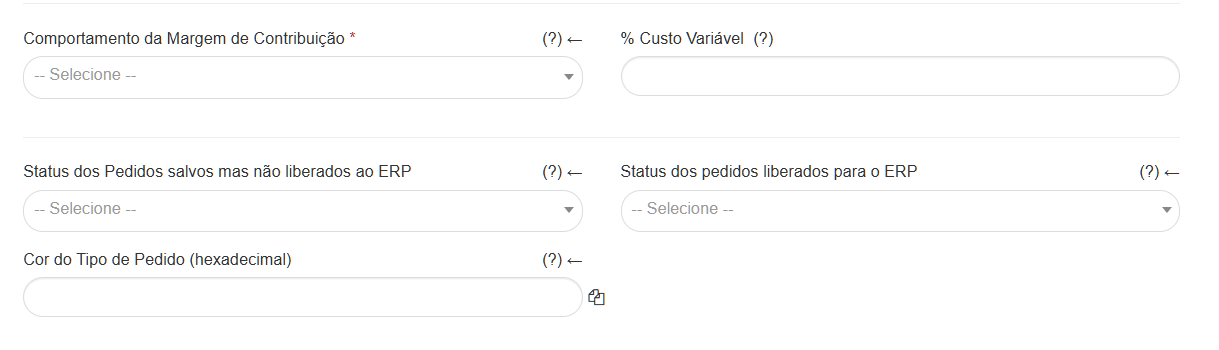
Contribution Margin Behavior: Controls how the margin will be displayed and validated:
- Do not validate
- View and validate
- Just validate
- Display but not validate
- % Variable cost: defines the percentage used in the calculation.
Order Status:
- Saved but not released: defines internal status (without sending to the ERP).
- Released to ERP: defines the status used in shipping.
Order Type Color: Allows you to define a hexadecimal color (ex: #ffffff) for visual identification in the system.
How to define which types of orders are released to the customer
Section titled “How to define which types of orders are released to the customer”In Demander it is possible to define:
- One default Order Type per customer.
- Whether or not the seller can change the default type.
- What additional types are released.
This ensures that when creating a new order, the system automatically fills in the order type configured for the customer. If the client has blocked types, they will not appear in the list of options.
🔧 How to configure
Section titled “🔧 How to configure”- Access Demander Web → Customers→ Financial tab.
- In the Order Type field, select the desired default type.
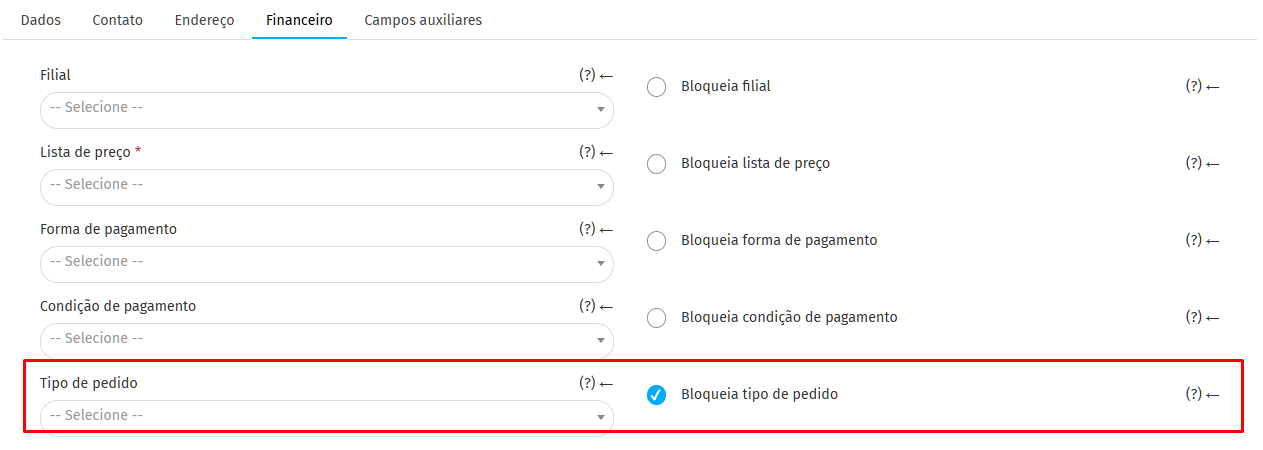
- If you want to prevent the seller from making changes, select the block option.
- To release additional types, enable the Additional Types field (via the Field Requirement screen).
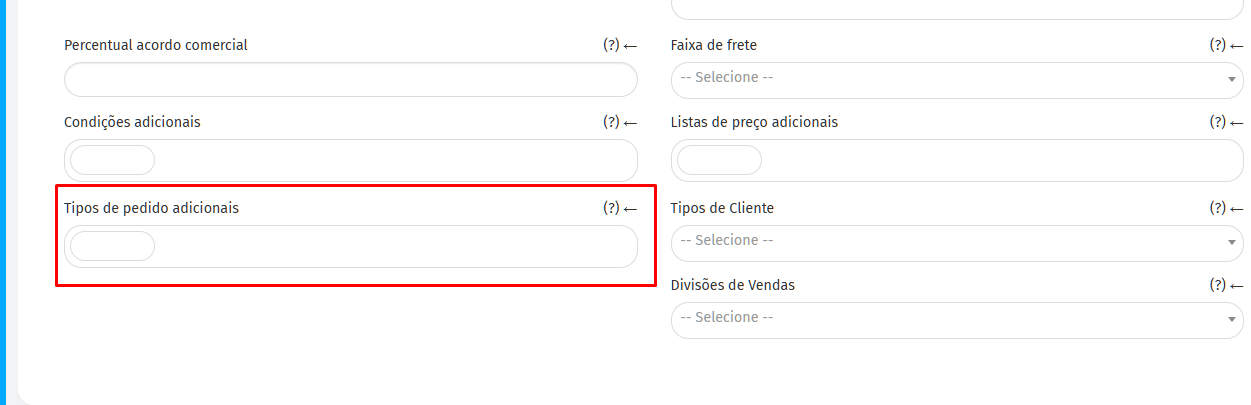
Thus, the system will automatically fill in the default type when creating the order, but the seller will be able to choose another among those released.