

Products on sale in the Virtual Store
The B2B Virtual Store can have a menu page that lists only products on sale. The text saved on the page appears above the products, and the customer sorts the list by name or by price.
How the page looks
Section titled “How the page looks”The name in the menu is the page Description. The address uses the identifier produtos-em-promocao, in the form sualoja.pedido.la/pagina/produtos-em-promocao.
The page content appears first. Then comes the grid with only the products on sale. On the card, the list price is struck through and the sale price is highlighted when that amount is lower than the list price.
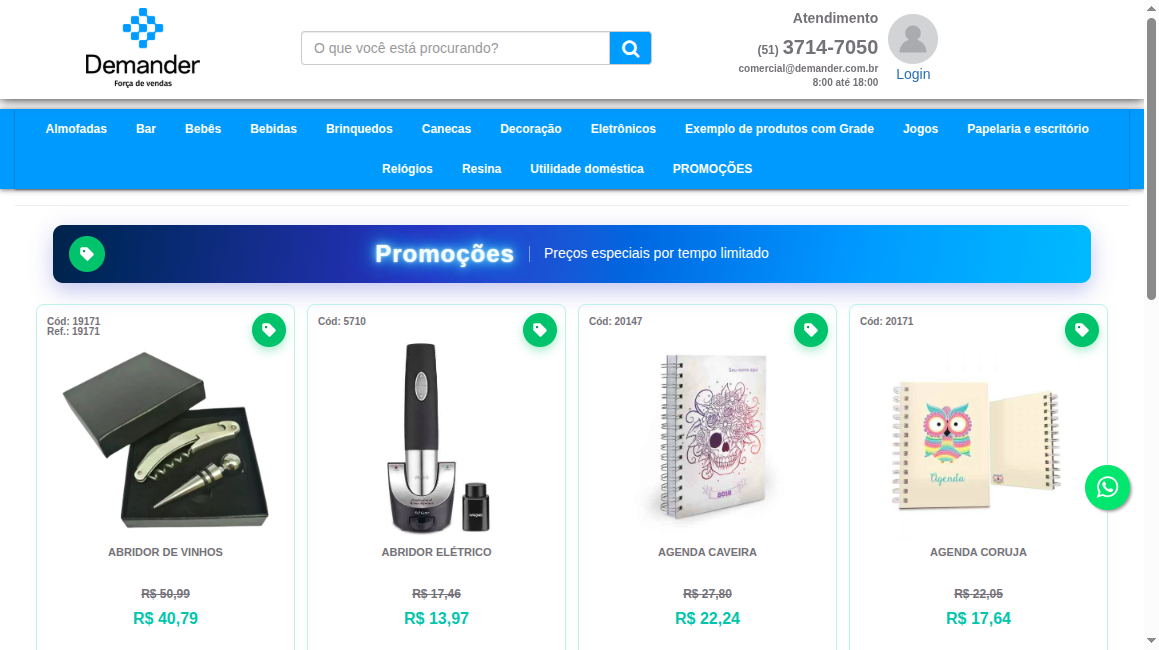
At the end of the list, Sort offers:
- Alphabetical (A-Z)
- Alphabetical (Z-A)
- Lowest price
- Highest price
Lowest price and Highest price appear only when the store shows prices. After sorting, the list still contains only products on sale.
If there are more products than fit on one screen, pagination works the same way as the other store listings.
How to create the page
Section titled “How to create the page”Open B2B Virtual Store pages and create the page with these fields:
| Field | What to enter |
|---|---|
| Description | Name shown in the menu. Example: Promotions. |
| Identifier | produtos-em-promocao, lowercase, with a hyphen. |
| Order | Position in the menu. The smaller number appears first. |
| Show the page in the store | Always, only for a signed-in user, or only for a user who is not signed in. |
| Content | Text or HTML shown above the products. It can be a title, a notice or a banner. |
| Active | Checked. Unchecked, the page leaves the menu. |
Which products are included
Section titled “Which products are included”A product is included when, on the price list the store is using, these three conditions are true together:
- Sale amount greater than zero.
- Sale start date blank, or already started.
- Sale end date blank, or not yet ended.
An expired sale stays out. A product with no sale amount also stays out. If no product matches, the page opens with only the saved content.
The price list is the same as the rest of the store. Without sign-in, the list configured on the store applies. After sign-in, the customer’s list applies when the store is set up to use it.
The other store rules still apply. If the store only lists products with a photo, a product without a photo does not appear on this page either.
The amount and the dates are entered in Product price. When the company integrates with the ERP, this data comes from table 13 - Product price. The sale concept in Demander is in Product sales and promotional banner.
What does not change
Section titled “What does not change”The other store pages remain only the saved content, with no product grid.
On Android, on Demander Web and in the Demander app, the on-sale filter in the item list stays as it is. This page belongs only to the B2B Virtual Store.