

How to clear the database in the Demander App
Clearing the database removes the data stored on the device and starts a new sync to download the data available on the server. In the Demander App for Android and iOS, the option is in the Help center, under Clear device database.
Use this procedure when you need to reload the local database, preferably with guidance from support.
Before you start
Section titled “Before you start”- Connect the device to the internet and sync to send the records created in the app.
- Check for errors or records waiting to be sent. Resolve any pending issues before clearing.
- If syncing fails, contact support through the Help center. When requested, use Share backup or Share order backup before clearing.
- Allow time and an internet connection to download the database again. The duration depends on the data volume and the connection.
Sharing a backup does not send records as a sync does or guarantee automatic recovery. If important data exists only on the device, wait for guidance from support.
How to access the cleanup option
Section titled “How to access the cleanup option”- Tap the identification bar at the bottom of the app, where the user details and version appear.
- In the About me area, tap Help center.
- Find Clear device database in the maintenance tools section. Scroll if necessary.
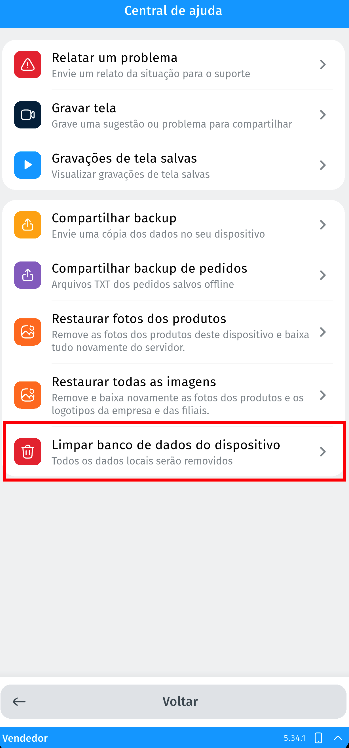
The options available in the Help center may vary depending on the app version.
Steps to clear the database
Section titled “Steps to clear the database”- Tap Clear device database.
- Read the notice explaining that an automatic sync will run after clearing. Tap Clear to open the confirmation screen.
- On the Data cleanup screen, check Space used and Pending records. When no pending records are identified, the summary shows All OK.
- If there are pending records, tap Cancel and sync before continuing. The warning explains that unsynced records will be permanently lost.
- Decide whether to select Delete product photos. This option starts unchecked; select it only if you also need to remove local photos to download them again.
- Wait for the 10-second countdown and for the summary to load. The Delete everything button then becomes available.
- If you agree to the removal, tap Delete everything and wait for it to finish.
- The app confirms that the database was cleared successfully and opens the initial automatic sync. Wait for it to finish and check that the data you need is available again.
If you change your mind before tapping Delete everything, use Cancel. This closes the confirmation without clearing the database.
What changes on the device
Section titled “What changes on the device”| Information | Behavior when clearing |
|---|---|
| Local data, such as customers, products and orders | Removed from the local database and must be downloaded from the server again. |
| Unsynced records | Removed with the local database. A later sync cannot retrieve them from the server. |
| Local salesperson record | Preserved by the database cleanup procedure. |
| Local sync history | Cleared, and sync tracking is reset. |
| Product photos | Local files are removed if you select Delete product photos. |
| Company and branch logos | Local files are removed during cleanup so they can be downloaded again. |
| Data already sent to the server | Not deleted by this device cleanup. |
Space used includes the database file and the local product photo and logo folders. This value indicates device storage usage, not a guarantee of how much space will be freed, especially since the data will be downloaded again.
Local cleanup is different from clearing the company database or tables through Demander Web.
Example scenarios
Section titled “Example scenarios”Three records are pending
Section titled “Three records are pending”The screen shows 3 records under Pending. Tap Cancel, sync and check that all records were sent. If it fails, ask support for help before clearing. Confirming cleanup with pending records may delete data that has not reached the server.
The database needs to be downloaded again
Section titled “The database needs to be downloaded again”Following guidance from support, you sync and check that no records are pending. You open cleanup, leave Delete product photos unchecked and confirm after 10 seconds. The app clears the local database and starts downloading the data available on the server.
Only the photos have a problem
Section titled “Only the photos have a problem”If the records are correct and you need to download the photos again, use Restore product photos in the Help center, when available. To include logos, use Restore all images. These options avoid clearing the entire local database.
Frequently asked questions
Section titled “Frequently asked questions”Does cleanup delete company orders from the server?
Section titled “Does cleanup delete company orders from the server?”No. It affects the device database. Orders already on the server can be downloaded again according to the salesperson’s sync rules. Orders that exist only on the device may be lost.
Do I need to select Delete product photos?
Section titled “Do I need to select Delete product photos?”No. It is optional and starts unchecked. Use it when you also need to remove local photo files; they will need to be downloaded again.
Why is the Delete everything button disabled?
Section titled “Why is the Delete everything button disabled?”The screen waits 10 seconds and for the summary to load. The button is also unavailable while cleanup is running to prevent repeated taps.
Can I use the app without internet immediately after clearing?
Section titled “Can I use the app without internet immediately after clearing?”The database must be synced again to make work data available. Ensure you have a connection and complete the sync before resuming offline use.
The cleanup option is missing. What should I do?
Section titled “The cleanup option is missing. What should I do?”Maintenance tools are displayed when the app uses the Flutter local database. Check with support whether your version and usage mode offer the feature; apps using a different storage method may require another procedure.
The app showed a cleanup or sync error. What now?
Section titled “The app showed a cleanup or sync error. What now?”Check the connection and the message displayed. If the database does not reload, contact support and report which step failed. Do not consider the operation complete just because the sync screen opened.