

Order Picking Application
The purpose of this article is to present the Order Picking Application
We recommend first reading the main article, Order Picking Module.
About the Demander Separation app
Section titled “About the Demander Separation app”- The Demander Picking application was developed with a view to speeding up and improving the order picking process, providing an integrated solution with Demander. It can be used on Android and iOS platforms or accessed directly through Demander Web.
- Below are listed some features of the application that will be detailed later in this article:
- Separation of products via barcode reading;
- Product exchange in the middle of separation;
- Check-list at the end of the order (demander’s auxiliary fields are used);
- View product images and zoom in;
- Accessibility (increase/decrease font, increase/decrease image thumbnail size);
- Possibility to cancel a separation;
Download the Demander Separation app
Section titled “Download the Demander Separation app”


Getting to know the Demander Separation application
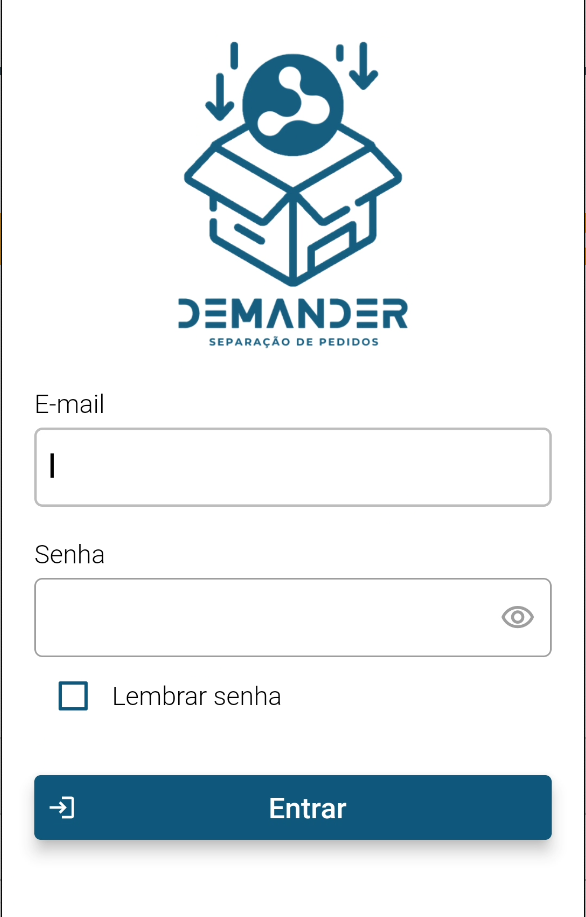
Section titled “Getting to know the Demander Separation application”- After configuring the module, you can log in with your Demander Web username and password. To keep your password saved, you must select the “Remember password” option;
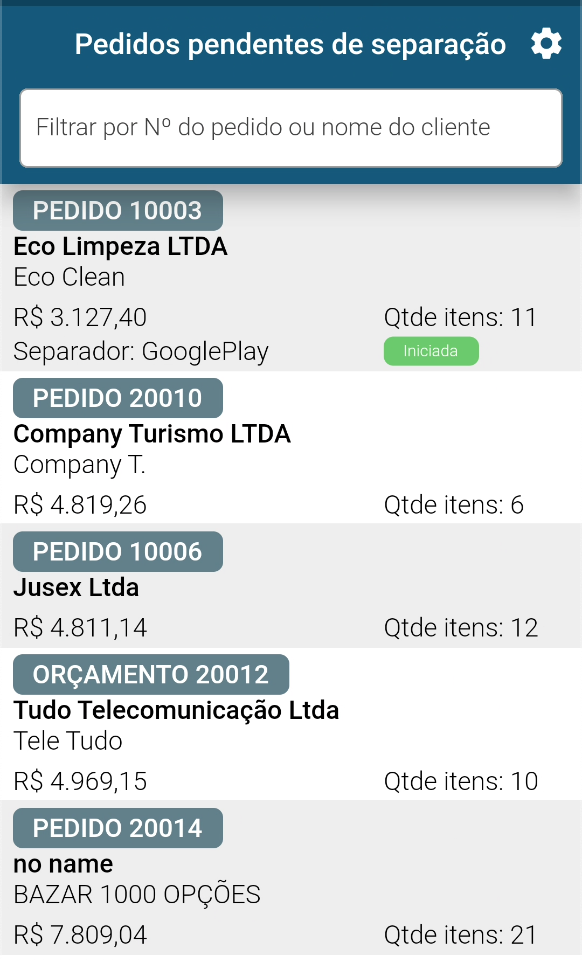
List of pending separation orders;
Section titled “List of pending separation orders;”- The picking screen will list all orders that have the Order Status “Pending picking”. You can filter by order number or customer name. By long clicking on the order, separation can be initiated;
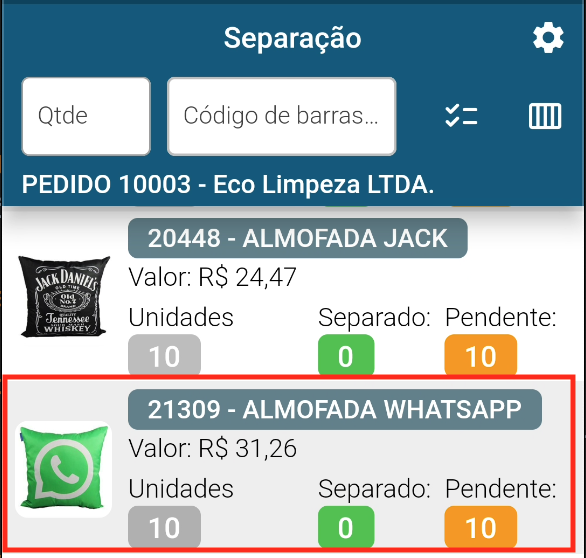
Understanding the order item line;
Section titled “Understanding the order item line;”- Let’s take the highlighted line as an example;
- On the left we have a photo of the product;
- In half, the value of the product;
- At the bottom there are three data:
- Units - Product quantity in the order
- Separated - Quantity of the product that has already been separated
- Pending - Quantity of product that still needs to be separated.
Start separation;
Section titled “Start separation;”- The list of items shown below are all the items in the order. Items are sorted in the order in which they should be separated, the item that is being separated is always at the top. This way, when adding all the quantities of the item, it leaves the list, and the next item will be the first in the list, and can be separated.
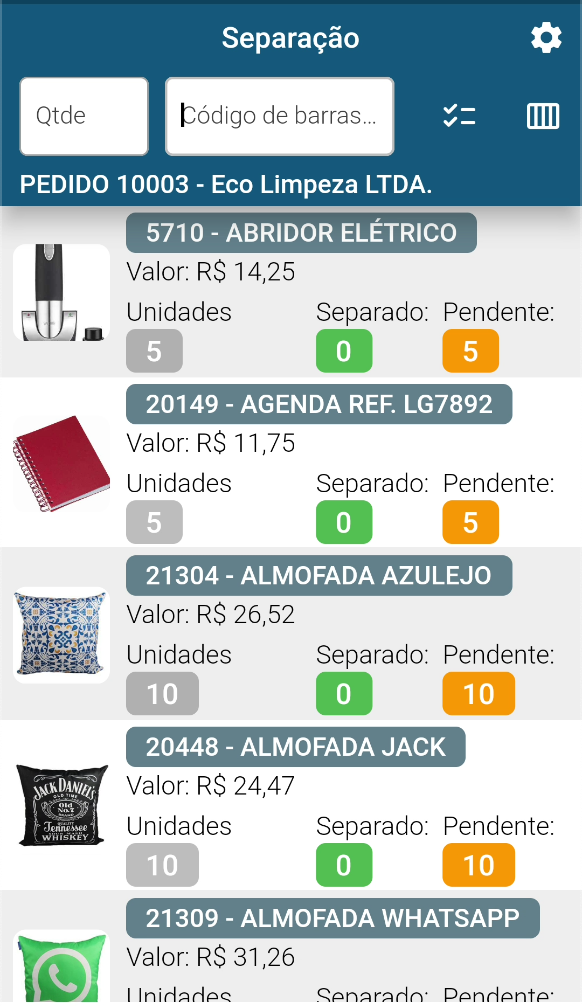 | Quantity Field- Can be used to inform the quantity of the item that is being separated. Barcode Field- Where the product’s barcode can be entered (or use the barcode reader). better visualization. Back- Returns to the order screen Save- Saves the separation without needing to be completed, making it possible to resume it later; Finish- To complete a separation it is necessary that there are no more items in the list. The message When completing an order, the order status will change to "Separated" (NOTE: “Separated” status is equivalent to the order status configured in the separation configuration, must be defined by the company) |
 must appear to be able to complete!
- When starting the picking, the order status will be changed to “In Picking” and will be linked to the user, preventing another user from picking the same order. (NOTE: “In separation” status is equivalent to the order status configured in the Separation Configuration, must be defined by the company)
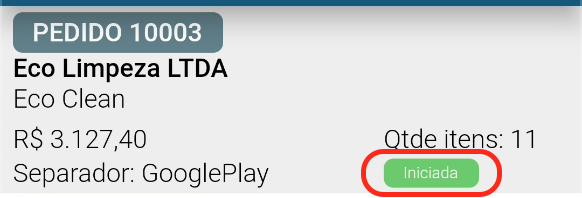
- After the separation begins, some actions can be taken;
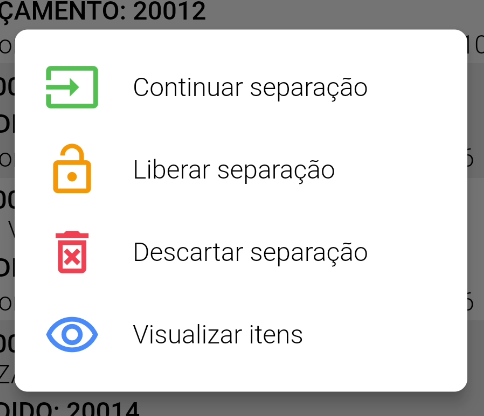
- The user will be able to “Continue the separation”, and the order will be resumed from the point where it was previously saved.
- The user can “Release the separation”, the order will return the list of orders from other users, allowing another user to complete the separation initiated by a colleague.- The user can “Discard the picking”, all items already separated will be discarded and the order will return to “Pending picking” with no link to the separating user.
- The user can “View items”, making it possible to see all the items in the order, checking what has already been separated and what is still missing.
View items already separated;
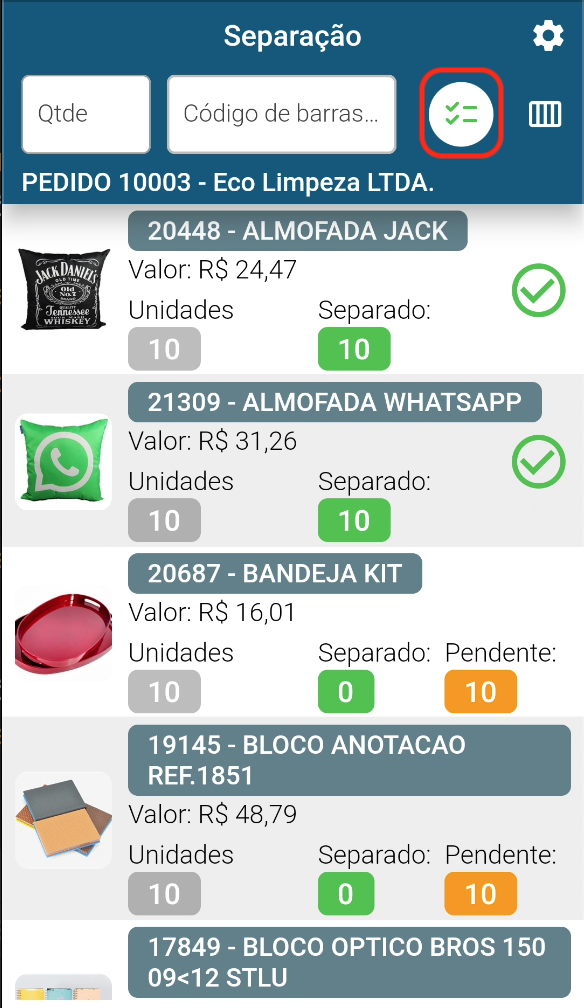
Section titled “View items already separated;”- To view the products that have already been separated, simply tap the icon highlighted in the image below;
- Green items are products that have already been separated;
- When you tap the highlighted icon again, only products that have not yet been separated will appear.
Product replacement;
Section titled “Product replacement;”- Attention: When replacing a product, the order is changed and recalculated, even if the separation is cancelled, the replaced item will remain in the order
- NOTE: No rules (flex, commission, discount, …) are applied to the item added by replacement. The Item is added to the order with the price list value.
- During picking, the user can replace an item if for some reason it is not available in stock. This way, the replaced item will be removed from the order and the replacement will be added to the order.
- The options are:
- Total replacement:
- To replace an item, simply press and hold the item and then tap
- Total replacement:
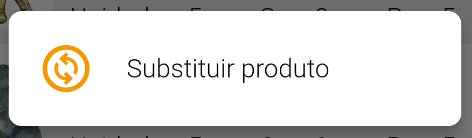
- Partial Replacement:
- It is also possible to “Complete” an item that has not reached its total quantity, if a product is partially separated and for some reason it is not possible to separate the total quantity, simply keep the item pressed and then tap
and a new product can be added with the quantity that has not yet been separated.
Undo separation;
Section titled “Undo separation;”- During separation, the user can undo the separation of an item if necessary;
- To undo a separation, simply press and hold the already separated item, then the option will appear, thus the separation of this item will be undone, and it will return to the separation pending list;
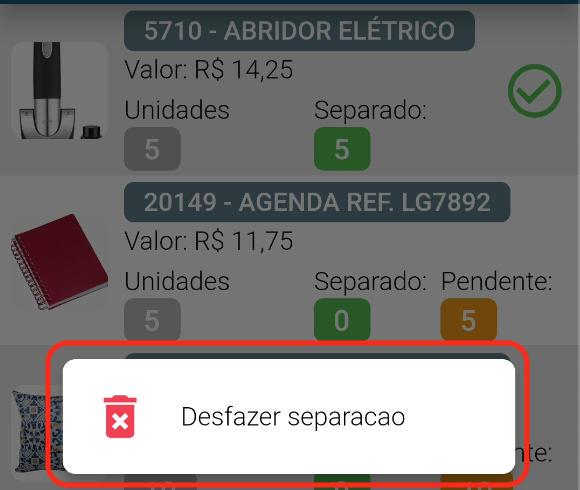
Merchandise cutting
Section titled “Merchandise cutting”-** *Attention: **When cutting a product, the order is changed and recalculated, even if the separation is cancelled, the item that was removed will no longer be in the order.
- To enable merchandise cutting, simply access the [Order Picking Configuration] screen (https://sistema.demander.com.br/dinamico/configuracao-separacao-pedidos) and select the option “Enable Merchandise Cutting function”.
- During picking, the user (Separator) can CUT (remove from the order) an Item from the order if for some reason it is not available in stock.
- The options are:
- Make a Total Cut
- To Full Cut a product, simply press and hold the item and then tap
- Make a Total Cut

It will be necessary to provide confirmation for the cutting of the merchandise to be carried out.
-** Make a Partial Cut**
- It is also possible to do “Partial Cut” if for some reason it is not possible to separate the total quantity, just keep the item pressed and then tap

the quantity that has not yet been picked will be removed from the order. It will be necessary to provide confirmation for the cutting of the merchandise to be carried out.
Settings;
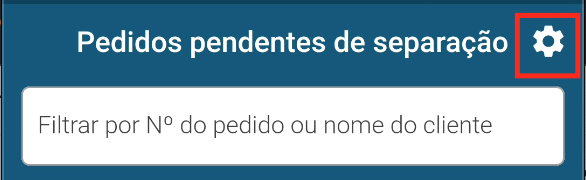
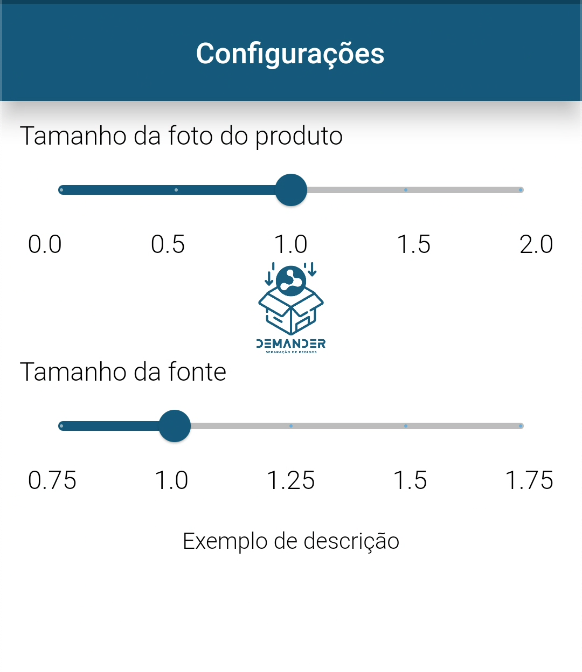
Section titled “Settings;”- To view the application settings, simply click on the gear icon at the top, as in the image
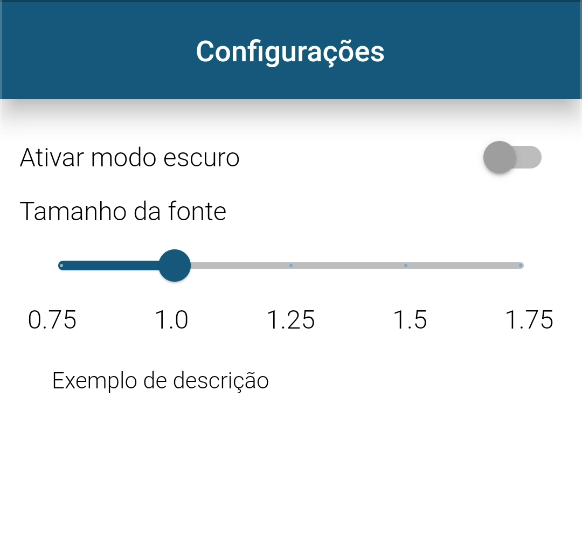
- On the orders page we have settings for ** Dark Mode **, and ** font size ** for listing orders.
- Dark Mode when activated, activates Dark Mode, so you can set the best view.
- The font size defined here applies to the order list
- On the Separation page we have the ** image size **, and ** font size ** settings for listing the items.
- Image size - if the visualization of the image is important, then a larger image can be defined, whereas if the product photo is not relevant to the separation, it can be smaller, leaving space for what matters.- The font size defined here applies to the list of order items.
Auxiliary fields;
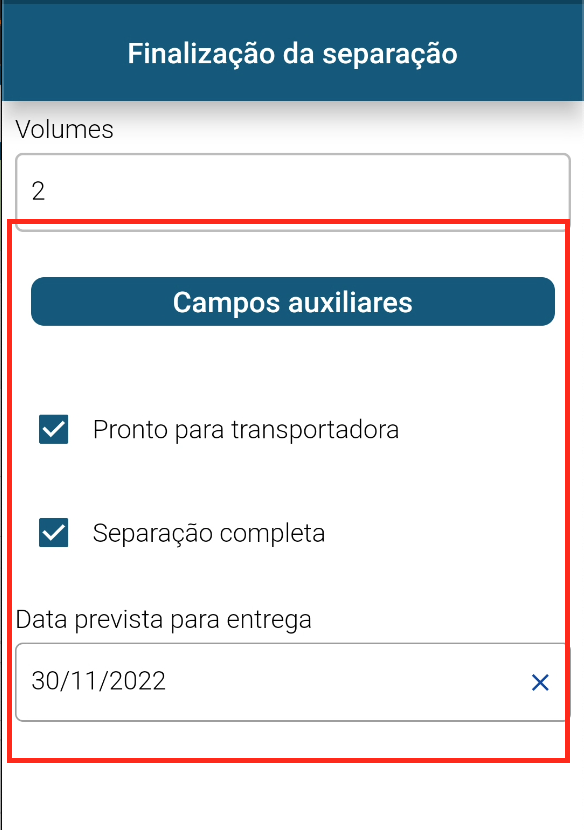
Section titled “Auxiliary fields;”- At the end of the separation, it may be necessary for the Separator to fill in some additional information. This additional information is defined as auxiliary fields.
- Auxiliary fields can be defined in this Demander web screen, simply create the field as desired and in the** Functionality escolher Separation application**. If necessary, see the documentation on how to register auxiliary fields
- “Auxiliary Fields” is a grouper that has its name defined in the web demander registration
- All information shown below was created as auxiliary fields.
Finishing
Section titled “Finishing”- Learn more about the Order Picking Module.