

Registering Product Attachments
Available at:


In this article, we will talk about “Product Attachment Registration”. You will learn how to register product attachments in the module in a simple and practical way.
Where to find:
How to Register Attachments?
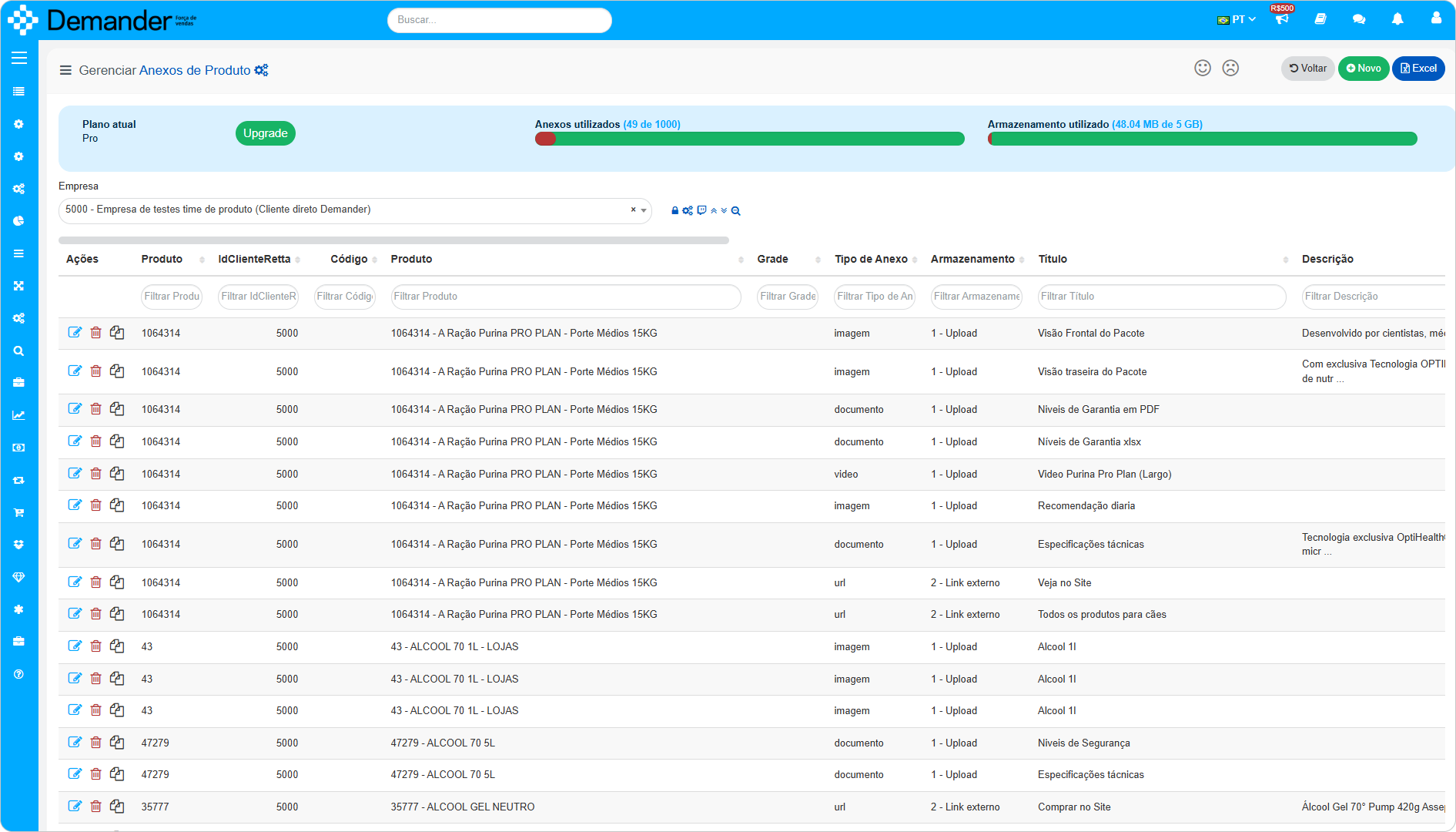
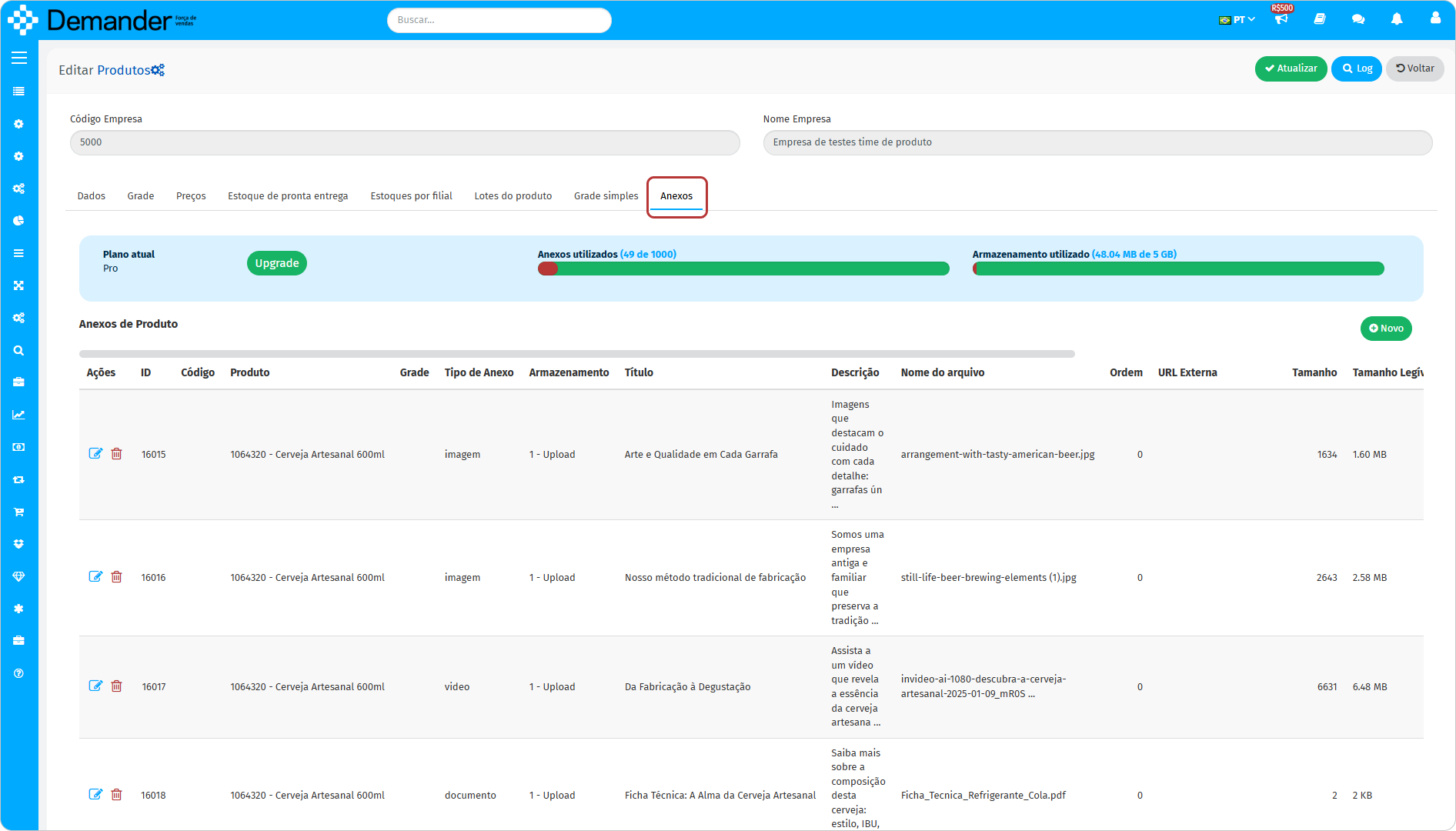
Section titled “How to Register Attachments?”In Demander Web it is possible to register, edit and also delete Product Attachments in two ways:
- One of the ways to register or update both the plan and the attachments is through the Product Attachments screen.
- The other way to register or update is through the Product > Edit Product > Attachments Tab.
The registration of Product Attachments requires some mandatory and other optional fields.
To register them, simply follow the path below and fill in the fields as needed.
How to Create Product Attachments?
Section titled “How to Create Product Attachments?”To create attachments, you must fill in the following fields:
Required Fields (*)
- *Product: Product name.
- *Storage Method: Ways to store the attachment (Upload and External Link).
- Upload: Takes up cloud storage space.
- External Link: Instead of storing the file, a link directs to another website or external service, without consuming storage space.
- *Attachment Type: Selects the type of attachment to be created (Image, Video, Document or Links).
- Title: Define a name that will be used as a reference to identify the attachment.
- Description: Add a brief description to detail the content.
- Display Order: Configure the position of attachments, arranging them in ascending order (from the smallest number to the largest).
How to Update my Plan?
Section titled “How to Update my Plan?”If you need more resources beyond the Free plan, you can purchase a higher plan directly from the Product Attachments screen. Simply click the Upgrade button to access the available options.

- Available Plans:
- Starter
- Pro
- Premium