

How the Ideal Order works
The Ideal Order (Pedido Ideal in the app) analyzes your customer’s previous orders and suggests products to speed up building a new sale. In this article, you learn how to review the suggestions, adjust quantities, and add the items to the order.
How to access
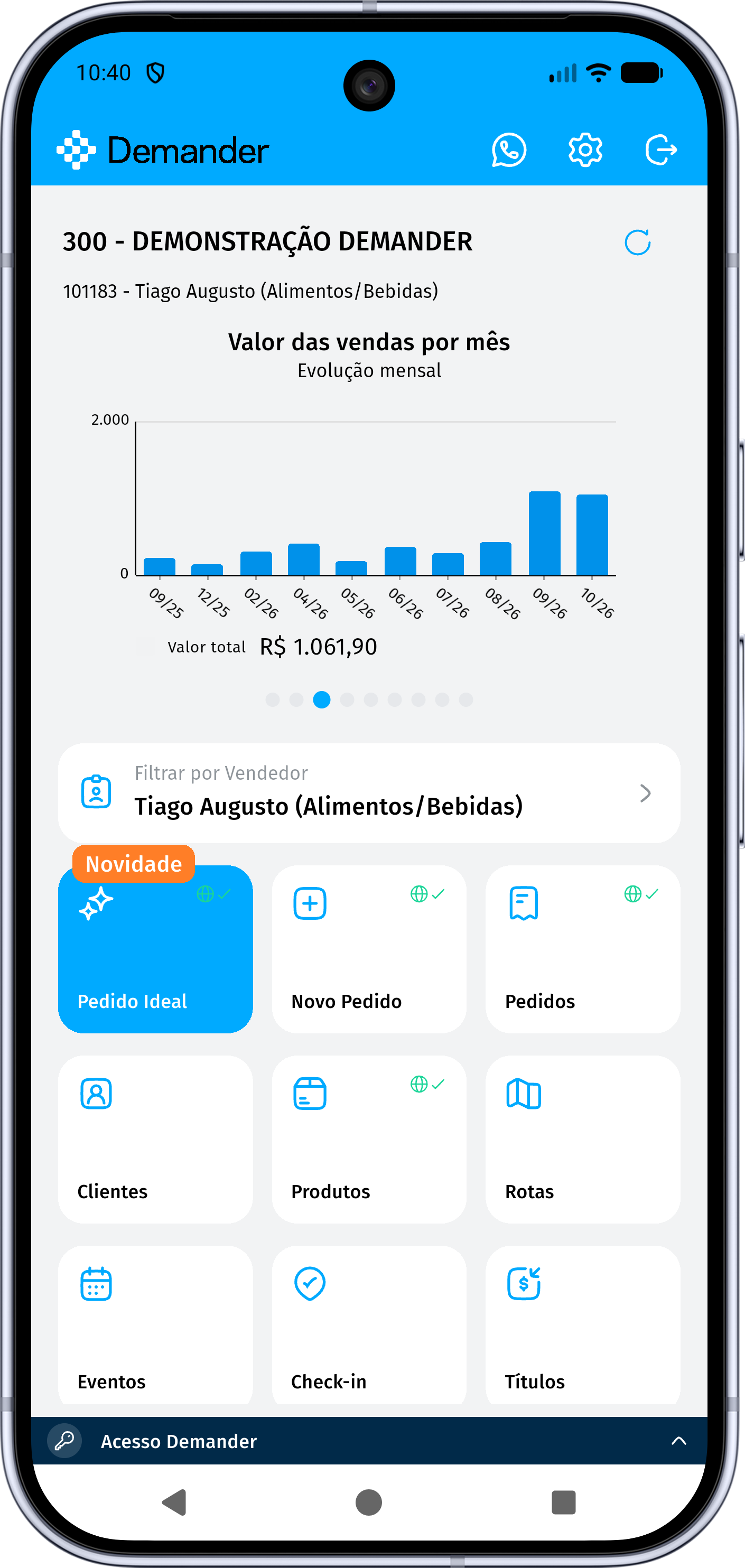
Section titled “How to access”On the application’s home screen, tap Ideal Order and select the customer you want to build the order for. On first use, the application may show an introduction to the feature.
The customer selection screen lets you search and apply filters. The Suggested tab, when available, groups customers who have history and meet the rules for issuing orders. Blocked customers or customers without enough history may be left out of these suggestions.
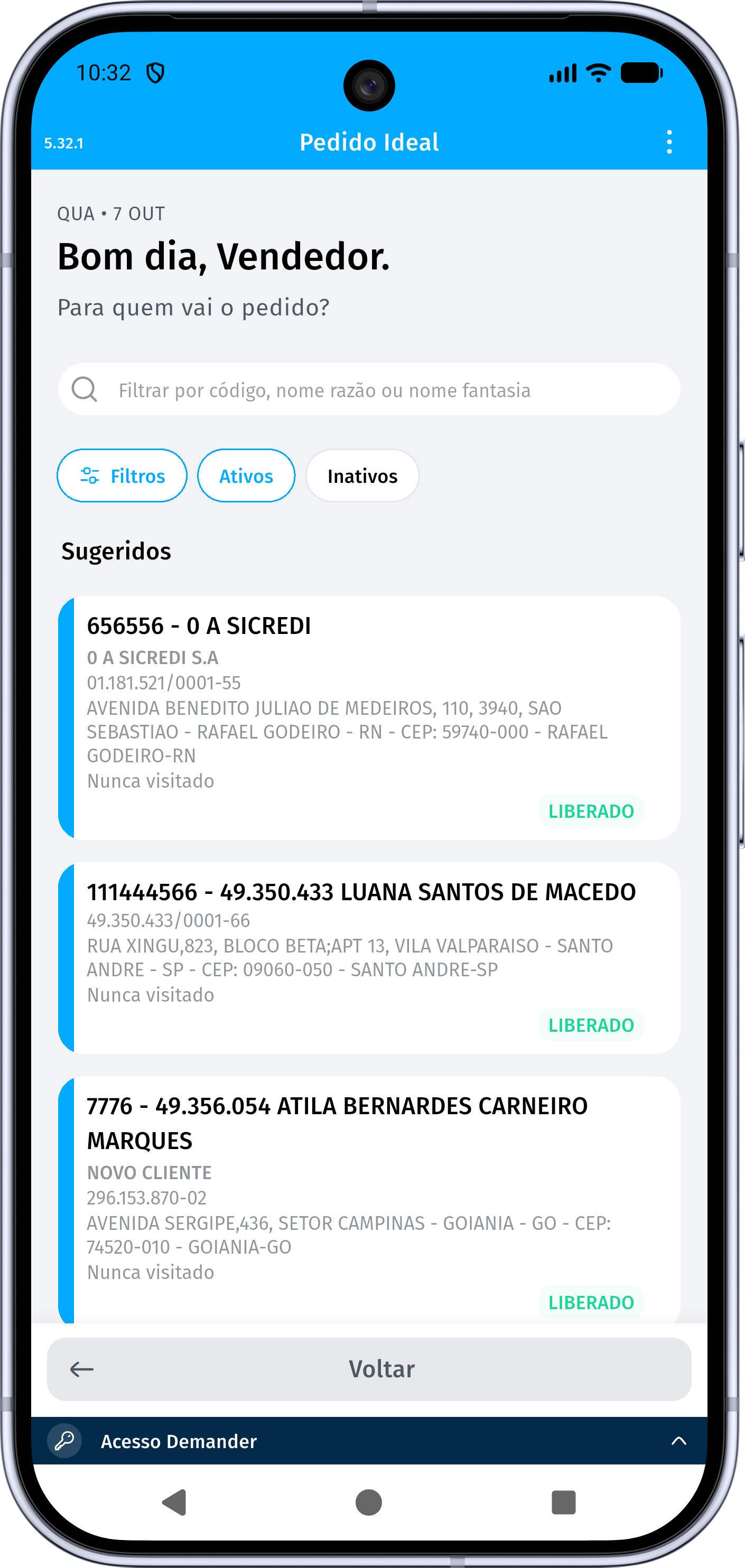
For manager users, you must select a seller to load the list.
The feature can also be accessed through the Ideal Order button while entering an order, when there is history and products compatible with the selected data.
Button availability
Section titled “Button availability”In versions with per-seller configuration, the button display considers the option defined for the seller and the company’s menu configuration:
| Seller option | Button display |
|---|---|
| According to company | Follows the Ideal Order setting in the company menu. This is the default behavior. |
| Enabled | Enables the button for the seller, even when the company setting is disabled. |
| Disabled | Hides the button for the seller, even when the company setting is enabled. |
The button release remains subject to the operating modes supported by the application version. In versions with the online flow, the Ideal Order can also be accessed when order issuing is configured as online.
While entering an order, you must also select a customer and have compatible history for the button to become available.
Online and offline operation
Section titled “Online and offline operation”The Ideal Order follows the mode configured for order issuing. The source of the history changes according to this mode:
| Mode | Data source | What to check |
|---|---|---|
| Offline | History and records available in the application’s local Flutter database. | Keep synchronization up to date so that purchases and products are available on the device. |
| Online | History, suggested customers, and products queried on the server. | Internet access and a server version compatible with the online flow are required. |
In online mode, the application queries customers and suggestions on the server, prepares the order data, and opens the product review. The classification into recurring and potential products keeps the same frequency rules.
The online flow disregards orders being edited when querying the history. Drafts are not used as a reference to choose the initial data or to calculate the suggestions.
The mode used when selecting the customer is kept when the order entry opens, including when the user continues with a manual order due to lack of history.
When signed in with the master password, pressing and holding the button on the home screen lets you temporarily choose Online or Offline, when this option is available. This choice applies to the opened flow and does not permanently change the configuration of the other screens.
Per-seller options and the online flow depend on the installed version. Check which features are available in the application and server used by the company.
How the history is analyzed
Section titled “How the history is analyzed”By default, the Ideal Order analyzes up to the customer’s last 10 compatible orders. This number can be changed in the feature settings.
In the analysis, the application considers:
- The selected customer.
- The seller responsible for the order.
- The order type and price list of the current scenario.
- Orders that are not canceled, starting with the most recent ones.
- Items with a quantity greater than zero.
The number of orders actually found may be lower than the configured limit. The purchase frequency is calculated based on the number of orders found.
Example: if the setting is 10 orders but only 5 compatible orders exist, a product present in 3 of them has a frequency of 60%.
The history may include orders from different branches. The current branch is still considered for product availability and for the data required to issue the order.
When starting from the home screen, the application tries to reuse valid data from previous orders, such as order type, price list, payments, and carrier. The customer’s settings and locked fields are still respected.
When the feature is opened inside an order, the suggestions use the scenario already selected. Changing the seller, the order type, or the price list may change the suggested products.
Recurring and potential products
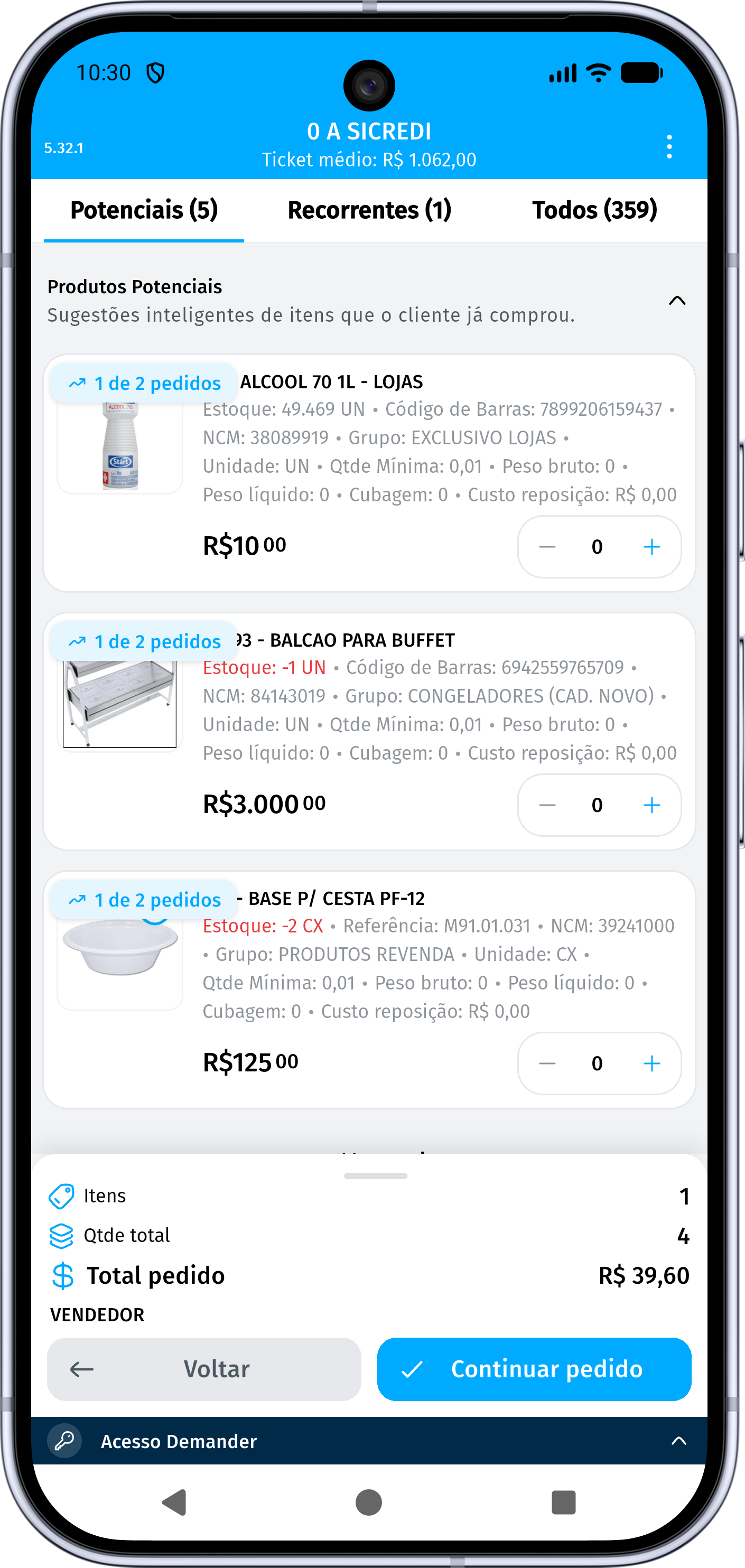
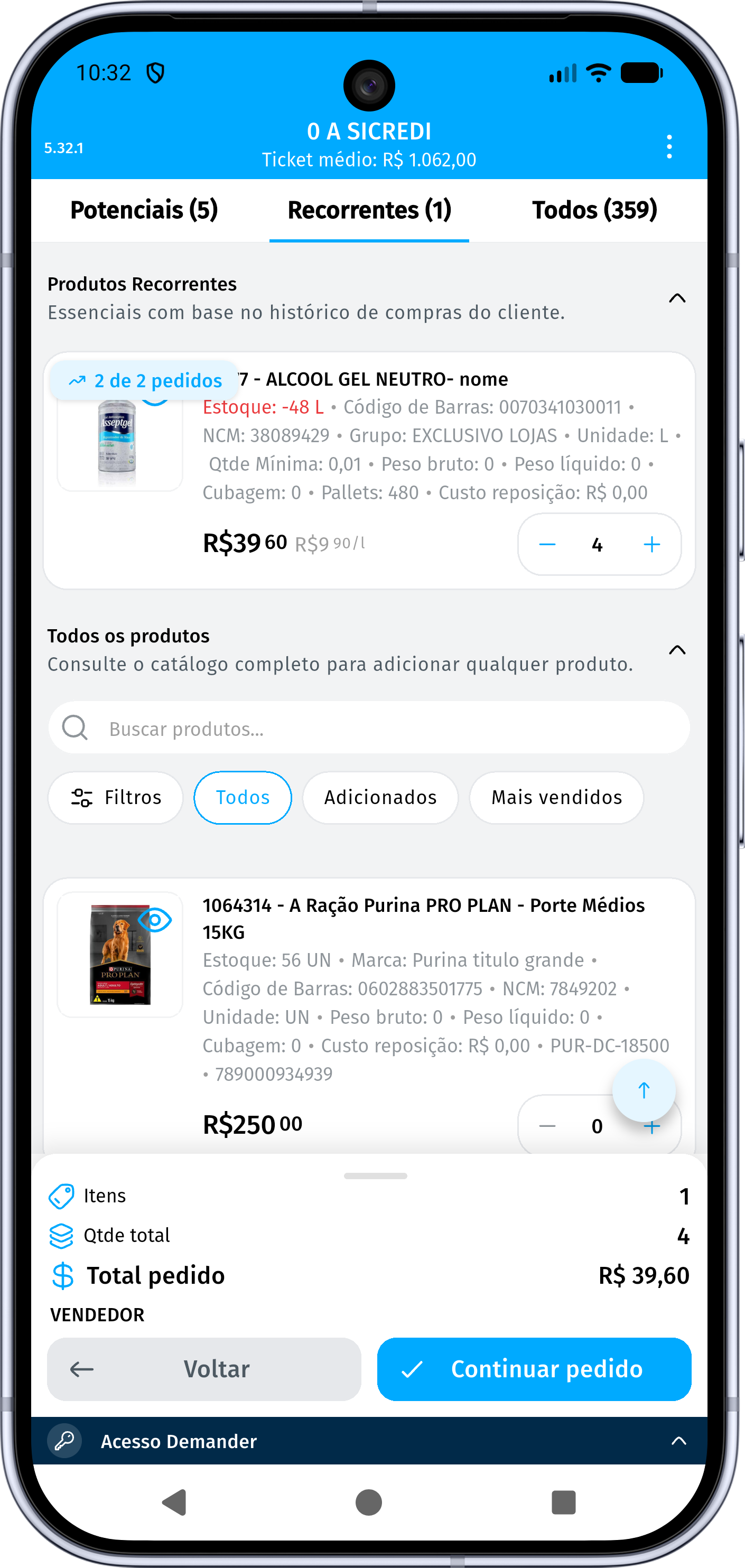
Section titled “Recurring and potential products”Suggestions are organized into two categories. The screen also lets you browse All products to complement the order with items from the available catalog.
| Category | How it works |
|---|---|
| Recurring | Products present in 60% or more of the analyzed orders. They represent the most consistent items in the customer’s purchases. |
| Potential | Products the customer has already purchased, with a frequency greater than zero and lower than 60%, that meet the minimum number of orders configured for suggestion. |
| All products | Catalog of products available for the order scenario, including items that do not appear in the history suggestions. |
Potential products represent opportunities to offer again products the customer has already purchased. This category is based on the customer’s own history.
The frequency may appear as “6 of 10 orders”. This information indicates in how many orders the product was purchased; it does not represent the number of units.
Suggestions respect the current availability of products. An inactive product, or one not allowed in the current scenario, may not appear even if it exists in previous purchases.
Quantities and settings
Section titled “Quantities and settings”In the Ideal Order settings, you can adjust:
| Setting | Behavior |
|---|---|
| Number of orders to analyze | Defines how many recent orders will be queried. The default is 10; the analysis uses 1 to 50 orders. |
| Minimum orders for suggestion | Defines in how many orders a potential product must appear to be suggested. The default is 1. Recurring products remain eligible under the 60% criterion. |
| Add recurring products with quantity | When enabled, fills in the initial quantity of recurring products. Enabled by default. |
| Add potential products with quantity | When enabled, fills in the initial quantity of the first three potential products in the list. Disabled by default. |
Preferences are saved for the user and used in future analyses.
When automatic filling is enabled, the reference is the highest quantity recorded for the product in the analyzed history. Review this value according to the customer’s current needs.
Example: a product was purchased in quantities of 4, 8, and 6 units. The suggested initial quantity will be 8 units when automatic filling is enabled.
You can change quantities before adding them to the order. Products with zero quantity are not included.
How to add the products to the order
Section titled “How to add the products to the order”- Select the customer and wait for the analysis.
- Tap Review Order when the analysis completion screen is displayed.
- Check the recurring and potential products.
- Adjust the quantities and browse All products to include other items.
- Check the summary and use the action to add to the order.
- Review the data and items on the order entry screen and proceed with the usual completion.
You must have at least one product with a quantity greater than zero to add the items.
If a selected product already exists in the order, its item will be replaced by the data and quantity of the current selection. The quantity is not added to the one already in the order. Check the items after adding them.
The summary may show estimated values and commission, according to the company settings. Final values follow the order’s calculations, policies, and discounts.
Adding the suggestions takes the items to the order entry. After that, continue the normal review, saving, and sending process.
Example scenarios
Section titled “Example scenarios”Restocking the usual items
Section titled “Restocking the usual items”In the 10 analyzed orders of a customer, the product Coffee 500 g appeared in 8 and Sugar 1 kg in 6. Both go into Recurring, since their frequencies are 80% and 60%.
With automatic filling of recurring products enabled, the initial quantities use the highest quantity of each product in this history. The seller reviews the values before including the items.
Offering an occasionally purchased product
Section titled “Offering an occasionally purchased product”The product Paper filter appeared in 2 of the 10 orders: a frequency of 20%. With the minimum orders for suggestion set to 1 or 2, it may appear in Potential.
If this minimum is changed to 3, the product no longer meets the potential criterion. The seller can still look for it in All products, if it is available.
Customer without compatible history
Section titled “Customer without compatible history”A new customer does not yet have valid previous orders for the analysis. The application shows Insufficient history and, in the creation flow, lets you continue with a manually filled order.
Frequently asked questions
Section titled “Frequently asked questions”Why doesn’t a customer appear in Suggested?
Section titled “Why doesn’t a customer appear in Suggested?”The list considers history and issuing rules, including customer blocks, link with the seller, overdue payments, and the requirement for an active route, according to the company settings. Also check the search filters and the selected seller.
Why doesn’t a product the customer has already purchased appear?
Section titled “Why doesn’t a product the customer has already purchased appear?”It may be outside the recent orders analyzed, not reach the minimum configured for potential products, or not be available in the current scenario. Check the seller, order type, price list, and product restrictions.
Do I need exactly 10 previous orders?
Section titled “Do I need exactly 10 previous orders?”No. Ten is the default query limit. The analysis uses the compatible orders found, as long as there is enough data to generate suggestions.
What should I do when the application reports unavailable data?
Section titled “What should I do when the application reports unavailable data?”The required order type, price list, or branch may no longer be available. The application shows the reason and may offer the option to continue with a new manual order. Select valid data before including the products.
Can I sell a product the customer has never purchased?
Section titled “Can I sell a product the customer has never purchased?”Yes. Browse All products and choose an item available for the order. History suggestions help you get started; the catalog lets you complement the sale.
How do I continue when there are no suggestions?
Section titled “How do I continue when there are no suggestions?”Check the required data and the customer’s history. When there are no products to suggest, proceed with manual inclusion from the catalog. If there is a loading error, try again.