

Product Attachments Module
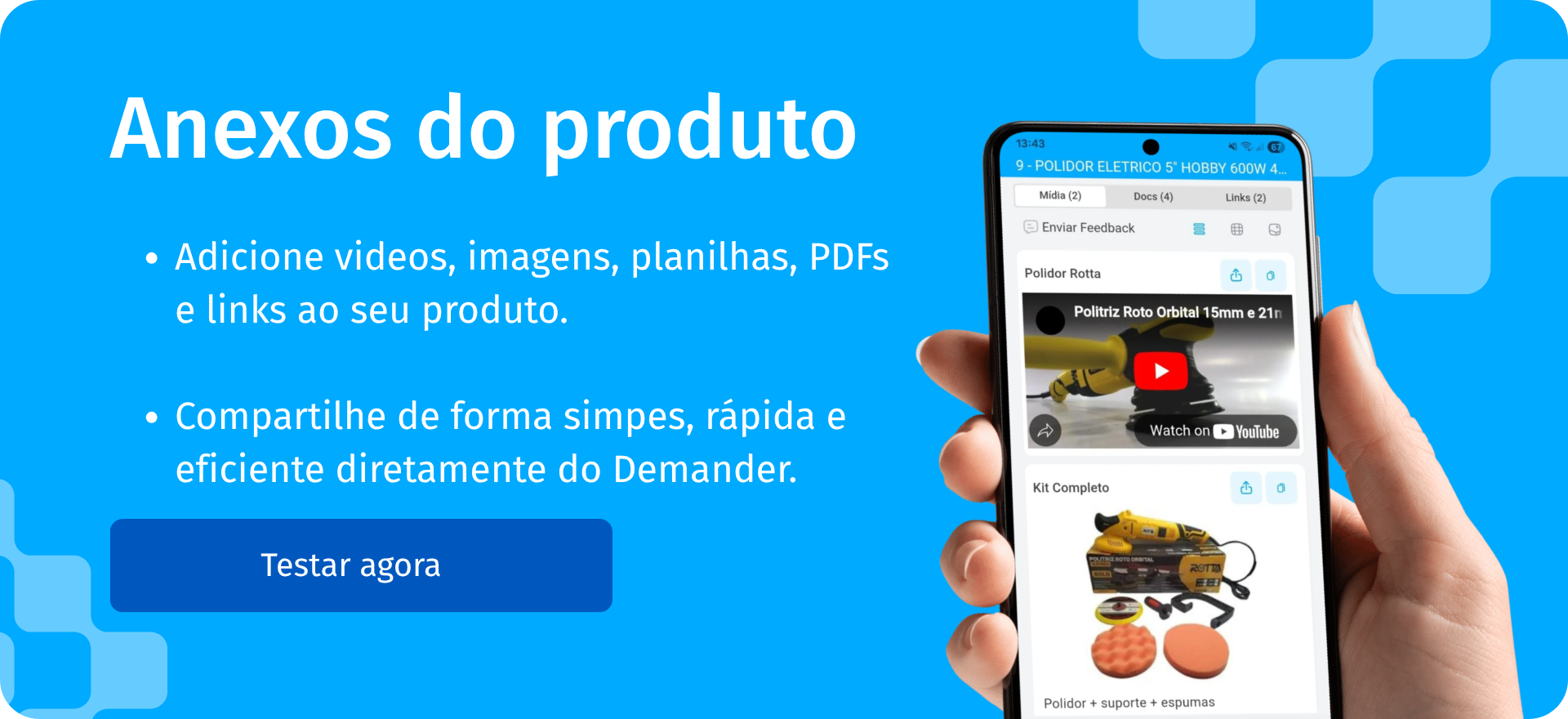
Available at:


In this article, we will talk about the “Product Attachments” functionality, which allows companies to efficiently make advertising materials available to their sellers.
You will learn where to find this functionality, the supported file types, how to register and view attachments, as well as details about the integration API.
What you will find in this article:
- 1- What are Product attachments?
- 2- Benefits.
- 3- How does it work?
- 4- Compatible file types.
- 5- Viewing modes.
- 6- Registering attachments
- 7- Api Integration
1- What are Product attachments?
Product Attachments are a feature that allows companies to associate different types of information materials with their products, such as images, videos, documents and links.
This solution was developed to facilitate sellers’ access to updated advertising materials, promoting a more efficient presentation of products to customers and
centralizing all relevant information in one place.
2- Benefits
- Full access to sales materials: Essential information always at hand.
- Ease of sharing information: Allows quick sending of data to customers.
- Organization and centralization of attachments: All materials in one place.
- Quick and simple activation: Intuitive and easy-to-use interface.
3- How does it work?
Product Attachments allow different types of files to be linked to an item in the system. These attachments are centralized in the product registration and can be accessed by both sellers and other interested parties for quick consultation and sharing. See more details below:
DemanderWeb
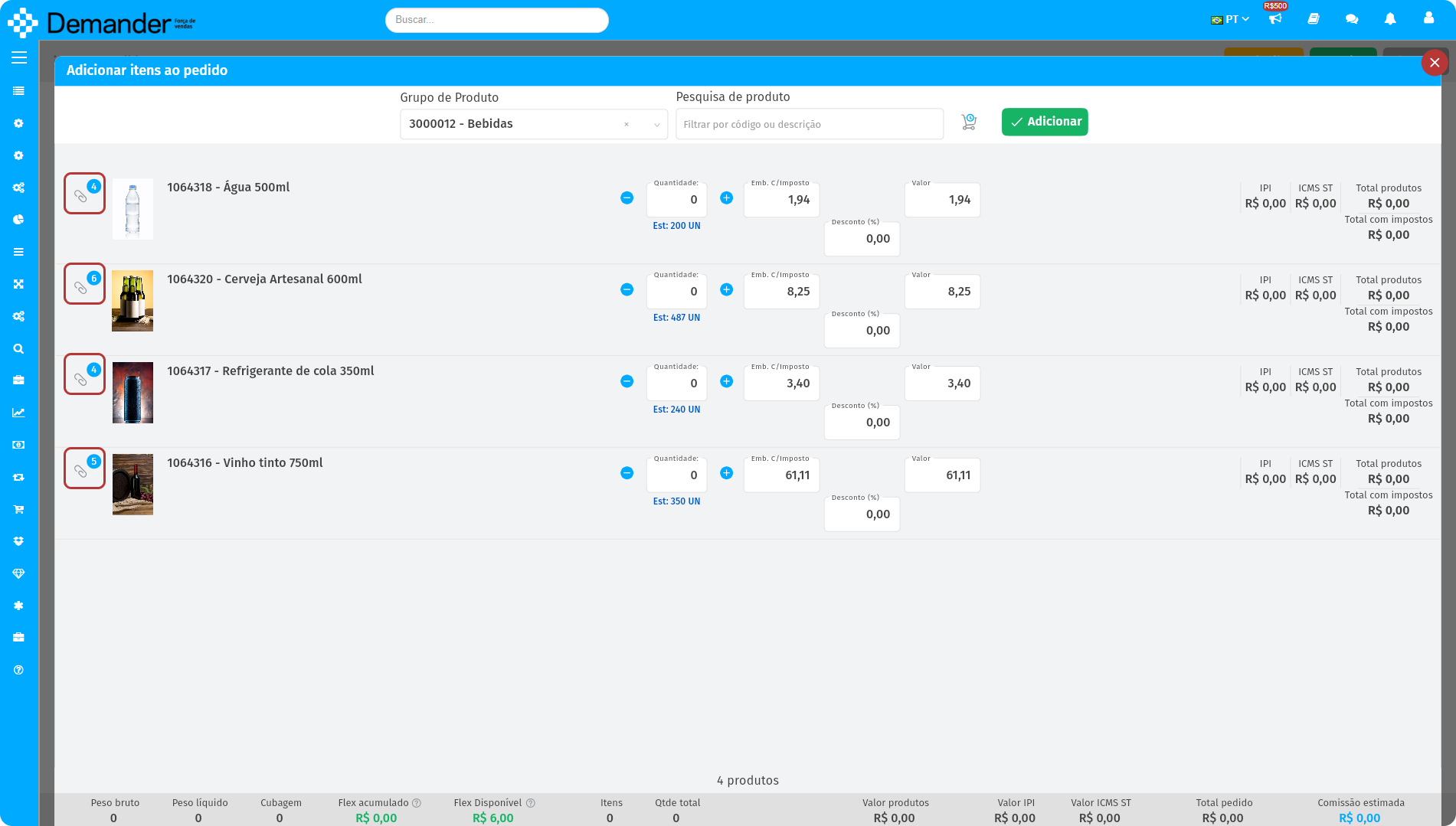
- When adding a new item to the order, if the product has registered attachments (see how to register here) the item will have a clip icon:
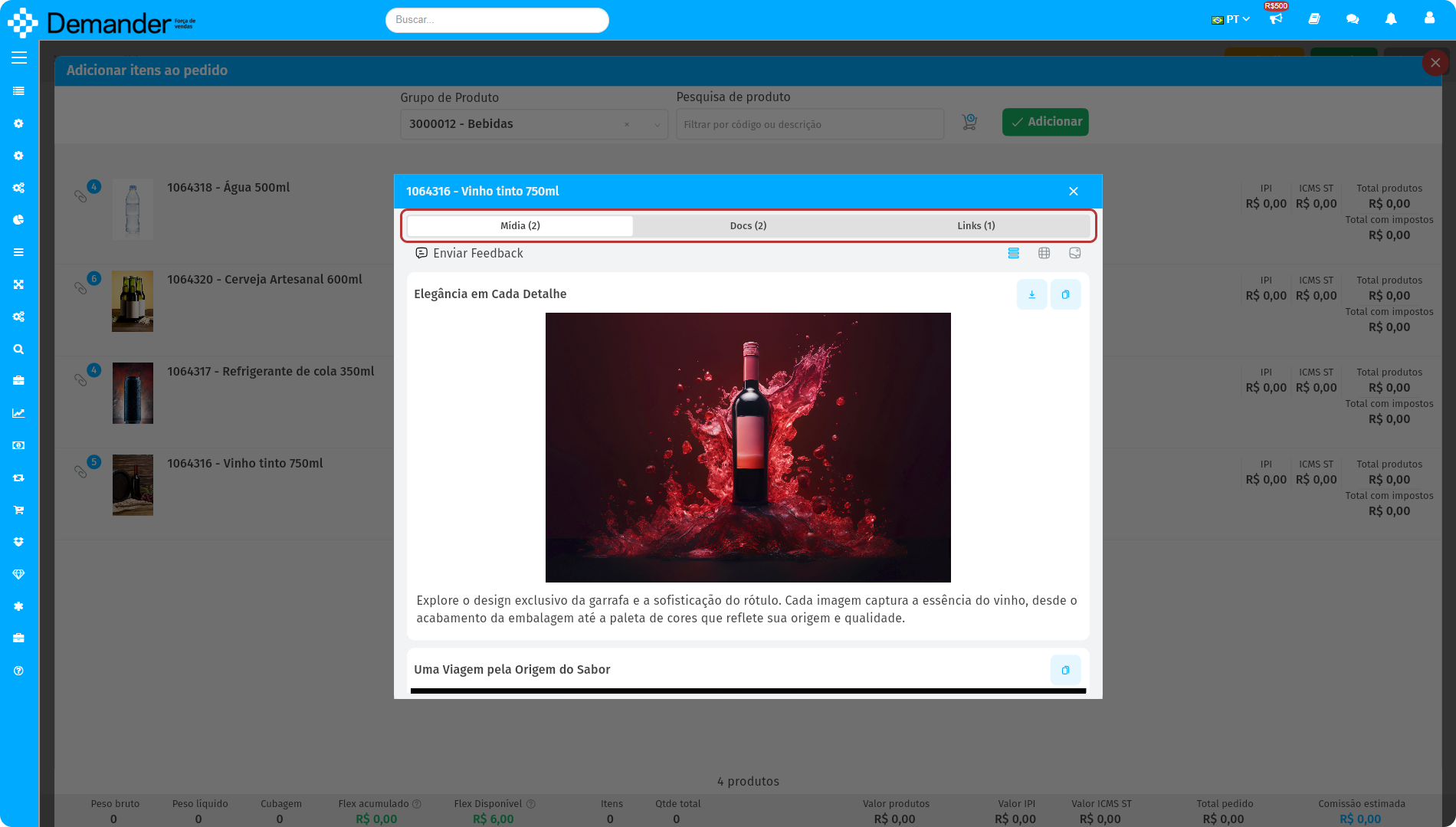
- When clicking on the clip icon, a dialog with attachments will open. You can navigate between attachment types via the highlighted navigation bar:
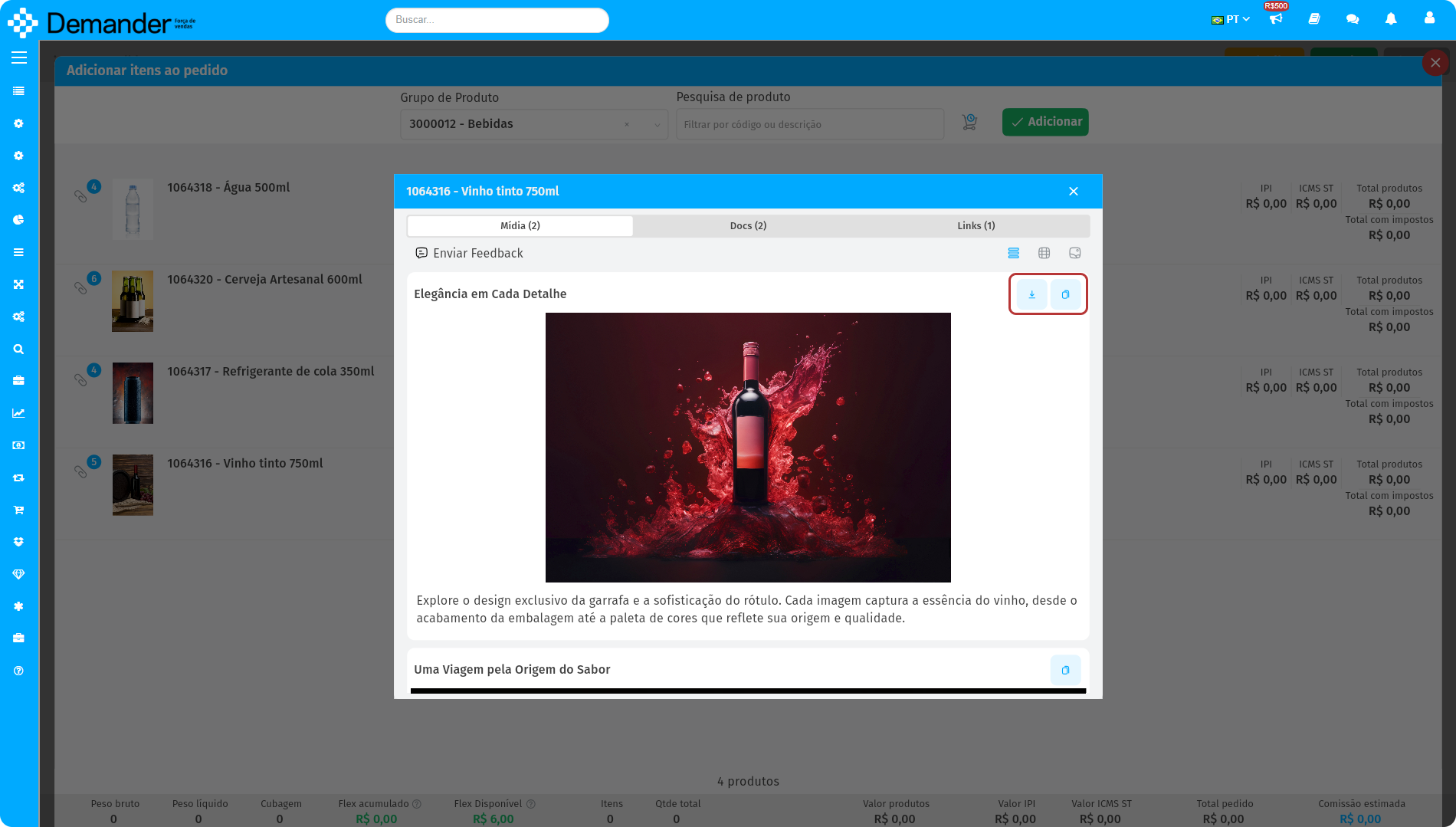
- To download or copy the attachment, simply use the highlighted buttons:
Mobile
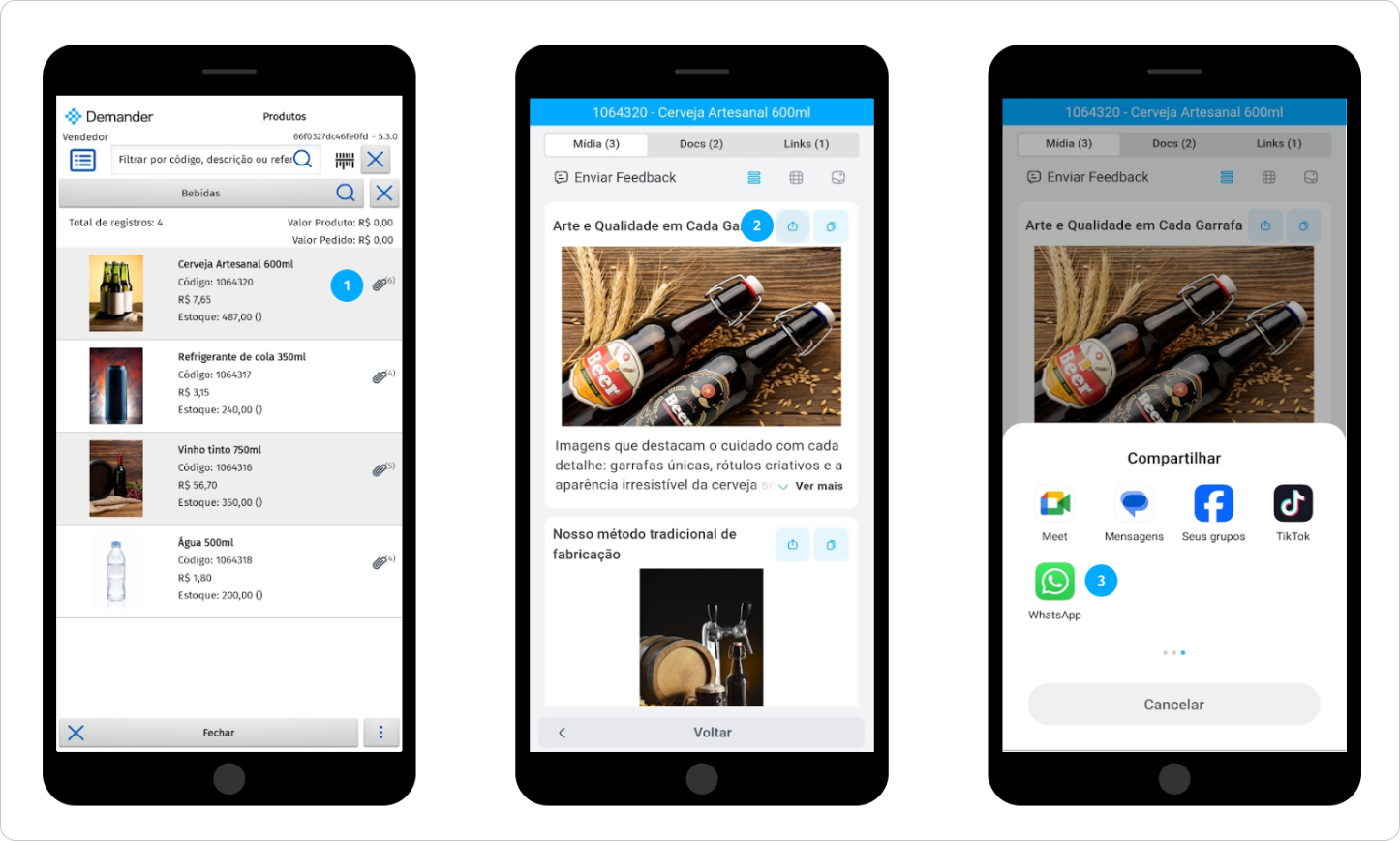
- When you add a new item to the order, if the product has registered attachments (see how to register here), a clip icon will be displayed next to the item. Click on it to continue.
- Just like the web version, you can browse attachment types using the navigation bar. When you find the attachment you want, click the share icon. You can also copy the link and share manually.
- Finally, choose the application where you want to send the attachment and that’s it!
4- Compatible file types
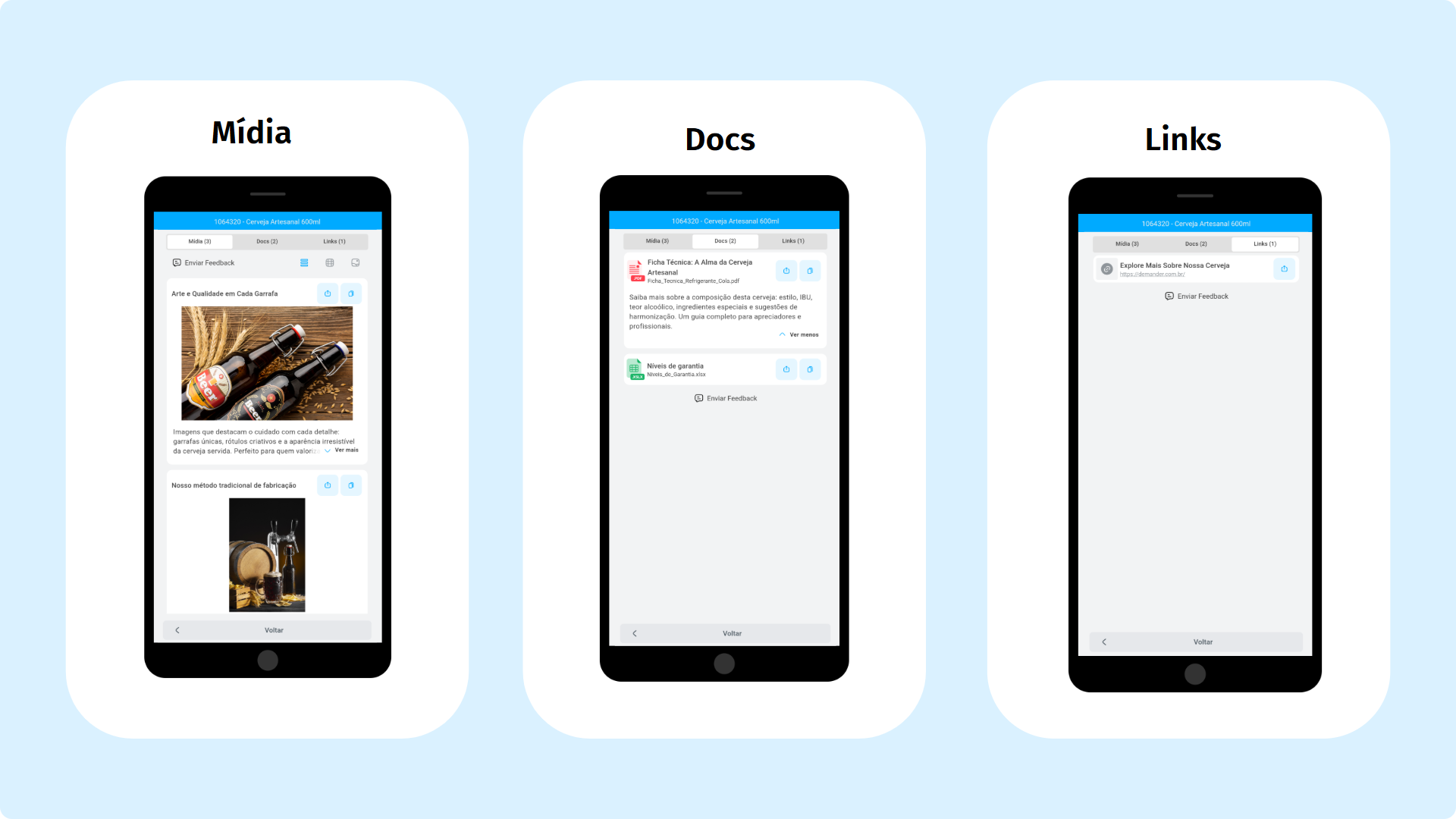
You can add and view the following types of files:
- Media: Images (.jpg, .webp, .png) and videos (.mp4).
- Documents: Files such as .ppt, .pptx, .pdf, .xls, .xlsx.
- Links: External URLs with additional content.
5- Viewing modes
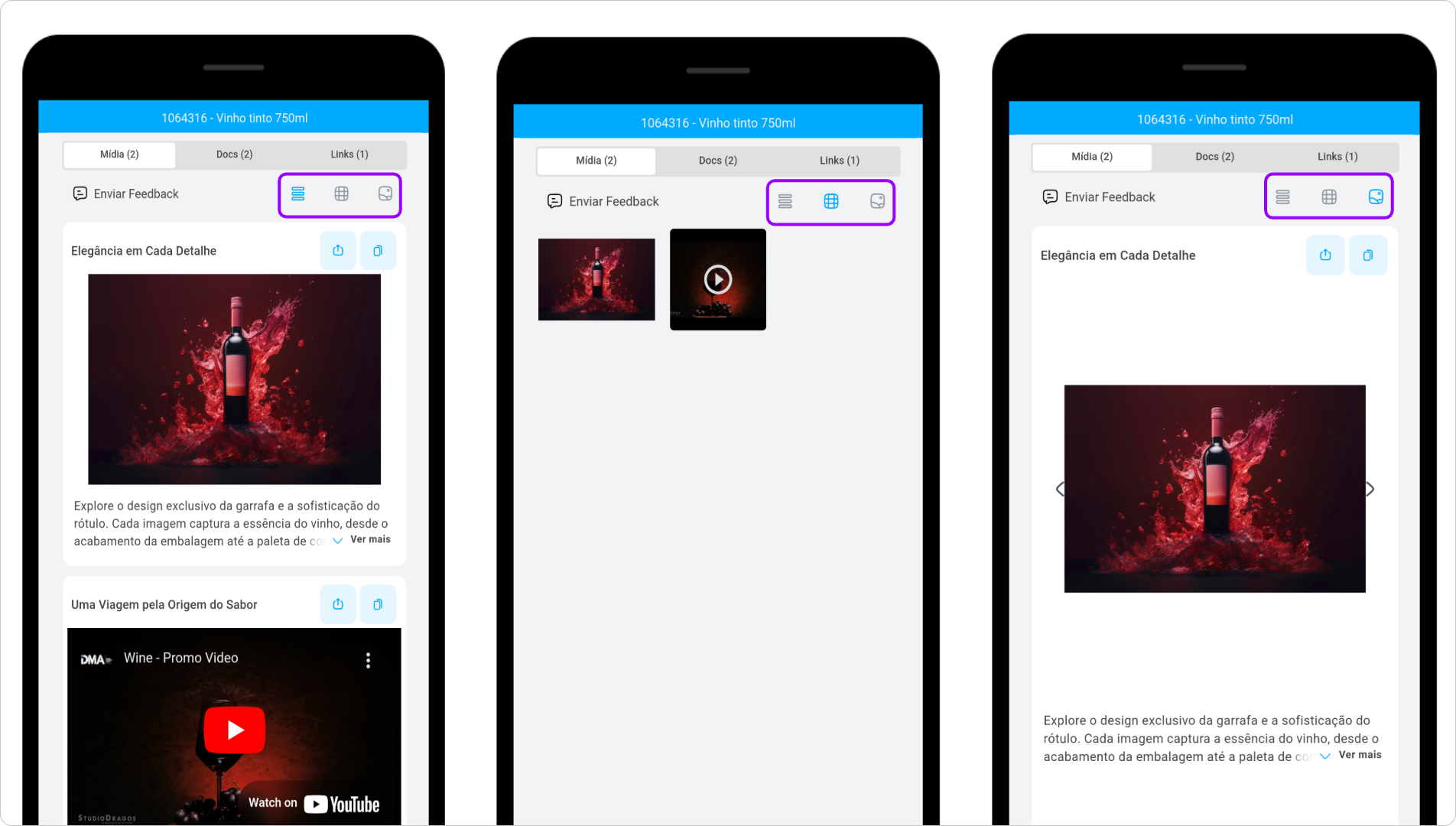
You can choose how attachments are displayed by choosing from the following options:
- List: Displays attachments in list format.
- Grid: Shows attachments as organized blocks.
- Carousel: Allows you to navigate between attachments by swiping or clicking.
- Image View
- Web:
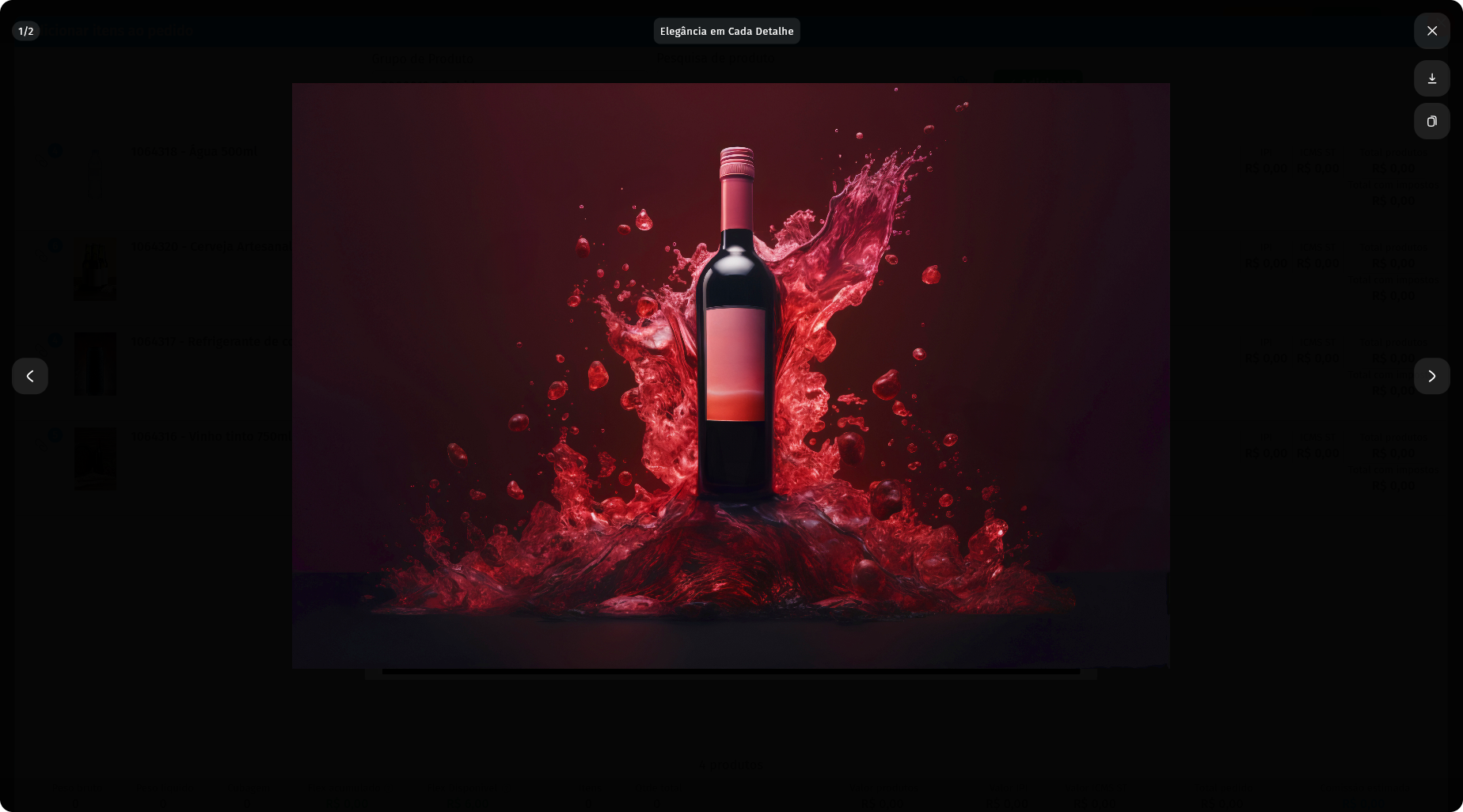
- Click on the image to zoom and click again to return to normal status.
- Use the mouse to adjust the zoom.
- If there are more images, click the navigation buttons to switch between them.
- Web:
-
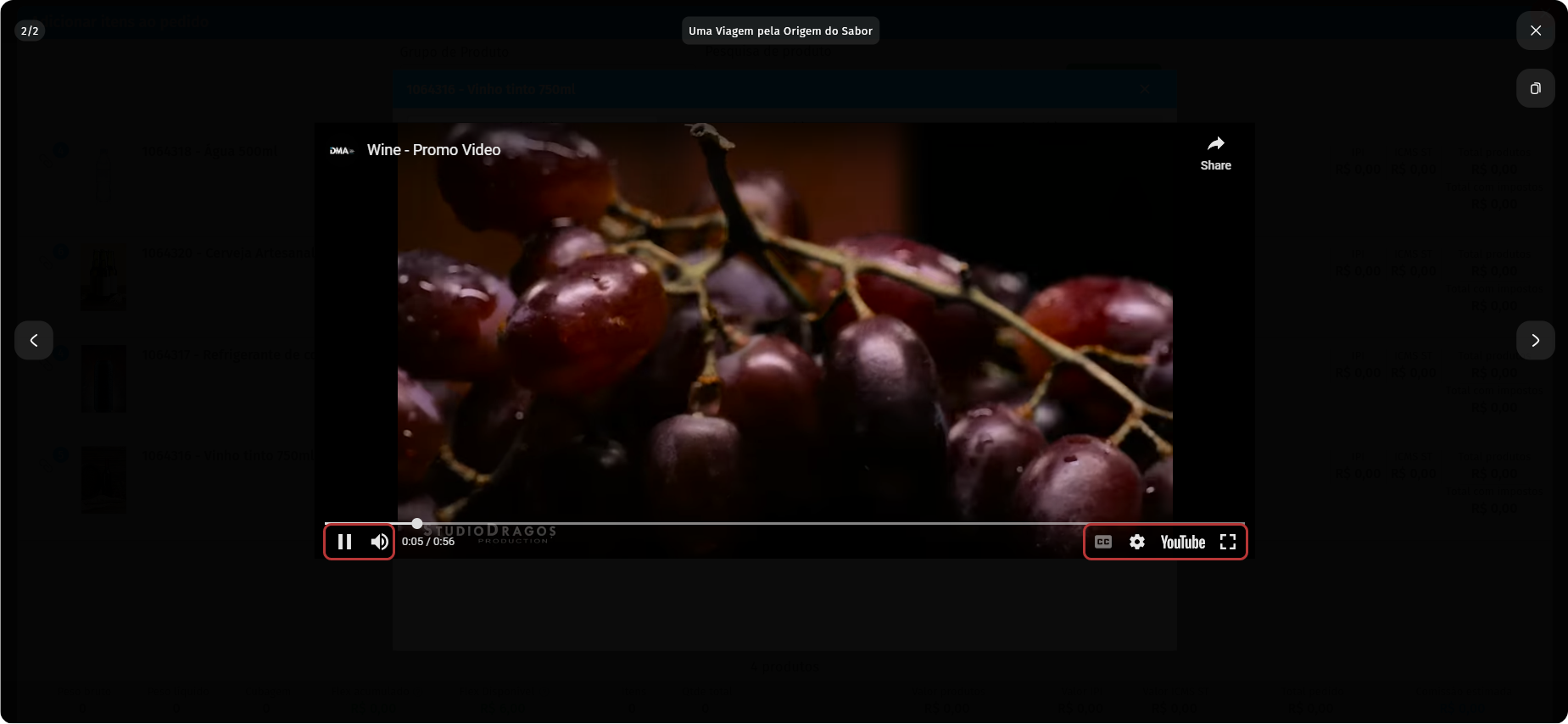
Web Video Viewing: Use the video player controls to:
- Play or pause.
- Adjust volume.
- Enable full screen view.
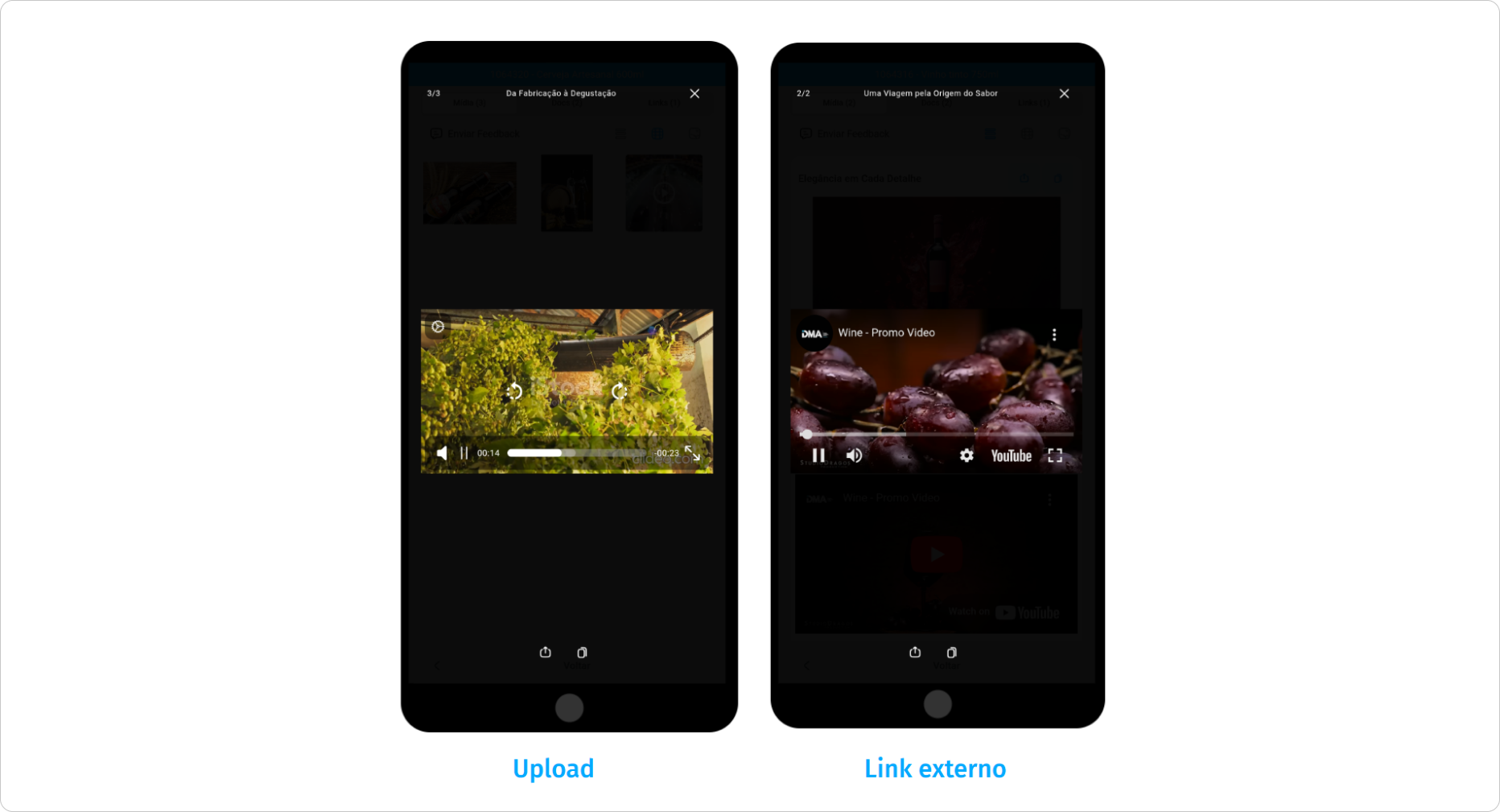
- Mobile: Use the player’s playback controls, just like in the web version.
6- Registering Attachments
Registering attachments is simple and quick. Click here to access our full article.
7- Integration API
Product attachments are compatible with the Rest Integration API, allowing a direct and real-time connection through HTTP requests, without the need to use static files.