

How to register products
Available at:

This article explains in a simple way how to register products on Demander, either directly through the platform or by importing via spreadsheet.
Where to register with Demander
Section titled “Where to register with Demander”In Demander Web, access the Products screen and click on New to register a product.

Fill in the necessary fields — remembering that Code and Description are mandatory, and the others may vary depending on your company’s business rules.
Main fields:
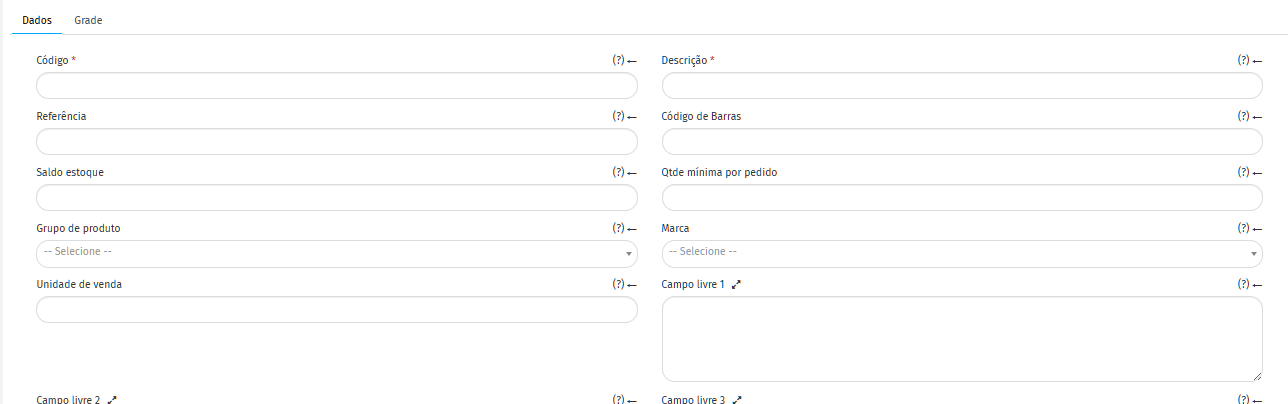
- Code: Unique identifier for each product.
- Description: Name or characteristics of the product.
- Reference: Used to filter products by reference on Android and iOS.
- Barcode: Can be EAN8, EAN13, UCC12, DUN14 or internal code. It is also used in searches in apps.
- Balance in stock: Quantity available at the time of registration (general stock).
- Minimum quantity per order: Prevents orders with less than the configured quantity.
- Product group: Membership of a previously created group.
- Brand: Association with a previously created brand.
- Sales unit: Ex.: Box, bale, kg, etc.
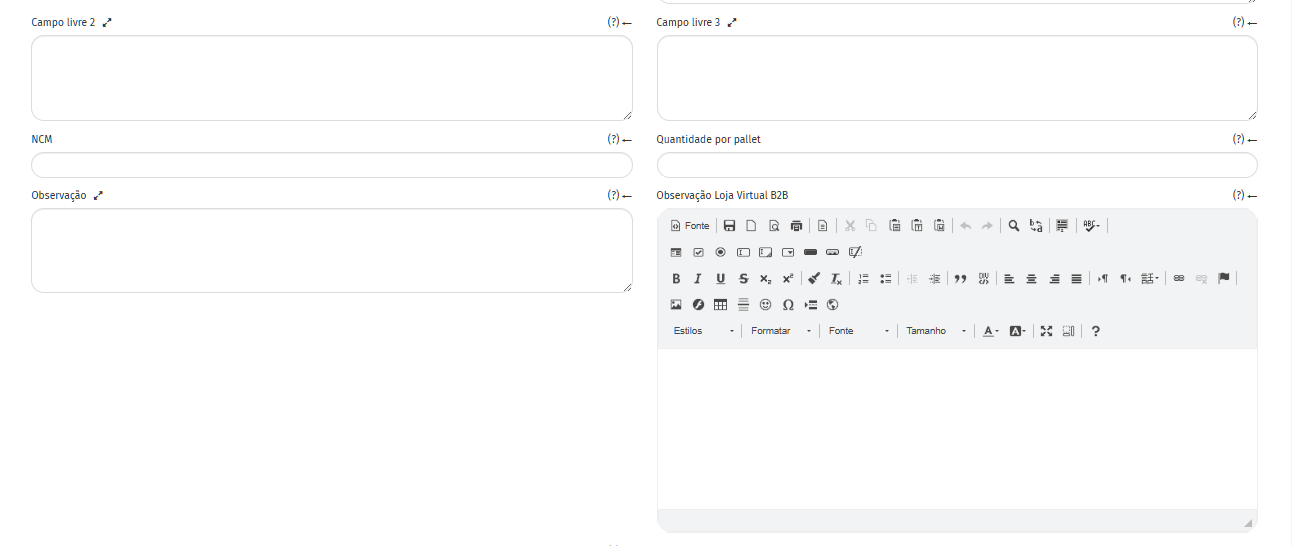
- Free fields (1, 2 and 3): Spaces for observations or additional information.
-
NCM: Code required for tax calculation. Quantity per pallet: Total units per pallet (example: 48 boxes × 6 bottles = 288).
-
Note: Text that appears to the seller in the product information.
-
Note Online Store: Text displayed next to the product in the online store.
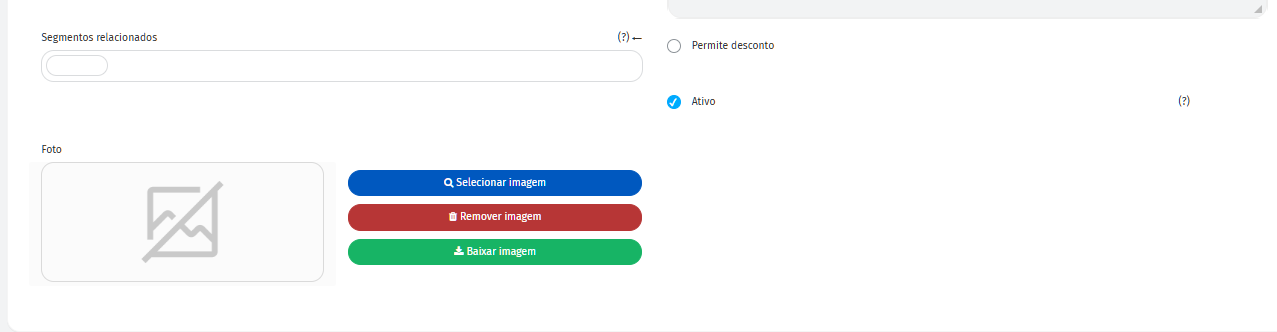
- Related segments: Types of customers associated with the product.
- Active: Inactive products do not appear in orders.
- Photo: Add an image (.jpg, .jpeg or .png) up to 1 MB for better presentation.
How to register via spreadsheet
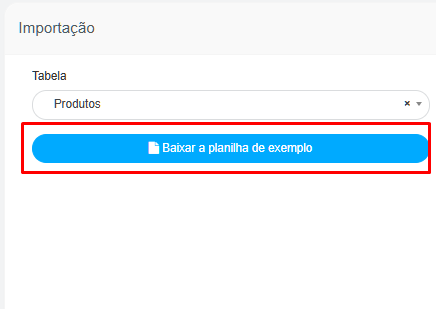
Section titled “How to register via spreadsheet”You can also register products through import via spreadsheet. In Demander Web, access the Import screen and select Products.
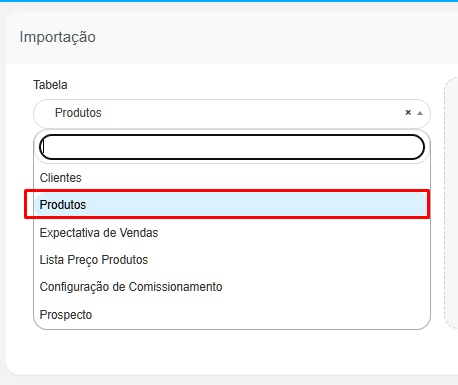
- Use the model spreadsheet available for download.
- Don’t change the spreadsheet layout — keep the columns, first and second rows exactly as they are.

- Only fill in the necessary fields with product information.
- After finishing, import the file in the indicated field.
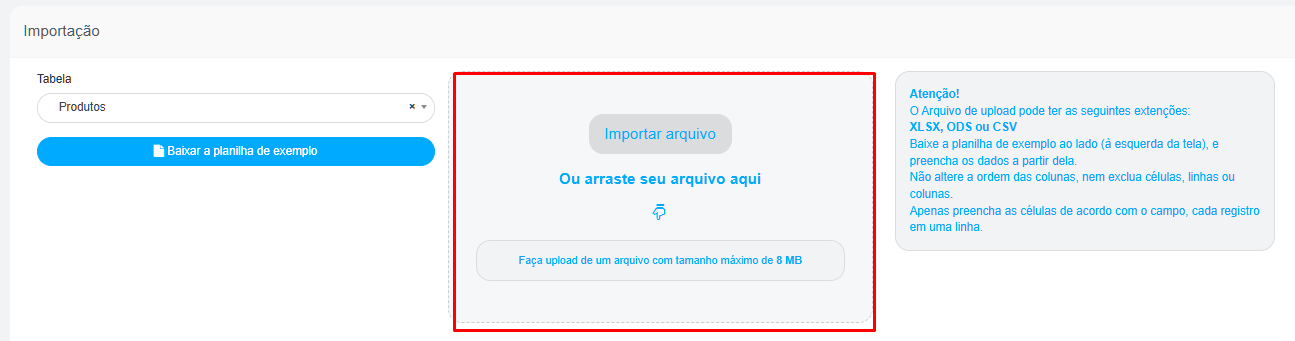
Products will automatically be added to the Products screen in Demander.