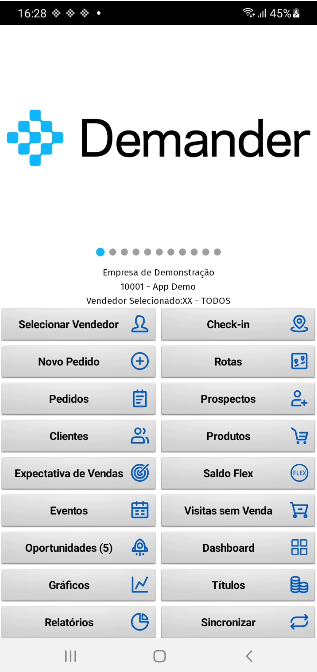
Android demo environment
This article explains how to access the Demander demo environment on Android, allowing you to explore the application with mock data for testing and training.
How to access the demo environment
Section titled “How to access the demo environment”Initial permissions
Section titled “Initial permissions”When you first access the application, you will be asked for permissions to:
- Store data on the device
- Access device features, such as location
⚠️ It is essential to allow all these permissions for the application to function correctly.
Login screen
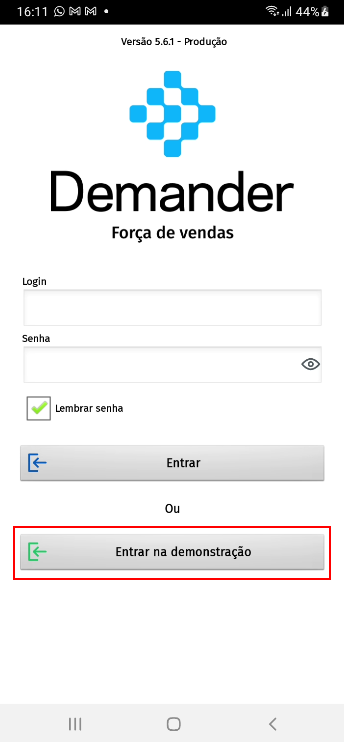
Section titled “Login screen”After granting permissions, the login screen will be displayed, which contains the “Demo version” button.
Click this button to access the demo environment, with mock data for testing.
Initial information
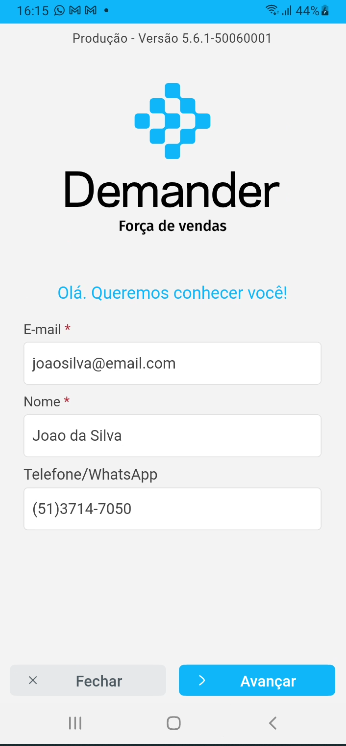
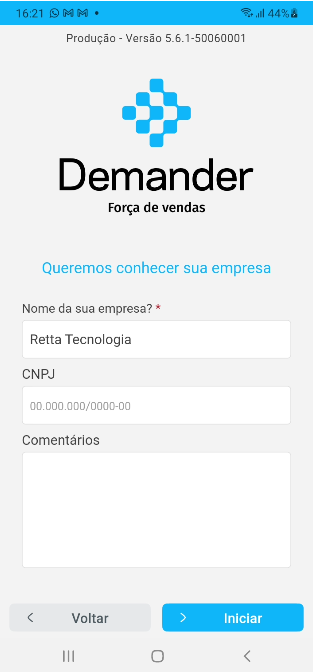
Section titled “Initial information”On the next screen, you will be asked for some information. Complete as needed to proceed.
Data synchronization
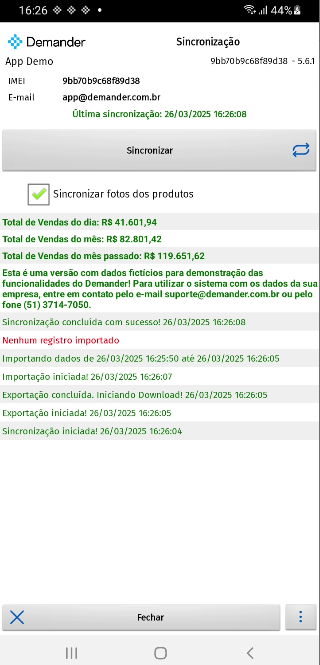
Section titled “Data synchronization”The application will then synchronize the data and display a summary of the process.
- Click Close when the sync is complete.
Home screen
Section titled “Home screen”After synchronization, the application’s home screen will open.
- Now you can use Demander with demo data to create orders, register customers and explore all the features without impacting your company’s real data.