Mobile Indicator Module
This article aims to explain the mobile Indicators module that is available on Demander Android and Demander iOS.
About Mobile Indicators
Section titled “About Mobile Indicators”With the mobile Indicators module, Managers and Salespeople can follow graphs with Demander data, images and other external information.
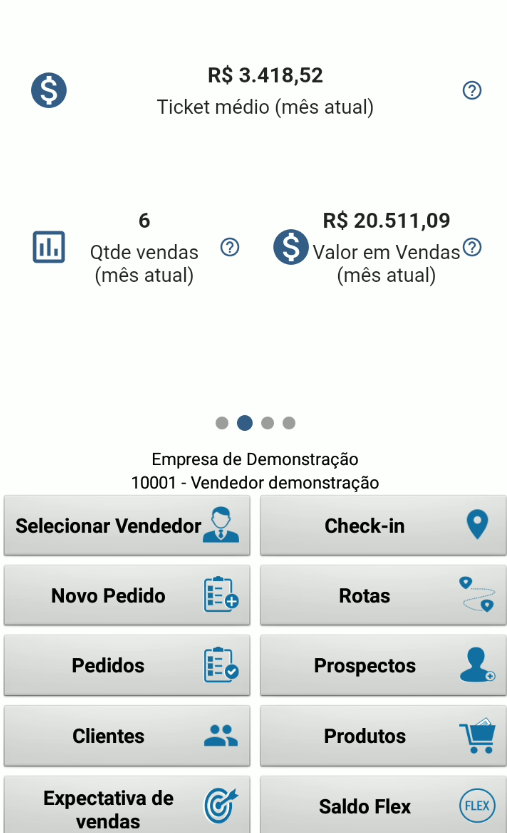
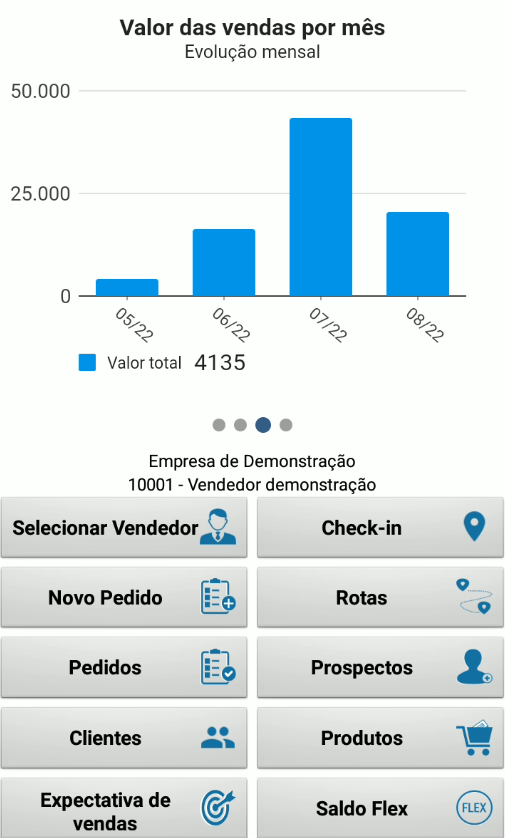
See some images of the module in operation:
Who is the indicator module recommended for?
Section titled “Who is the indicator module recommended for?”It is suitable for Companies that:
- They want to provide their salespeople with graphics related to their sales.
- They want to provide their managers with graphics related to the sales of their sales team.
- They want to provide salespeople and managers with calls to external resources, for example showing an image that leads to a Company website.
Hiring the indicator module
Section titled “Hiring the indicator module”- To hire the module, contact our commercial sector by phone or Whatsapp by clicking here.
Frequently asked questions
Section titled “Frequently asked questions”Indicator Panel
Section titled “Indicator Panel”Indicators by Company/Salesperson
Section titled “Indicators by Company/Salesperson”- The module can be used in different ways, here are the possibilities
- Have Company indicators for all Company salespeople.
- Have indicators for some of the Company’s salespeople and others without access to indicators.
- Have different indicators for each seller.
- Have Company indicators for some sellers and other individual indicators for each seller.
- Have indicators only for managers.
- Have indicators only for sellers.
- Standard indicator panel
- Demander brings some standard indicators, if the module is active by Company or by Seller and has no other indicators registered, the standard indicator panel is used. This panel brings the following indicators:
- Sales value per month
- Average ticket (current month)
- Sales quantity (current month)
- Sales value (current month)
- Demander brings some standard indicators, if the module is active by Company or by Seller and has no other indicators registered, the standard indicator panel is used. This panel brings the following indicators:
- Customized Indicator Panel
- It is possible to create a personalized panel, with Demander indicators and also additional indicators, the additional indicators can be images or they can point to a website.
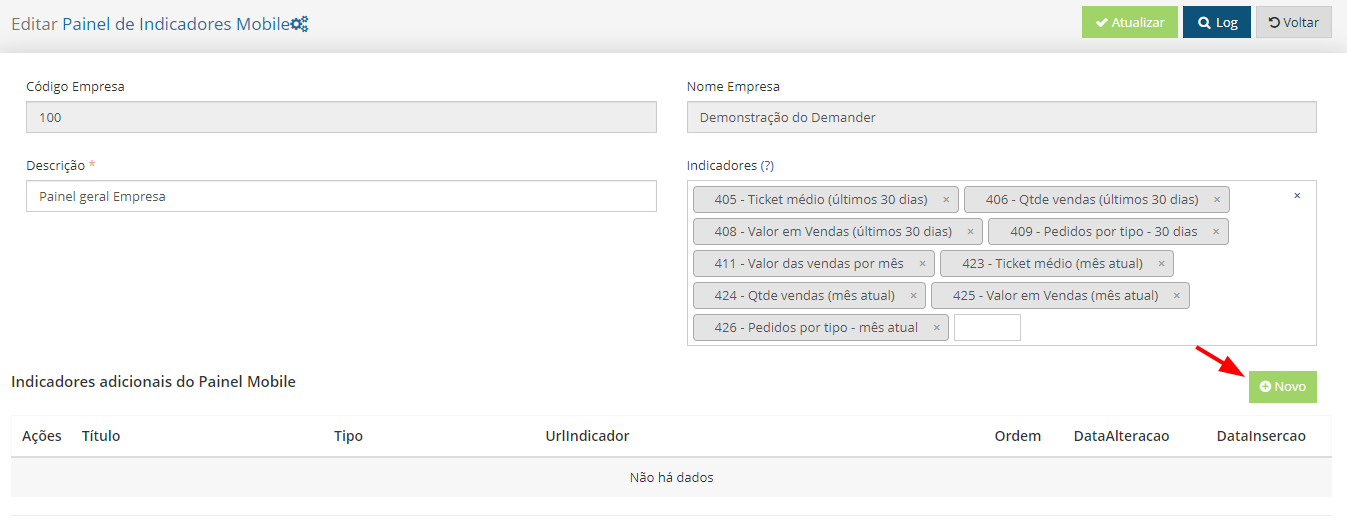
- To create a personalized indicator panel, access Mobile Indicator Panel, click on New, enter a description (enter a description that is easy to identify, for example: Lucas Manager Panel, General Seller Panel, Company Panel, Carlos Seller Panel, this way it is easy to maintain if there are more panels), in Indicators, I selected the indicators, the options are:
- Average ticket (last 30 days)
- Sales quantity (last 30 days)
- Sales value (last 30 days)
- Orders by type - 30 days
- Sales value per month
- Average ticket (current month)
- Sales quantity (current month)
- Sales value (current month)
- Orders by type (current month)
- To create a personalized indicator panel, access Mobile Indicator Panel, click on New, enter a description (enter a description that is easy to identify, for example: Lucas Manager Panel, General Seller Panel, Company Panel, Carlos Seller Panel, this way it is easy to maintain if there are more panels), in Indicators, I selected the indicators, the options are:
- It is possible to create a personalized panel, with Demander indicators and also additional indicators, the additional indicators can be images or they can point to a website.
Contracting the indicator module
- To hire the module, contact our commercial sector by phone or Whatsapp by clicking here.
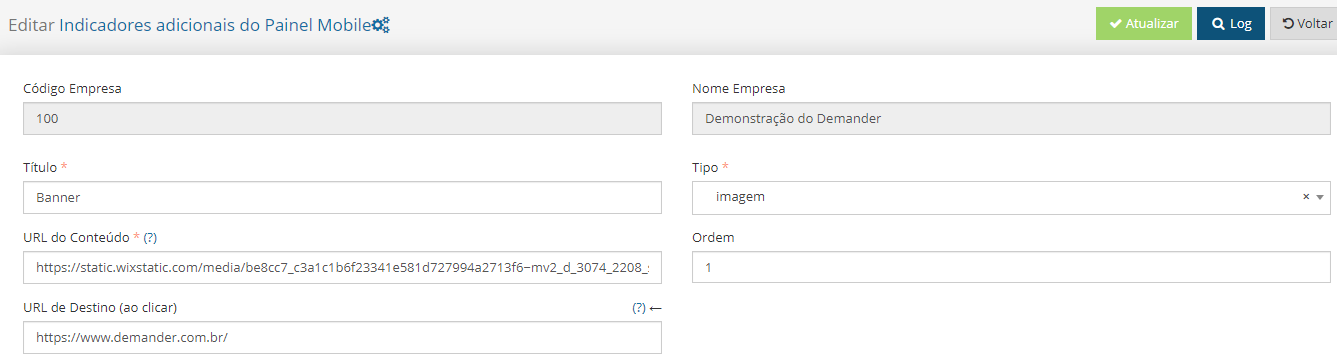
- To create additional indicators, open one of the registered indicators and click on New.
- Fill in the fields:
- Title: To identify the additional indicator
- Type: Select one of the types:
- Image
- Webview
- Content URL:
- When the type is Image (enter the URL of an image that is already available on the internet, it is not possible to upload it)
- When the type is Webview (place an external website)
- Order: Enter the order of the additional indicator, if you enter 1, it will be the first indicator to appear after the main indicators.
- Destination URL (when clicked): If defined, when clicking on the defined image or webview, Demander redirects to the URL registered in this field.
- To create additional indicators, open one of the registered indicators and click on New.
Configuring the Indicator Module
Section titled “Configuring the Indicator Module”Enable the module
Section titled “Enable the module”- Here there are two options, enable the module by Company, or enable it only for the Seller.- Enabling it in the Company, all sellers will see the standard indicators, but it is possible to create separate indicators and define them for each Seller separately or for all.
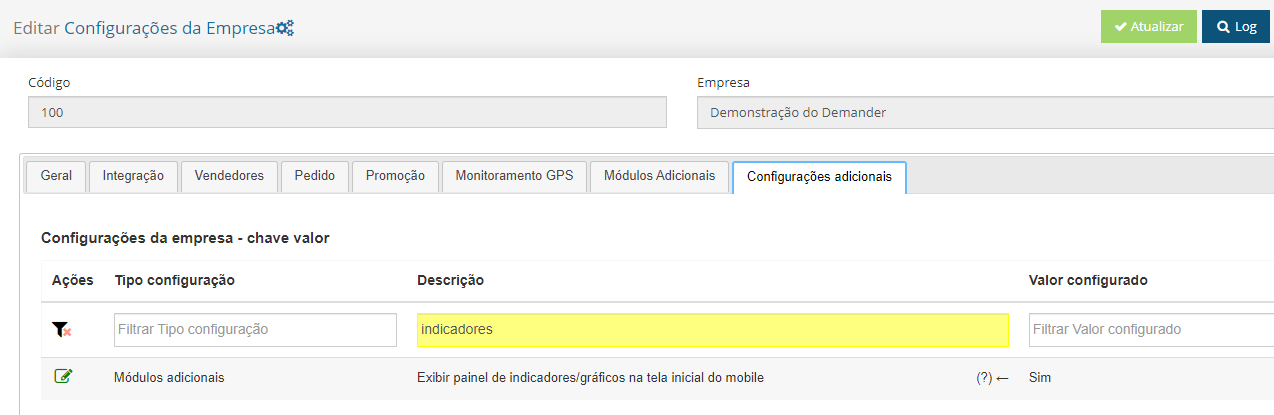
- To enable the module in the Company, access Company Settings, Additional Settings tab, simply search for indicators and set the “Display indicator/graph panel on mobile home screen” setting to Yes.
- After activating, the module is now working and brings the standard indicator panel to all Sellers.
- Enabling it on the Seller, only this Seller will see the standard indicators, but it is possible to create separate indicators and define them on this Seller
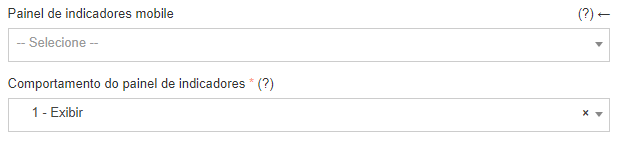
- To enable the module on the Seller, access the Seller Registration, Configuration tab, and at the end of the screen in “Indicator panel behavior” select 1 - Display. With this option, the standard indicator panel is shown. To define a panel for the seller, click on Mobile Indicator Panel and select the desired panel.