Commission Module - Integration and configuration
This article aims to explain how to integrate and activate the Demander Commission Module.
How to enable the module?
Section titled “How to enable the module?”Access the “Company Settings” screen, “Additional modules” tab and check the “Enable commissioning module” option.
Tables required for integration
Section titled “Tables required for integration”(Important: Demander accepts up to 13 different levels, namely: Seller, City, Region, Customer, Tax Customer Type, Product Group, Brand, Product, Price List, Payment Condition, Payment Method, Branch/Unit and Type of Person)
(Important: The fields integrated in this table are in accordance with the level logic that will be integrated in table 31. If the field is controlled by level, but it is not desired to control a single record with it, it is possible to send it as ‘XX’ to consider it as all)
How to configure more than one commission level?
Section titled “How to configure more than one commission level?”- The commission calculation priority levels are registered in the register of commission levels. The lower the number, the more priority. Let’s look at an example.
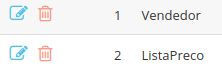
- We have 2 commission levels registered, 1 - Seller and 2 - Price list.
- In the Commission Settings we have 2 registrations for the seller 999 - TEST.
- On the first registration, for all price lists (XX) and for the discount percentage from 0 to 100%, the commission percentage will be 10%
- In the second registration, for list 49 - list 2 and for the discount percentage from 0 to 100% the commission percentage will be 5%
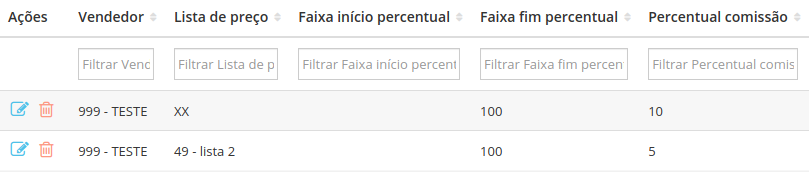
- In practice, when the seller places an order for any price list other than list 49 - list 2, the commission will be 10%, but when he selects price list 49 - list 2, the percentage will be 5%.
- We have 2 commission levels registered, 1 - Seller and 2 - Price list.