

No-Sale Visit PDF Report
The Demander App lets you view and share a PDF report with no-sale visits recorded during the selected period. Depending on the selected configuration, the report can show the visit reason, the latest order date and amount, and other available information for each recorded no-sale visit.
How to view the report
Section titled “How to view the report”- Open the No-Sale Visits screen in the Demander App.
- If necessary, apply the list filters and sorting.
- Tap the three dots at the top of the screen, next to the search field, to open the context menu.
- Select View PDF.
- The first time you open the report, the app takes you directly to the Configure PDF screen.
- Organize the fields and choose the document orientation.
- Tap View PDF to open the document.
The first time, the app shows the configuration screen before generating the PDF. After you confirm, the fields, order, and orientation are saved in the user’s preferences. On subsequent openings, the app reuses these preferences and opens the preview directly with the filters applied to the list. After a PDF has been generated, use the three dots in the preview header to change the configuration when needed.
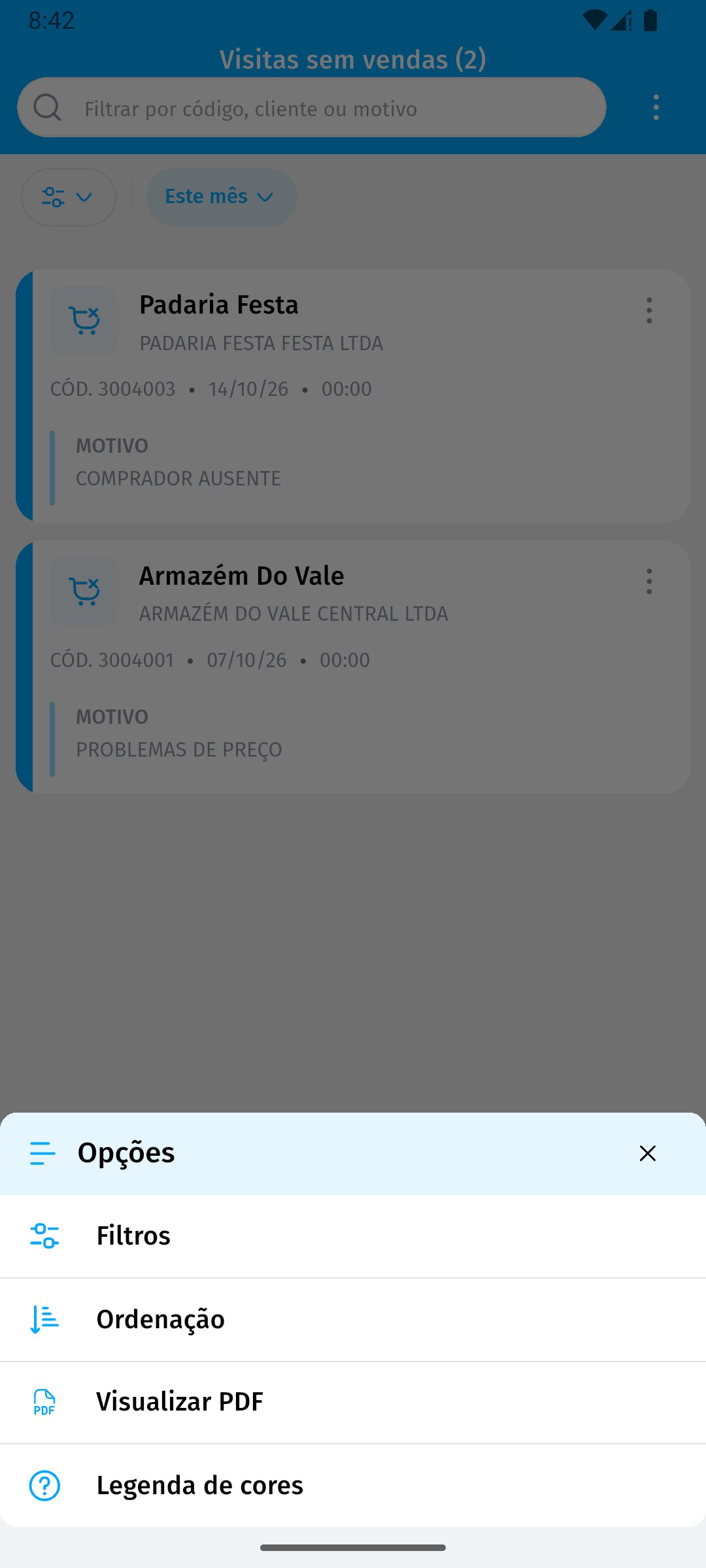
The menu includes Filters, Sorting, View PDF, and Color legend. Tap View PDF to start the flow.
Configuring the columns
Section titled “Configuring the columns”On the Configure PDF screen, drag the fields to define which information is displayed and in which order:
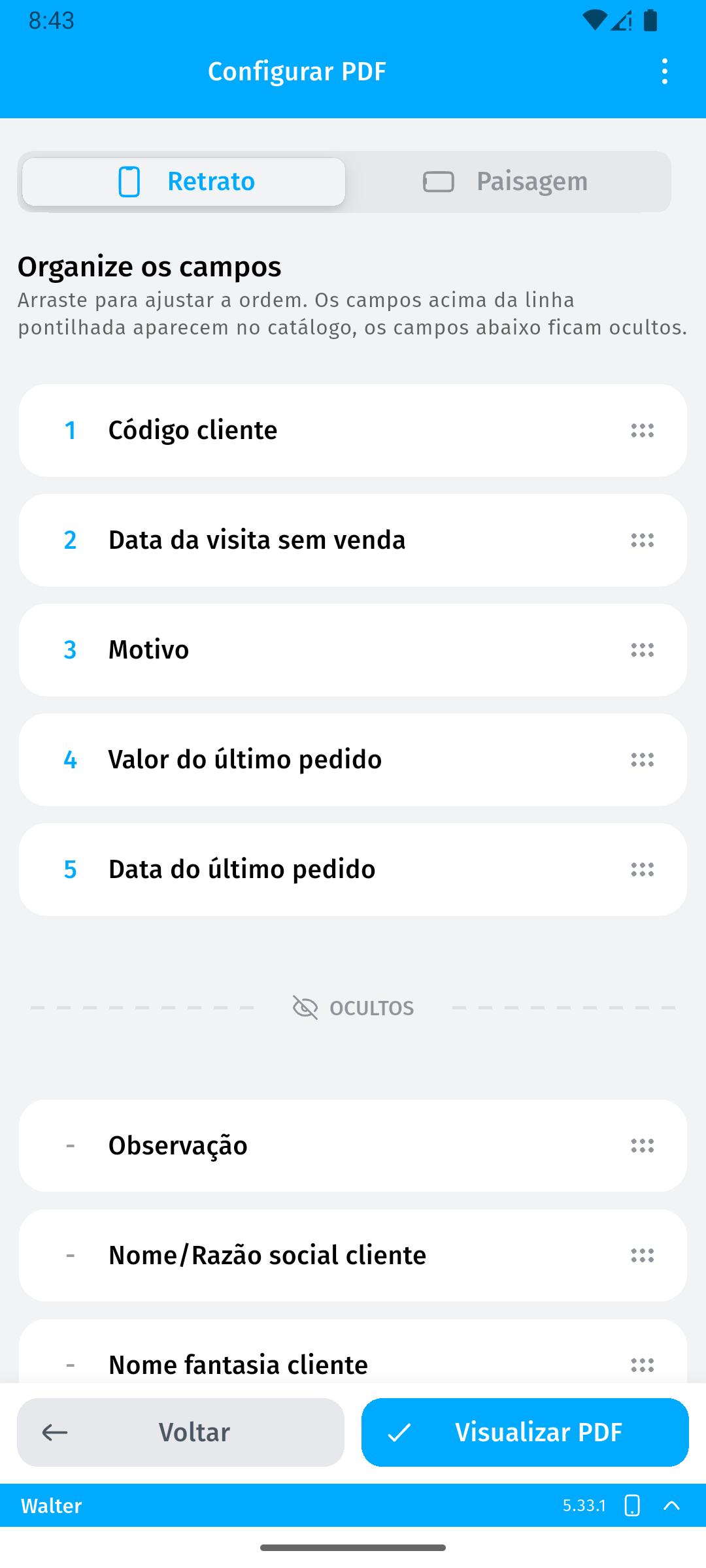
- Above the dotted line: fields visible in the PDF. Their position defines the column order.
- Below the dotted line: hidden fields.
Drag a field above the line to include a column. Drag it below the line to hide it.
Available fields
Section titled “Available fields”| Field | Information shown | Shown by default |
|---|---|---|
| Customer code | Customer code related to the no-sale visit. | Yes |
| No-sale visit date | Date and time when the no-sale visit was recorded. | Yes |
| Reason | Reason entered for the no-sale visit. | Yes |
| Latest order amount | Total amount of the customer’s most recent order. | Yes |
| Latest order date | Issue date of the customer’s most recent order. | Yes |
| Observation | Observation recorded for the no-sale visit. | No |
| Customer business name | Customer business or legal name. | No |
| Customer trade name | Customer trade name. | No |
| Salesperson | Salesperson related to the visit. Available only to managers. | No |
Customer code, Customer business name, and Customer trade name are independent options. The generic Client field is not part of the current configuration.
Page orientation
Section titled “Page orientation”Choose Portrait for the vertical format or Landscape for the horizontal format. The initial orientation is Portrait. Landscape provides more room for multiple columns.
Restoring the configuration
Section titled “Restoring the configuration”In the Configure PDF options menu, select Restore default order to recover the default fields and initial column order. Then tap View PDF to save and apply the configuration.
Information shown in the PDF
Section titled “Information shown in the PDF”The report title is No-Sale Visit Report, centered on the page, with the standard Demander header. The header shows the company, the salesperson who generated the report, the selected period, and the date and time when the PDF was generated.
The default columns are displayed in the order below. All available options can be included or hidden in the configuration, and the PDF uses the visible fields and the selected order:
| Column | Description |
|---|---|
| Customer code | Customer code related to the no-sale visit. |
| No-sale visit date | Date and time when the no-sale visit was recorded. |
| Reason | Reason entered for the no-sale visit. |
| Latest order amount | Total amount of the customer’s most recent order. |
| Latest order date | Issue date of the customer’s most recent order. |
| Observation | Observation recorded for the no-sale visit. |
| Customer business name | Customer business or legal name. |
| Customer trade name | Customer trade name. |
| Salesperson | Salesperson related to the visit. This column appears only for manager users. |
The no-sale visit date is shown as dd/MM/yyyy HH:mm, and the latest order date as dd/MM/yyyy.
The footer shows the total number of records and the current page in the format Page X of Y.
Customers with no previous order
Section titled “Customers with no previous order”When the customer has no previous order, the Latest order amount and Latest order date columns show No information. This makes it clear that there is no previous order to display, without assigning an incorrect amount or date to the customer.
Preview and sharing
Section titled “Preview and sharing”After selecting View PDF, review the document in the preview. In the same view, use the device sharing option to send the file by email, WhatsApp, or another available app.
The preview header uses the app theme color, with the title and options in white. The document includes a header with the company identification, salesperson, selected period, and generation date and time.
In the preview, tap the three dots to open the options and select Configure when you need to change the PDF fields, order, or orientation.
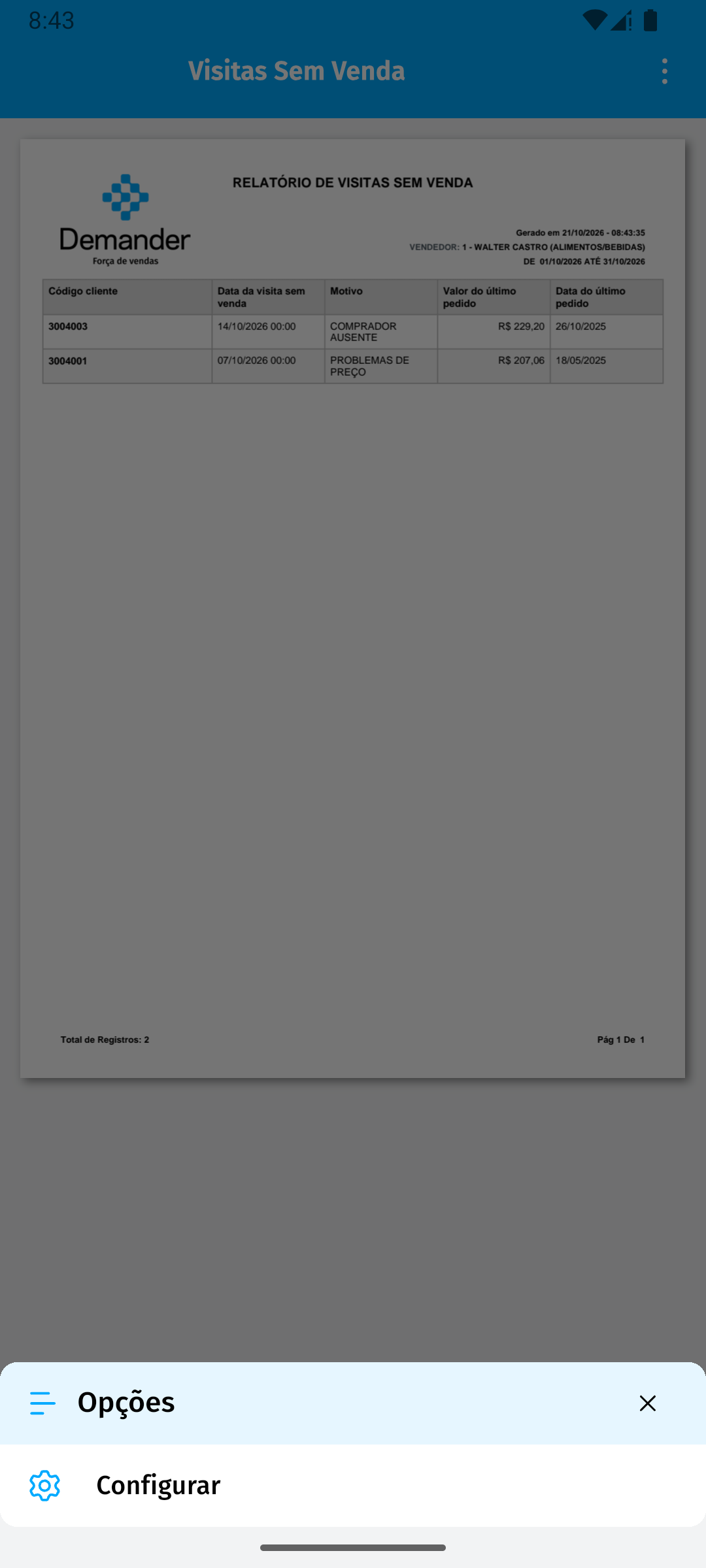
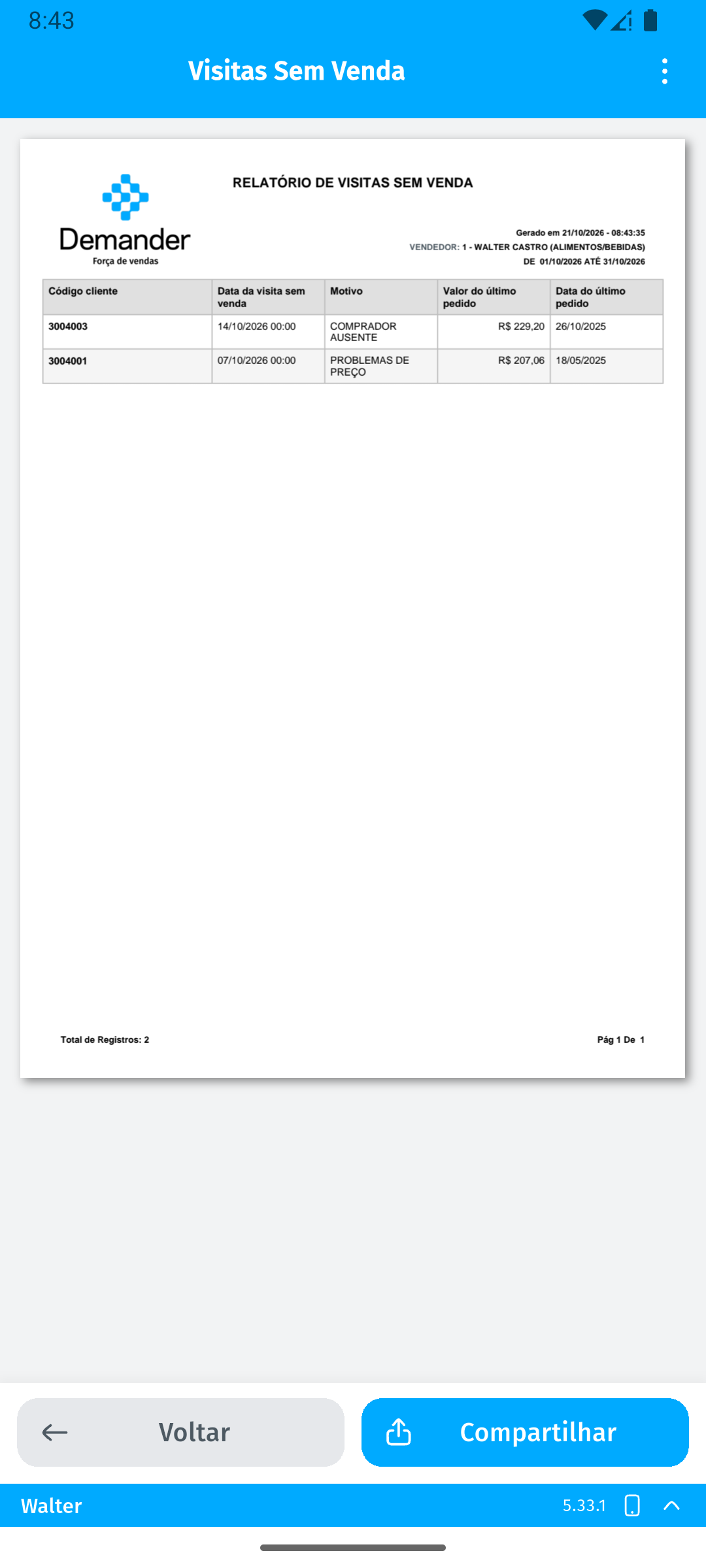
The shared file is the PDF generated with the filters selected in the list.
Availability and limitations
Section titled “Availability and limitations”- This feature is available in the Demander App offline mode.
- Available from version 5.34 on Android and 5.0.5 on iOS.
- Portable printing is outside the scope of this feature. The PDF can be viewed and shared from the device.