

Whatsapp icon in the B2B Online Store
Available at:

This article aims to explain how to register for the WhatsApp icon to appear in the B2B Virtual Store
How this functionality works
Section titled “How this functionality works”By adding the WhatsApp icon and linking your number, the icon will be available on all store pages. When the icon is clicked, a WhatsApp conversation will automatically open, directing to your number.
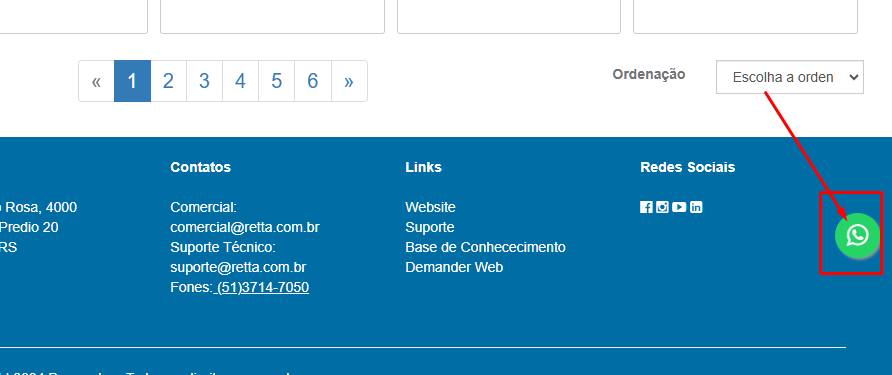
How to configure it
Section titled “How to configure it”On the B2B Virtual Store Settings  ** “02 Layout”** screen, it is possible to register a WhatsApp icon that will be available on all store pages. To do this, the icon must be configured in the “** HTML Footer Virtual Store**” field.
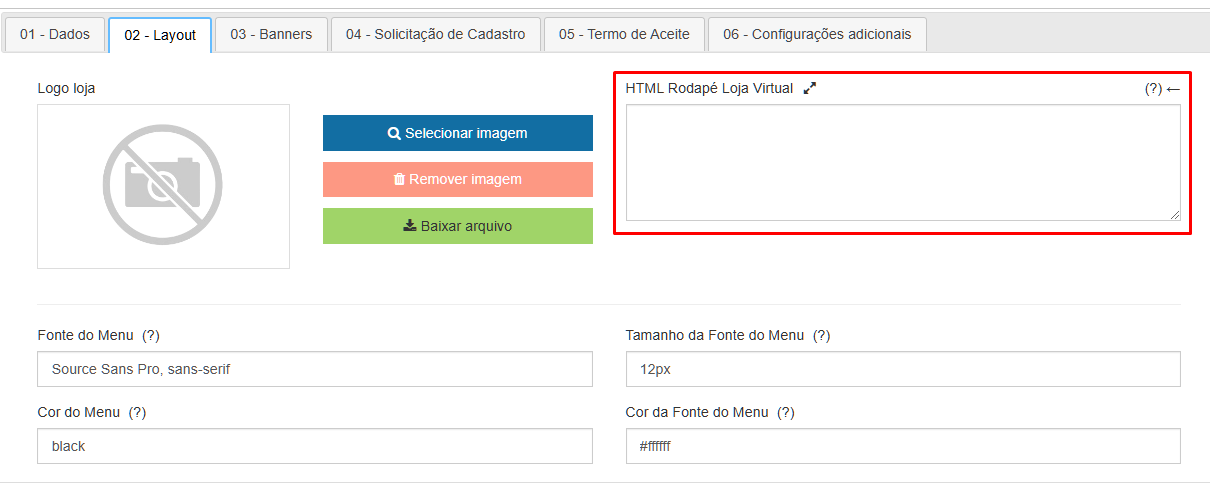
In the ** HTML Footer Virtual Store ** field, simply paste the following code snippet, replacing ** NUMERO_WHATSAPP ** with your WhatsApp number, following the pattern required by WhatsApp (example: 5551999999999).
HTML to be used:
https://maxcdn.bootstrapcdn.com/font-awesome/4.5.0/css/font-awesome.min.css“>
https://api.whatsapp.com/send?phone=NUMERO_WHATSAPP.“ class=“float” title=“Contact our customer service” target=“_blank”>