

How to configure Demander integration with Tray?
This article aims to explain how to configure the Demander integration with Tray.
Product Group Third Party Integration
Section titled “Product Group Third Party Integration”- The Third Party Integration Product Group works as if it were a De-To connection between the product group of Demander Web and Tray, making it possible to send and search data from one system to the other via Integration.
Want to know more about Tray? Access the article The integration of Demander with the Tray Online Store.
Configuring the Webservice URL
Section titled “Configuring the Webservice URL”Access Tray integration settings https://sistema.demander.com.br/dinamico/integracao-tray/
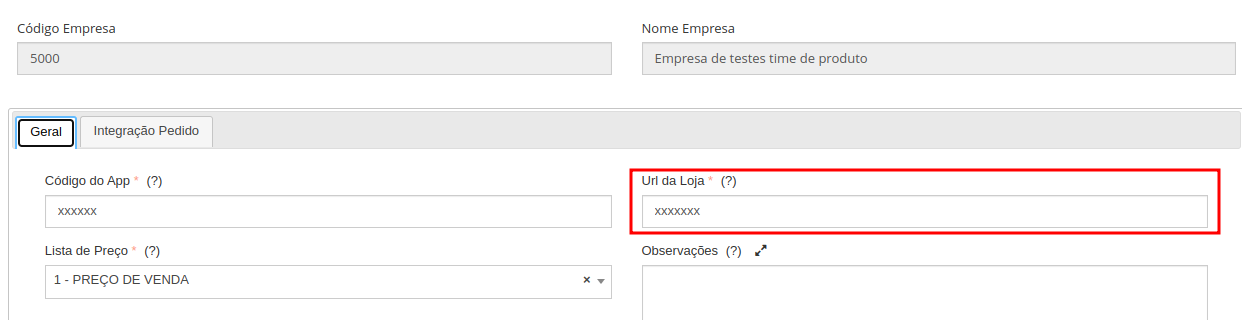
To obtain the URL, follow the steps in the article How to obtain the Tray webservice key code and URL?
Performing the integration with Tray
Section titled “Performing the integration with Tray”The integration configuration is carried out on the screen ** System registrations  Tray Integration**, on this screen all Tray Virtual Stores linked to your company are listed, with the possibility of editing, inserting new integration or deleting.
Below are the fields on the configuration screen.
*In red mandatory fields.
General Tab
Section titled “General Tab”Demander App code (token) in the Tray store. To obtain the App code see How to obtain the code key and the Tray webservice URL?
*Price List:
Price list of products that will be used in the Tray store. Products on this list will be sent to Tray.
Date of last submission:
Date of last sending of data to Tray’s online store, it will not be necessary to fill in this field if you select the automatic sending and search option, in this case it will be filled in automatically after sending.
Date of last search:
Date of the last data search in the Tray online store, it will not be necessary to fill in this field if you select the automatic sending and search option, in this case it will be filled in automatically after carrying out a search.
Automatic sending and searching:
Leaving this checked activates the automatic Send/Fetch process, it runs every one hour.
Order Integration Tab
Section titled “Order Integration Tab”Enter the statuses that Demander must consider for orders to be imported, use separation by ; (semicolon). Ex. SENDING;SENT;FINISHED;SENDING YAPAY. (The statuses are obtained from the Tray store administration panel; for each payment method that Tray makes available, the status may be different).
*Order Type:
Select the “Order type” that orders coming from Tray must take on Demander.
Order Branch:
To which branch the orders will be imported from Tray.
Order Payment Condition:
Select the “Payment Condition” that orders coming from Tray must accept on Demander.
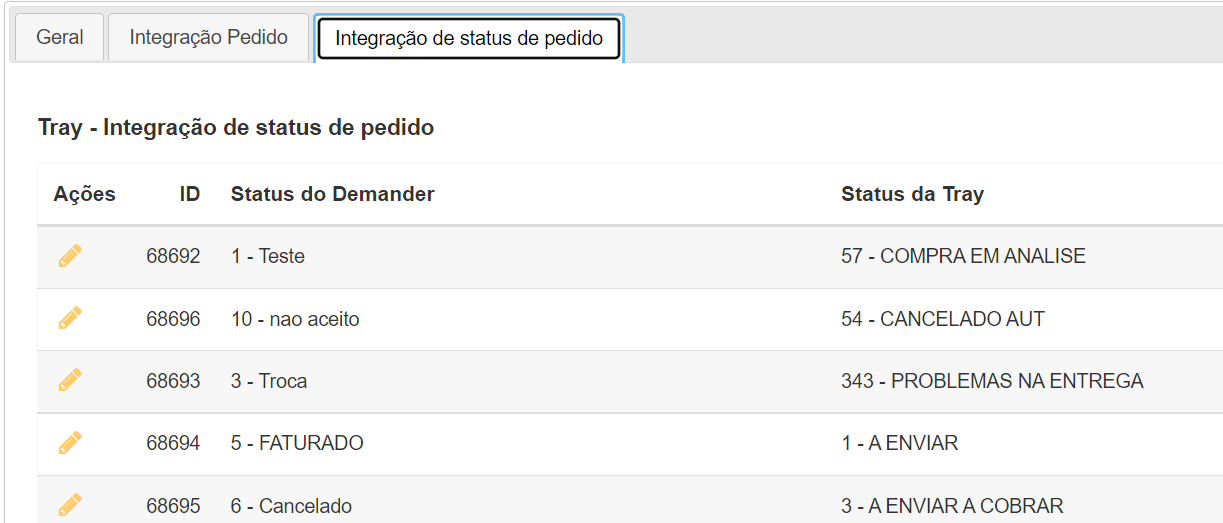
Order Status Integration Tab
Section titled “Order Status Integration Tab”It must be defined which status registered in Demander should assume in Tray. In the example below, the Status on the Demander is “5 - Invoiced” and on the Tray it will be “1 - Shipping”, that is, if an order comes from the Tray and on the Demander the status is changed to “5 - Invoiced”, on the Tray it assumes the status “1 - Shipping”.
* Only Orders with the “Pending” Status on Tray can be cancelled.
w
Sending and fetching data
Section titled “Sending and fetching data”Sending and searching data will be carried out using two buttons on the [Tray integration] screen (https://sistema.demander.com.br/dinamico/integracao-tray).

When you click on Send or Search Data, a new tab will open in your browser showing the link to a log file with the information sent/received.
In Demander, the information that is Sent to your store is in Files sent to ERP, and the files Fetched from the store are in Files Received from ERP.
To learn more about how Tray integration logs work, see our article How do Tray integration logs work?
When is it possible to search and send?
Section titled “When is it possible to search and send?”- Only products that have a “Product Group” will be sent, and if the product group is configured in the “Third Party Integration Product Group”.