

How to consult Tray integration logs?
On the [Tray Integration Logs] screen (https://sistema.demander.com.br/dinamico/logs-integracao-tray) it is possible to consult the Logs generated manually and automatically.
- Manual logs are generated by clicking the submit and search buttons.
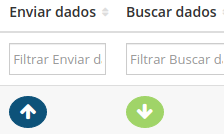
- Automatic logs are generated hourly.
For better understanding, let’s review all the columns available on the Log screen.
Actions: When clicking on the Magnifying Glass icon

, the Detailed Log screen will open, which can be seen below.
Id: Unique Integration Log identifier.
StoreUrl: URL of the store that the log belongs to, if the company has more than one store, it will show the Log of each store linked to the Store URL.
Start: Start date and time of the data Send/Fetch process.
End: End date and time of the Data Send/Fetch process.
Start Period:End Period:Type: Send or Search.
Error message: Error messages. return from the Tray API.
Successful registrations: Number of successful registrations.
Failed records: Number of failed records.
Automatic execution: If it is “Yes” it shows that the Log refers to an automatic Send or Search execution, which is carried out every hour, if it is “No” the Log refers to a Send or Search carried out manually.
Success: If it is “Yes” it shows that the integration did not return any error, if it is “No” there was an error in the integration that can be seen in the “Error message” column.
Detailed Log: Here you will find more detailed information on the Log searched, information that helps you understand and identify any problems in the integration. For a better understanding, let’s go over all the columns available on the Log screen and what each one can show.
LogId: Unique identifier of the Detailed Log.
Batch: Integration Log Identifier.
Table: To which table the Detailed Log record belongs.
Code: Duration: Time in seconds that data sending or searching lasted.
Url: URL of the Tray Store that was used to Send or Search the data.
Request: Send or Search.
Status Code: Status of the API return response. Some examples: Status: 200 - Success, Status: 400 - Bad Request, Status: 500 - Tray server errors.
Return: JSON with the data returned from the Tray API.