

Configuring integration with Mercado Livre
This article presents the necessary configurations for the integration of Demander with Mercado Livre.
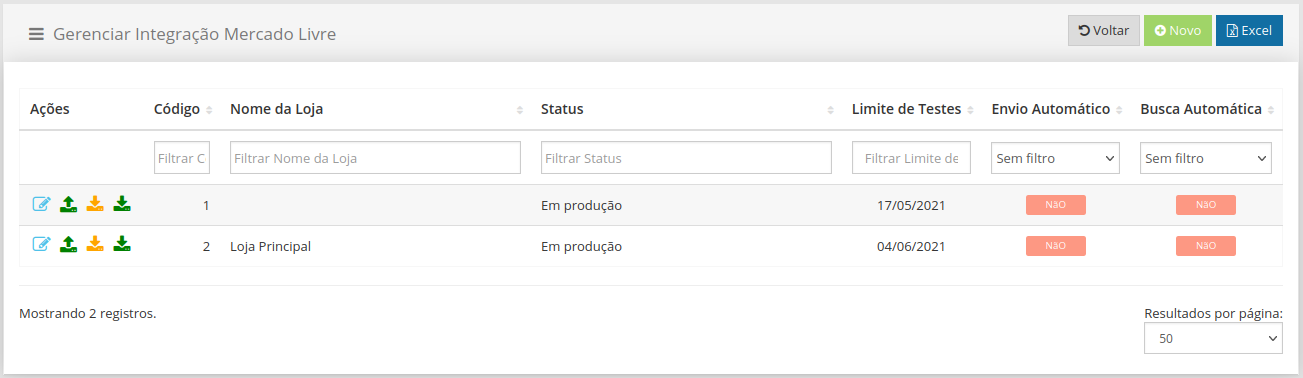
Access System registrations  Mercado Livre Integration, on this screen all the company’s stores will be listed, with the possibility of editing or inserting new integration.
Configuring the integration
Section titled “Configuring the integration”To perform the integration, some fields must be configured as described below.
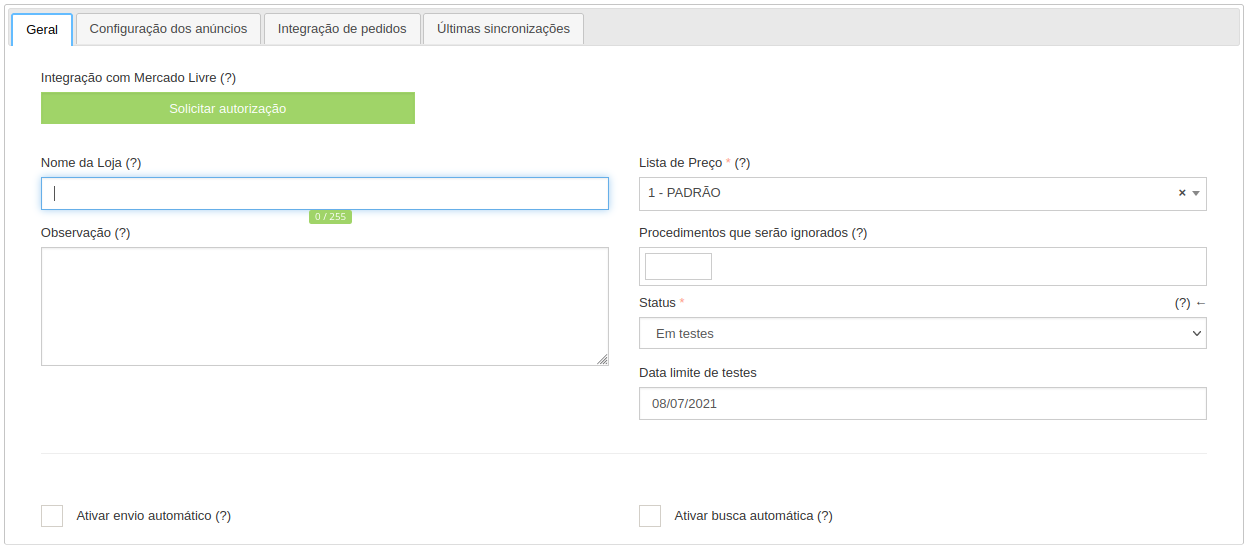
Tab - General
Section titled “Tab - General”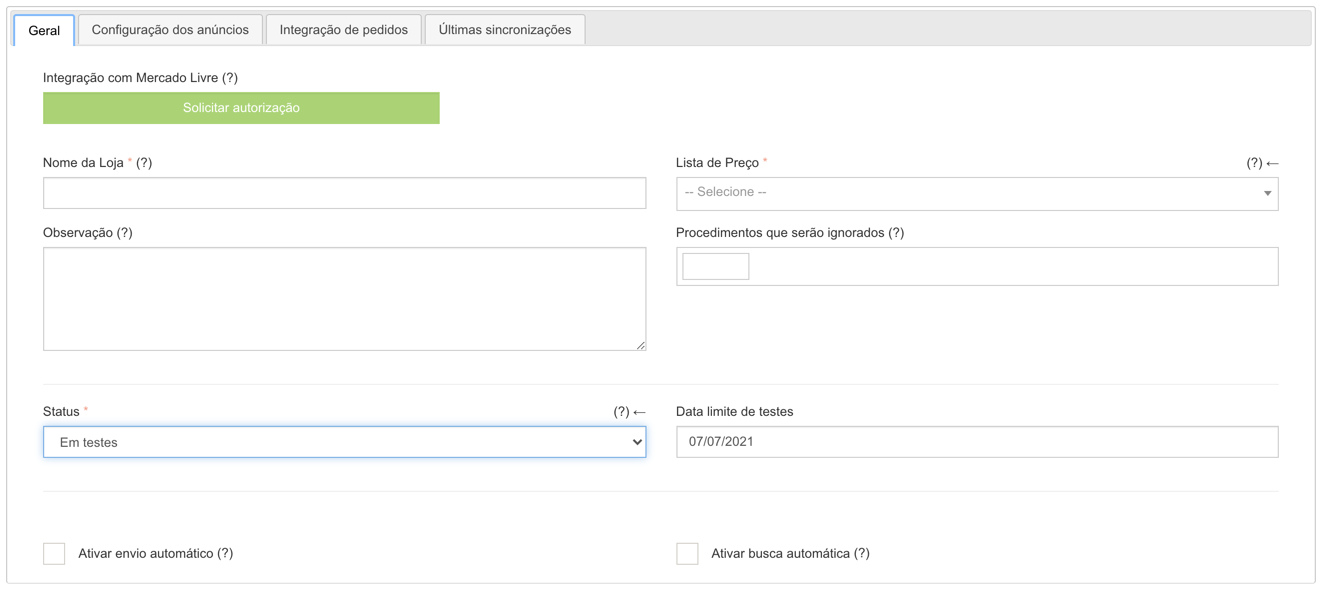
Authorize integration button:
Section titled “Authorize integration button:”After filling in and saving the settings for the first time, a button will be available that will be used to request authorization from your Mercado Livre account.
Store Name:
Section titled “Store Name:”Informational field only, used to differentiate one integration from another when the company has several. Ex.: Main Store, Branch Store 01, …
Price list:
Section titled “Price list:”Determines which products, prices and stock will be sent to Mercado Livre, and only products that are on the list will be sent. If you don’t want to send all the products to Mercado Livre, the ideal is to create a specific price list and add only the products that should be sent to it.
Attention: Mercado Livre does not calculate taxes (IPI, ICMS ST), therefore it is essential that the prices in this Price List already contain embedded taxes.
Find out more at Information that Demander sends to Mercado Livre - price.
Field intended for some observation of integration. Informative only.
Procedures that will be ignored:
Section titled “Procedures that will be ignored:”The procedures selected in this configuration will not be carried out in future synchronizations. It is important to highlight that this configuration does not remove data that has already been sent previously.
This functionality can be used to carry out tests or when there is a need to control a registration directly on Mercado Livre.
For example: if you select Update ad description, Demander will stop sending ad description updates to Mercado Livre, but will continue creating and updating price, stock and brand. All descriptions sent until then will be maintained.
Status:
Section titled “Status:”Determines the current status of the integration.
- In testing: it must be used for testing or demonstration for customers (the maximum testing period is 15 days, after this period, if you do not change status, the integration will be automatically deactivated);
- Under implementation: should be used when Mercado Livre is being implemented, or after the testing period has ended;
- In production: must be used when the integration is already in production (this status implies a charge for the license to use the module);
- Partner Testing: each partner is entitled to a free integration to carry out testing. This license cannot be used for end customers. Note: only the Demander support team can choose this status, if you partner needs a Test/Demo integration, contact our support team.
- No longer used: this status must be used to deactivate an integration, in addition, the module must be canceled directly by email financeiro@retta.com.br. After the integration has entered this status, it can only return to “In production”, as no new testing period is granted.
- Note: It is not possible to delete an integration configuration, if necessary you can change the status to “No longer using”.
Test deadline:
Section titled “Test deadline:”Displays the date until which the Integration module with Mercado Livre can be tested without incurring a charge from the Demander.
Note: after the testing period, the Integration will be deactivated until the status is changed.
Enable automatic sending:
Section titled “Enable automatic sending:”Determines whether Demander should automatically send data to Mercado Livre.
When checked, sending will occur automatically every hour.
Note: sending is incremental, that is, only data that has changed since the previous sending will be sent.
Enable automatic search:
Section titled “Enable automatic search:”Determines whether the Demander should automatically perform the data search (Orders and Advertisements) on Mercado Livre.
When checked, the search will occur automatically every hour.
Note: the search is incremental, that is, only requests and advertisements made after the last search will be searched.
Tab - Ad configuration
Section titled “Tab - Ad configuration”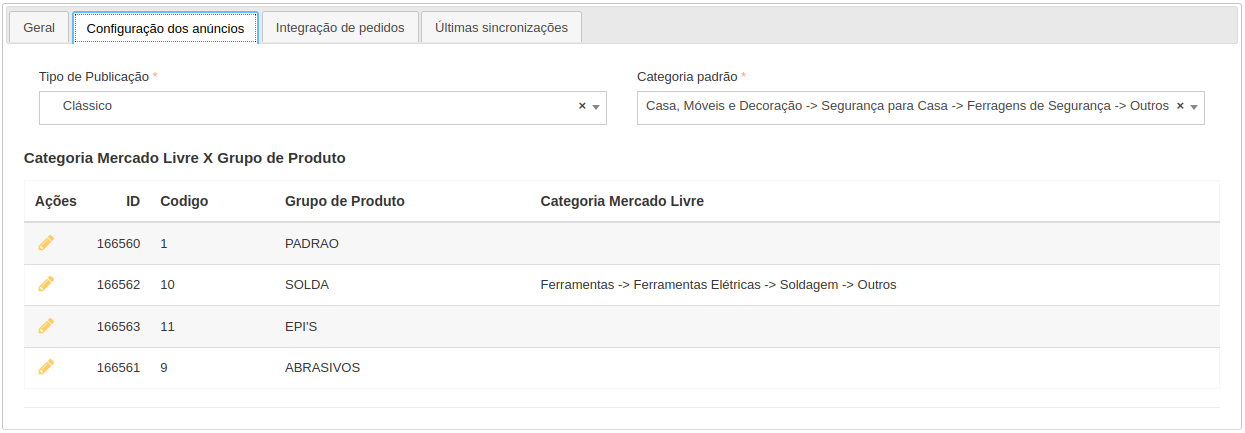
Publication Type:
Section titled “Publication Type:”Refers to the different types of advertisements used by Mercado Livre. For more information about differences and values, access the Mercado Livre documentation, Mercado Livre - How much does it cost to sell a product.
Default Category:
Section titled “Default Category:”Determines a category where products will be advertised if a Mercado Livre category has not been configured for each product group (see topic below) individually and if Mercado Livre automatic discovery fails.
Mercado Livre Category X Product Group:
Section titled “Mercado Livre Category X Product Group:”After filling in and saving the settings for the first time, this option will become available in this tab. Here it will be possible to configure a Mercado Livre category for each product group (belonging to the configured Price List) individually, so all products in the same group will belong to the same category.
To learn more about category settings, access the link Information that Demander sends to Mercado Livre - categories.
Tab - Order integration
Section titled “Tab - Order integration”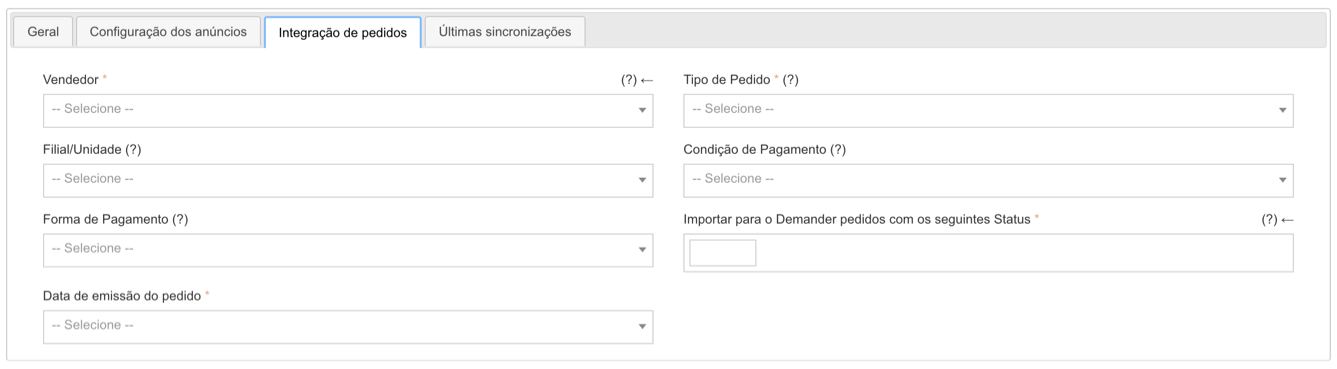
Seller:
Section titled “Seller:”Determines which seller will be linked to the sales imported in the integration. It is important to note that the numbering of orders in Demander will follow the seller’s numbering range configured here.
We recommend that a specific seller be created for integration with Mercado Livre, and that it not be used in mobile app synchronizations to avoid duplication of order numbers.
Order type:
Section titled “Order type:”Determines which type of order will be linked to sales imported from Mercado Livre.
Branch/Unit:
Section titled “Branch/Unit:”Determines which branch/unit will be linked to sales imported from Mercado Livre.
Note: if not informed, the order will be left without a Branch/Unit.
Payment terms:
Section titled “Payment terms:”Determines payment conditions used for sales imported from Mercado Livre.
Note: if not informed, the order will have no payment terms.
Payment method:
Section titled “Payment method:”Determines the payment method for sales imported from Mercado Livre.
Note: if not informed, the order will be left without a payment method
Import orders with the following Statuses into Demander:
Section titled “Import orders with the following Statuses into Demander:”Only sales with the selected statuses will be imported.
Order issuance date:
Section titled “Order issuance date:”Determines which date will be considered the order issuance date.
Date on which the sale occurred on Mercado Livre or date on which the sale was imported into Demander.
Tab - Latest syncs
Section titled “Tab - Latest syncs”This tab will only be visible after saving the settings for the first time.
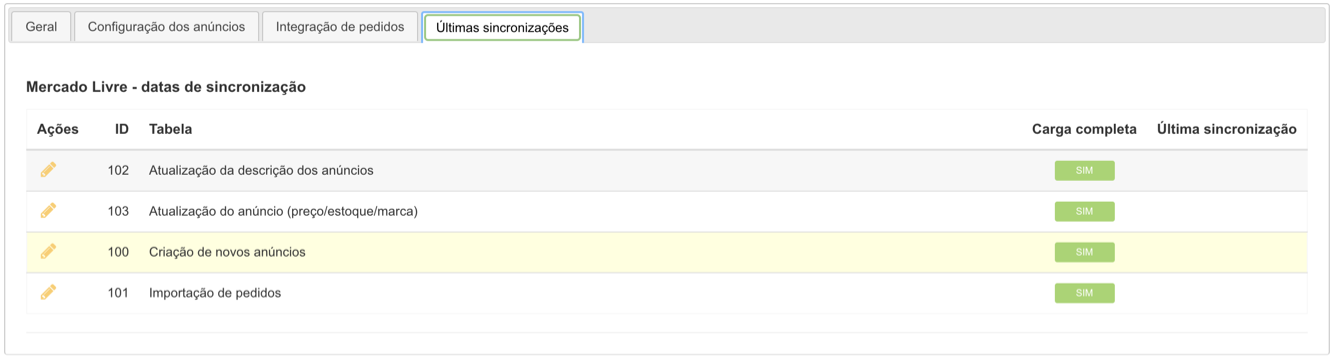
Force full load:
Section titled “Force full load:”If checked, it forces a full load of data, regardless of whether there were changes or not, if unchecked, there will only be synchronization of data that has undergone changes.
Note: procedures that are configured to be ignored will not be affected by this configuration, that is, even checking to force full load will not export.
Date/Time:
Section titled “Date/Time:”Only information that has changed after the date and time entered will be synchronized.
Authorizing the integration of Demander with Mercado Livre
Section titled “Authorizing the integration of Demander with Mercado Livre”- After filling in the necessary data in the “*General”, “Ad configuration” and * “*Order integration” tabs, *select *Save. Make sure you are not logged into any other Mercado Livre account other than the one used for integration. After select Request authorization. *
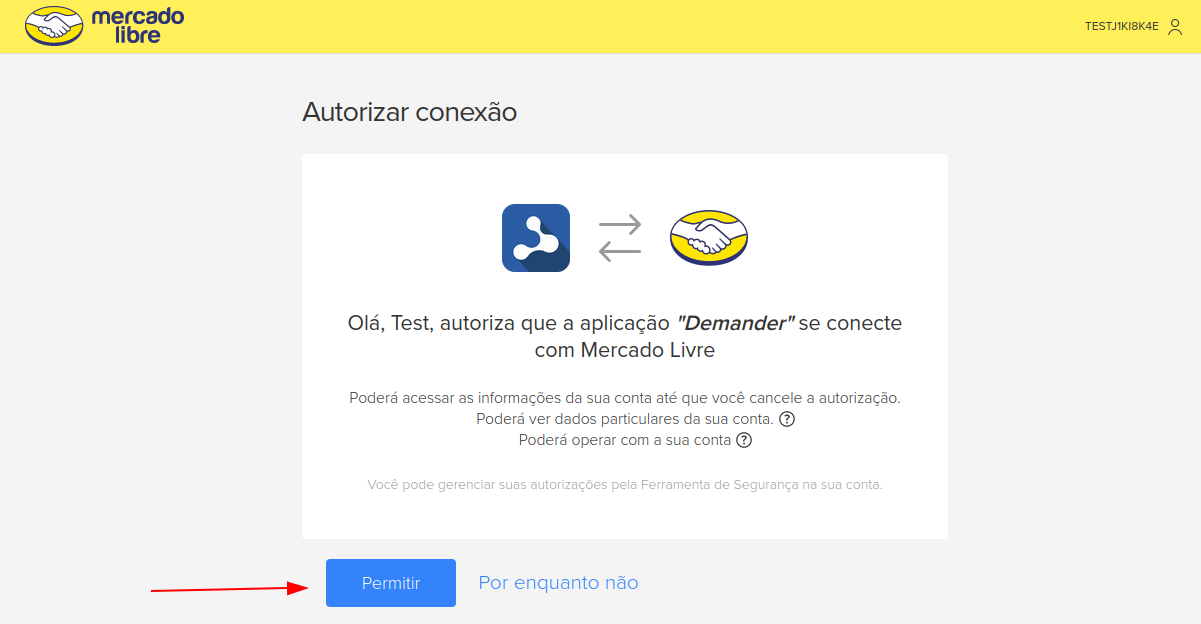
- On the Mercado Livre page that opens, select Authorize. This will generate a link token between your company’s Demander and the chosen Mercado Livre account. This step only needs to be performed once.
 - If necessary, for any reason, the token can be renewed. To do this, follow the same steps and select Renew authorization.
Performing information synchronization with Mercado Livre
Section titled “Performing information synchronization with Mercado Livre”Attention: once the integration is linked, it will not be necessary to be logged into your Mercado Livre account for synchronizations to occur.
The synchronization of information with Mercado Livre can be carried out automatically or manually.
- Automatically, simply check the automatic-sending and automatic-search options in the General Tab, this way synchronization will occur every hour.
- Manually, just click on the send, search for ads or search for orders buttons as shown in the image below.
Find out more about what information Demander integrates with Mercado Livre: