

Integrated Store Configuration
To learn more about the Integrated Store, be sure to check out our article Integration with the Integrated Store - Demander.
The integration configuration is carried out on the System Registration screen  Integrated Store Configuration. All the company’s stores are listed on this screen, with the possibility of editing or inserting a new integration.
NOTE: it is not possible to delete an integration configuration, if necessary you can change the status to “No longer using”.
Configuration screen fields
Below are the fields on the configuration screen.
*In red mandatory fields.
General Tab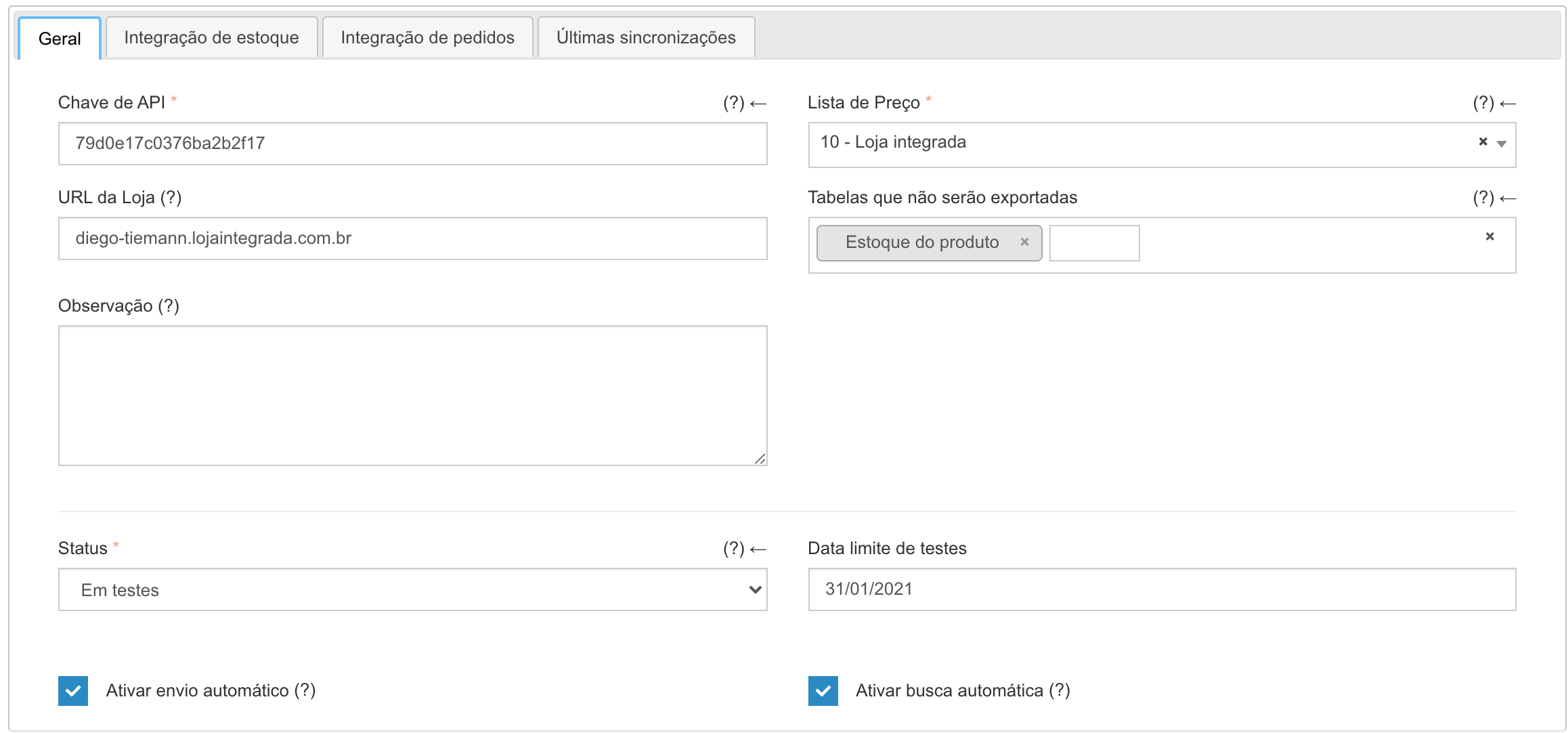 *API Key:
The API key is what connects Demander with the Integrated Store. Read our article that explains how to get your store’s API key.
*Price List:
Determines which products, prices and stock will be sent to the Integrated Store, and only products that are on the list will be sent to the Integrated Store. If you do not want to send all products to the Integrated Store, the ideal is to create a specific price list for the Integrated Store and add only the products that should appear in the store.
Attention: The Integrated Store does not calculate taxes (IPI, ICMS ST), therefore it is essential that the prices in this Price List already contain embedded taxes.
*Store URL:
URL/website of the store in question.
Tables that will not be exported:
Tables selected in this configuration will not be sent to the Integrated Store.
It is important to highlight that this configuration does not remove data that has already been sent previously, it just stops sending it in the next synchronizations.
This functionality can be used to carry out tests or when there is a need to control a registration directly in the Integrated Store.
Example: If you select Brands, Demander will stop sending the Brands to the Integrated Store, as well as stopping sending the Brand on the Product, but if until today the Brands have always been sent, and now you have configured it to stop sending them, this does not mean that the Brands that are in the Integrated Store will be removed, they will continue to be there. The same behavior applies to any of the tables.
Note:
This is a free text field that can be used to save information about the integration.
*Status:
Determines the current status of the integration.
Possible options are:
- In testing: Must be used for stores that are in a testing or demonstration period for the customer (the maximum testing period is 15 days, after this period, if you do not change status, the integration will be automatically deactivated)
- Under implementation: Must be used when the store is being implemented, or after the testing period has ended (the maximum testing period is 15 days, after this period, if you do not change status, the integration will be automatically deactivated);
- In production: Must be used when the integration is already in production (this status implies a charge for the license to use the module);
- Partner Test: Each partner is entitled to a free integration to carry out tests (the Integrated Store license is not included). NOTE: only the Demander support team can choose this status, if you as a partner need a Test/Demo Store, contact our support team.
- No longer used: this status must be used to deactivate an integration, in addition, the module must be canceled directly by email financeiro@retta.com.br. After the integration has entered this status, it can only return to “In production”, as no new testing period is granted.
Test deadline:
Displays the date until which the Integration module with the Integrated Store can be tested without incurring a charge from the Demander.
NOTE: after the testing period, the Integration is deactivated until the status is changed.
Enable automatic sending:
Determines whether Demander should automatically send data to the Integrated Store.When checked, sending occurs automatically every hour.
NOTE: Sending is incremental, that is, only data that has changed since the previous send is sent.
Enable automatic search:
Determines whether Demander should automatically search for data (Orders and Customers) in the Integrated Store.
When checked, the search occurs automatically every hour.
NOTE: The search is incremental, that is, only requests that have changed since the last search are searched.
Inventory Integration Tab
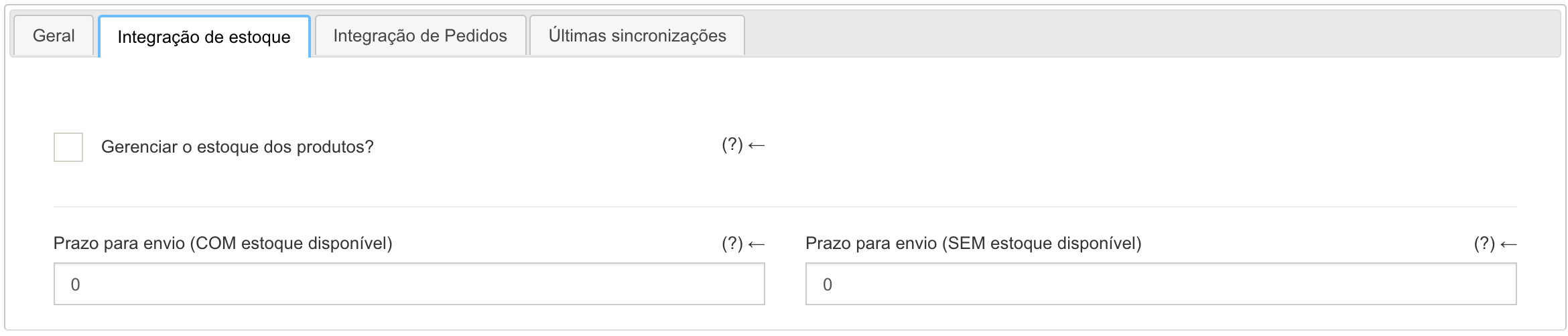
Attention: The stock settings presented here are replicated for all products in the Integrated Store, if you need to make specific settings per product, we recommend that you deactivate stock integration (in General Tab ⇒ Tables that are not exported).
Manage product inventory?
Determines whether the Integrated Store will manage inventory or not.
When the manage stock setting for products is unchecked, then:
The integrated store will not consider the stock balance that Demander sends, and all active products in the Store will be available for sale (regardless of stock in Demander).
NOTE: Along with this configuration, the Deadline for shipping (with available stock) field configuration presented later is used.
When the manage inventory product setting is checked, then:
In this case, the Integrated Store considers the balance in stock of each product, and out-of-stock products may or may not become unavailable.
Example: Considering that product A has 3 units in stock, when these 3 units are sold, the Integrated Store uses the Deadline for shipping (with stock available), however, when these 3 units have been sold, the Store starts using the Deadline for shipping (without stock available) in calculating the deadline.
Shipping deadline (with stock available):
Defines the period (in days) you need to ship the merchandise (which is in stock) after receiving the order.
Example: The order was placed today, and you need 2 days to separate the products and post them at the post office or deliver them to the carrier, in this case your shipping deadline is 2 days.
The shipping time is added to the delivery time of the post office/carrier to calculate the delivery forecast that is presented to the customer.
Shipping deadline (no stock available):
Defines the period (in days) that you need to send the merchandise (which is not in stock) after receiving the order.
Use -1 to make the product unavailable (prevent orders) when it runs out of stock.
This field is best understood with the following example: you have a manufactured product that takes 10 days to make, so in this field you send the value ‘10’, this will cause the product shipping deadline to be automatically changed to 10 days as soon as the stock of any product runs out.
The shipping time is added to the delivery time of the post office/carrier to calculate the delivery forecast that is presented to the customer.
Order Integration Tab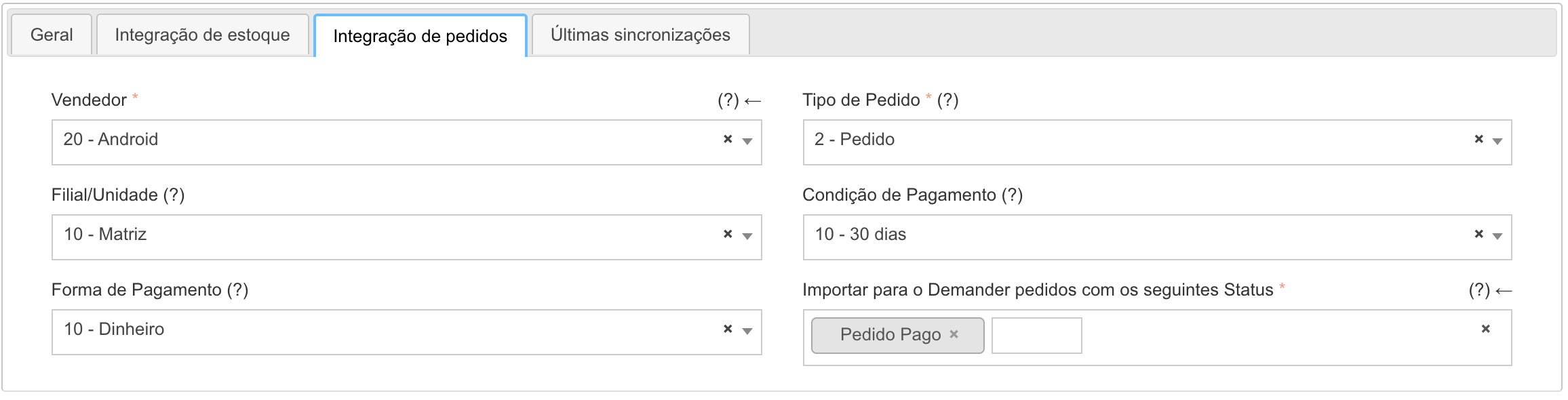 *Seller:
Determines the Seller that will be used in orders imported from the Integrated Store.
It is important to note that the numbering of orders in Demander will follow the seller’s numbering range configured here.
We recommend that a specific seller be created for the integrated Store, and that this seller not be used in Mobile app synchronizations to avoid duplication of order numbers.
*Order Type:
Determines the Order Type of orders imported from the Integrated Store.
Branch/Unit:
Determines the Branch/Unit of orders imported from the Integrated Store. NOTE: if this is not informed, the order will be left without a Branch/Unit.
Payment Condition:
Determines the payment terms for orders imported from the Integrated Store. NOTE: if this is not informed, the order will not have a Payment Condition.
Payment Method: Determines the payment method for orders imported from the Integrated Store. NOTE: if this is not informed, the order will not have a Payment Condition.
Import orders with the following statuses into Demander:
This configuration determines which orders Demander should import from the Integrated Store.
For example, the customer placed an order on the Integrated Store, but has not yet made payment. Should the Demander already import this order, or should we just wait for payment?
In a normal scenario, where you only want to receive orders that have already been paid by the customer, simply fill in the “Order Paid” status.
Also read the Loja Integrada article that explains what each order status means.
Latest Syncs Tab
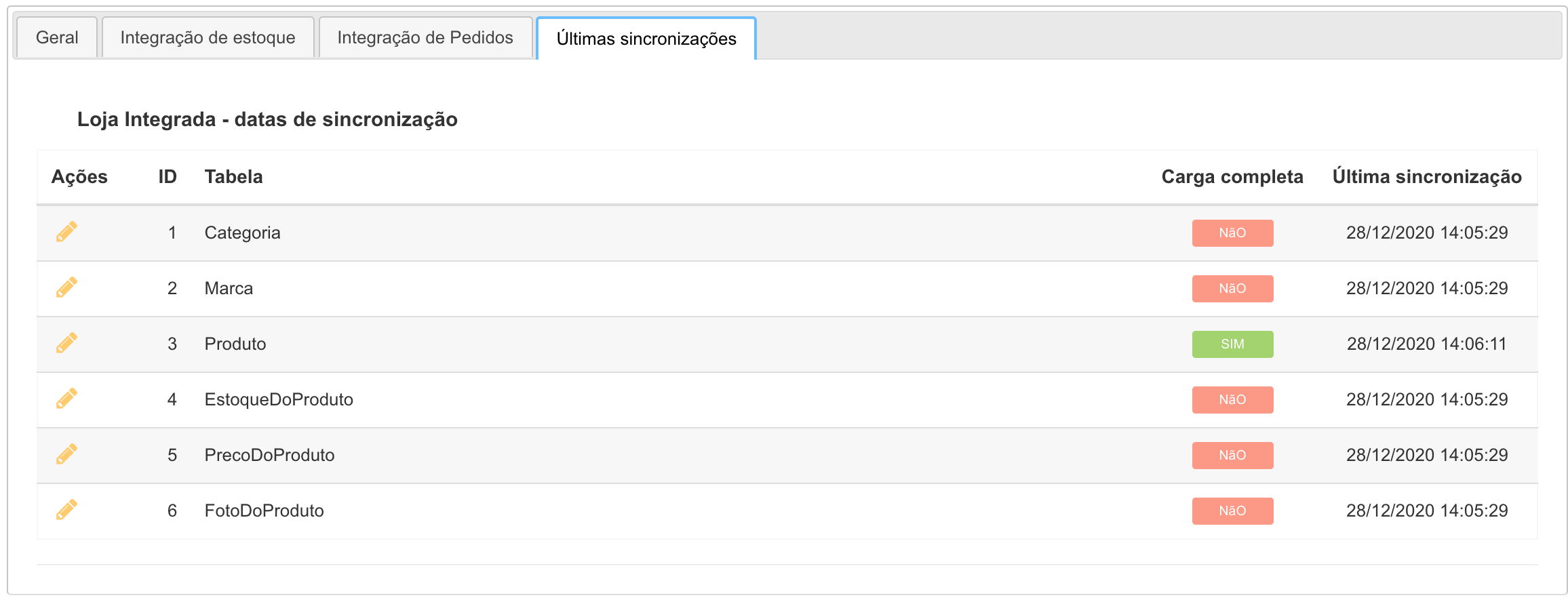
This tab displays the list of tables that are integrated with the Store, and for each table we have the time of the last synchronization.
You can edit these records by changing the following fields:
Full charge:
When checked, it forces a complete synchronization in the next synchronization, that is, in the next synchronization, all records in this table will be synchronized.
NOTE: Tables that are configured not to export are not affected by this configuration, that is, even checking to force full load will not export.
Last sync:
During the next synchronization, the integration routine will send all records that changed after the configured date to the Integrated Store.