integration - ERP shipping
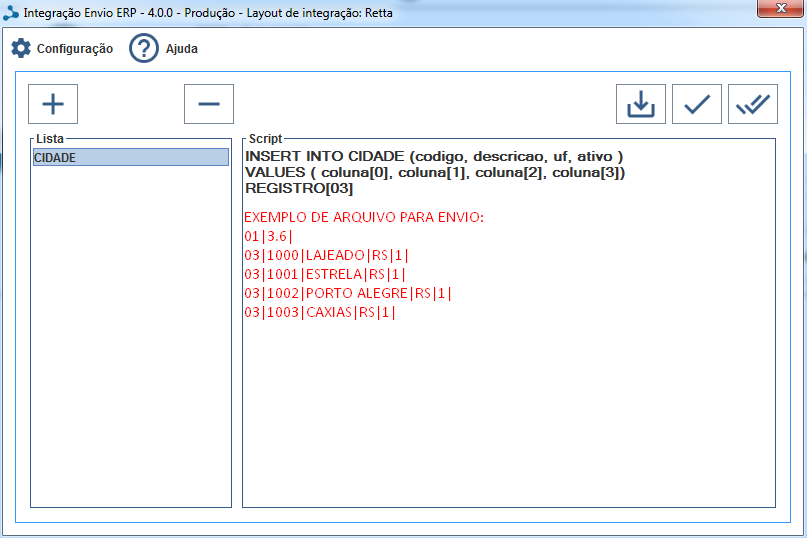
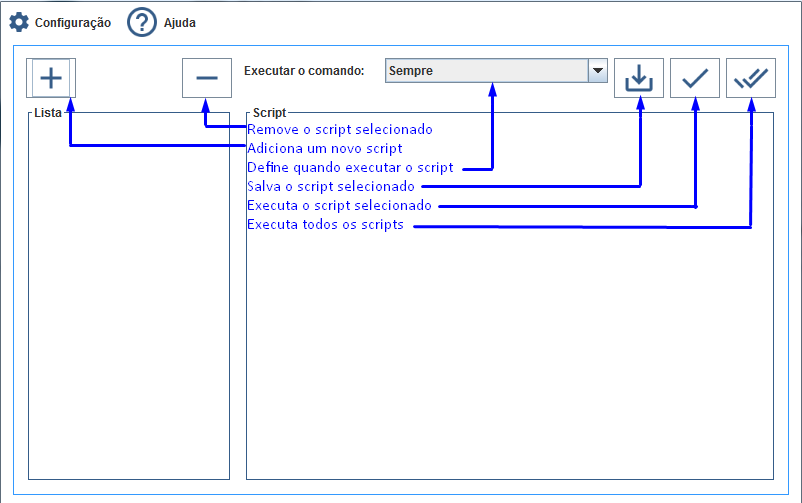
The sending functionality is used to send records to the database configured through registered SQL scripts. When clicking on the item in my ERP shipping integration, the following screen will open:
Configuration
Section titled “Configuration”Responsible for connecting to the database used.
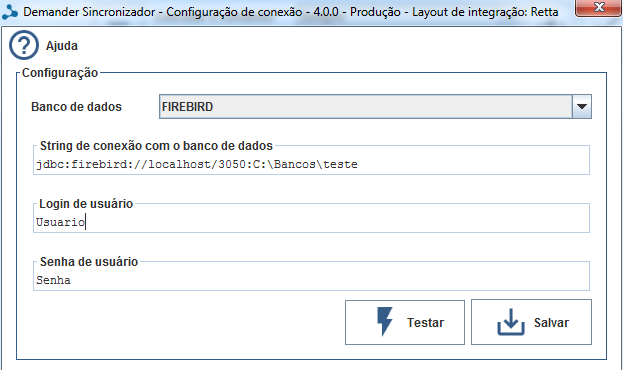
1 - Menu Help
Opens a text file with example connection strings for each bank implemented in the Synchronizer.
2 - Checkbox Database
Select the database to be configured. Today we have the FIREBIRD, POSTGRES, MYSQL, SQL SERVER, SYBASE and ORACLE databases implemented in the Synchronizer.
3 - Field Database connection string
Connection string examples:
- EXAMPLE POSTGRES CONNECTION:
- EXAMPLE FOR ORACLE CONNECTION:
- EXAMPLE FOR FIREBIRD CONNECTION:
- EXAMPLE FOR MYSQL CONNECTION:
- EXAMPLE FOR SQL SERVER CONNECTION:
- EXAMPLE FOR SYBASE CONNECTION:
4 - Field User
User registered in the database.
5 - Field Password
Password of the user registered in the database.
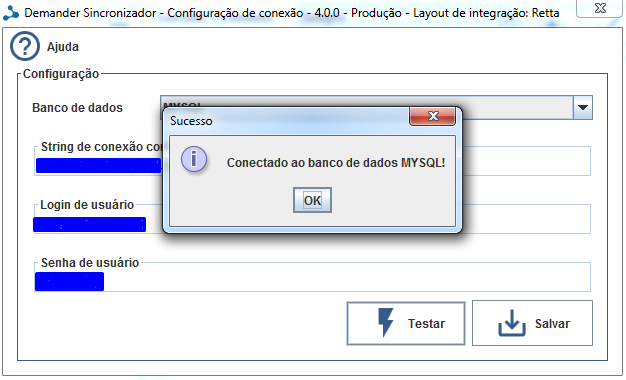
When testing the connection, the success message is displayed or the corresponding error is displayed.
With the correct connection, SQL scripts can be created. Below is an example of creating a CITY SQL script:
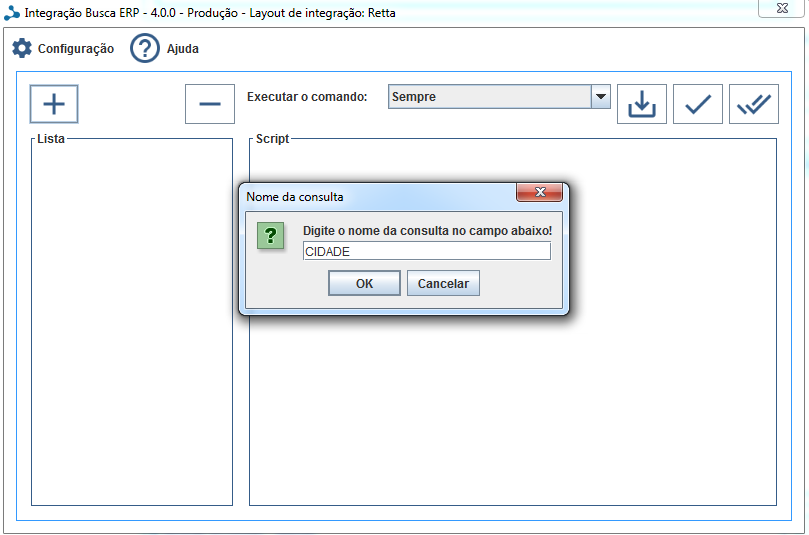
You will need to have a file in the Search folder with the data that will be sent to the ERP database, the
The image below exemplifies a sending script, as well as an example of a file to send.