

Flex Balance Module
Available at:


This article aims to explain what Saldo flex is, its usability and how to configure it.
In this article you will see:
- What is Flex Balance
- How Demander works with Flex
- Concepts
- Available Balance Calculation
- Cancellation and partial billing of orders
- Order Level Discount
- Duplicate Order
- Validation of Available Flex Balance
- Flex Balance Inquiry
- Module Configuration
- Flex Balance Calculation by Price Policy
- Reset Pending Balances at the Turn of the Month
- [Features that do not affect Flex](#does_not affect)
- What Demander still doesn’t do in relation to Flex
- Explanatory Videos
What is Flex Balance
Section titled “What is Flex Balance”The Flex Balance works as a “negotiating currency” for the seller. Whenever he sells above the reference price, he generates credit. When you sell below the base price, you consume this credit — generating debt.
In this way, the system balances negotiations: the seller can offer strategic discounts without exceeding the limit allowed by the company, and is also encouraged to maintain good profit margins.
How Demander works with Flex
Section titled “How Demander works with Flex”The module can work with or without integration with the ERP. The calculation of the Flex Balance only occurs for order types that consider Flex — that is, with the “Consides Order” option active in the order type configuration.
Concepts
Section titled “Concepts”💰 Balance Credit
Section titled “💰 Balance Credit”- Credit is generated when the seller sells above the list price. (Not configurable)
- This credit is initially blocked and only becomes available after the order has been invoiced.
- Credits are sent to the ERP, which updates the seller’s current balance.
⚠️ Balance Debit
Section titled “⚠️ Balance Debit”The debt is determined according to the configuration. It is on the Company Settings> Additional Modules
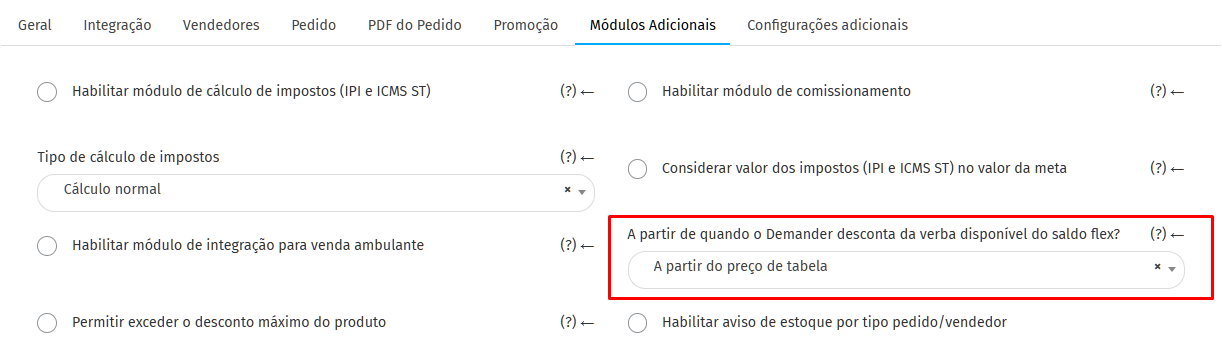
- From the list price: everything below it generates debt.
- From the maximum discount allowed: if the product has a maximum discount of 10%, selling at 15% generates debt.
- With active promotions, the promotional value replaces the base price.
📊 Available Balance
Section titled “📊 Available Balance”The seller has an opening balance. This information comes via integration in field 14 of Table 02 - Sellers or manually registered on the Sellers> Preferences.
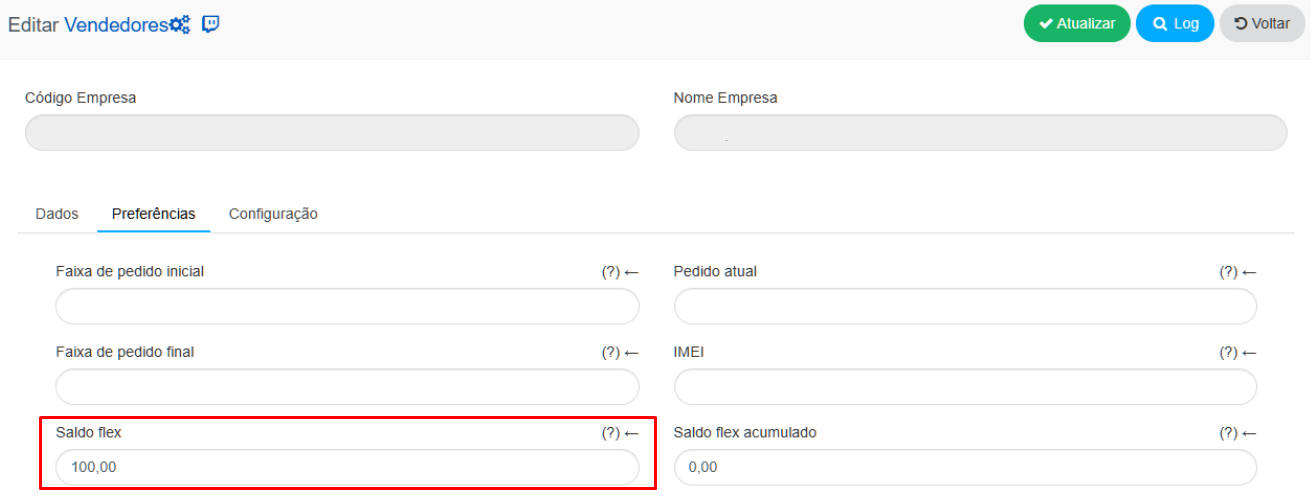
Credits only come in after billing.
- In practice, the ERP removes the credit from the order and adds it to the flex balance in the seller’s registration, being passed to the Demander through this field and causing the seller to have an initial balance already including this credit.
While debits are posted immediately when an item is added to the order.
Available Balance Calculation
Section titled “Available Balance Calculation”The available balance is the amount of credit that the seller can still use. It is calculated like this:
Seller’s Flex Balance (in the representative’s registration) - (Debits for Items with Pending Billing)
Orders not yet invoiced continue to “block” part of the balance until they are processed. If the company uses monthly mode, only orders from the current month are included in the calculation.
🧮 Practical example: An order for R$200 in debits. 70% was invoiced and 10% canceled — 20% remaining outstanding, equivalent to R$40 in blocked balance.
Cancellation and Partial Billing of Orders
Section titled “Cancellation and Partial Billing of Orders”The system considers the information coming from Table 17 – Order Items, fields 20 - Canceled Quantity and 21 - Invoiced Quantity;
- What was invoiced generates effective credit.
- What was canceled is ignored.
- What is pending remains a blocked balance until completed.
Order Level Discount
Section titled “Order Level Discount”The discount applied to the order total also affects the Flex Balance. If the discount causes the balance to become negative, the system automatically blocks the operation, preventing the order from being sent until the seller adjusts the values.
Duplicate OrderWhen duplicating an order, Demander automatically recalculates the values and the Flex Balance.
Section titled “Duplicate OrderWhen duplicating an order, Demander automatically recalculates the values and the Flex Balance.”This ensures that any price changes, promotions or maximum discounts in force are applied correctly, avoiding distortions in the balance.
Validation of Available Flex Balance
Section titled “Validation of Available Flex Balance”The system prevents the balance from going negative. Validation is done:
- When the seller changes the price of the item.
- When you apply a discount to the order.
If the available balance is not sufficient, the system blocks the discount and displays an alert message.
Flex Balance Inquiry
Section titled “Flex Balance Inquiry”The seller can view their flex balance statement, which shows:
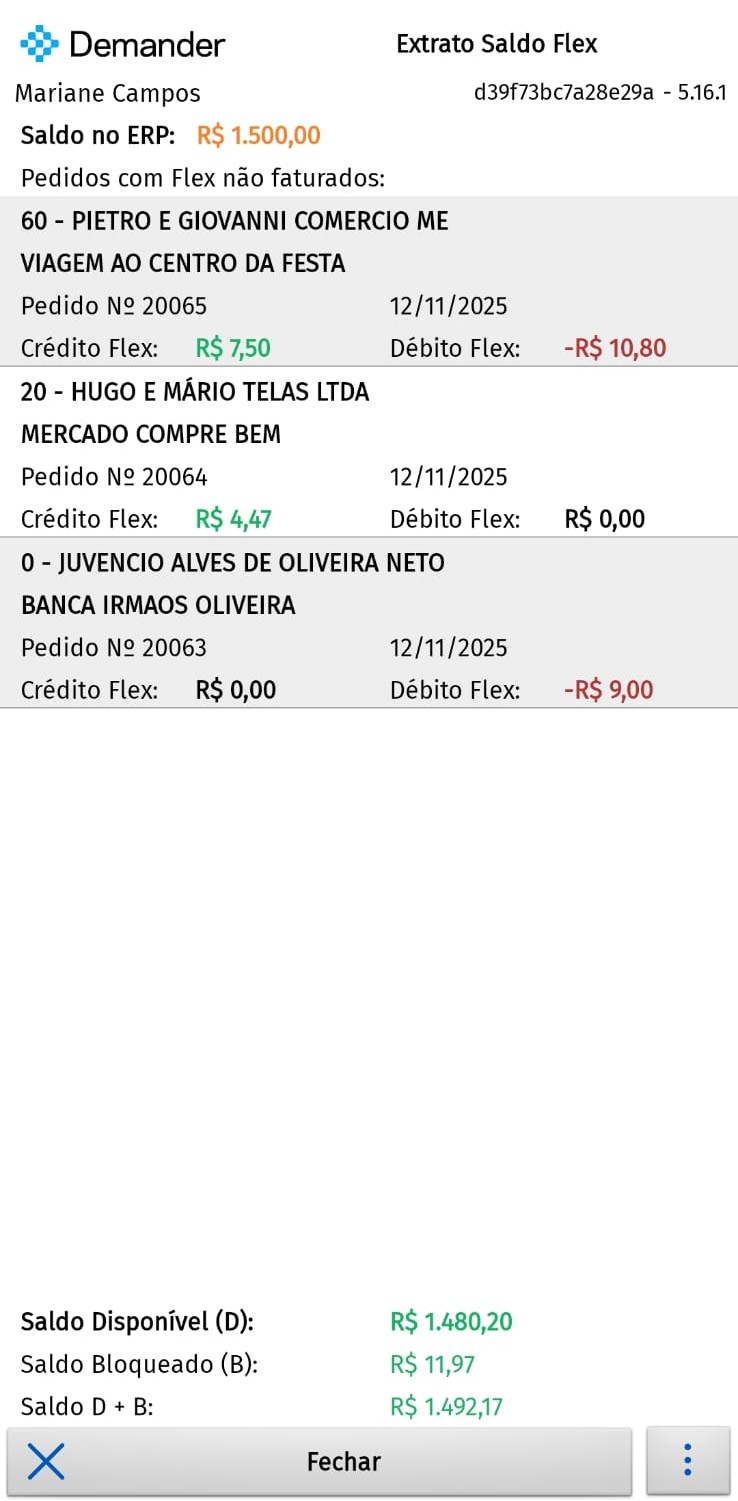
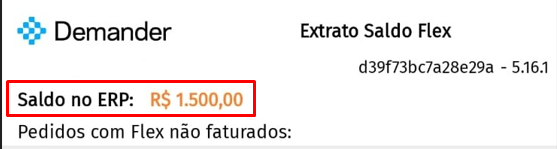
At the top of the screen it shows the balance received from the ERP (registered with the Seller)
Below this balance, all orders that still have Flex Pending billing will be displayed in a list format.
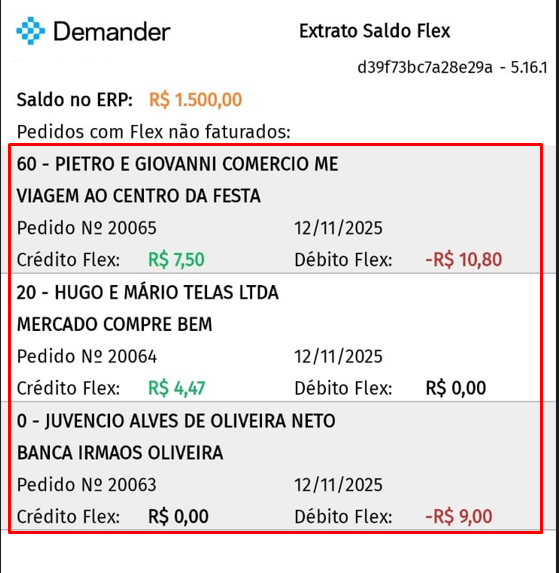
For each of these orders, the credit or debit generated will appear.
It will still be listed in the form footer:
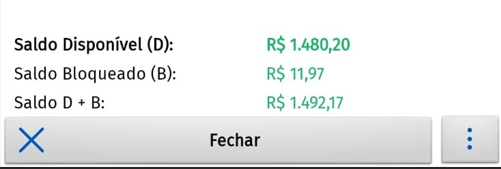
- Available balance (D): how much the representative still has available for the Flex Balance (amount that came from the ERP - debts generated);
- Blocked balance (B): how many orders the representative placed that generated a credit but that has not yet been ‘processed’ by the ERP;
- D + B Balance: available balance + Blocked Balance.
Managers can also view the balances of all sellers under their supervision.
Module Configuration
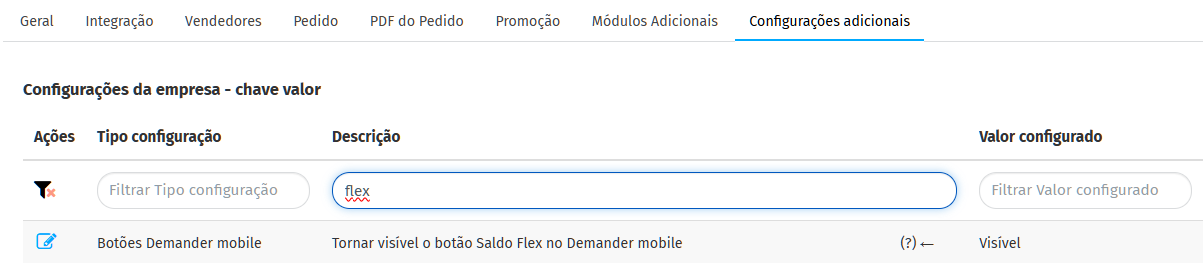
Section titled “Module Configuration”Access: Company Settings → Additional Settings Activate the option: “Make the Flex Balance button visible on Demander mobile”
⚙️ Type of Calculation
Section titled “⚙️ Type of Calculation”You can define how the system calculates Flex:
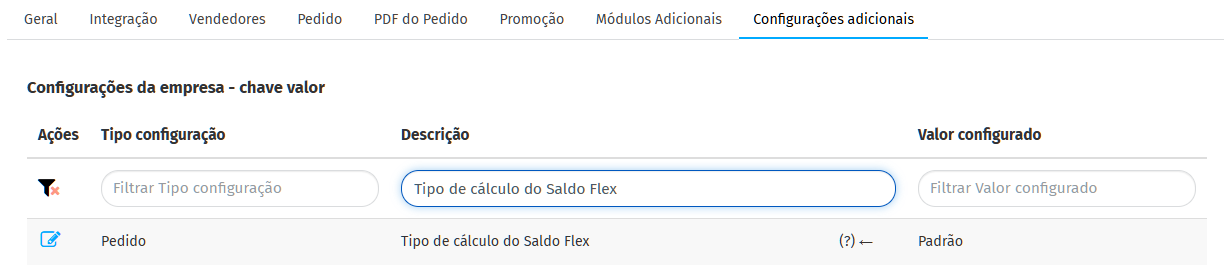
- Standard: per item basis (addition credits / discount debits).
- Flex Range by Price List: defines specific ranges and limits.
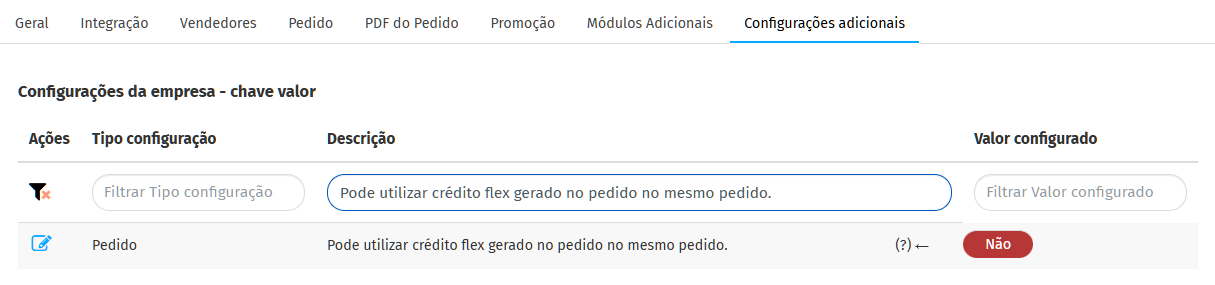
🔄 Use of Credit in the Same Order
Section titled “🔄 Use of Credit in the Same Order”It is possible to allow or not the use of credits generated within the same order.
📑 Order Types
Section titled “📑 Order Types”Access the Order Types screen, Miscellaneous tab:
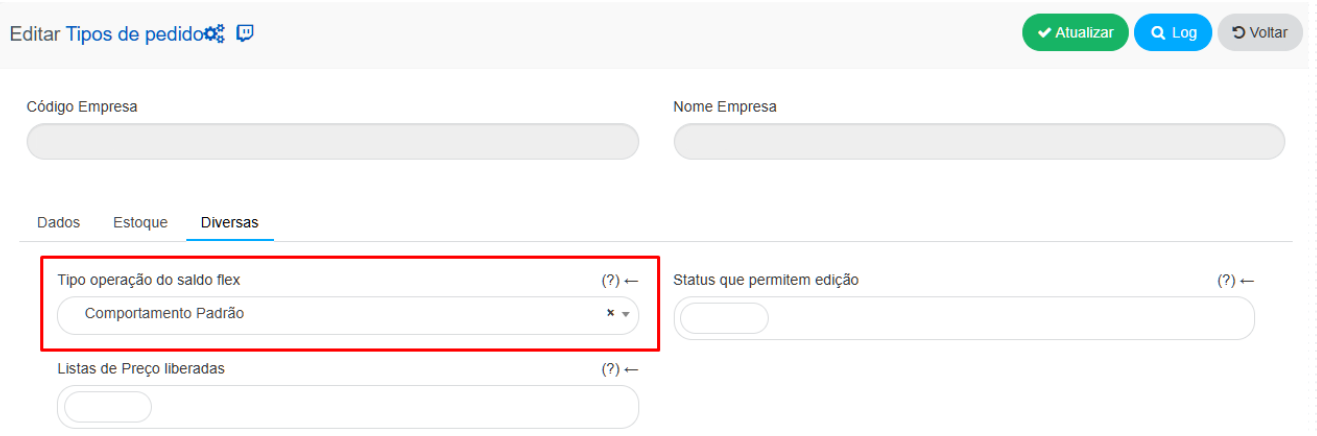
Each type can be configured to:
- Standard Behavior: The calculation is made based on the order item, if there is a discount, debit it from the flex, if there is an increase, it adds it to the flex.
- Credit total in Order: Add the positive flex value to the order total.
- Debit total on Order: Decreases the negative flex value on the order total.
Do not determine Flex: Flex is not determined for this Type of Order.
Calculation of Flex Balance by Price Policy
Section titled “Calculation of Flex Balance by Price Policy”When a Level 3 Pricing Policy is applied, it can define its own base and the criteria for calculating the flex balance. This configuration allows you to control whether the policy generates debit, credit, both or no flex movement.
Important: existing policies remain compatible with the previous behavior, as they use Flex balance base value = 0.0% and Calculation criteria = 1 - Standard.
Policy Settings
Section titled “Policy Settings”- Base value of the flex balance: percentage applied to the policy’s entry price to form the basis for comparison.
- Flex balance calculation criteria:
- 1 - Standard: determines debit or credit.
- 2 - Only checks debit: ignores credit results.
- 3 - Calculates credit only: ignores debit results.
- 4 - Does not calculate flex: does not generate debit or credit.
How the value is calculated
Section titled “How the value is calculated”The flex base is calculated from the policy’s entry price:
Flex base = entry price × (1 + base percentage ÷ 100)
The system compares the flex base with the policy’s exit value. If the output is less, the result is debit; if it is greater, the result is credit. Finally, the configured criteria determines whether this movement will be registered.
Concepts
Section titled “Concepts”- Input price: value that reaches the Policy, that is, the price received from the previous stage of the calculation.
- Output value: value after applying the percentage or value defined in the current Policy.
Example scenarios
Section titled “Example scenarios”- Base 0%: Entry R$ 100.00, exit R$ 85.00→ Flex basis R$ 100.00→Debit of R$ 15.00.
- Base -10%: Entry R$ 100.00, exit R$ 85.00→ Flex base R$ 90.00→Debit of R$ 5.00.- Base 10%: Entry R$ 100.00, exit R$ 85.00→ Flex basis R$ 110.00→Debit of R$ 25.00.
- Credit only: if the calculation results in debit, no flex value will be generated.
- Does not calculate flex: no debit or credit will be generated, regardless of the calculated values.
Reset Pending Balances at the Turn of the Month
Some companies opt for monthly balance control.
To meet this situation, there is a setting in Demander Web “Monthly Flex Balance Control”, on the Company Settings> Additional Settings
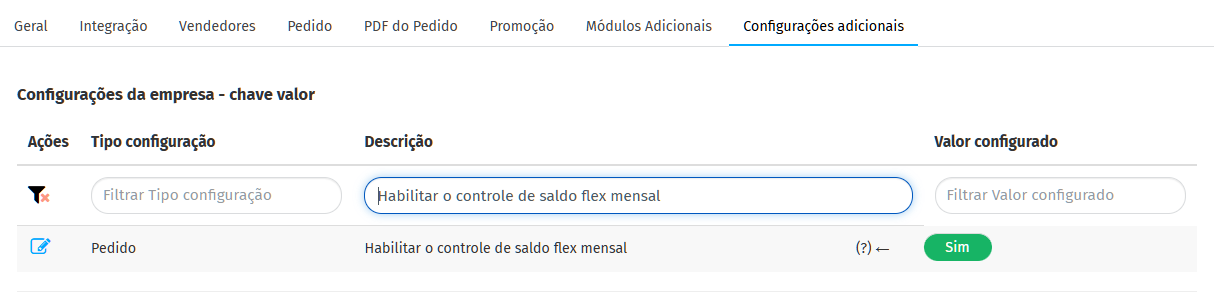
In this case, the Demander disregards orders from previous months in the calculation — but does not reset the seller’s total balance.
The balance is updated by the ERP at the beginning of each month, based on the consolidated statement.
Features that do not affect the Flex Balance
- Pre-fixed price
- Price locked
These options prevent value changes, therefore they do not generate Flex credit or debit.
What Demander still doesn’t do in relation to Flex
Section titled “What Demander still doesn’t do in relation to Flex”- Blocks related to additions.
- Ignore products with zero value.
- Balance redemption.
- Implementation in native iOS app (in progress).
🎥 Explanatory Videos about the Module
Section titled “🎥 Explanatory Videos about the Module”- How to configure the Flex Balance Module
- How to use the Flex Balance Module