

How to resend or reprocess an order?
This article helps you find out why an order did not reach the ERP and shows how to resend an order to the ERP or reprocess a received file with an error.
Checklist: Demander order that does not reach the ERP
Section titled “Checklist: Demander order that does not reach the ERP”Use this sequence before opening a ticket. In many cases the cause is type/status, the 30-day window, or a one-off resend.
1. Confirm order type and status
Section titled “1. Confirm order type and status”- In Demander Web, open the order type and check that the ERP release flow is correct — especially the statuses for orders saved but not released and orders released to the ERP.
- Open the order’s current status. Confirm that this status takes part in the ERP send/return (field Send on ERP return, when applicable).
- Place a test order and check whether the Sincronizador creates a file in the ERP import folder.
2. 30-day window on the device
Section titled “2. 30-day window on the device”In continuous order retrieval for the ERP, Demander only returns orders with an issue date within the last 30 days. Older orders drop out of that retrieval, even if they were changed recently.
Technical detail: API — receive data from Demander.
Ask the team to sync saved orders often. If the order sat on the device beyond that window and did not go to the ERP, after fixing the record/status use duplicate the order (when it makes sense) or the manual resend below, and confirm in the ERP that the number arrived.
3. Sincronizador folders and files
Section titled “3. Sincronizador folders and files”- Check Ignored files (same hash already transmitted). See Ignoring a file in the send process.
- Review the fetched, sent-to-ERP, and import folders.
- Confirm that the Sincronizador service is running and that the computer has internet.
4. Resend or reprocess
Section titled “4. Resend or reprocess”When the cause is one-off (order stuck after a record or status fix), use the flows below and confirm in the ERP that the number arrived.
Resend an order to the ERP
Section titled “Resend an order to the ERP”-
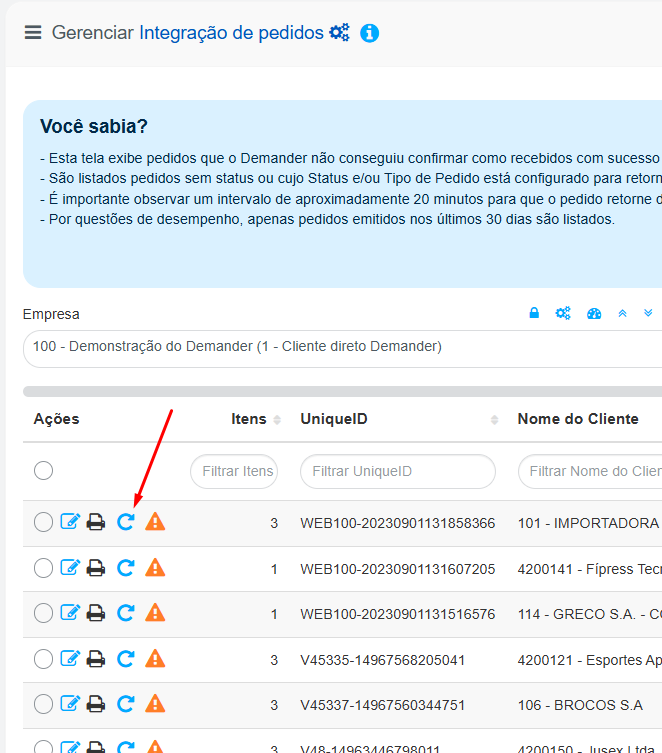
Go to the order integration list.
-
Locate the order you want to resend.
-
Use the Resend order to ERP action.
-
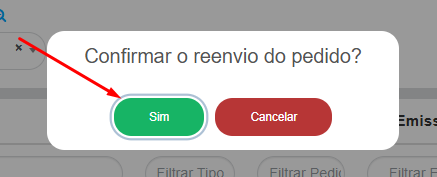
Confirm the resend.
The order will be included in the next data transmission to the ERP.
This option is not displayed for orders that are still being entered.
Reprocess a file received from the ERP
Section titled “Reprocess a file received from the ERP”-
Go to the list of files received from the ERP.
-
Locate the file that has an error.
-
Use the file reimport or resend action.
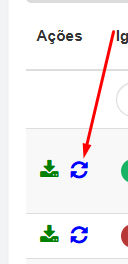
When necessary, correct the cause of the error before reprocessing the file to prevent the issue from recurring. If the order still does not reach the ERP, check the integration log and the displayed error message.