How to set an App password to use Google email accounts
The app password is a secure way to use your Google account with other applications, and will become mandatory from 05/30/2022.
In this article, we will teach you how to create an app password in your Google account and how to update the settings on Movidesk to use it with the new password.
- How to create an app password on your Google account
- How to update settings on Demander with the new password
How to create an app password on your Google account
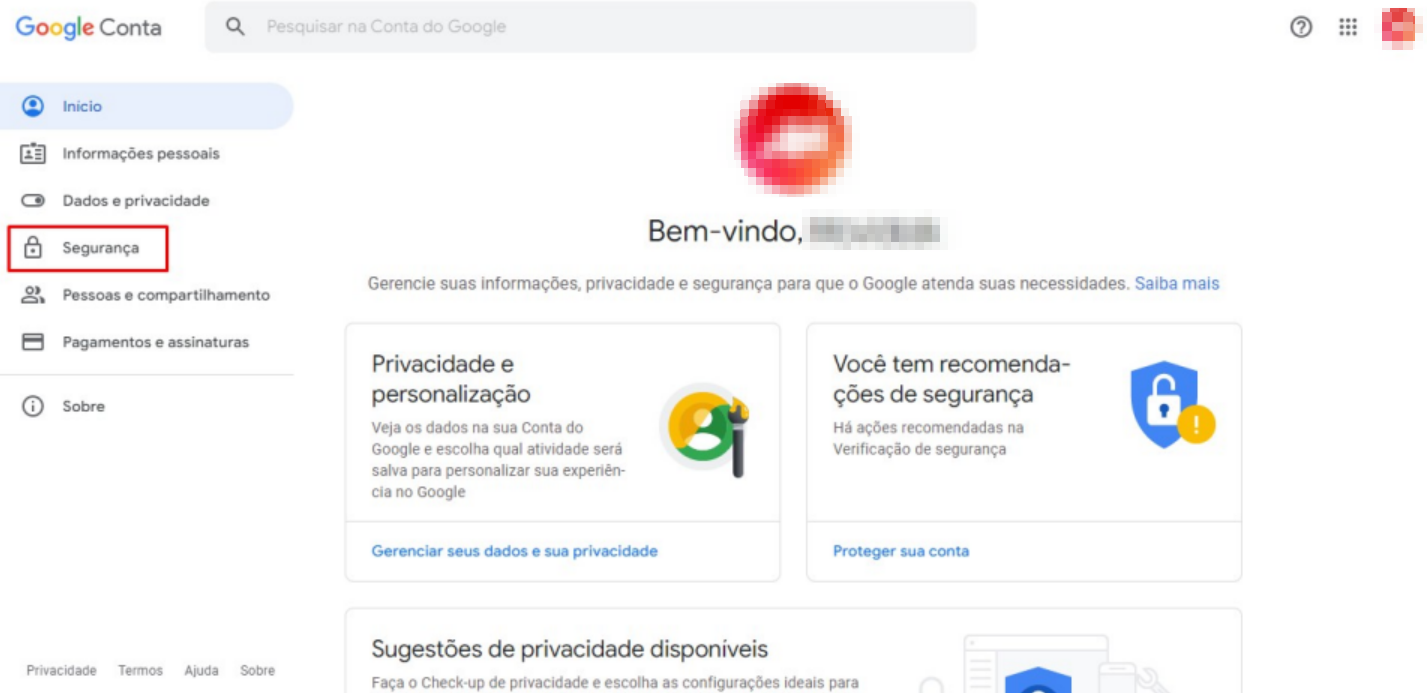
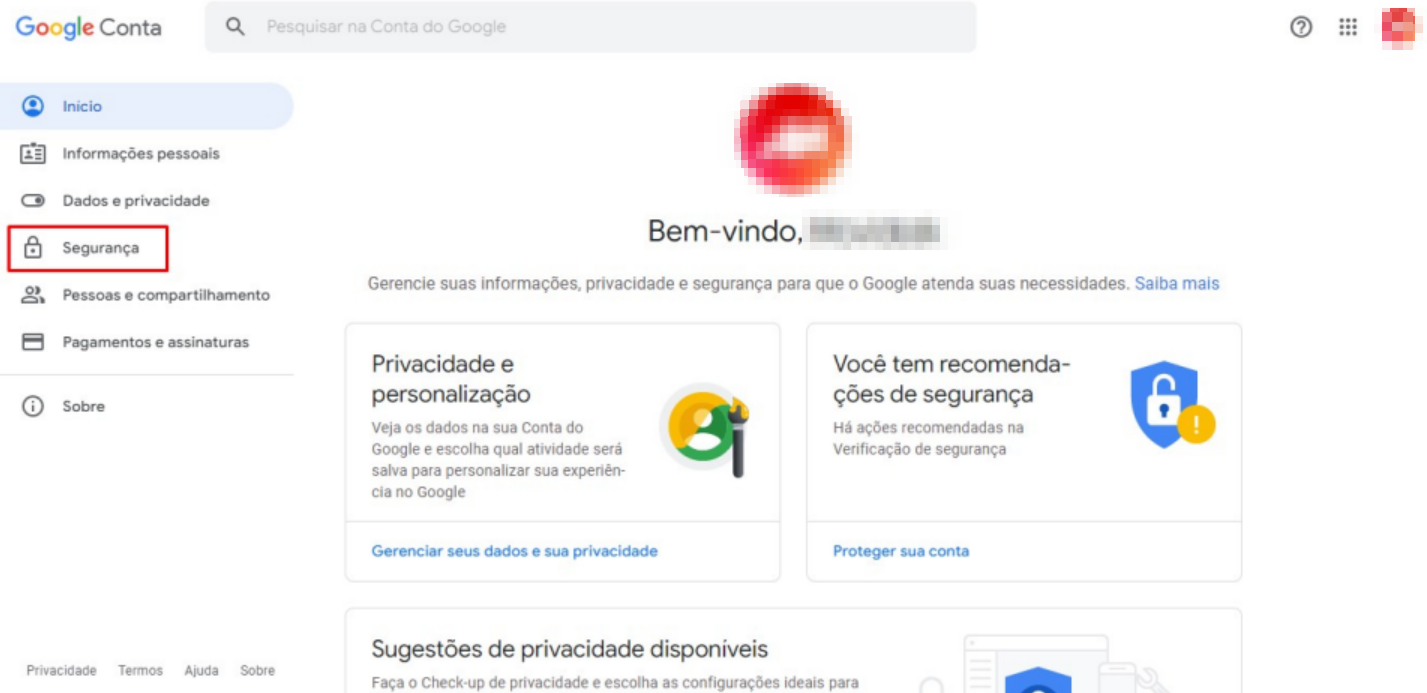
Section titled “How to create an app password on your Google account”To get started, go to “Manage your Google account”. On this screen, select the “Security” option.
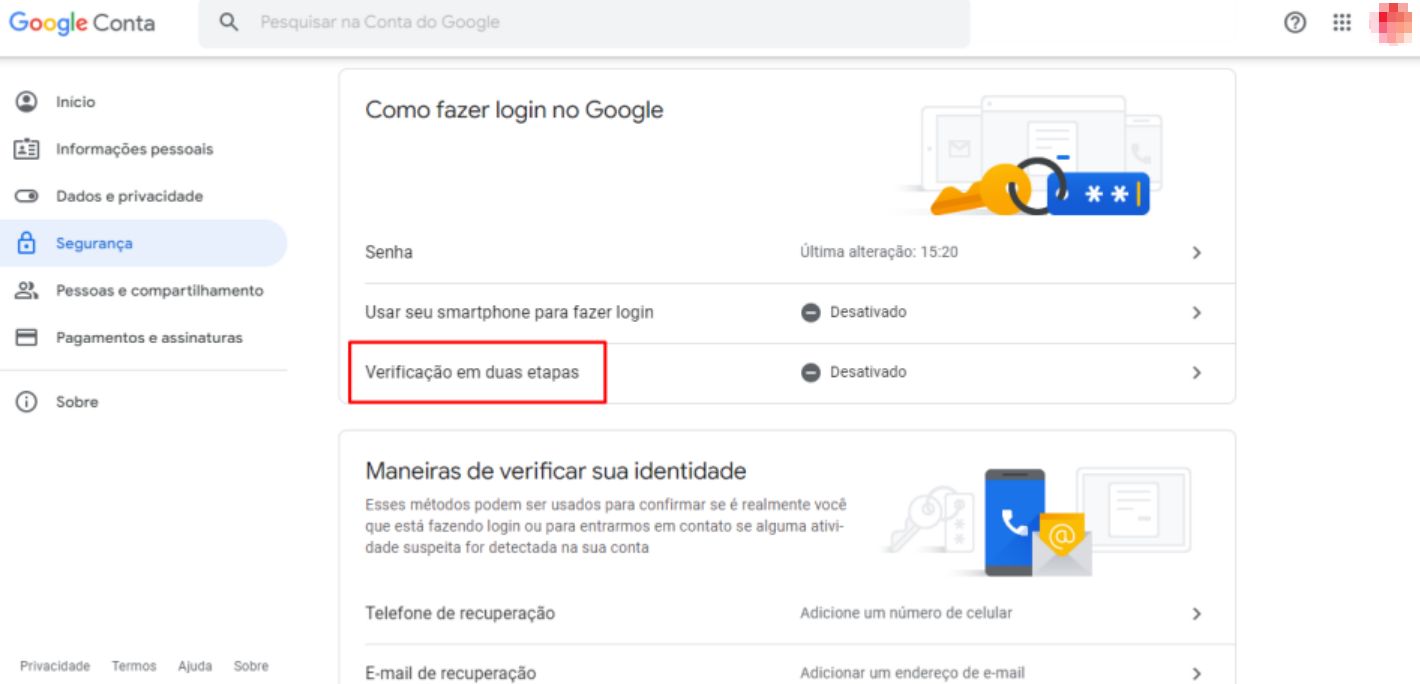
Here, in the “How to sign in to Google” block, select “Two-step verification”.
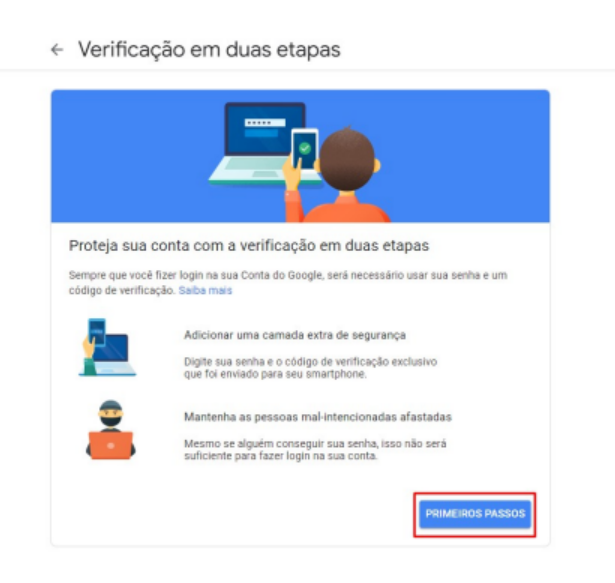
Then click “Get Started”.
Confirm your password and follow the steps displayed on the screen, defining the authentication method (text message, call, device or application) and performing the first authentication to confirm the process.
With two-factor authentication enabled, go back to your Google Account home and select “Security” again.
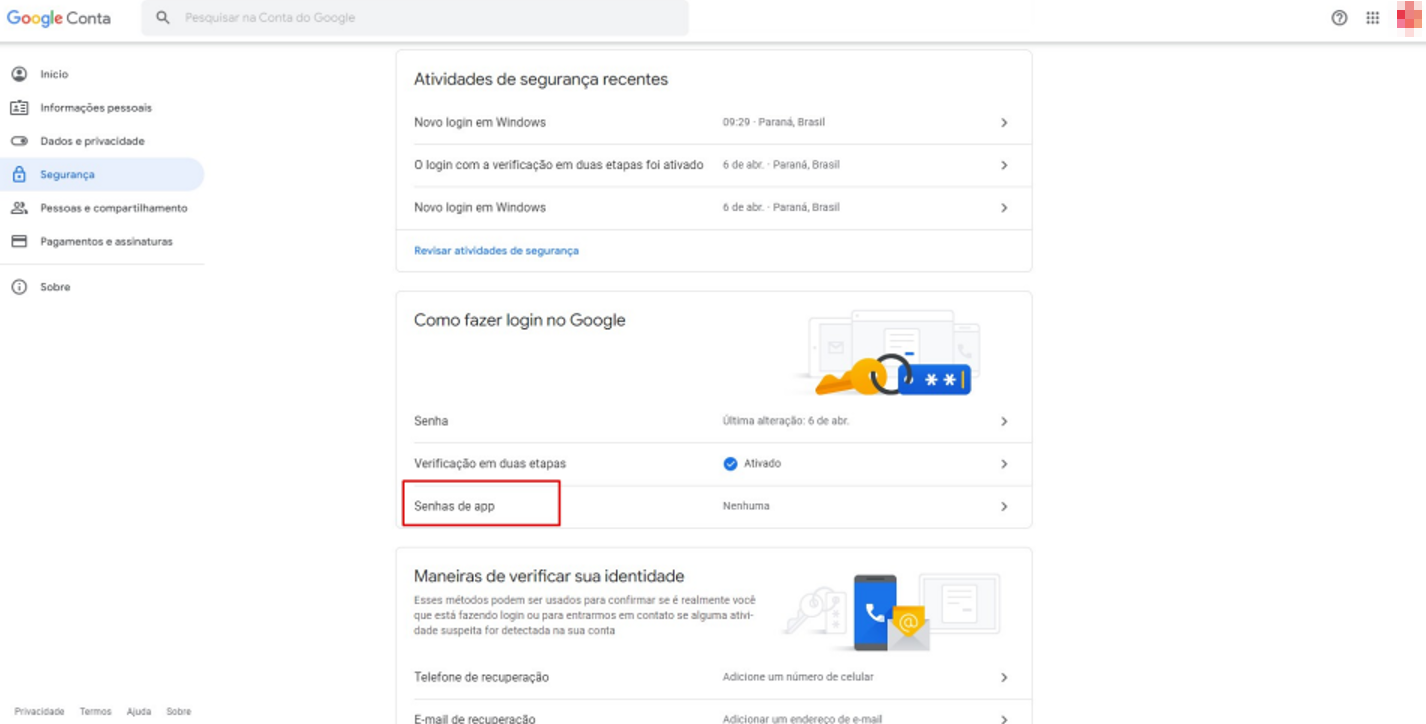
Under “Signing in to Google”, select “App Passwords”.
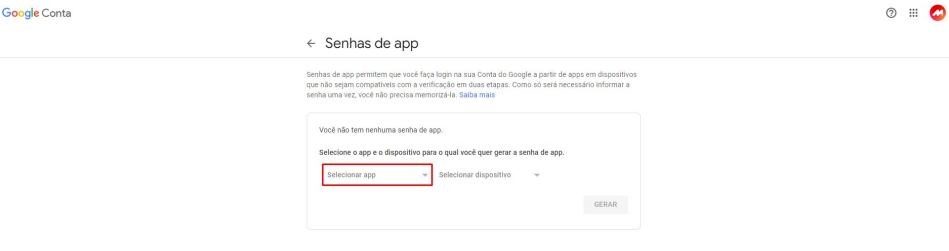
Then, in “Select app”, choose the “Other” option and type “Demander”.
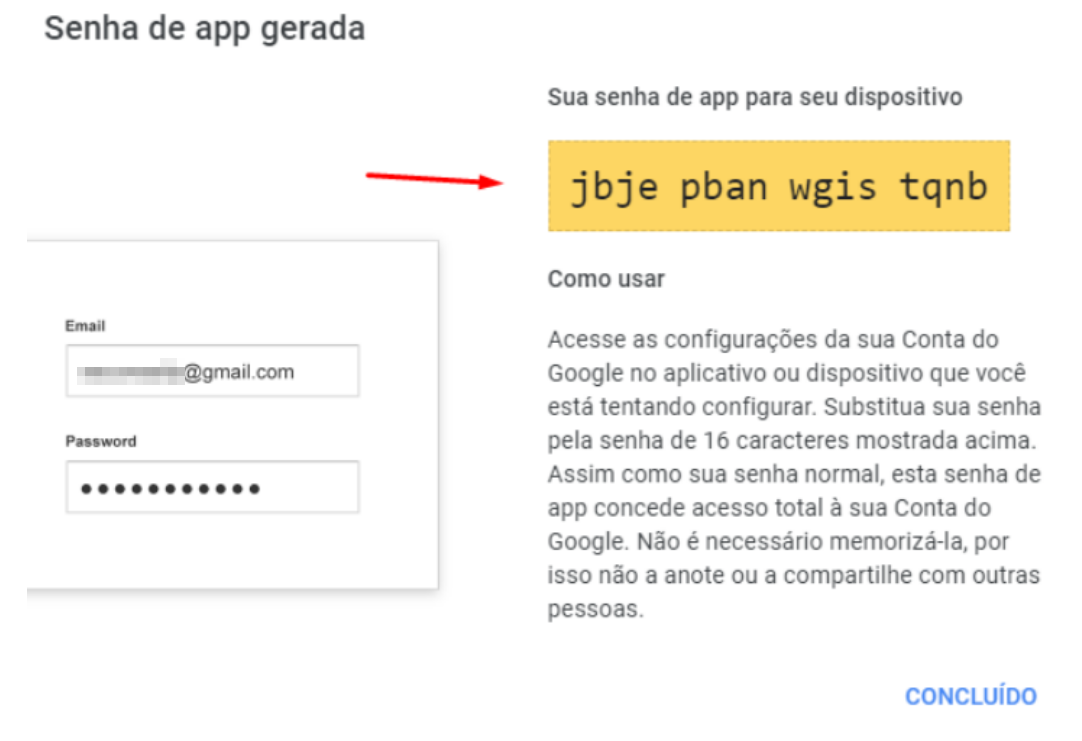
Once this is done, your App password will be displayed and this process is complete.
How to update settings on Demander with new password
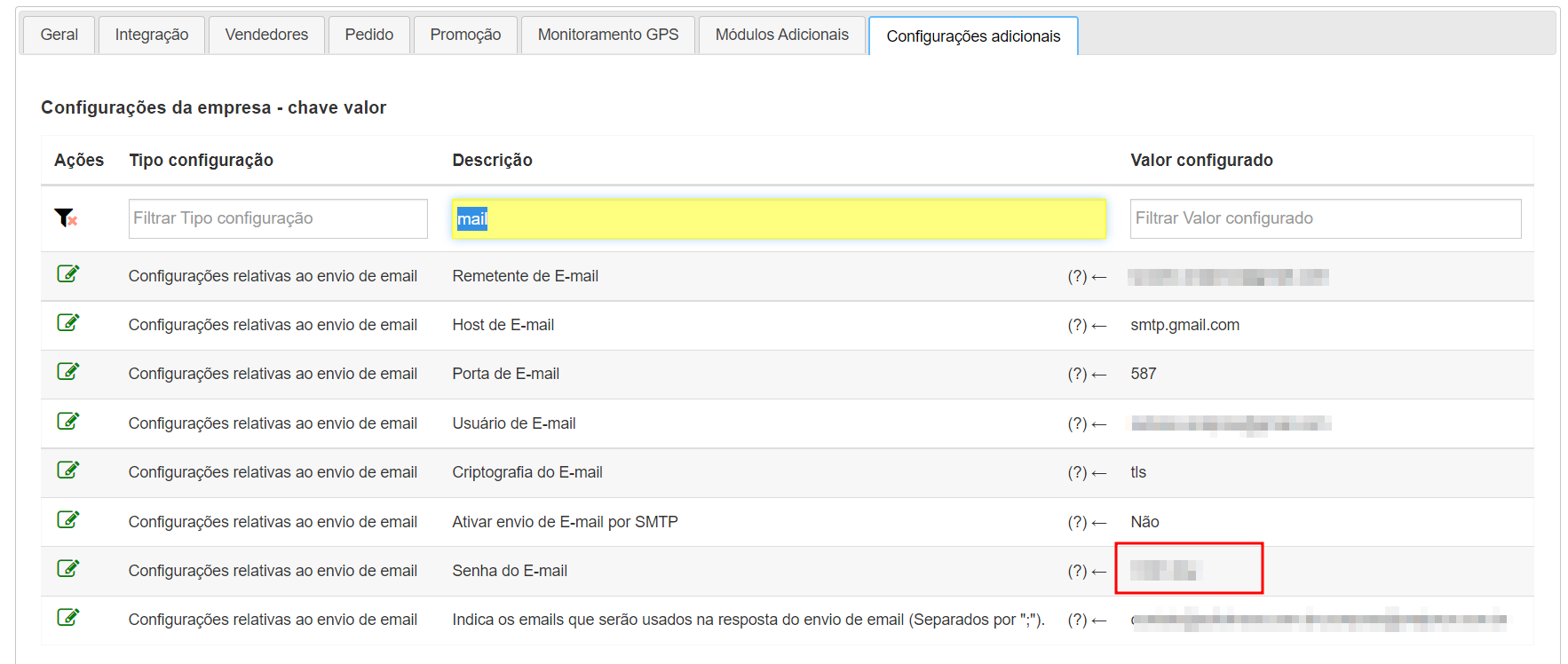
Section titled “How to update settings on Demander with new password”Access Company Settings, Additional Settings tab
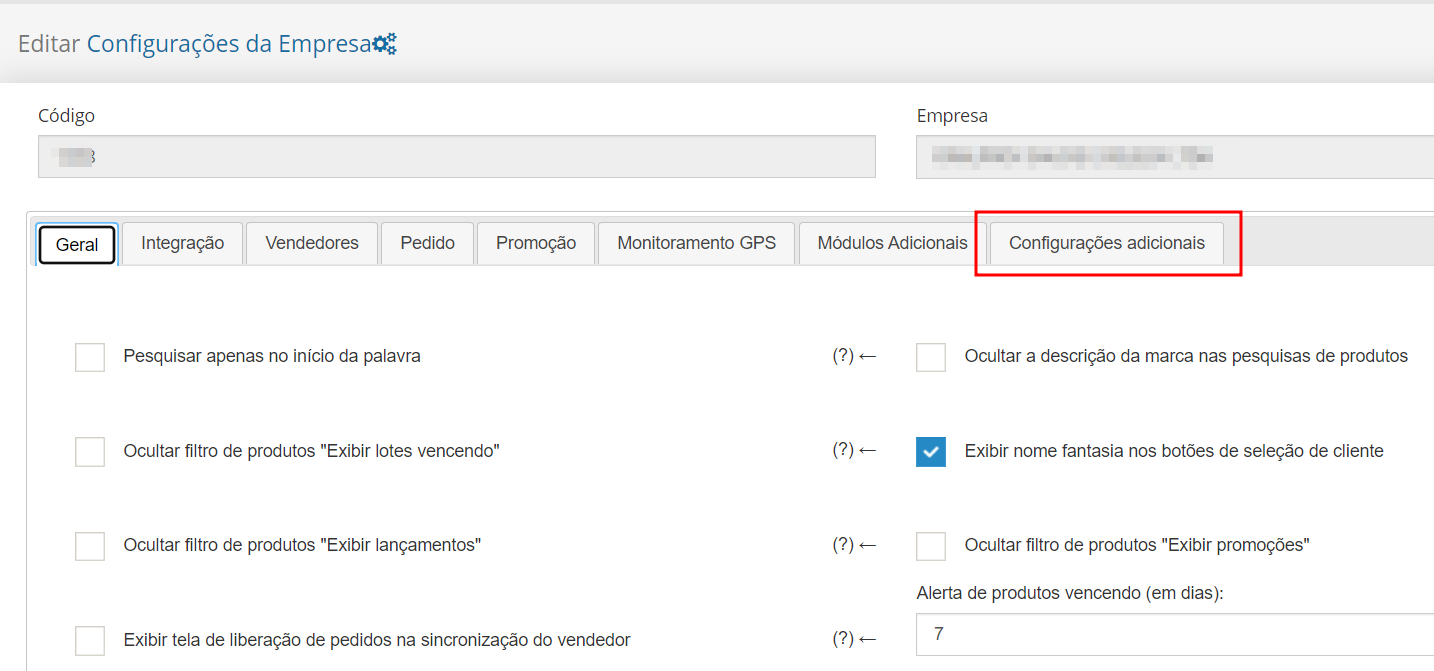
In the search field, search for the term “mail”. In the E-mail Password configuration, enter the password generated previously.