

Automated delivery address
Available from version 3.64 of Demander Android and 1.18 of Demander iOS
In this new functionality, the seller will be able to speed up filling out the delivery address for their customers, as this delivery address is often the same as the one in the customer registration and sometimes the seller takes a while to complete the sale because they need to register the entire address again, but now in this version, the Demander system fills in this address for you!
 To configure:
 The company needs to enable the delivery address button in Campos, so that it is visible to the seller on Demander mobile.
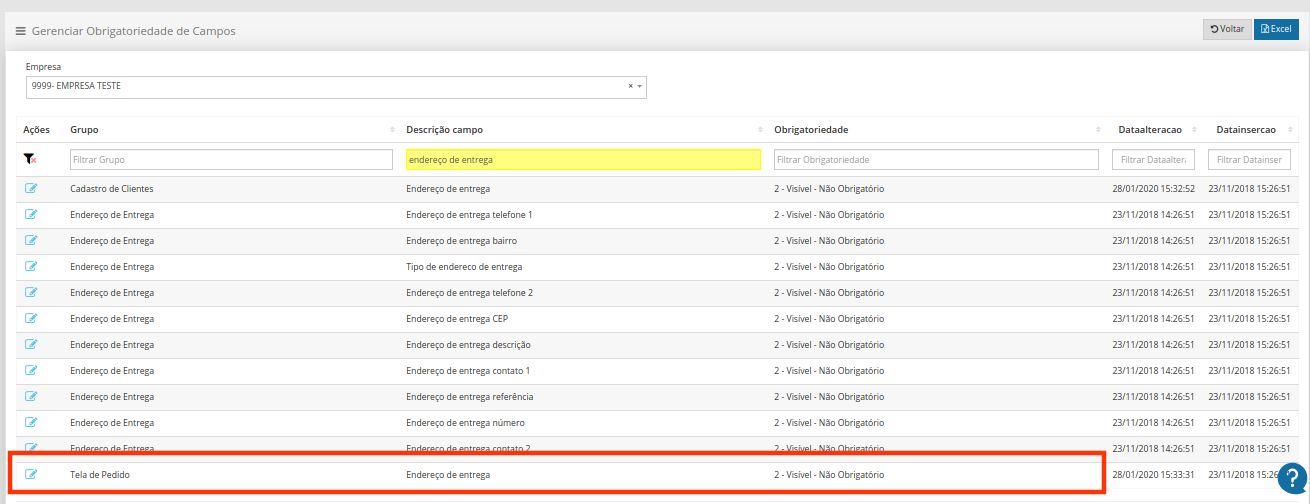
 After this configuration has been made in Demander mobile, a button will appear where the seller can add the delivery address for that customer or if it is the same address, the system already fills in the data automatically, as shown in the customer’s registration.

Example for better understanding:
>> Customer registration with address already registered in the system <<
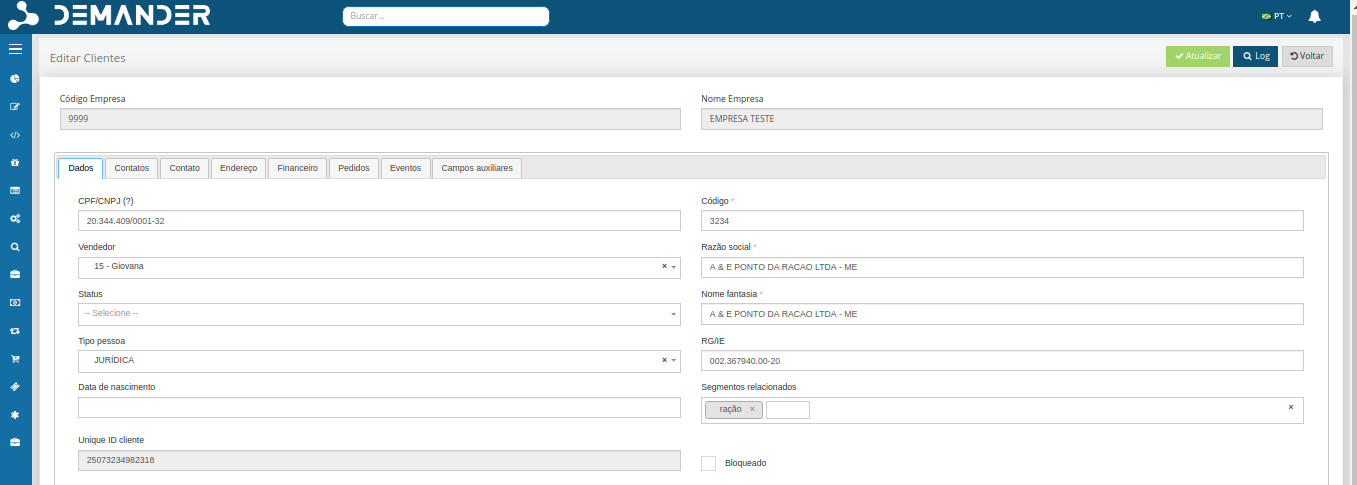
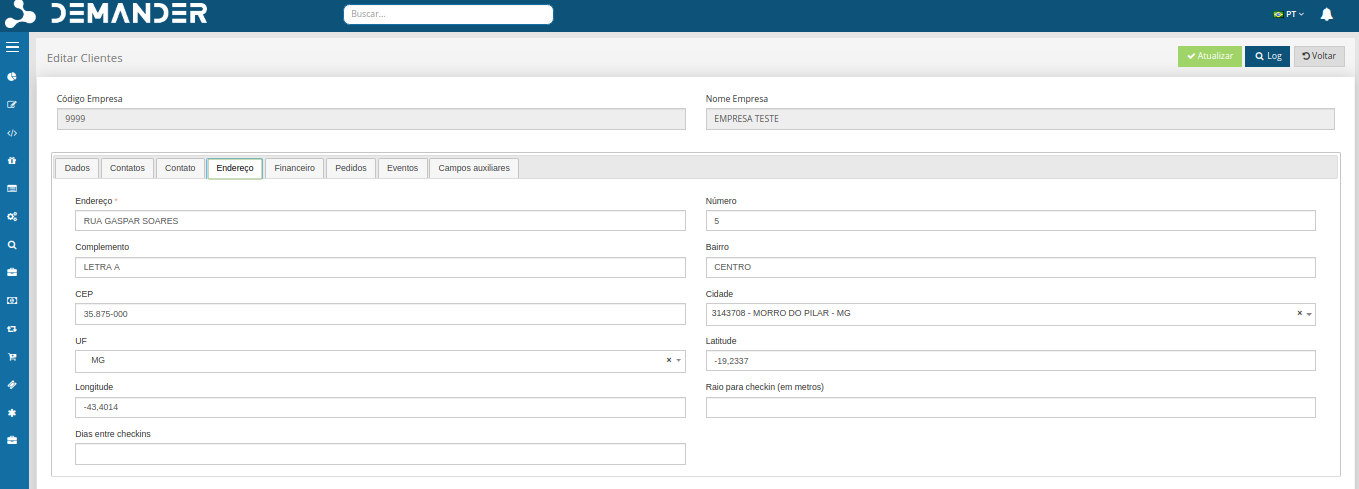
>> How to add delivery address on mobile <<
 After making the settings above, as soon as the seller places a new order, there will be a “delivery address” button on the order screen.
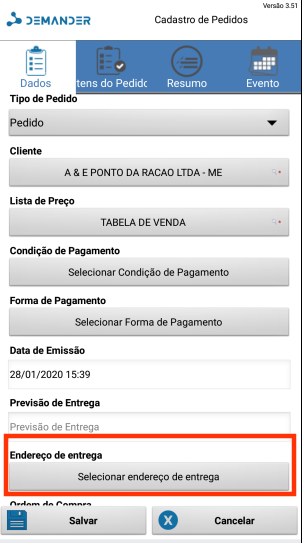
 As soon as the seller clicks on this button to register the delivery address for this particular customer, a pop-up will appear asking if the seller authorizes the system to automatically fill in the delivery details according to the registered address.
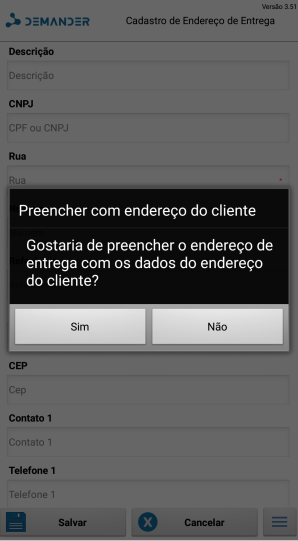
 If the customer’s address is the same as the delivery address and the seller clicks yes, the system fills in the data according to the customer’s registration already registered in the system. However, if the delivery address is different and the seller clicks no, the system leaves all fields blank, so that the seller can fill in the correct address.
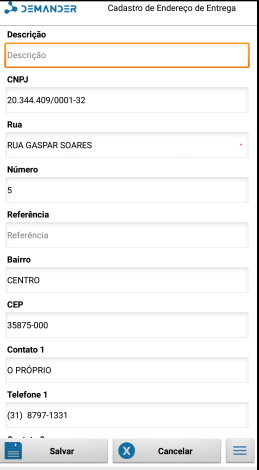
 Before saving the delivery address, it is mandatory for the seller to open this address on the Map.
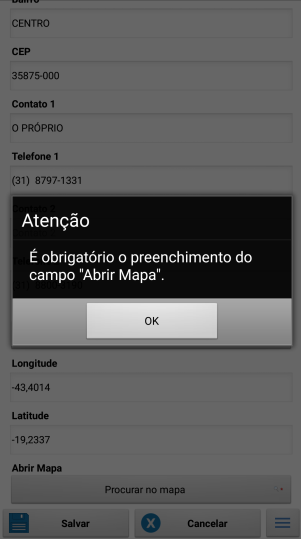
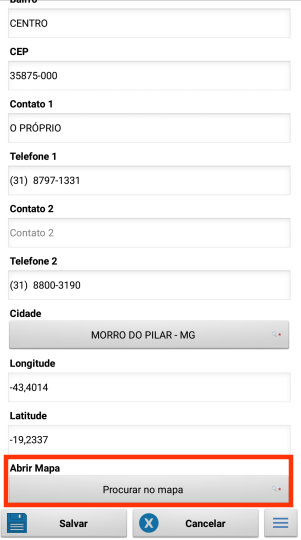
 After clicking on search on the map, the following screens will appear:
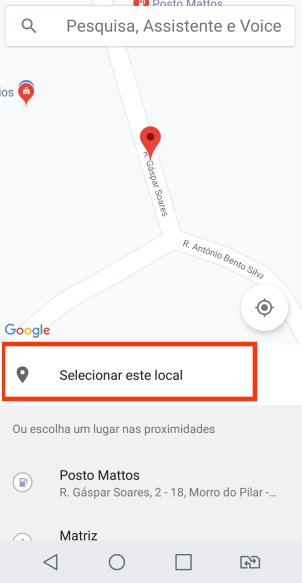
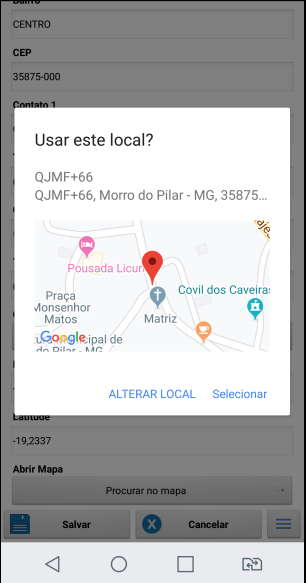
 The image on the left will appear, after the seller clicks on “search on map”, to confirm the address, the seller needs to select this location, or change it if it is not the correct address (as in the image on the right).
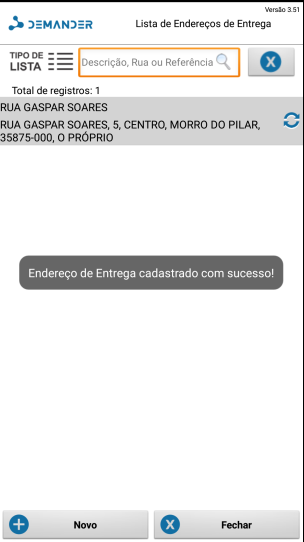
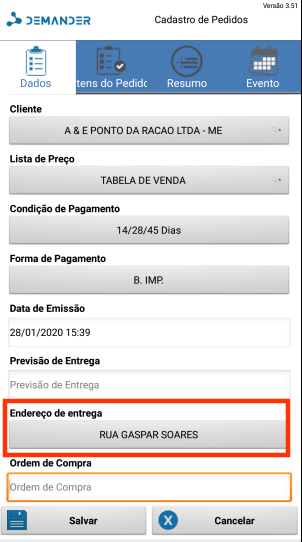
 After this, this customer’s delivery address is successfully registered and the seller can proceed with their orders.