

Product Observation Policy Concept
This article aims to explain Demander’s Product Observation Policy.
Below you will find information about:
- About Product Observation Policy
- How to configure
- How the policy is applied
- How to view in the order
- Remark saved in the order and in the PDF
- How to integrate and exclude by integration
- Example scenarios
- Frequently asked questions
Available at:


About Product Observation Policy
Section titled “About Product Observation Policy”The Product Observation Policy allows you to display commercial or operational instructions associated with a product during order assembly. The observation can be generic or directed to a specific sales scenario.
In addition to the product, the policy can consider customer, customer region, State, price list, branch, seller and type of order. Thus, the company can provide different guidelines for the same product depending on the commercial context.
How to configure
Section titled “How to configure”-
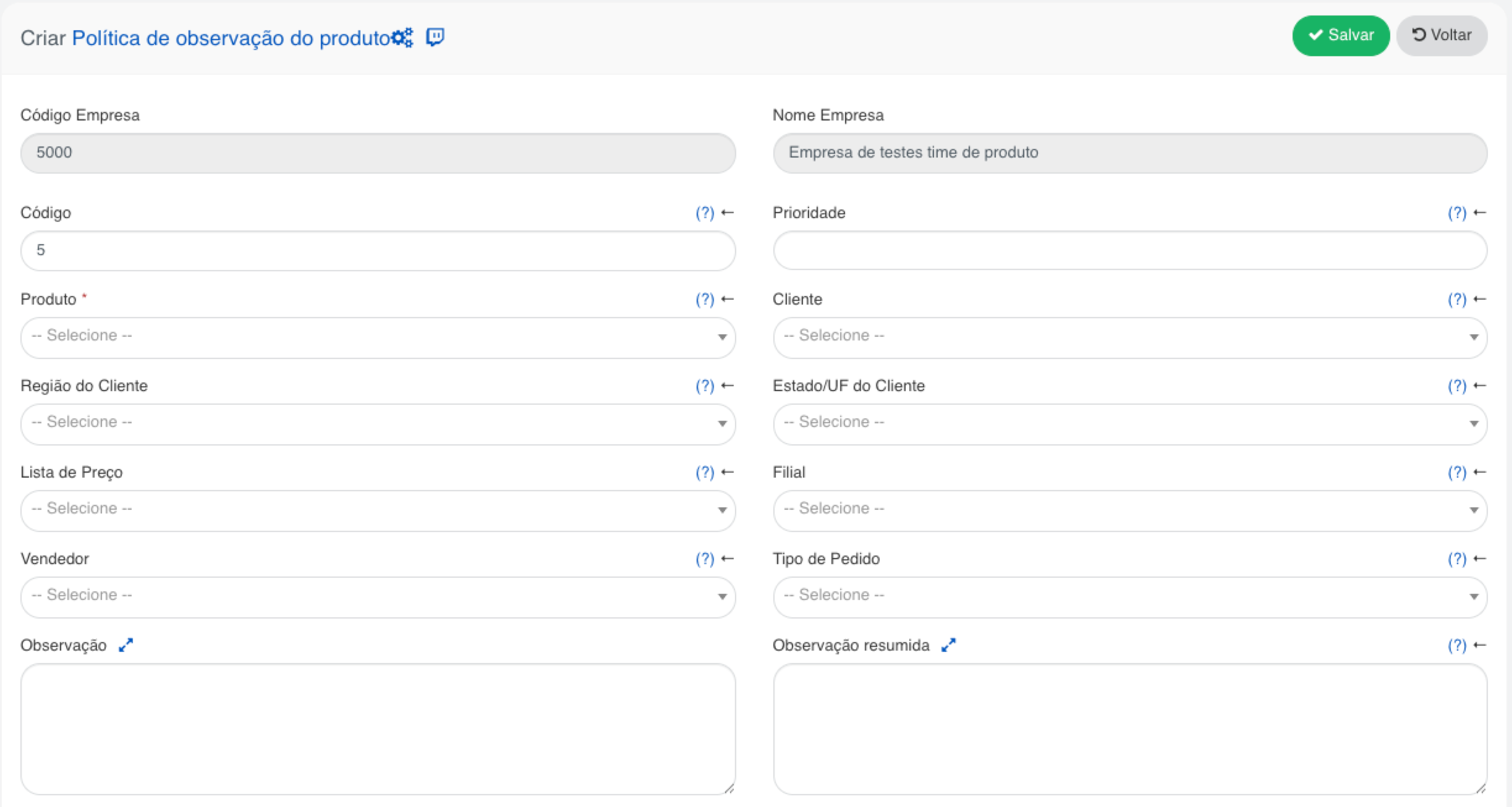
- In Demander Web, access the Product Observation Policies screen and click New.
-
- Register the policy for the desired product and enter the complete observation, which may contain HTML and will be displayed when opening the observation details.
-
- Fill in only the context criteria required for the rule, such as customer, price list, branch, salesperson or order type.
-
- Define priority when there are policies with the same level of specificity. Among the values reported, the value 1 represents the highest priority.
-
- Optionally, complete the summary note to provide a short preview of the product line.
-
- The code is automatically generated but can be changed manually if necessary.
-
- Synchronize data via Table 240 - Product Observation Policy.
The registration screen is similar to the image below:
How the policy is applied
Section titled “How the policy is applied”When loading order products, Demander selects policies that are compatible with the product and order context. Criteria not met in a policy function as a generic rule for that criterion.
- Specificity: among the compatible policies, the one with the most optional criteria fulfilled prevails.
- Priority: when policies have the same specificity, the one with the lowest priority value prevails.
- Tie: when specificity and priority are equal, all tied policies are available for viewing.
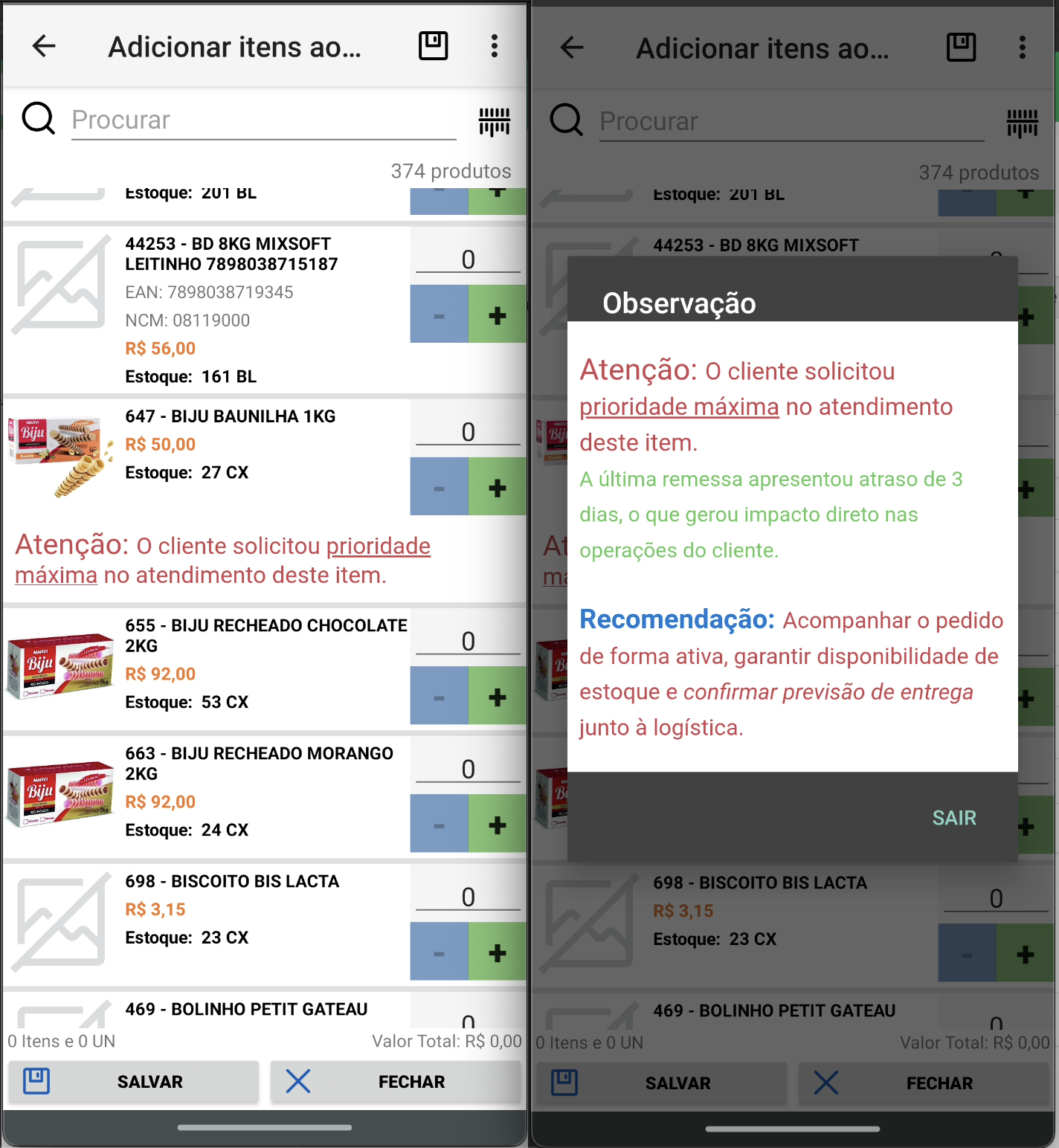
- Preview: when the first applicable policy has a summary note, this text is displayed in the product line. When you select it, the application opens the applicable full notes.
- No preview: when there is no summary observation, the application displays the complete observation according to the existing behavior.
How to view in the order
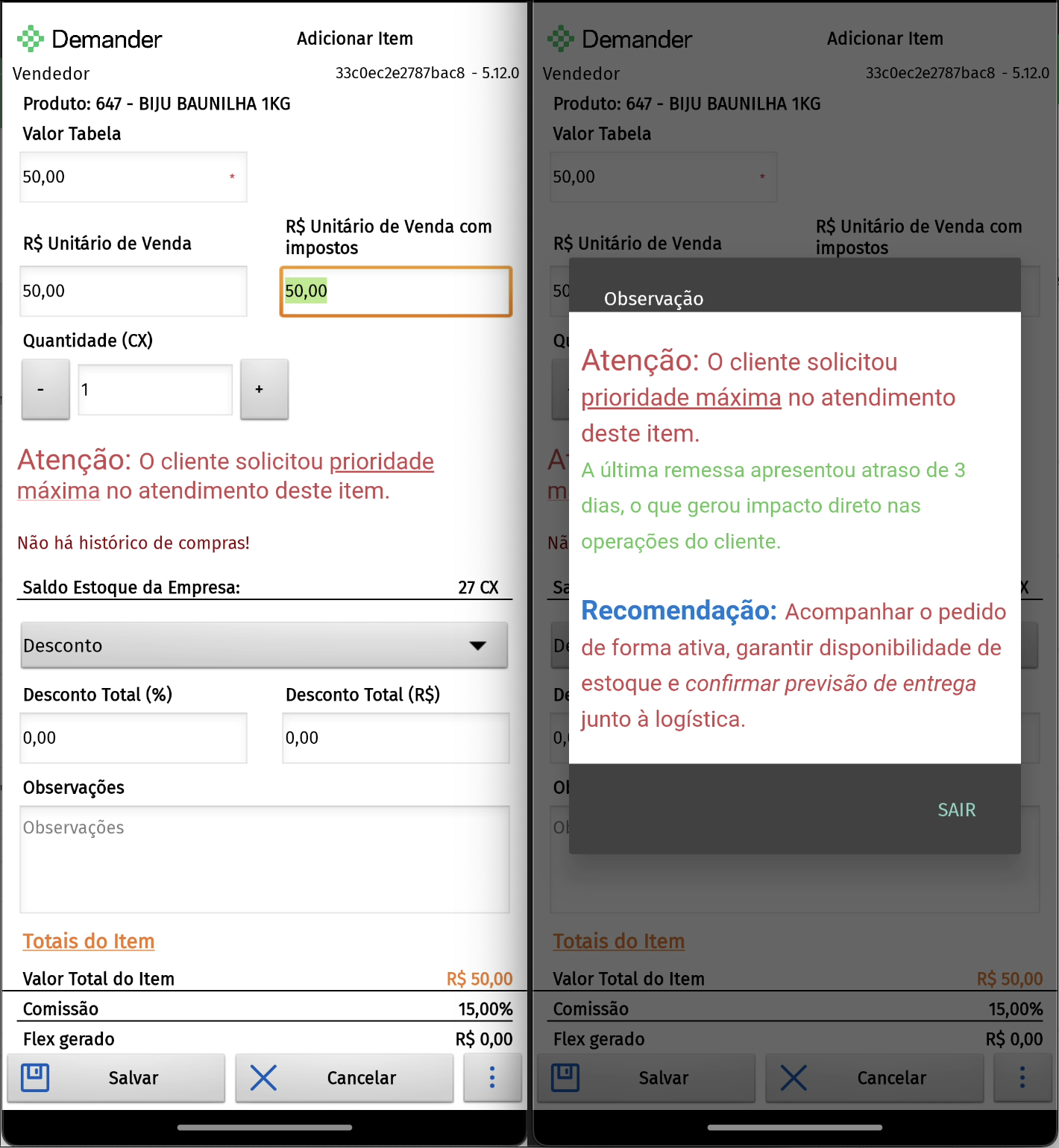
Section titled “How to view in the order”When the product has an applicable note, part of the text is displayed directly in the product line. This area is clickable and, when selected, opens the complete observation. The content may contain HTML and is rendered by the application, as shown in the images below:
Note saved in order and PDF
Section titled “Note saved in order and PDF”When saving the order, the Demander saves the first applicable policy note in the item. This way, the information remains in the order even if the policy is later changed.
What is saved depends on the policy registration:
- If the summary observation is filled in, it is saved in the item.
- If the summary note is not filled out, Demander saves the full note, but the text is truncated at 256 characters.
In orders opened for viewing only, the application shows exactly the text that was saved in the item, without reopening the policy details.
In the order PDF, display is optional. Simply activate the Display product observation policy option in the template. With the option active and content saved in the item, the note appears below the product line. If the text has HTML, it is also rendered in the PDF.## How to integrate and delete by integration
To integrate Product Observation Policy data with Demander, follow the layout of Table 240 - Product Observation Policy.
To delete policies by integration, follow the layout of Table 403 - Product Observation Policy Deletion, entering the policy code.
Example scenarios
Section titled “Example scenarios”- Scenario 1 — Generic rule: a policy registered only with the product is applied to all orders containing that product, as long as there is no more specific compatible policy.
- Scenario 2 — Campaign by price list: for product PROD001, the policy populated with the LP_PROMO list is more specific than the generic rule and displays the campaign orientation when this list is used.
- Scenario 3 — Combination of criteria: a policy for BRANCH01, SELL001 and ORDER01 is more specific than a policy just for BRANCH01 and will be applied when the three criteria match the order.
- Scenario 4 — Tie: two policies with the same criteria fulfilled and the same priority are displayed together in the product observation details.
Frequently asked questions
Section titled “Frequently asked questions”Can I register more than one policy for the same product?
Yes. Use context criteria and priority to determine which policy should be applied in each scenario.
What happens when a criterion is not entered?
The policy becomes generic for this criterion. For example, a policy with no seller code can be applied to any seller, as long as the other criteria are compatible.
Does the summary observation replace the complete observation?
No. It only serves as a preview of the product line. The full observation remains available when opening the details.