

How to map products? (PlugSales)
After performing the integration with your database and mapping the users, you must map the products.
To map products in PlugSales, each record must have the following fields:
* Attention, all mandatory fields must return records.
- ID*
- Numeric field of type inteiro.
- Used to identify the product.
- Products cannot contain identical IDs.
- This field will be returned in order items.
- All products must contain records in this field.
- NAME*
- texto field with the product name.
- DESCRIPTION (OPTIONAL)
- texto field with the product description.
- CATEGORY*
- texto field with the name of the product category.
- Products can be filtered by category in the app.
- STOCK (OPTIONAL)
- Numeric field of type inteiro with the current stock of the product.
- PRICE*
- Numeric field of type real(float/decimal) with the price of the product.
- If you use the price table: access this link: How does the price table work?
- MAXIMUM_DISCOUNT*
- Numeric field of type inteiro or real(float/decimal) with the maximum discount that this product can have.
- The field is represented as a percentage, that is, if the registration is equal to 10, the seller can apply up to 10% discount on the PRODUCT.
- If the Product does not have a discount, this field must receive the value ZERO.
- IMAGE (OPTIONAL)
- Field type string
- This field must receive a public url of the image, or a valid base64 image.
- ADD CUSTOM FIELD
- Using custom fields you can enter more information about your product.
- In this field it is necessary to determine the typing (Monetary or String).
- A field in your database must be related.
- The registration of this field will be displayed next to the PRODUCT. Learn more about how ‘Add custom field’ works. Note: For these fields to be reported correctly, we recommend creating a specific view and entering it in the PlugBot panel.
Read: Creating a view to map products
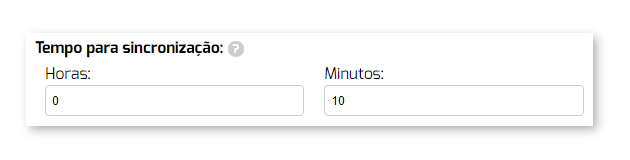
To start configuring the products, define the interval at which PlugBot should synchronize records from your system to your PlugSales.
Note: We recommend using at least 10 minutes
After selecting the Source Tableor entering the SQL Source, click “Load data”.
With the data loaded, you can begin the field mapping process, following the instructions for each field.
With all fields mapped, click “Save PRODUCT Settings” at the bottom of the screen.