

7. How to make an ODBC connection
Firstly we need to understand that the ODBC connection requires the appropriate driver for the bank you are using, it is a very simple process, just download and install it.
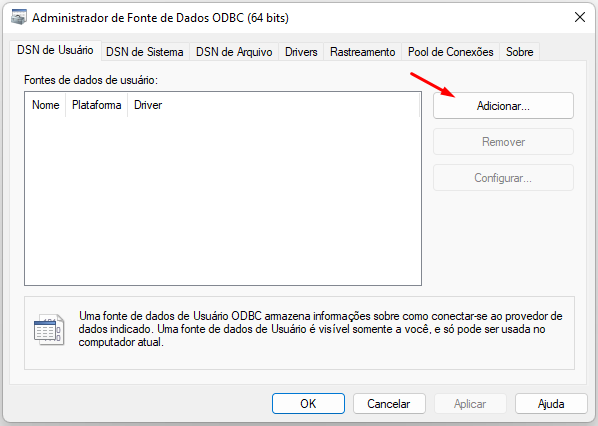
After installing the appropriate driver, we need to validate that the installation is correct, to do this we will create the connection using *ODBC Data Sources Administrator (64 bits), * it is installed natively in Windows, just go to the start menu, search and open.
To add a connection, simply click “Add”
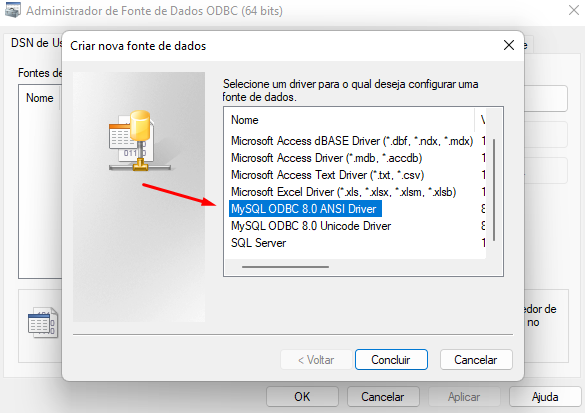
In this case I am making a connection to the MySQL database, so I will select the appropriate driver that I downloaded.
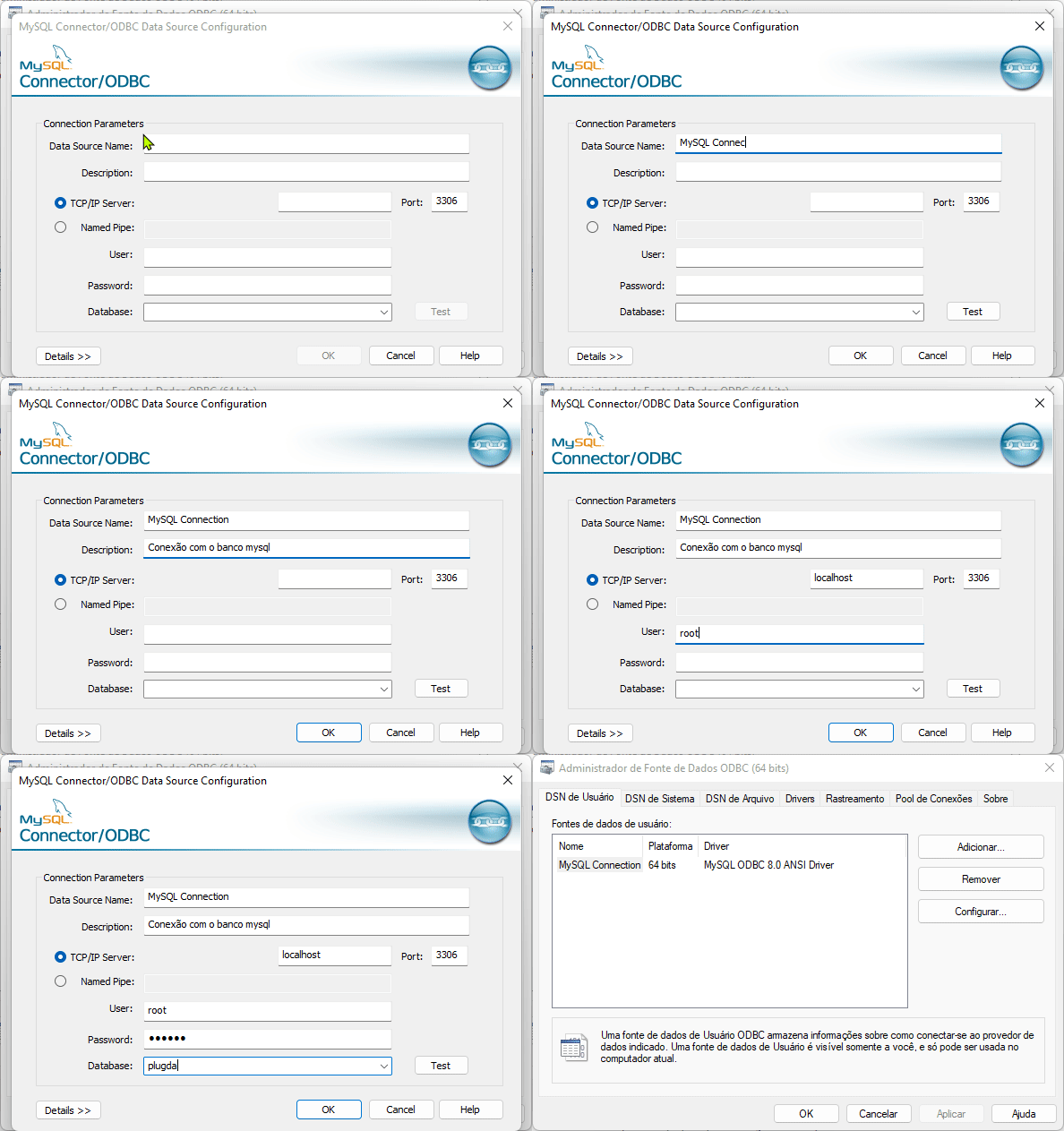
So let’s fill in the bank connection data
Then we need to prepare PlugBot for connection. To do this, we must download the file “Externos” and place it in the PlugBot installation folder.
After downloading the file, we will extract and move only the External folder to the PlugBot installation directory (C:\Program Files\PlugBot\8088) then restart the service.
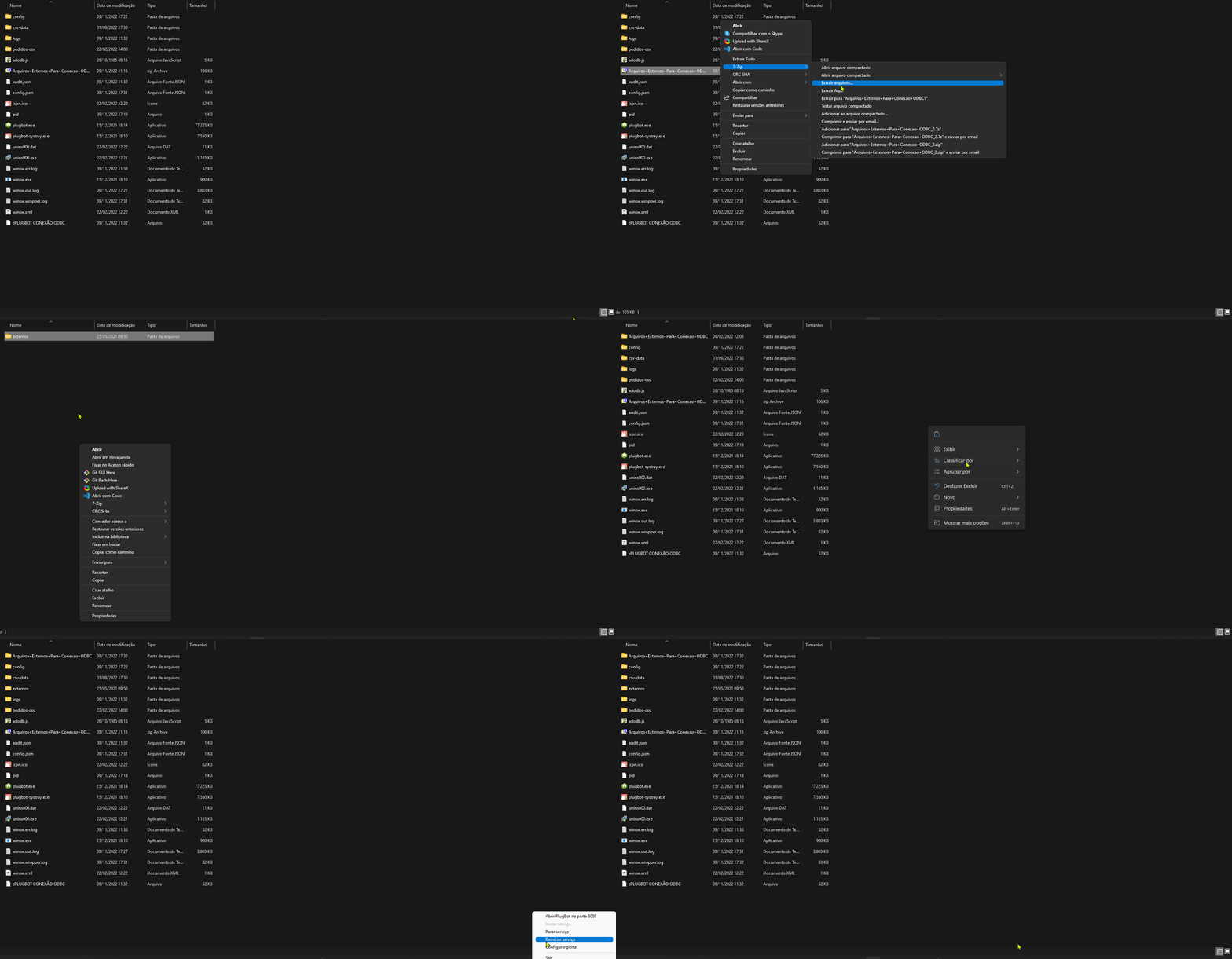
After these steps, simply place the connect string in the PlugBot connection
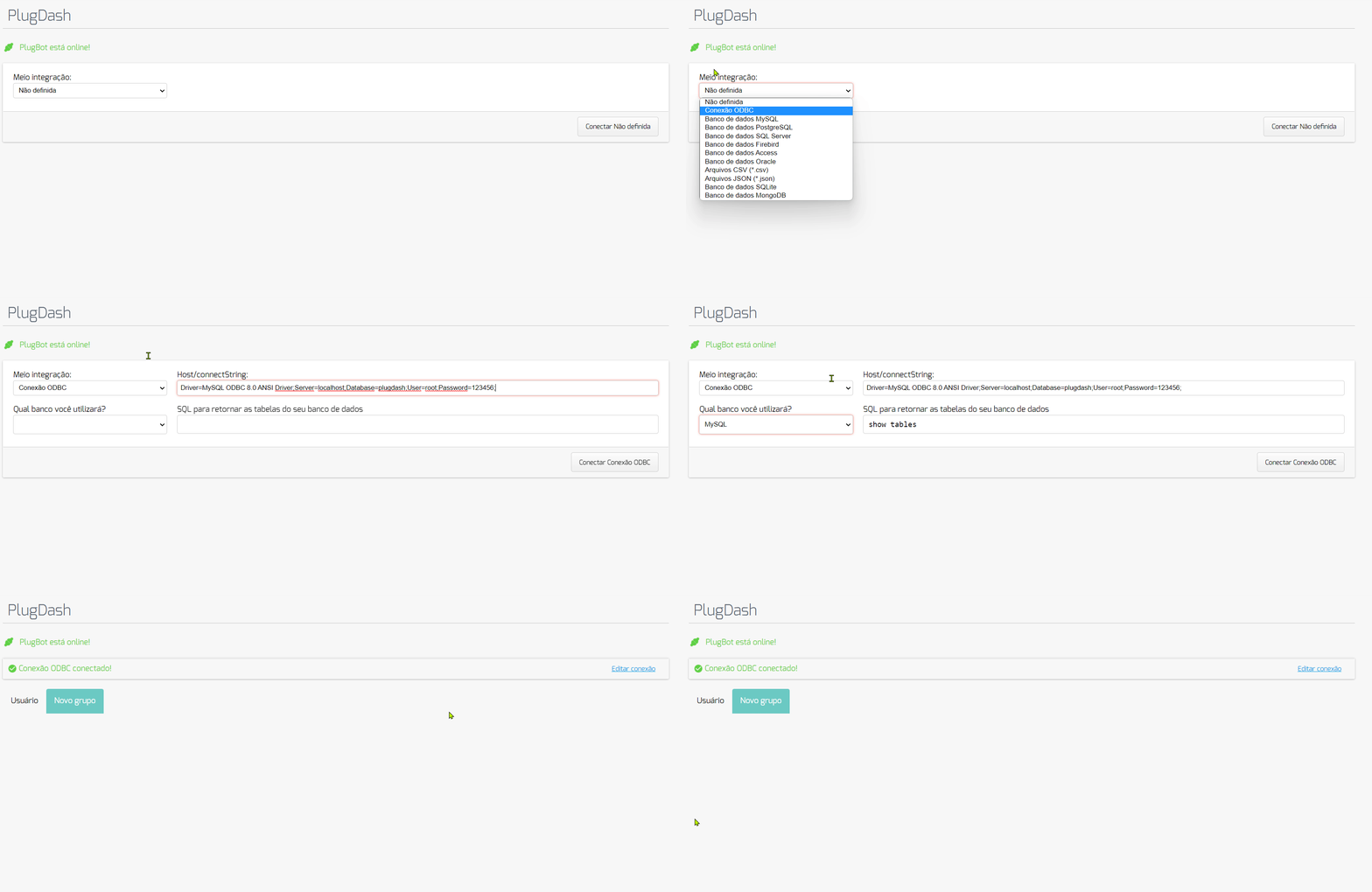
Here are some examples of connect string:
Banks LOCATIONS:
Driver=MySQL ODBC 8.0 ANSI Driver;Server=localhost;Database=plugdash;User=root;Password=123456;Option=3;
Driver is the name of the driver
User is the bank user
Password is the bank password
Database is the name of the database or in the case of Firebird it is the directory.
Server is the bank address
REMOTE banks:
DRIVER=Firebird/InterBase(r) driver;UID=SYSDBA;PWD=masterkey;DBNAME=MyServer:C:\database\myData.fdb;
Driver is the name of the driver
UID is the bank user
PWD is the bank password
DBNAME is the name of the database or in the case of Firebird it is the directory.
On this site you will find more information about connection strings: https://www.connectionstrings.com/