

1.1. Integrating with your data > Integrating PlugSales with SQL Server
This article explains how to start the PlugSales integration with SQL Server, as well as providing guidance on necessary configurations in case an error occurs during the connection.
What you will see:
Section titled “What you will see:”How to start integration with SQL Server
- Access the PlugBot control panel
- Click on the PlugSales tab.
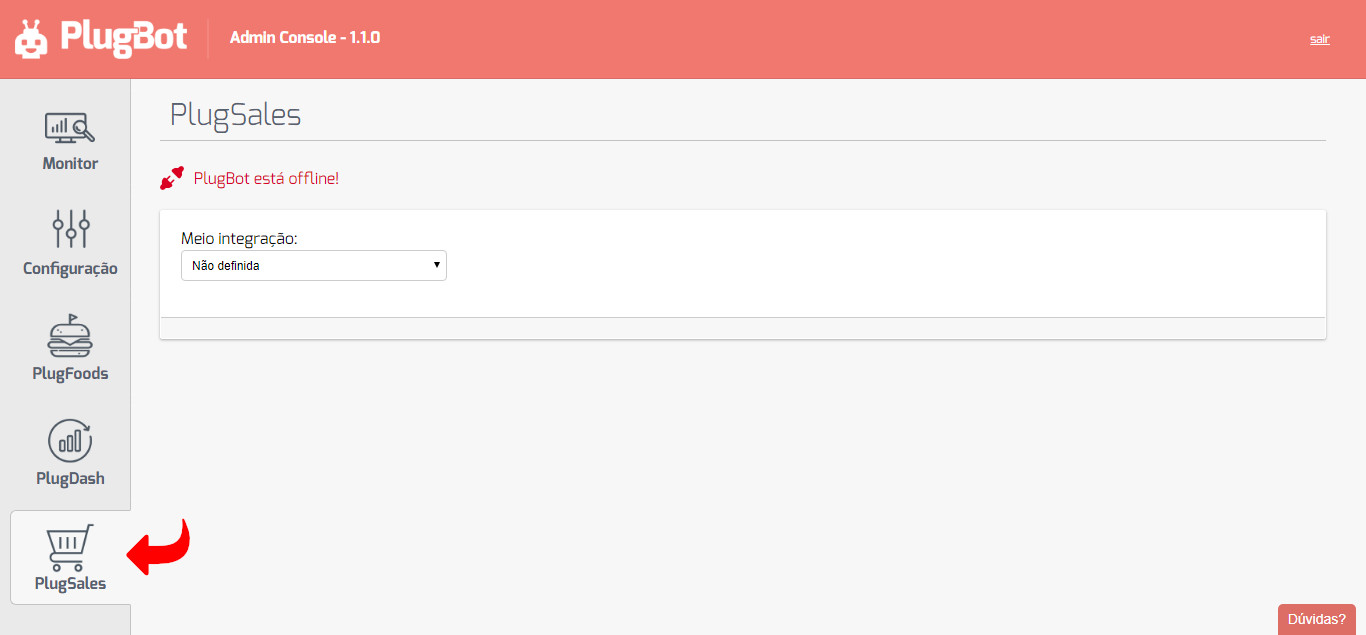
- On the displayed page, click on “Medium of integration”.
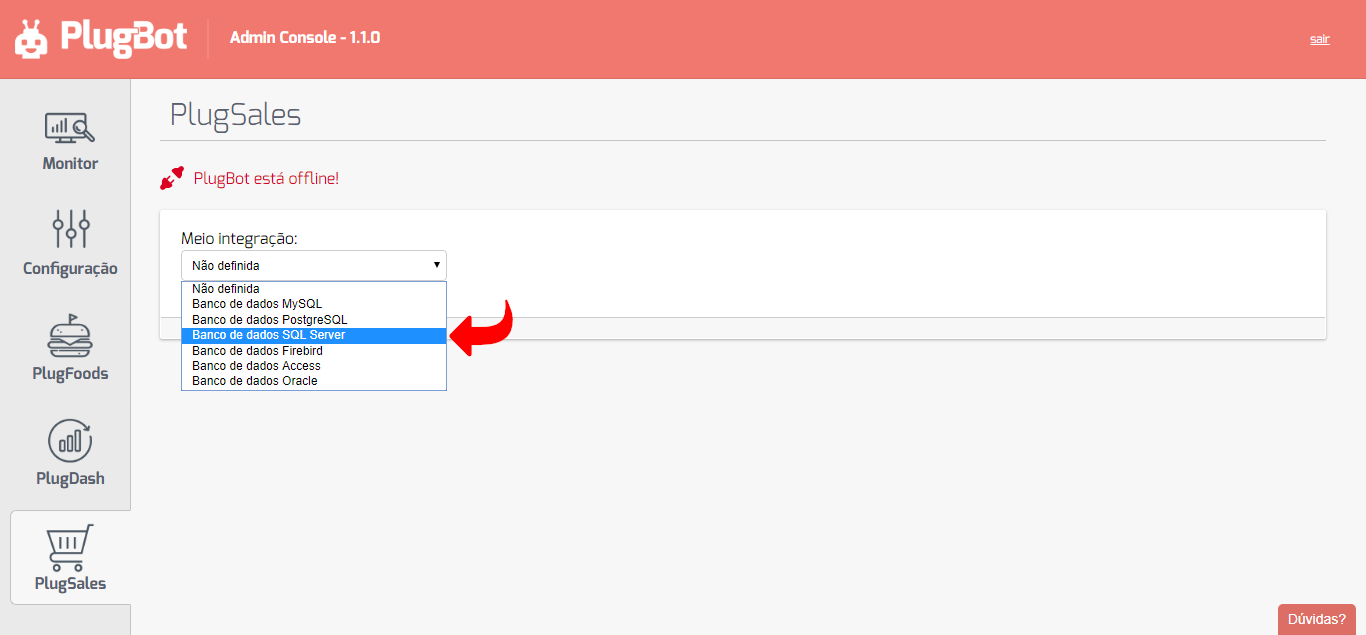
- Select the “SQL Server Database” option.
- After selection, fill out the form with your SQL Server database information.
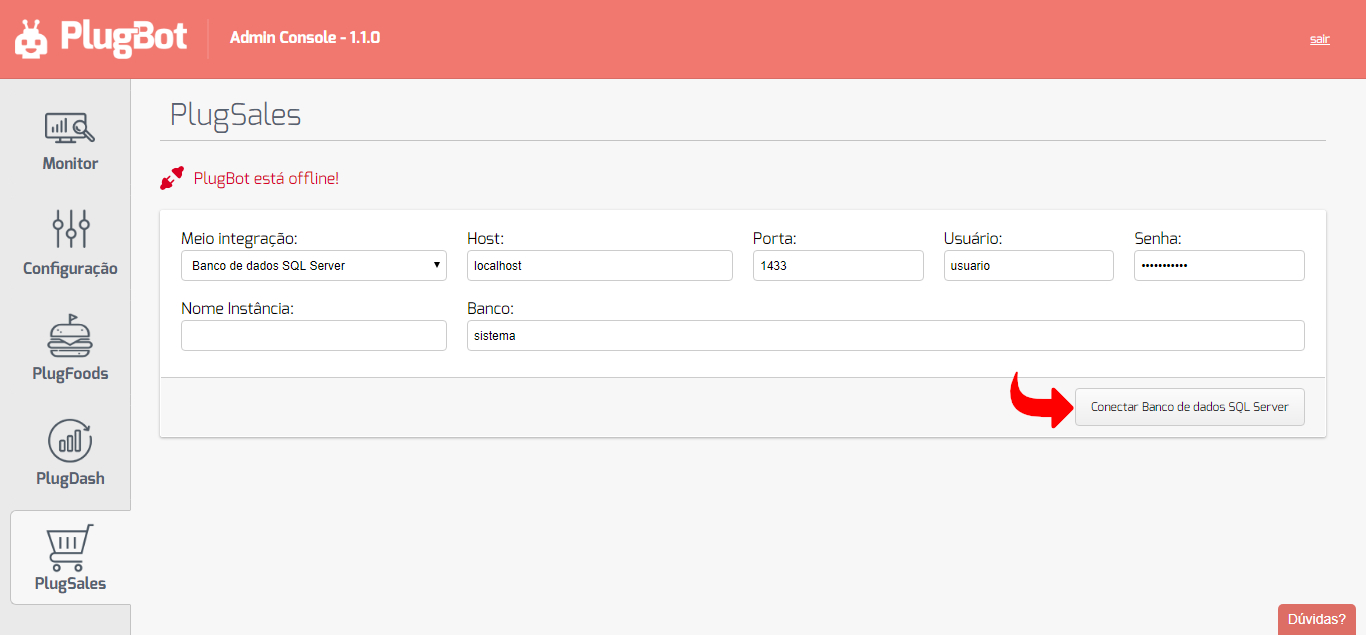
📌Note: You can use connection by port or by instance name, depending on your preference.
- With the form filled out, click on “Connect SQL Server Database”.
Ready! The integration will be configured.
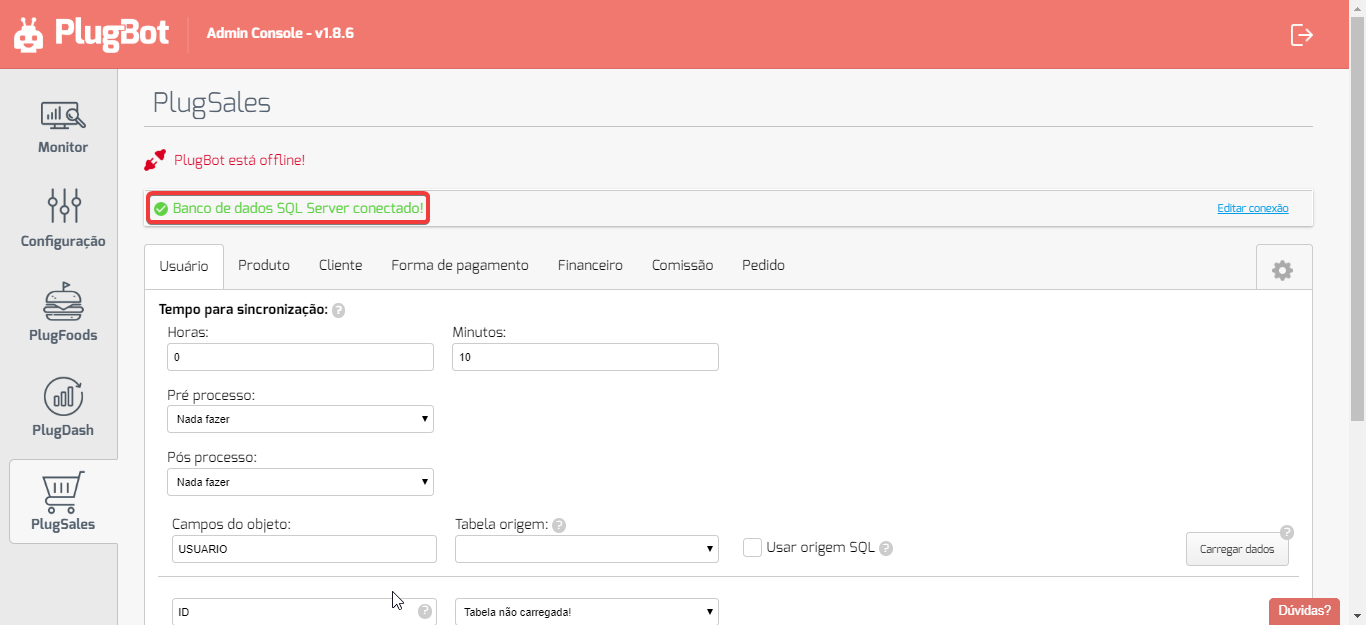
What to check in case of connection error
If an error occurs when connecting to SQL Server, check the settings below:
SQL Server Management Studio
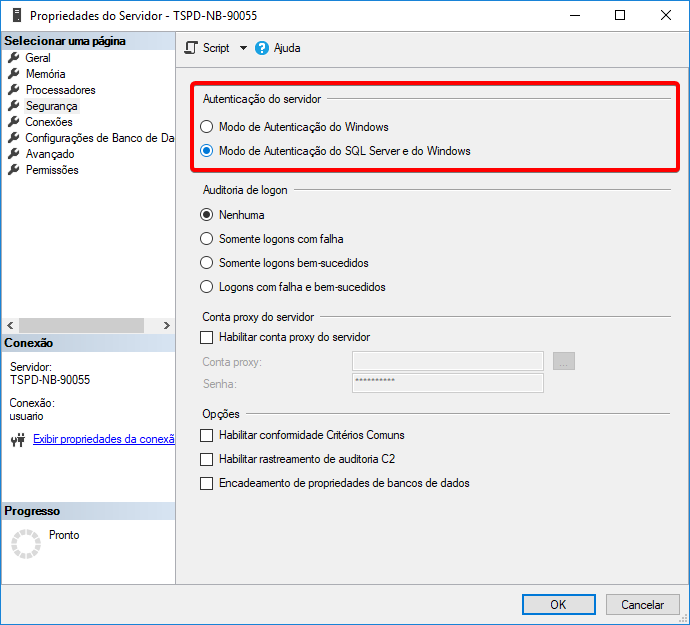
Section titled “SQL Server Management Studio”- Right click on the instance
- Go to Properties → Security
Under Server authentication, select the option: “SQL Server and Windows Authentication Mode”
- SQL Server Configuration Manager
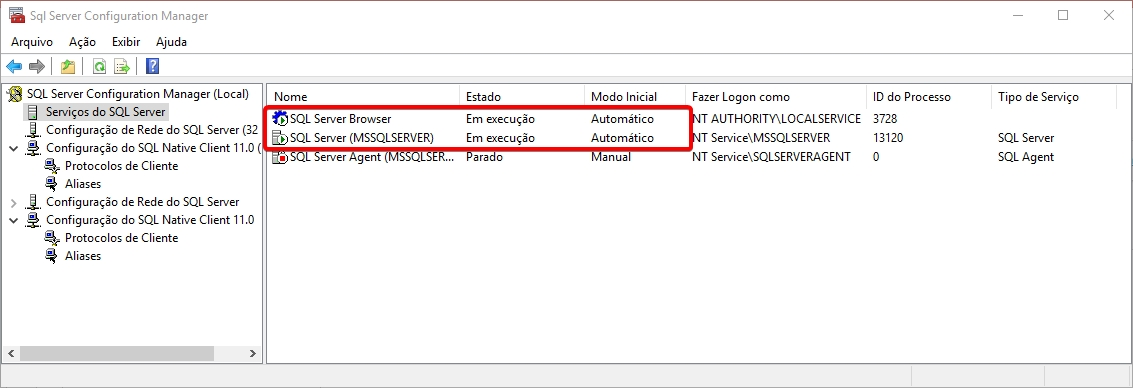
SQL Server Services
Section titled “SQL Server Services”- Check if the “SQL Server Browser” service is enabled
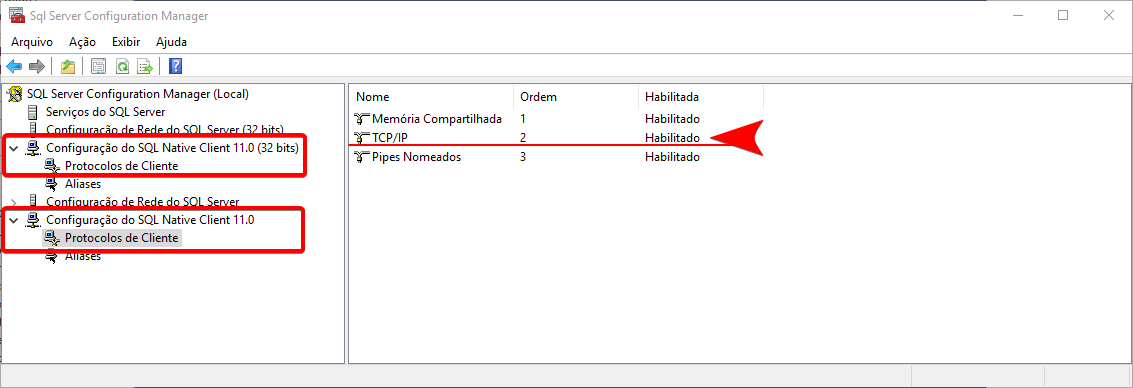
SQL Native Client Configuration (64 and 32 bits)
Section titled “SQL Native Client Configuration (64 and 32 bits)”- Access Client Protocols
- Enable the “TCP/IP” protocol
Connection issues
When trying to connect, did any specific error appear?
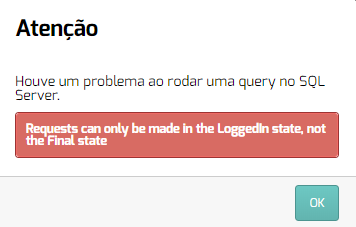
See some methods that can be adopted for correction by clicking here.
If you still have questions, our team is available to help 😊