

App Demander Version 5.04.0 - 10/13/2026
This article presents the new features, improvements, and fixes available in App Demander version 5.04.0.
New features and improvements
Section titled “New features and improvements”New identification and actions bar
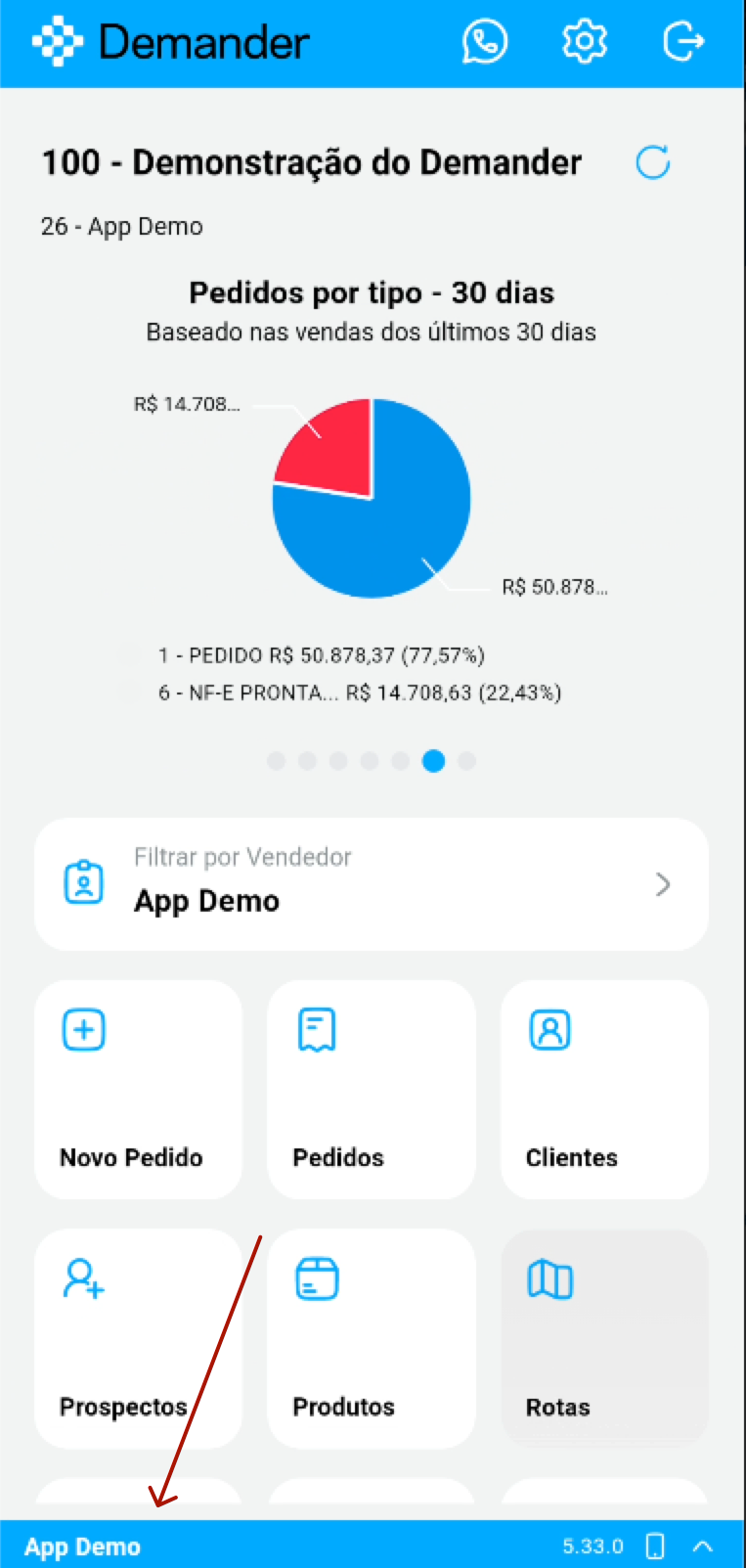
Section titled “New identification and actions bar”- At the bottom of the screen, a new bar always shows who is using the app: the seller’s name, the installed version, and the device type.
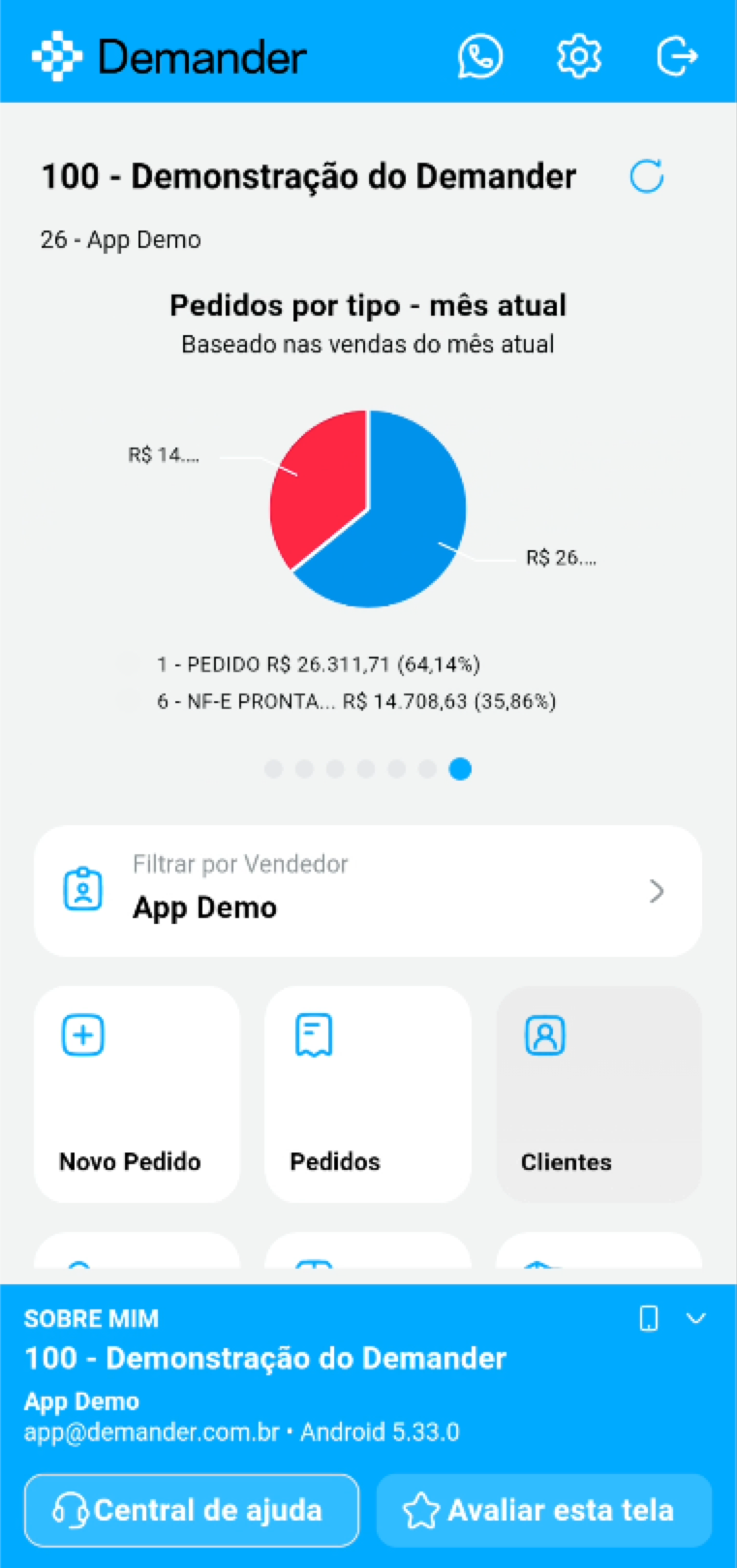
- When you tap the arrow, the bar opens the About me area, with the company, the seller, the login email, and the app version.
- From there you go straight to the Help center and the Rate this screen button, to send your feedback about the screen you are on.
- When the seller’s name starts with an acronym, an initial, or a code, the abbreviation shown keeps that identification.
Help Center and screen recording
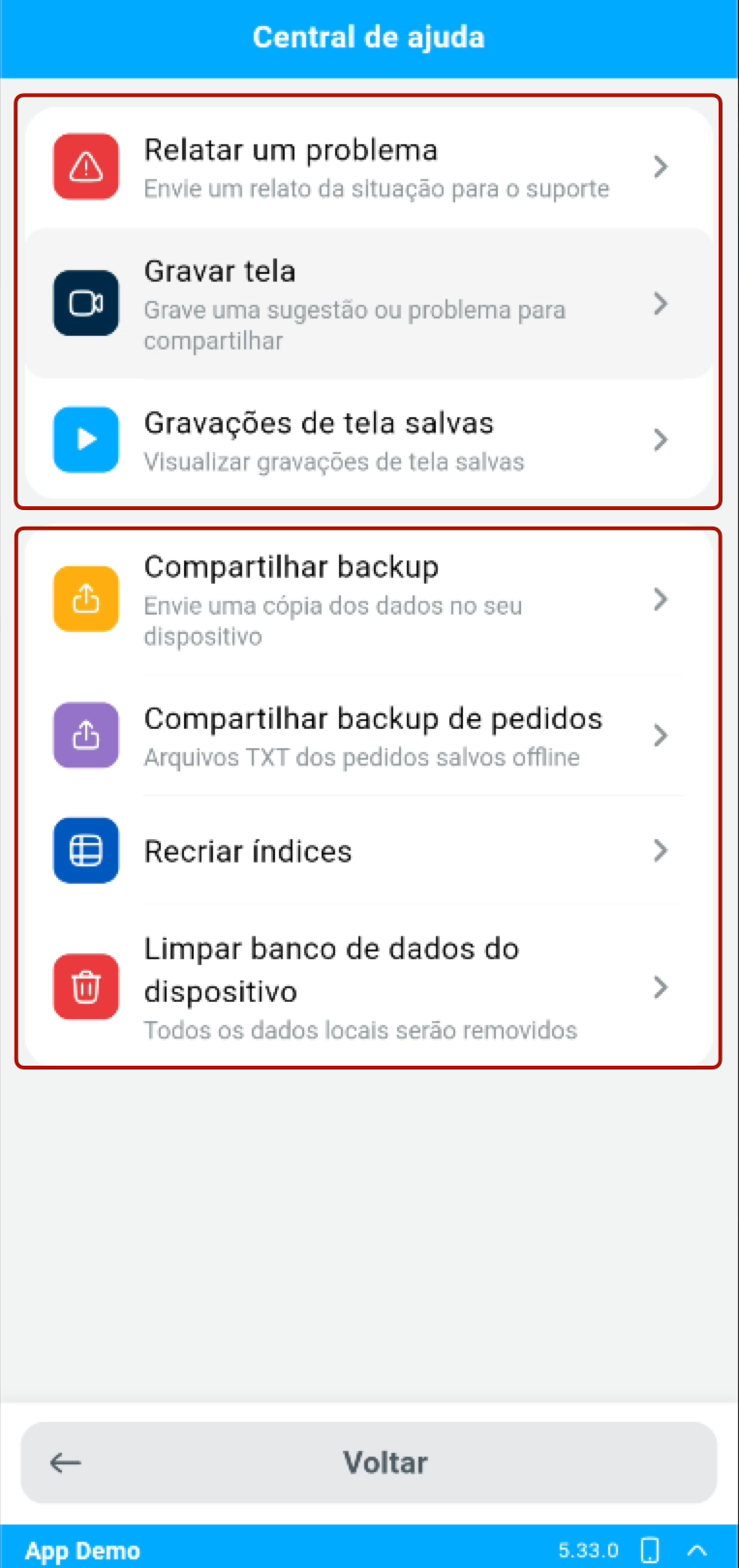
Section titled “Help Center and screen recording”- The Help Center has been reorganized into two sections.
- The first contains the support channels: Report a problem, Record screen, to record a suggestion or a problem and share it, and Saved screen recordings.
- The second gathers the device tools that used to be in Settings: Share backup, Share order backup, Rebuild indexes, and Clear device database.
Learn more in How to report a problem and record the screen.
Customer stock
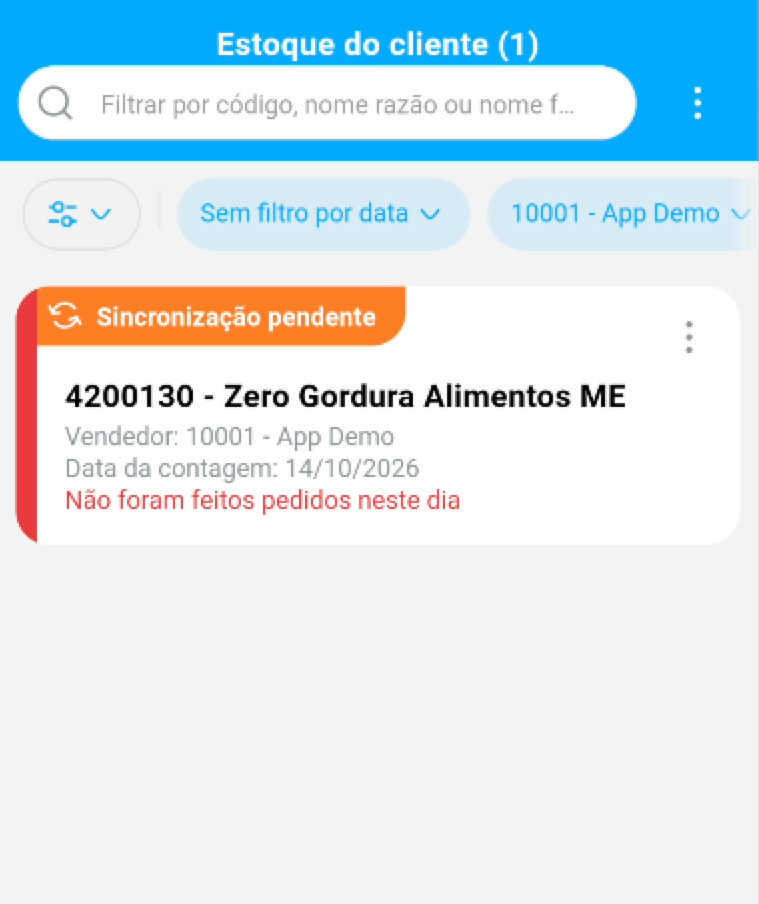
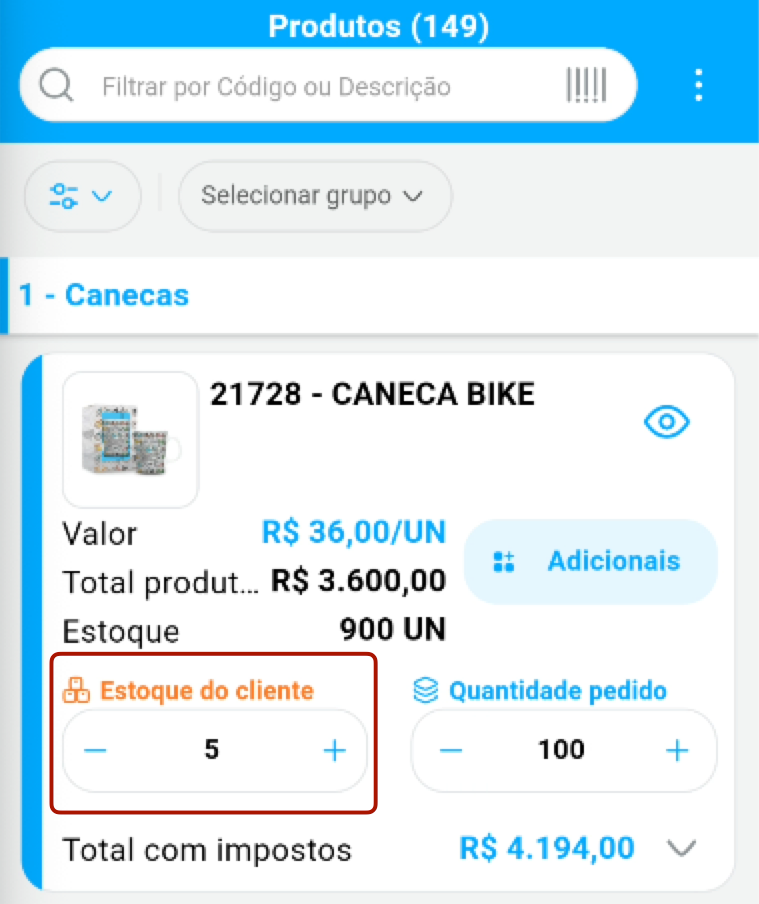
Section titled “Customer stock”- New Customer Stock screen, modeled on Demander Android, to record and view the stock counts taken at the customer, even offline.
- In the order, you can enter on the same product line the ordered quantity and the quantity observed in the customer’s stock, and view the last count.
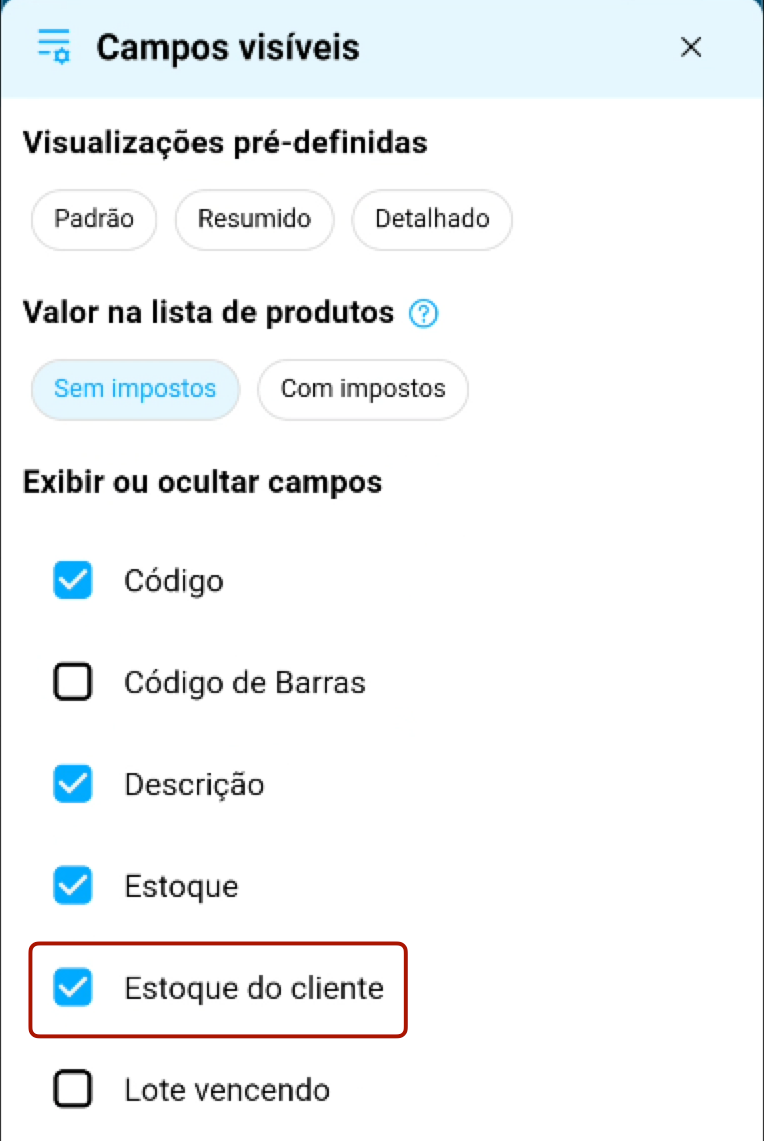
- In the visible fields of the order items, the Customer stock option lets you show or hide this field.
Learn more in Customer Stock.
Text color and preferences in lists
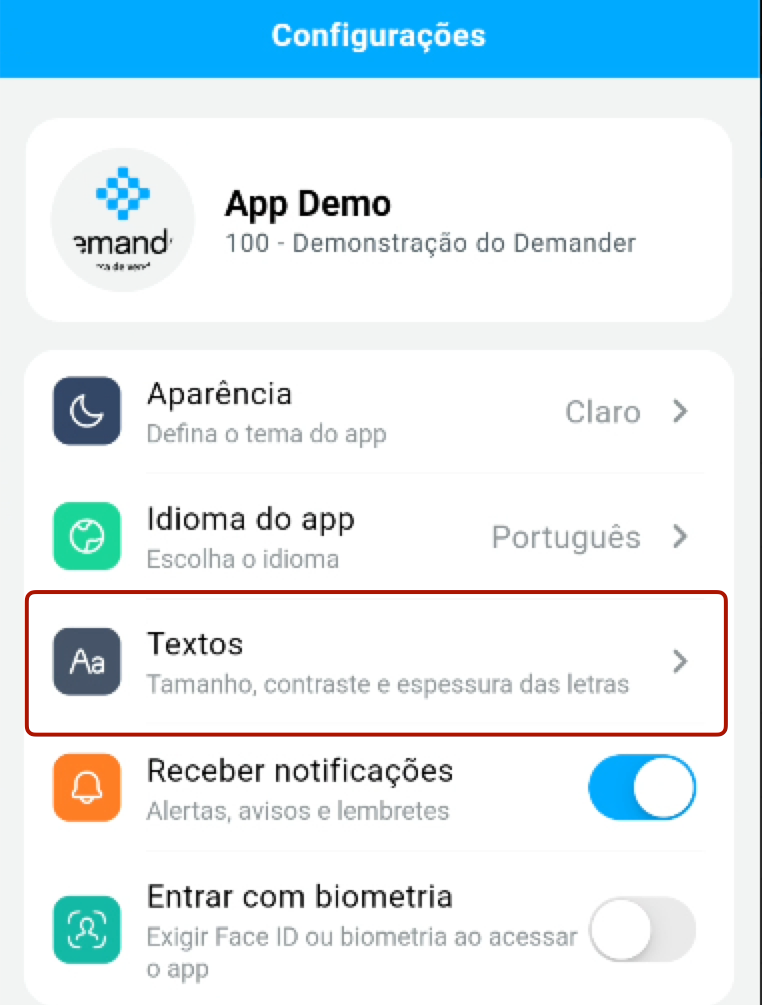
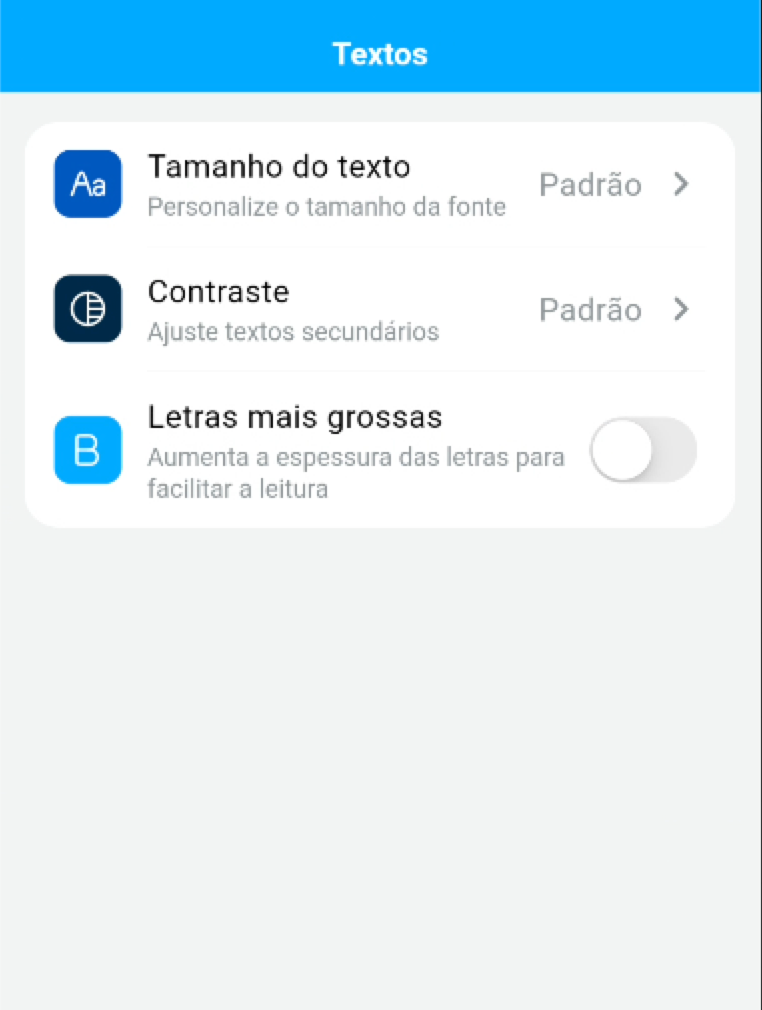
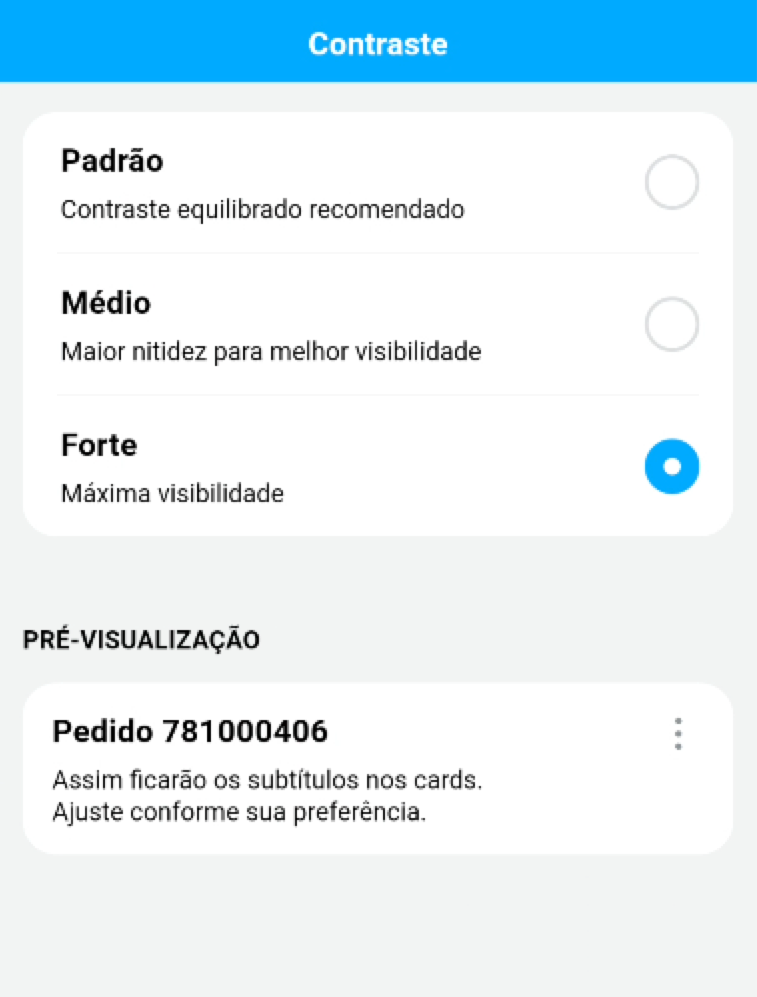
Section titled “Text color and preferences in lists”- In Settings, the new Texts option gathers text size, contrast, and bolder letters.
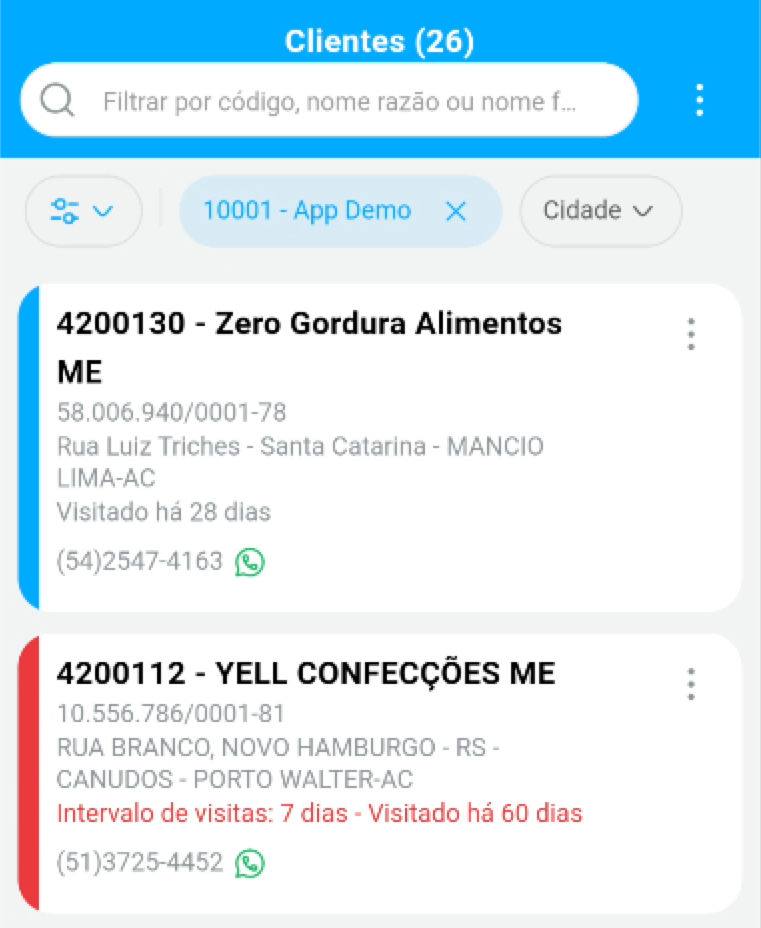
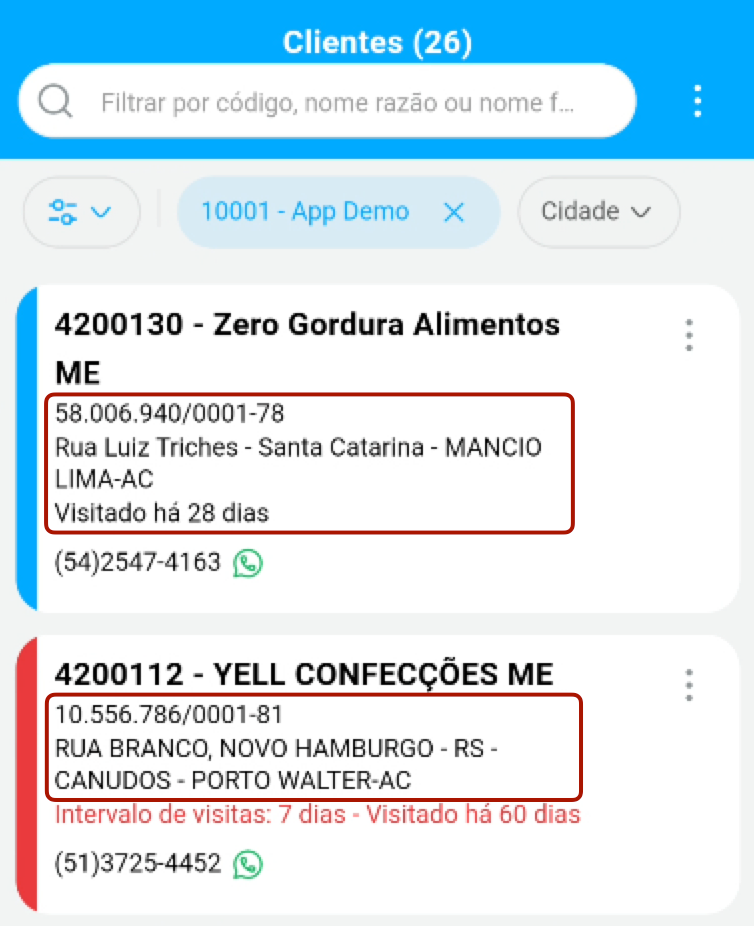
- Contrast adjusts the color of secondary texts in lists, such as the customer’s document, address, and last visit, to Default, Medium, or Strong, with a preview on the screen itself.
- Contrast, text size, bolder letters, and language preferences are saved and restored when you sign in with the same user on another device.
Product purchase status in the order
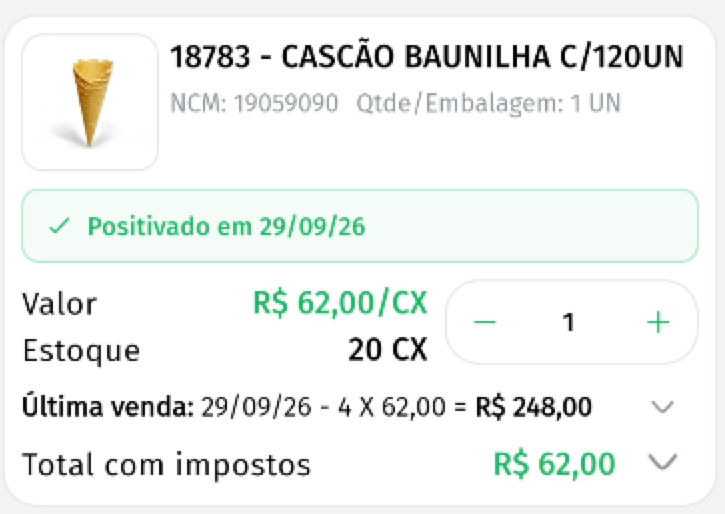
Section titled “Product purchase status in the order”- When the company enables the positivation alert, the product line in the order shows whether the customer has already bought the product in the configured period, which can be the current month or the customer’s visit interval.
- The indicator is green when the product was positivated, red when the last purchase was outside the period, and orange when the product was never purchased.
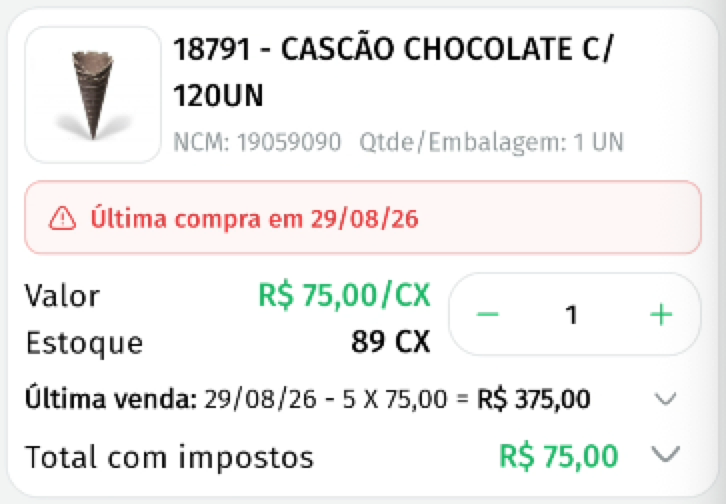
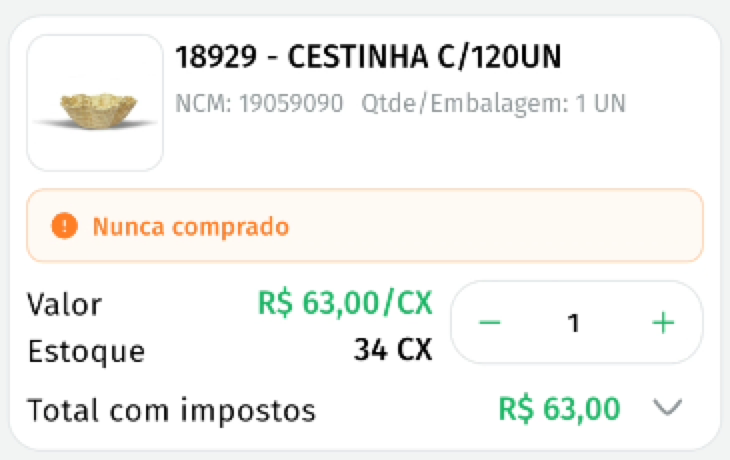
Learn more in Product positivation alert.
Displaying the price with taxes in the product list
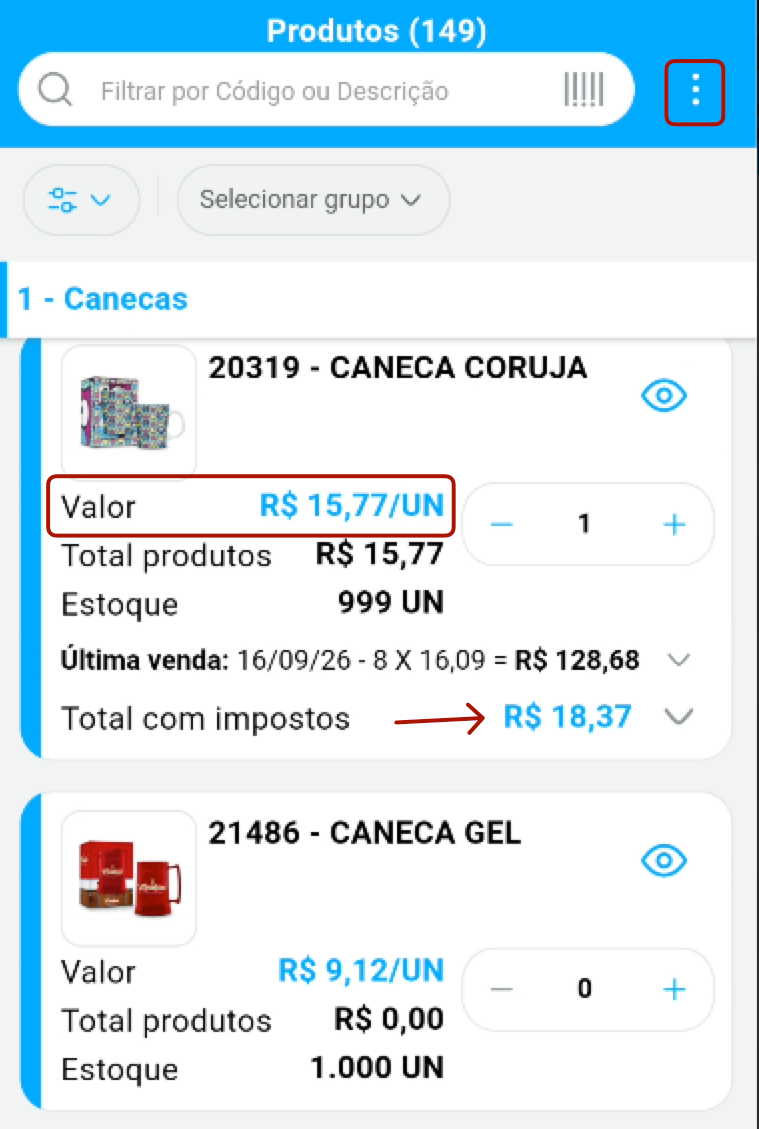
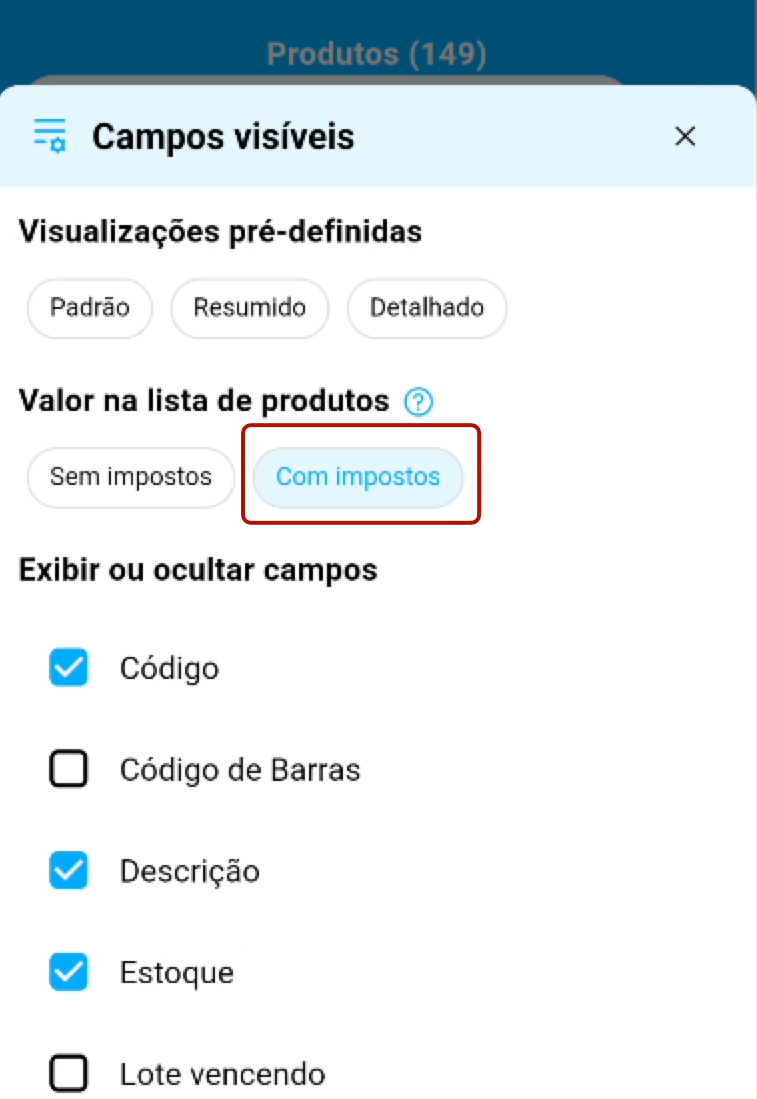
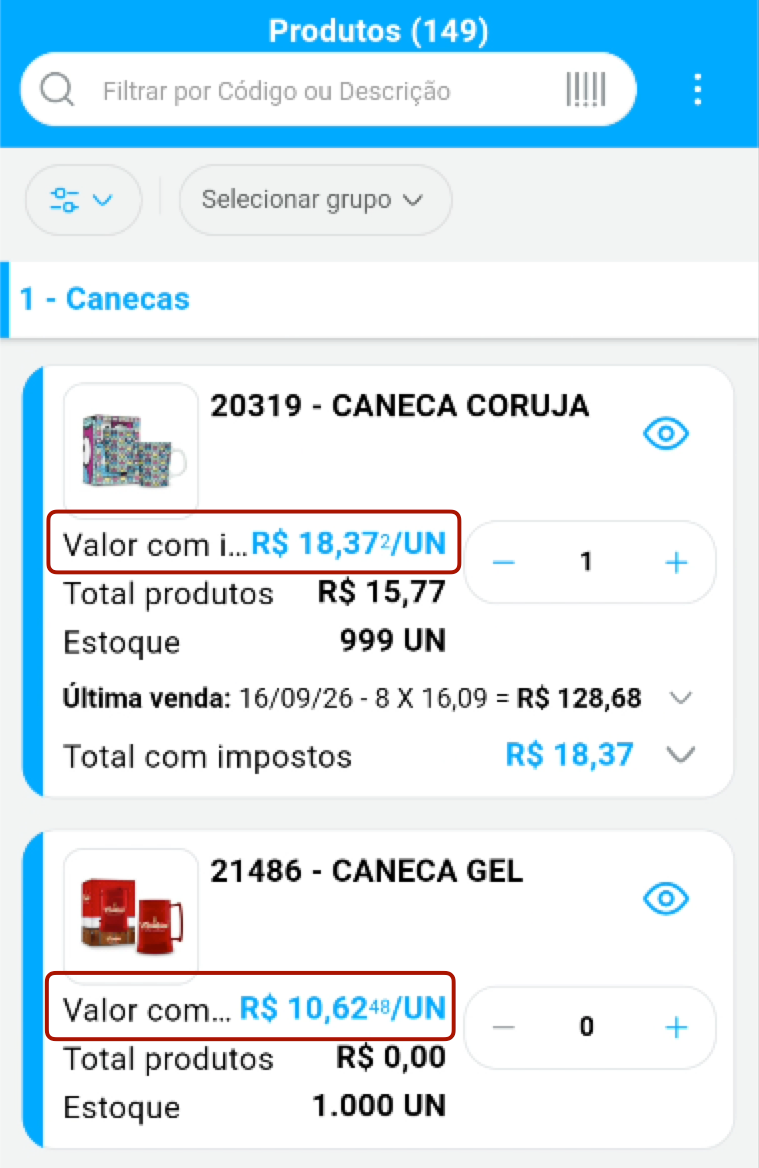
Section titled “Displaying the price with taxes in the product list”- In the product list Visible fields, the new Price in the product list option lets you choose between Without taxes and With taxes.
- With the With taxes option, each product’s unit price already appears with taxes included, without opening the total-with-taxes detail.
ABC Curve report
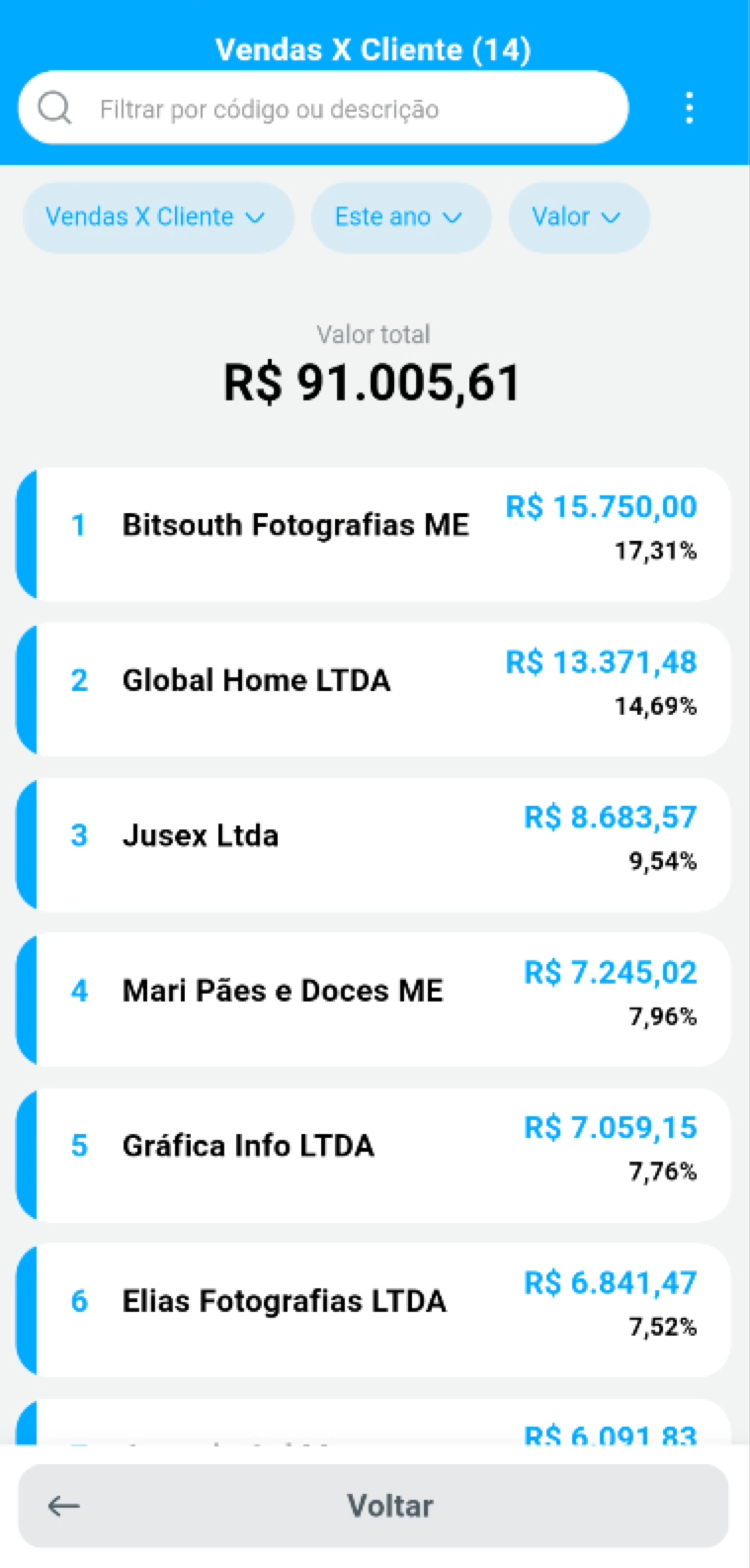
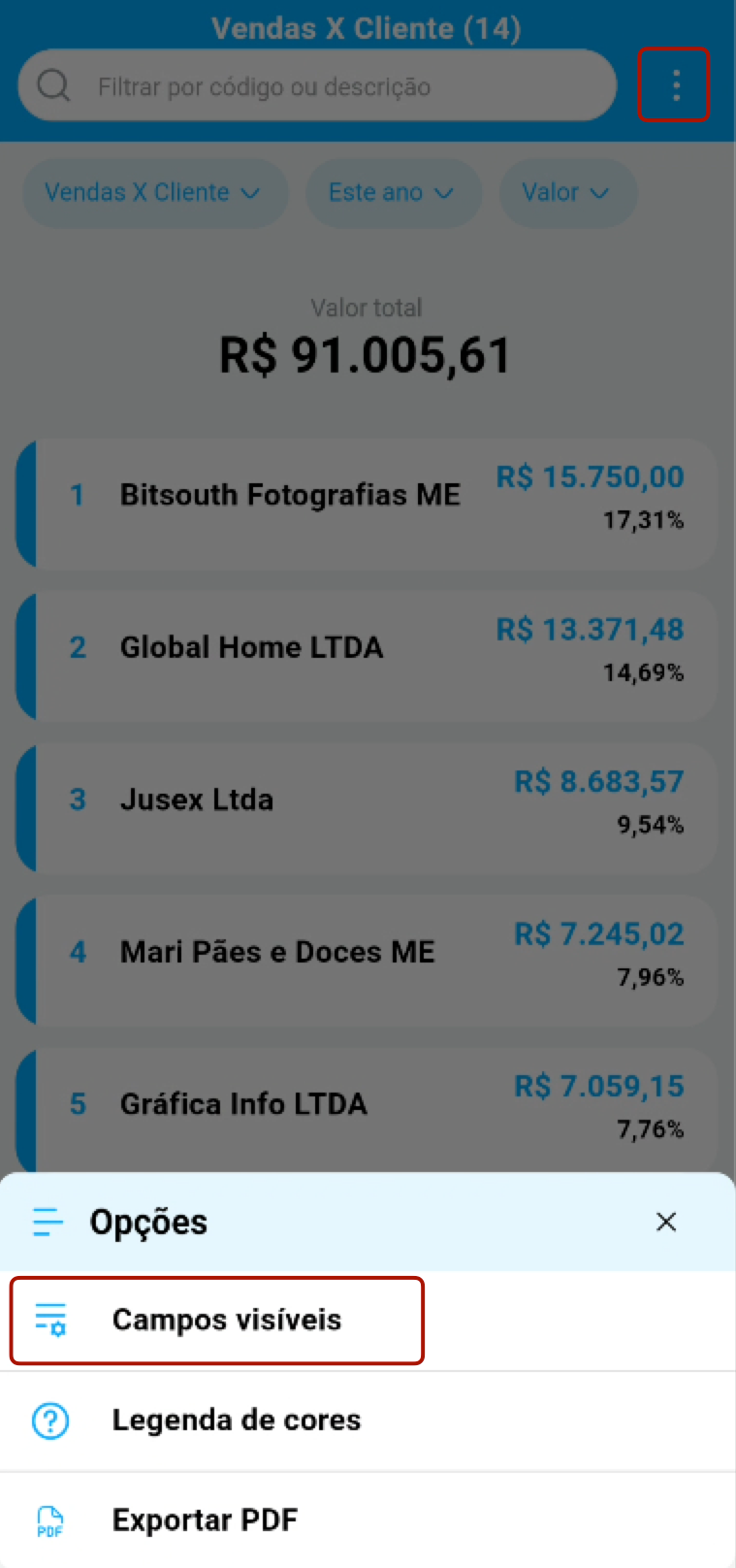
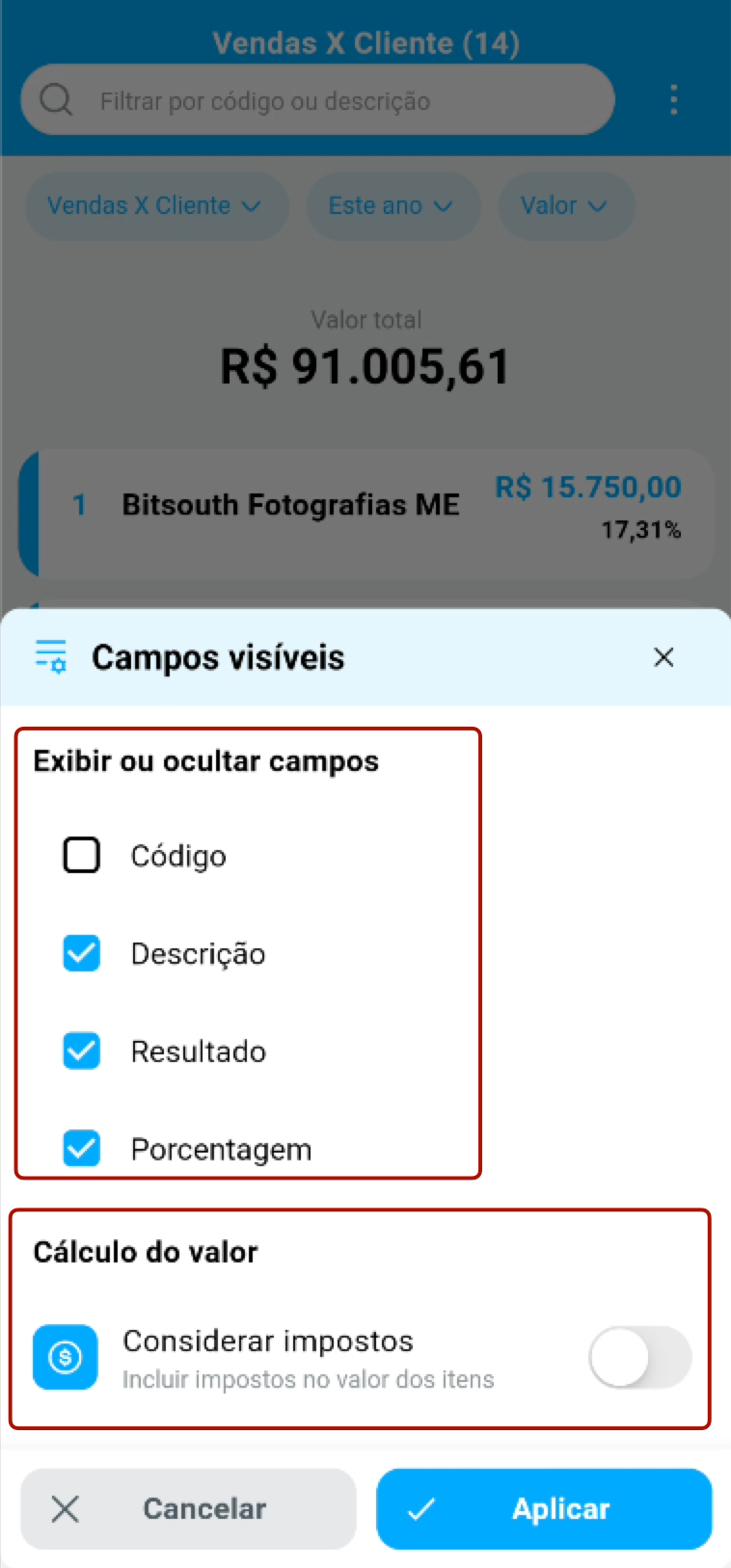
Section titled “ABC Curve report”- In the ABC Curve report, such as Sales x Customer, the options menu now has Visible fields, where you can show or hide the code, description, result, and percentage.
- On the same screen, the Consider taxes option defines whether the item value includes taxes.
- In the report PDF, the total value now appears in the footer of the last page.
Restock filter kept between orders
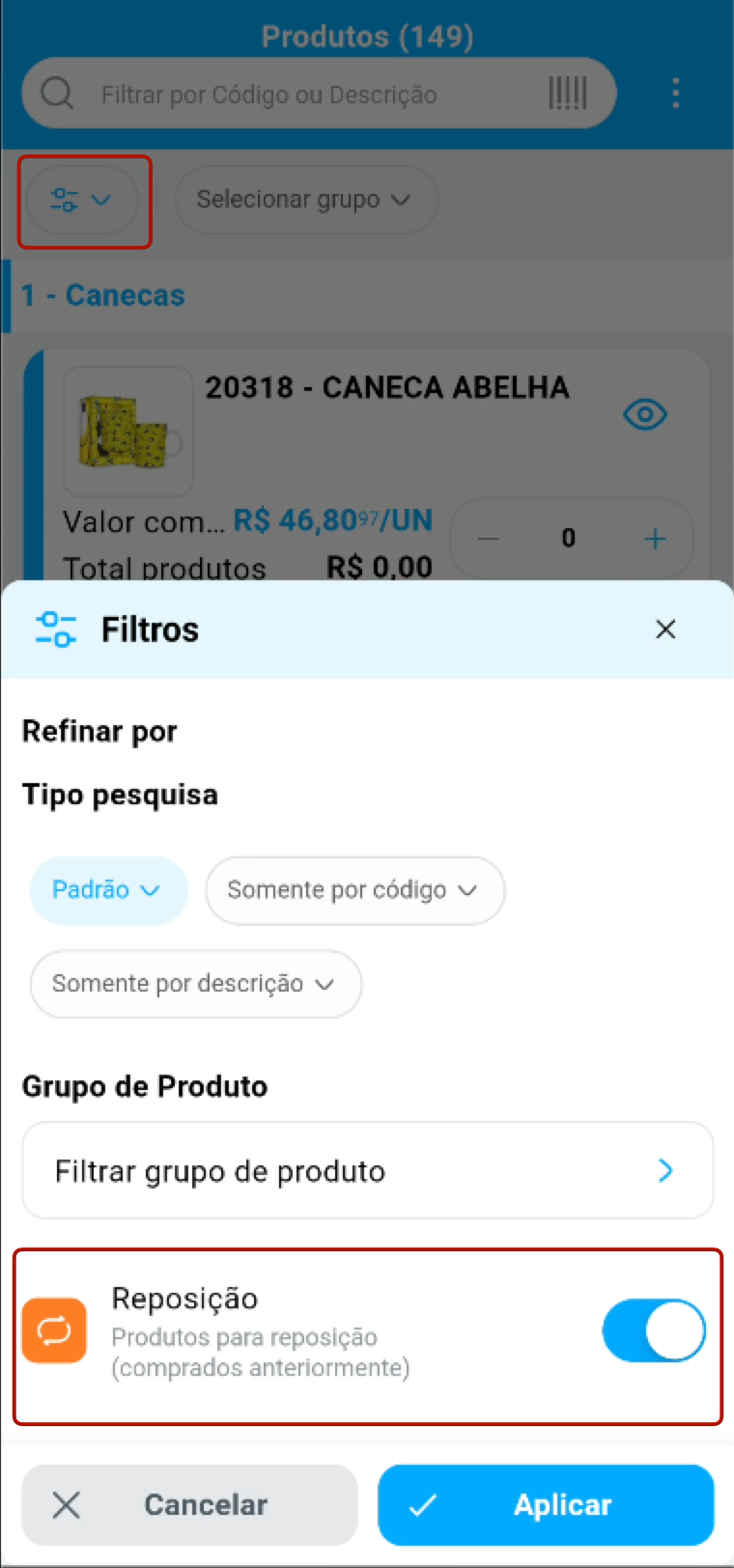
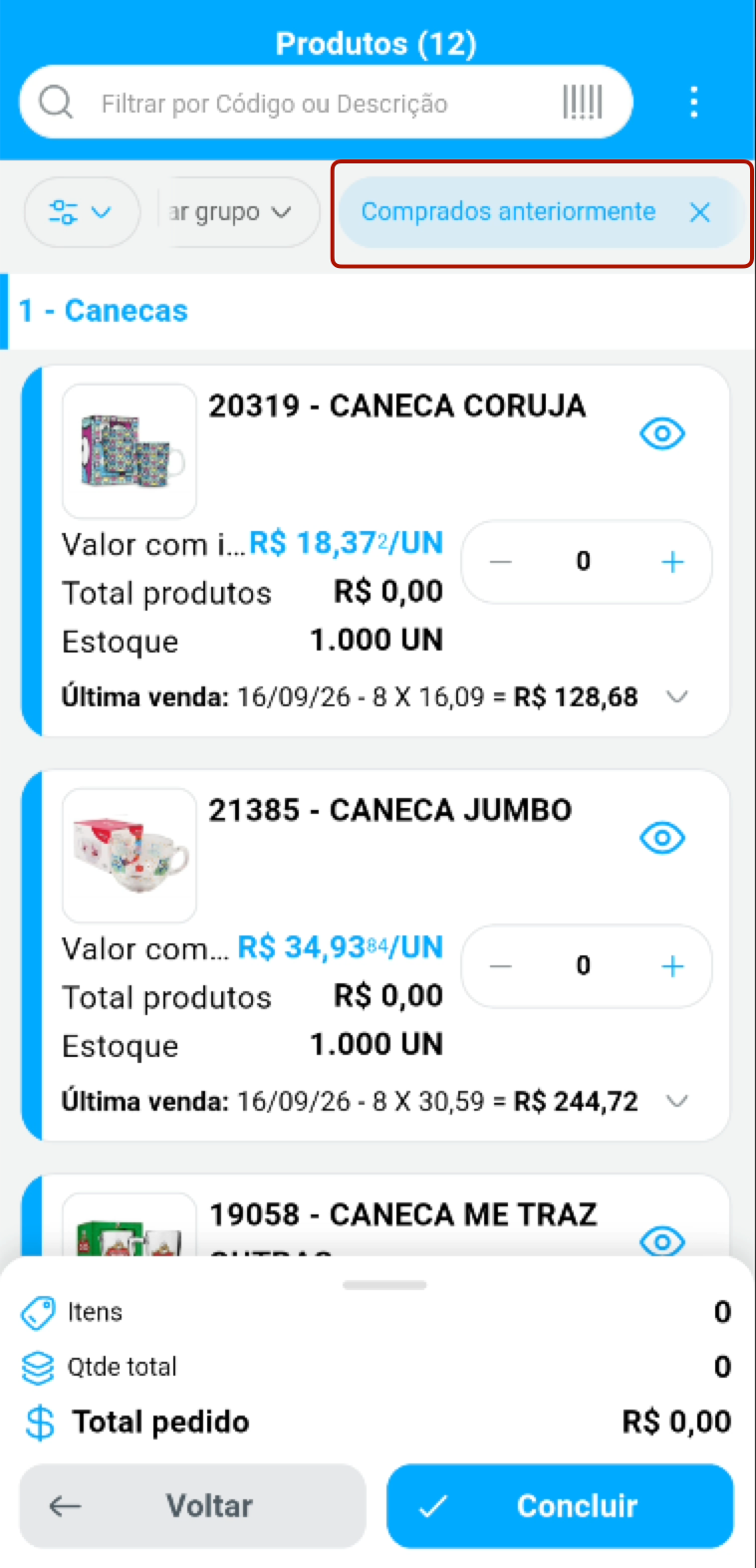
Section titled “Restock filter kept between orders”- In the order product list Filters, the Restock option shows only the products the customer has already bought.
- This choice is saved for the seller and is already applied to the next orders, including the Ideal Order, shown at the top of the list as Previously purchased.
Migration from Demander Android
Section titled “Migration from Demander Android”- Demander Android users can now voluntarily try the new App Demander, straight from their current app, and get to know the new app while still having Demander Android available.
- The new App Demander is only used after the first sync finishes successfully. If it is interrupted, the next access continues on Demander Android.
- When switching between the two apps, a warning guides you to sync again, with the Sync now option.
Ideal Order
Section titled “Ideal Order”- Displaying the Ideal Order button can be enabled or disabled per seller, or follow the company setting.
Learn more in How the Ideal Order works.
RFV Report button per seller
Section titled “RFV Report button per seller”- Displaying the RFV Report button on the home screen can be enabled or disabled per seller, or follow the company setting.
Learn more in Customer RFV report in Demander Mobile.
Search in the order’s added items
Section titled “Search in the order’s added items”- Situation: The search field in the added items tab appeared even in orders with few items.
- Solution: The search now appears only when the order has 10 or more items.
Delinquency when starting an order with a selected customer
Section titled “Delinquency when starting an order with a selected customer”- Situation: When starting an order with the customer already selected, such as from check-in, the customer’s delinquency was only checked when finishing the order.
- Solution: Delinquency validation now happens as soon as the order opens, respecting the company’s block or alert setting.
Fines and interest on financial bills
Section titled “Fines and interest on financial bills”- The total in the financial bills list now correctly considers fines and interest on overdue bills, consistent with the updated value shown on each bill.
New features in version 5.04.2 — 10/19/2026
Section titled “New features in version 5.04.2 — 10/19/2026”Quick filters when selecting order products
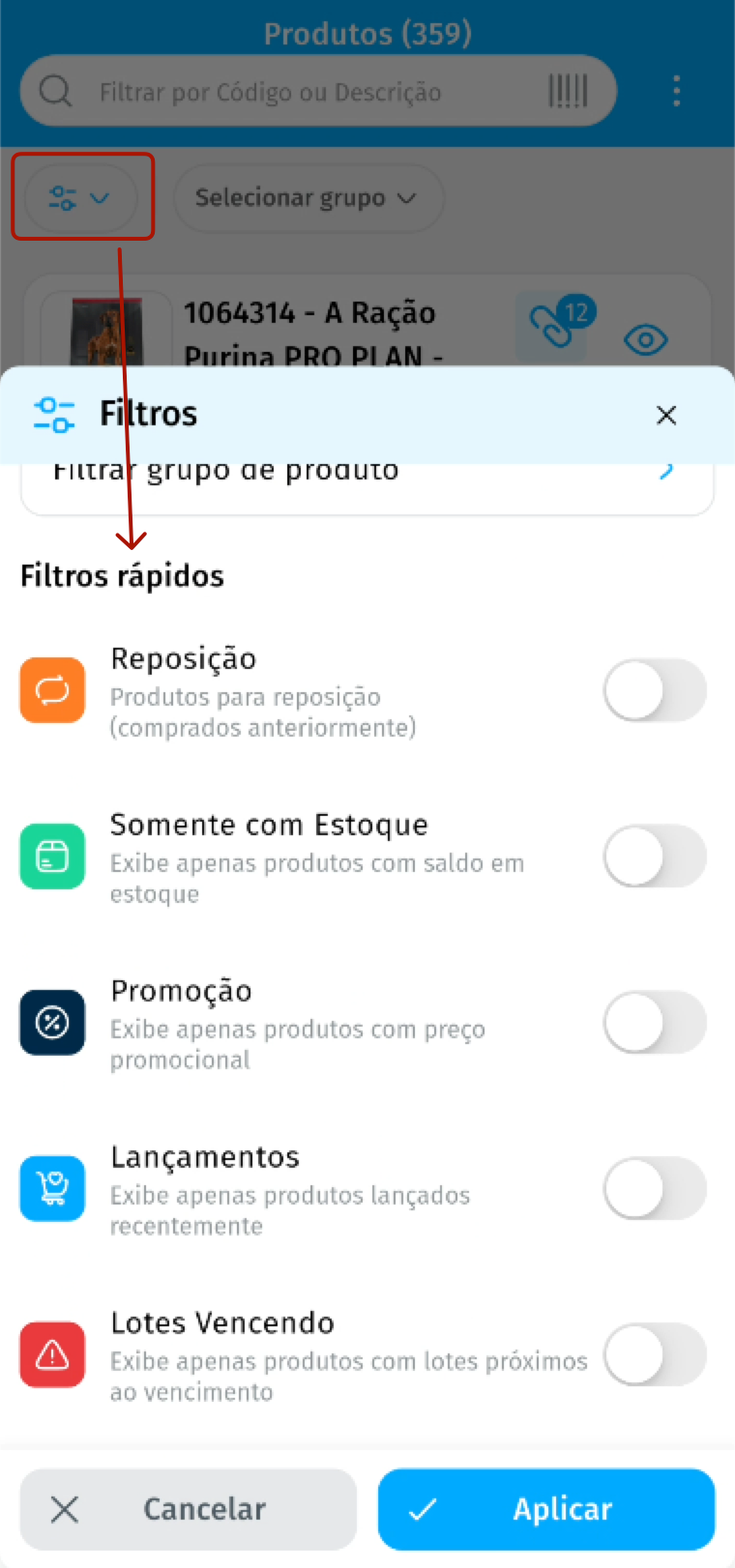
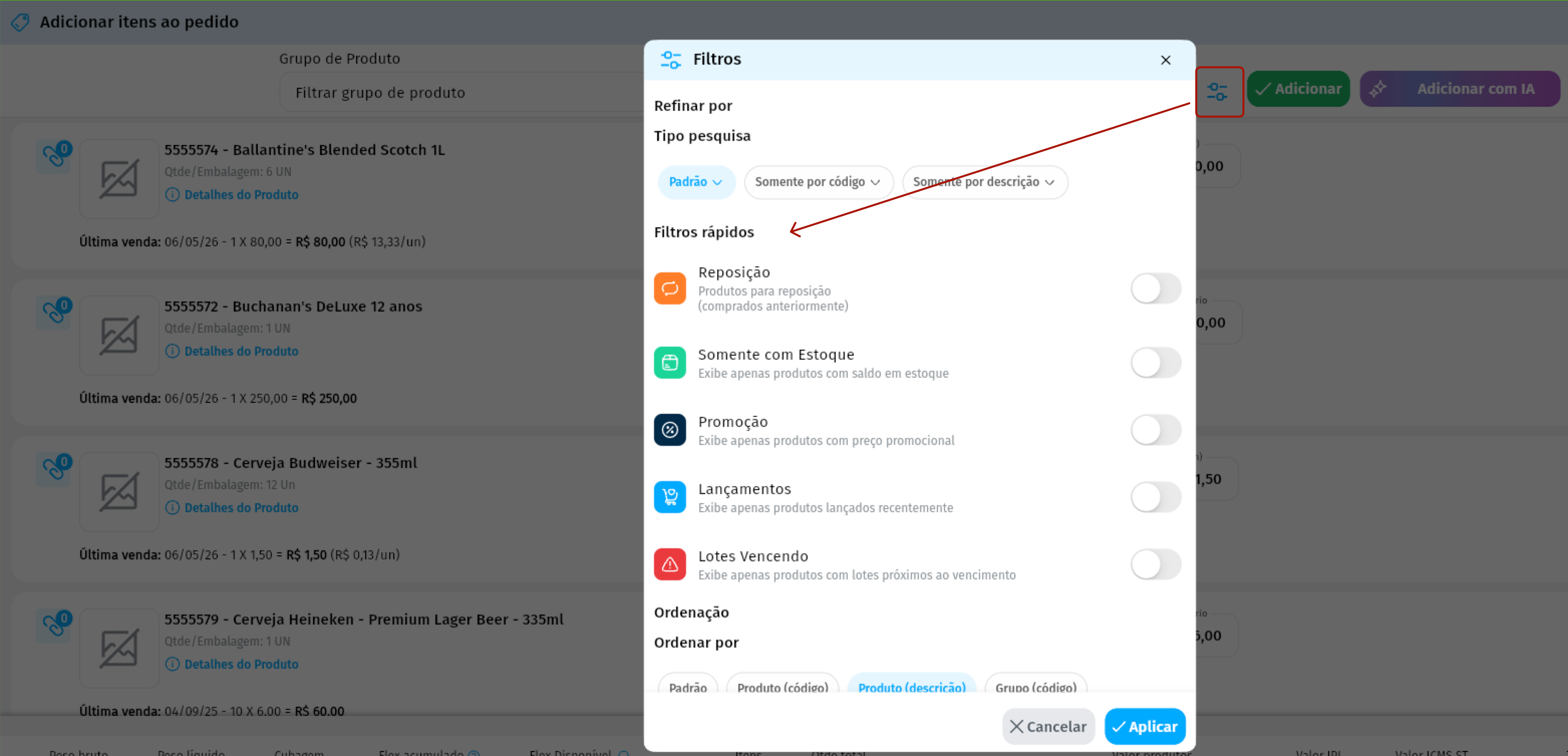
Section titled “Quick filters when selecting order products”- When adding items to the order, the Filters panel now has a Quick filters section, with the same filters as Demander Android:
- Restock: shows the products the customer has already bought.
- Promotion: shows only the products with a current promotional price.
- New releases: shows only recently released products.
- Expiring batches: shows only the products with batches close to expiration, including already expired ones that still have stock.
- The same section also has the In stock only option, to see only the products with stock available.
- The filters can be combined. With more than one turned on, the list shows only the products that meet all of them, and the choice is saved for the next orders.
- The company can hide the Promotion, New releases and Expiring batches filters in the settings. Hiding a filter does not prevent these products from being sold.
Fixes in version 5.04.2 — 10/19/2026
Section titled “Fixes in version 5.04.2 — 10/19/2026”NF-e issuance when finishing the order
Section titled “NF-e issuance when finishing the order”- Situation: When finishing an order of a type that issues an NF-e, the invoice was not issued and the preview did not open when the company did not allow NF-e printing.
- Solution: NF-e issuance and preview happen automatically again when finishing the order, as in Demander Android. The printing permission still controls only the options to print the NF-e and the bank slip in the order list.
Sharing the order PDF via WhatsApp
Section titled “Sharing the order PDF via WhatsApp”- Situation: When sharing the order PDF via WhatsApp, the app showed an error message and did not open WhatsApp to send the file.
- Solution: Sharing the order PDF works again, through both WhatsApp and WhatsApp Business.
Release schedule
Section titled “Release schedule”Default release plan, subject to adjustments as the rollout progresses.
| Date | Release percentage |
|---|---|
| 10/13 - Tuesday | Beta 20% |
| 10/14 - Wednesday | Beta 60% |
| 10/15 - Thursday | Beta 100% |
| 10/16 - Friday | 1% |
| 10/19 - Monday | 2% |
| 10/20 - Tuesday | 3% |
| 10/21 - Wednesday | 5% |
| 10/22 - Thursday | 7% |
| 10/23 - Friday | 8% |
| 10/26 - Monday | 10% |
| 10/27 - Tuesday | 15% |
| 10/28 - Wednesday | 20% |
| 10/29 - Thursday | 30% |
| 10/30 - Friday | 50% |
| 11/02 - Monday | 80% |
| 11/03 - Tuesday | 100% |