

App Demander Version 5.05.0 - 11/04/2026
This article presents the new features, improvements, and fixes available in App Demander version 5.05.0.
New features and improvements
Section titled “New features and improvements”No-sale visits PDF report
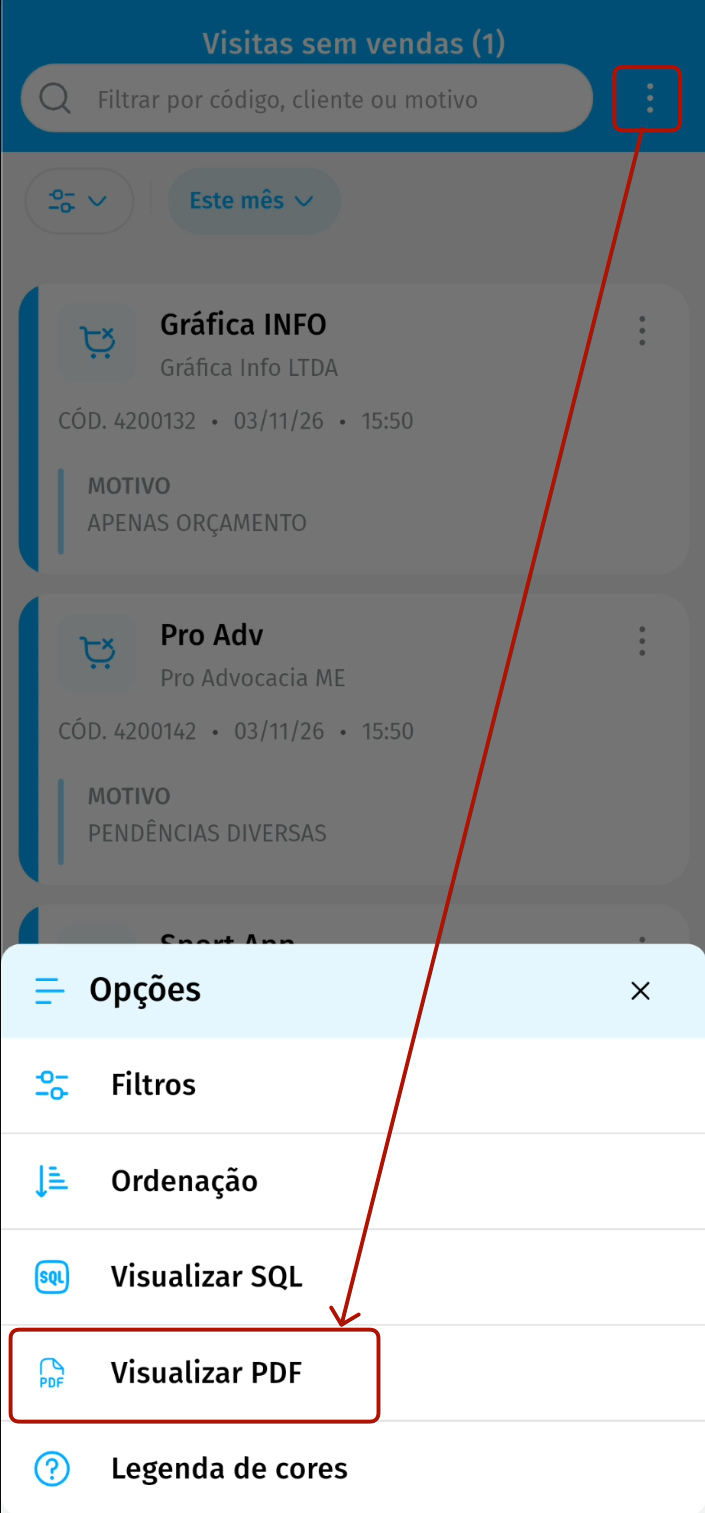
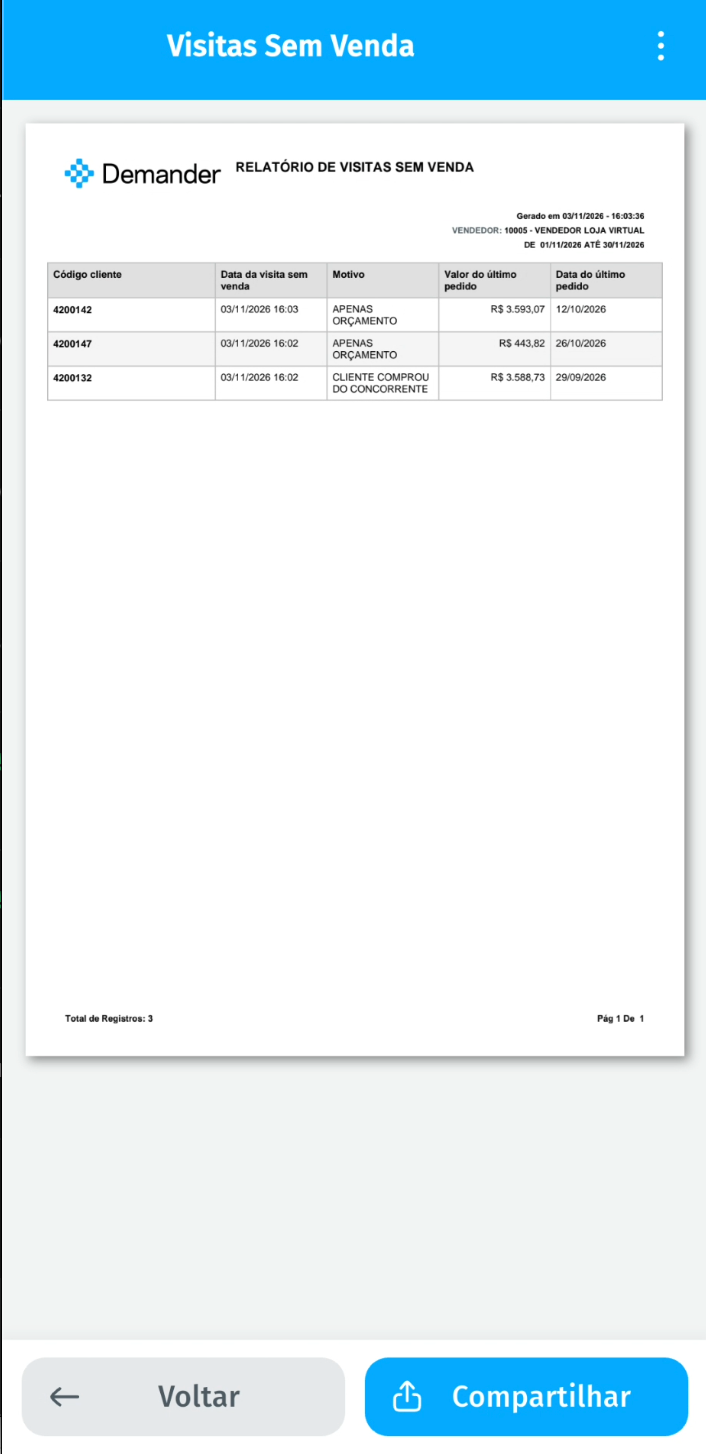
Section titled “No-sale visits PDF report”- In the No-Sale Visits list, the Options menu (three dots) now has the View PDF option, which generates a PDF report with the listed visits, respecting the applied filters and sorting.
- For each customer, the report can show the date and amount of the latest order. You choose which information appears and in what order.
- The PDF opens in a preview and can be shared.
- Learn more in No-Sale Visit PDF Report.
Sync before starting the order
Section titled “Sync before starting the order”- When the company requires a sync before each order, the app now shows on screen that this sync is a company requirement. When it finishes, the new order opens directly.
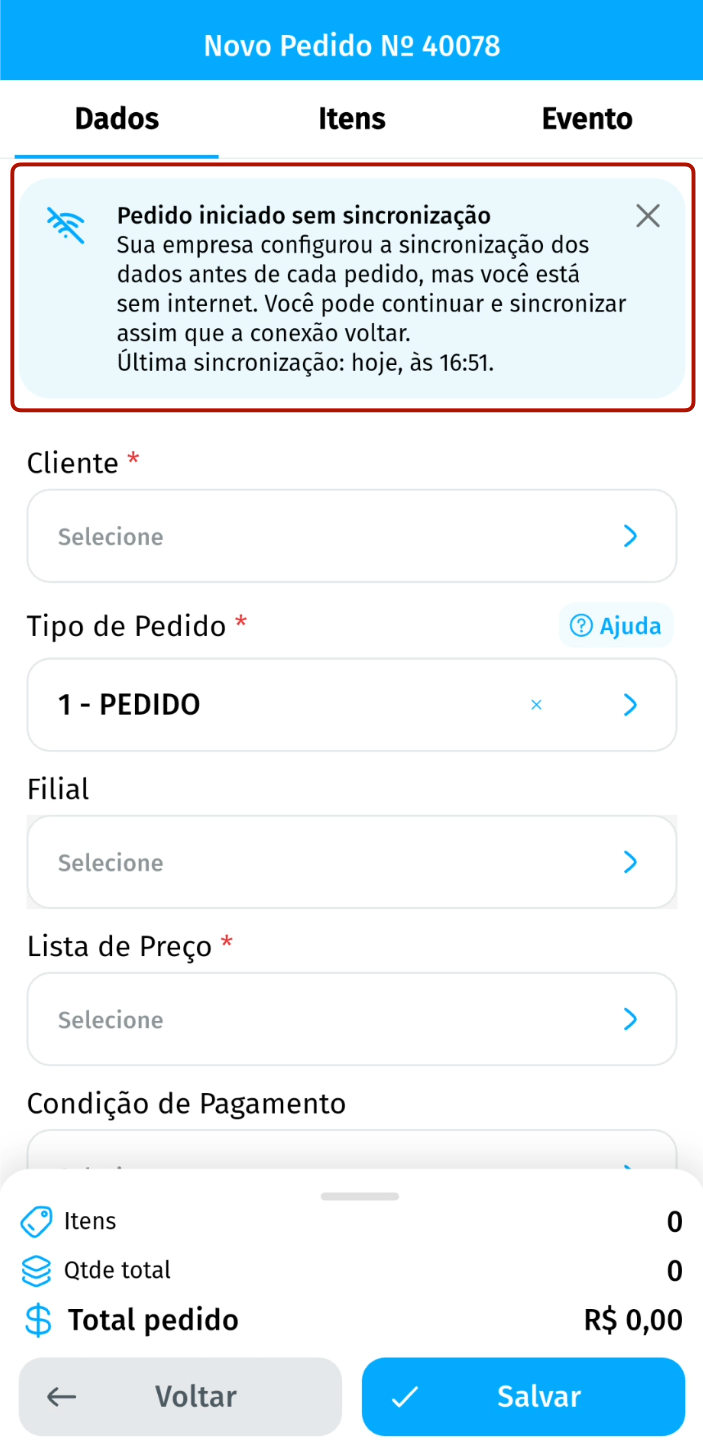
- Without internet, the behavior follows the company setting:
- when the company setting allows you to continue, the order starts without the prior sync and the order screen shows the Order started without sync notice, with guidance to sync as soon as the connection is back and the date and time of the last sync. The notice can be closed;
- when the sync is mandatory, the app informs the requirement and does not open the order until it is possible to sync.
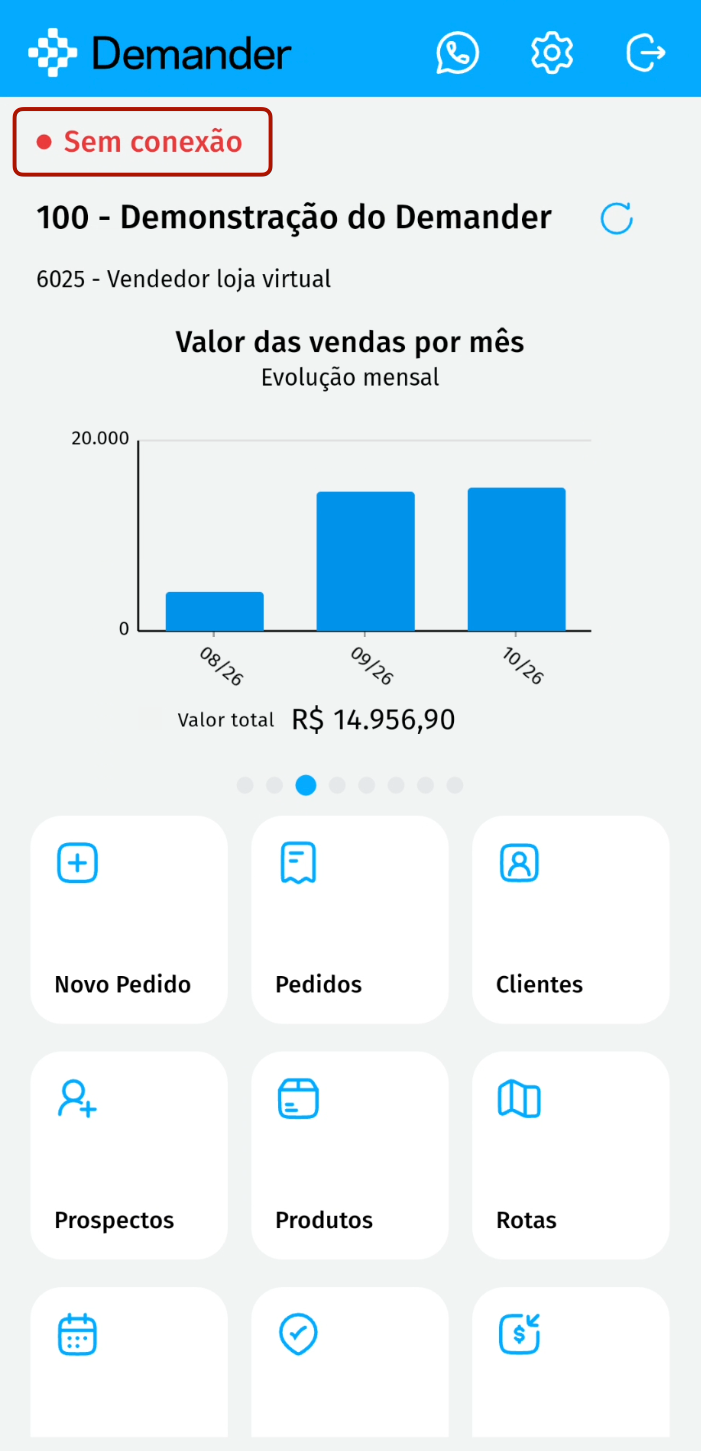
- Without internet, the home screen shows the No connection indicator above the company name.
Order type filter in the Sales x Customer report
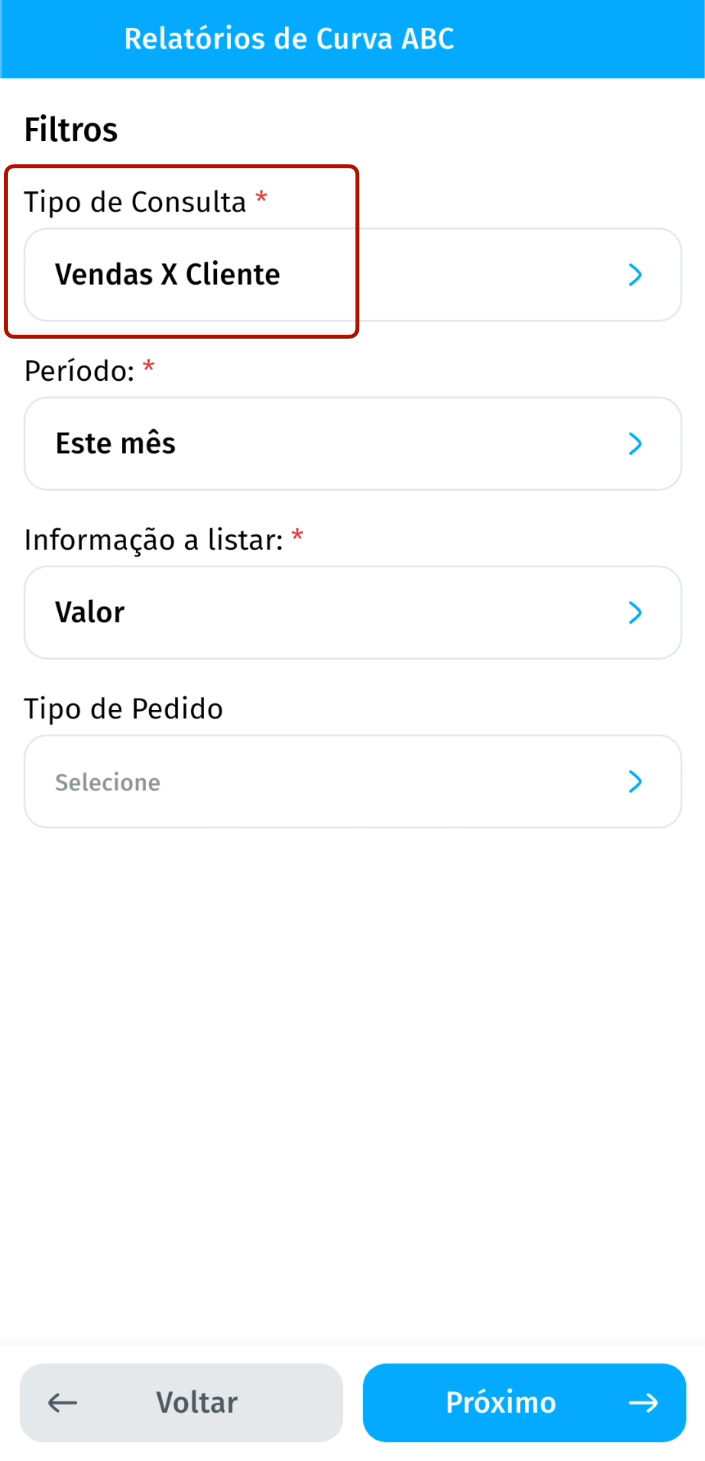
Section titled “Order type filter in the Sales x Customer report”- In the ABC Curve Reports, when you choose Sales x Customer as the Query Type, the new Order Type filter appears, letting you select one or more types, such as bonus or exchange.
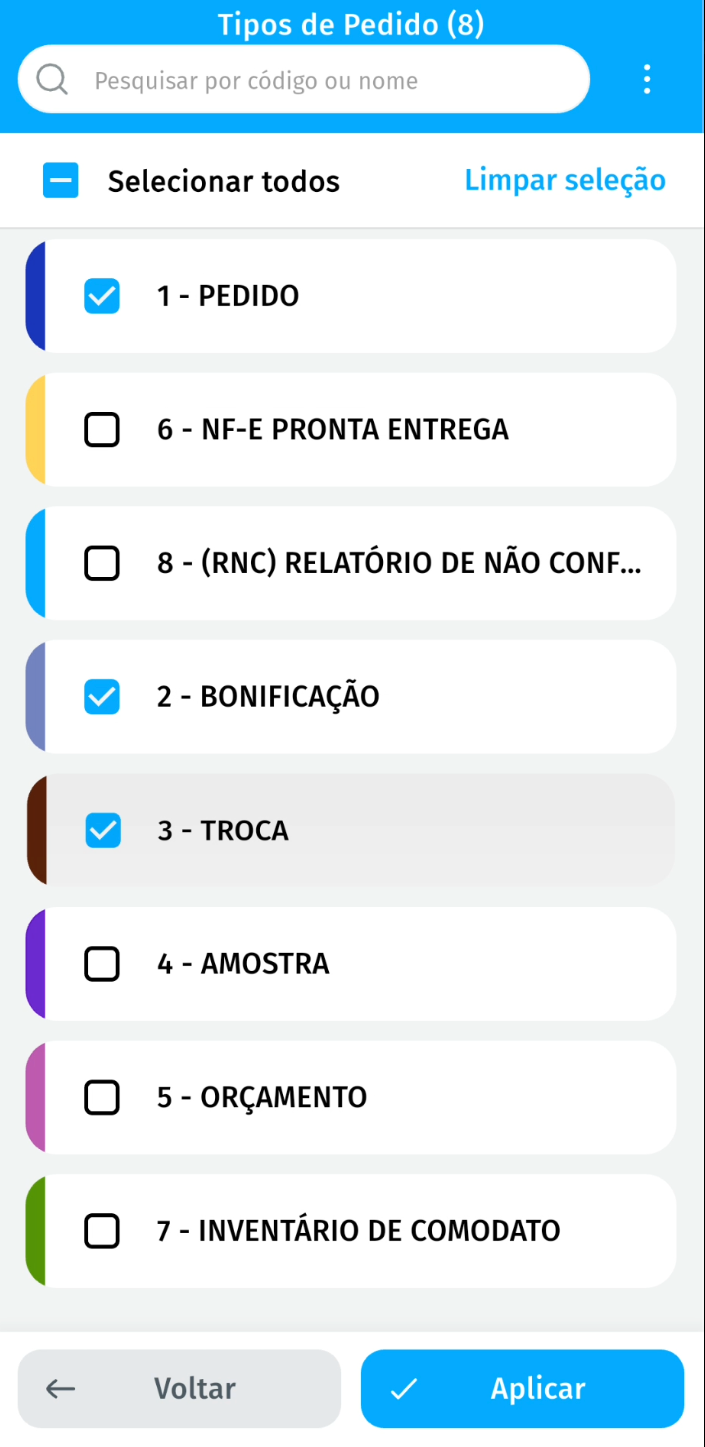
- In the type list, you can check several at once, use Select all or Clear selection, and confirm with Apply.
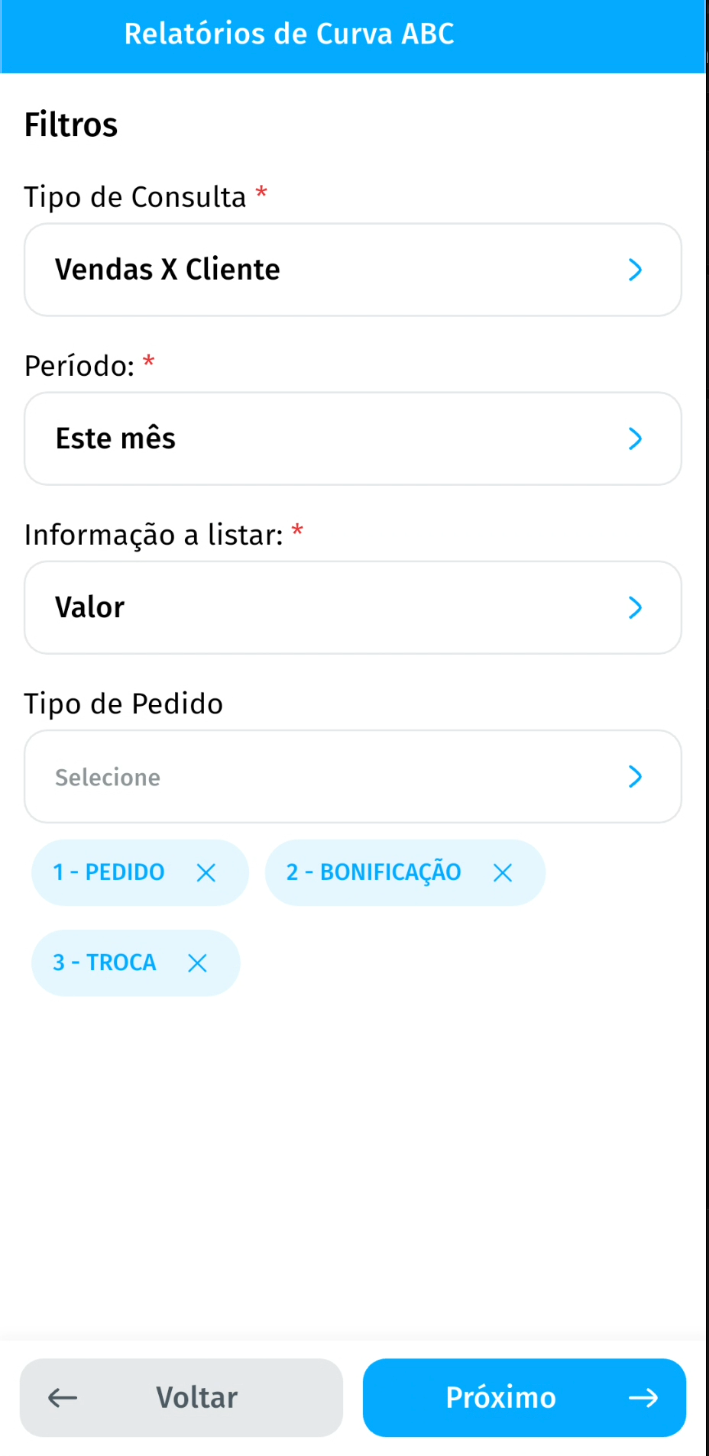
- Values, totals, and percentages now consider only the orders of the chosen types. The selected types appear below the field and can be removed directly.
- With no type selected, the report works as before.
Restore photos and images from the Help Center
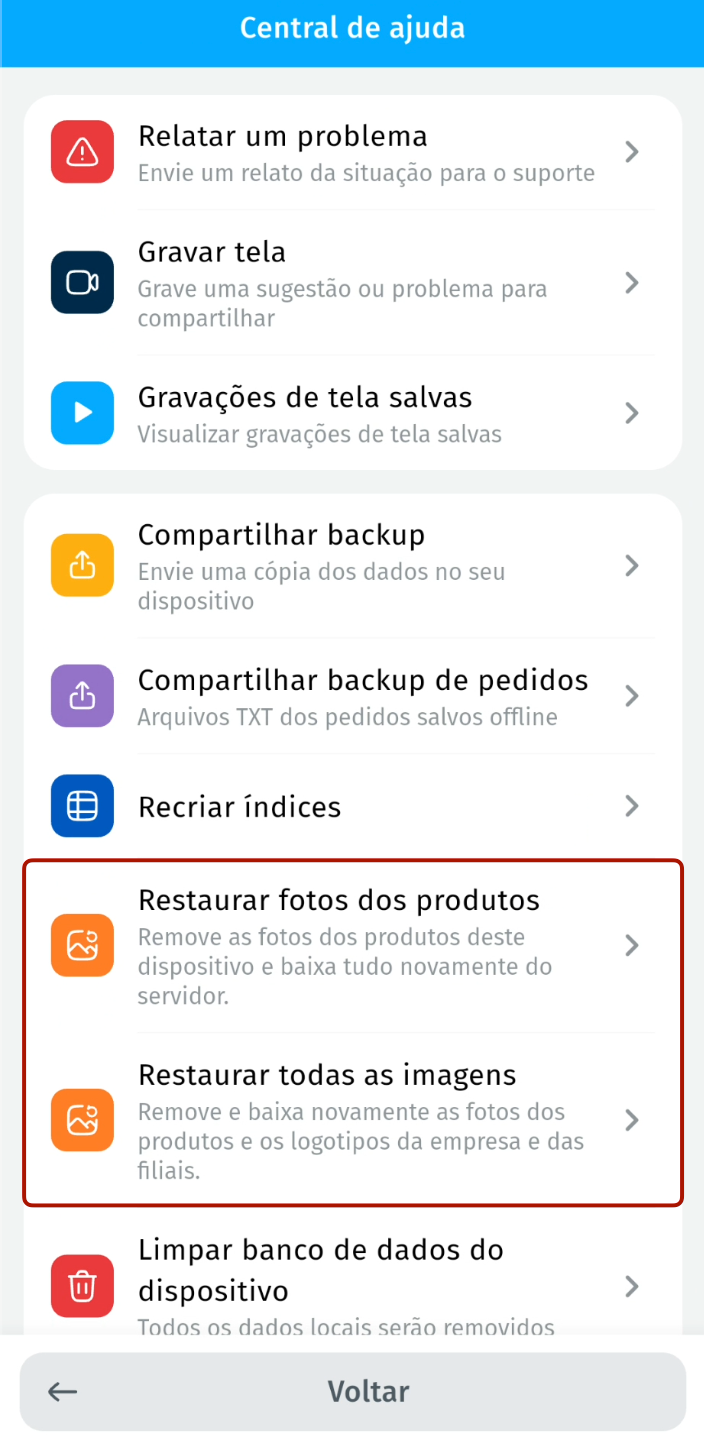
Section titled “Restore photos and images from the Help Center”- The Help Center now has two options to download the images from the server again, without clearing the device database:
- Restore product photos: removes the product photos from the device and downloads them all again from the server;
- Restore all images: removes and downloads again the product photos and the company and branch logos.
- Before starting, the app asks for confirmation and warns about data usage. Orders and other data on the device are preserved.
Prices closer to the labels in the order items
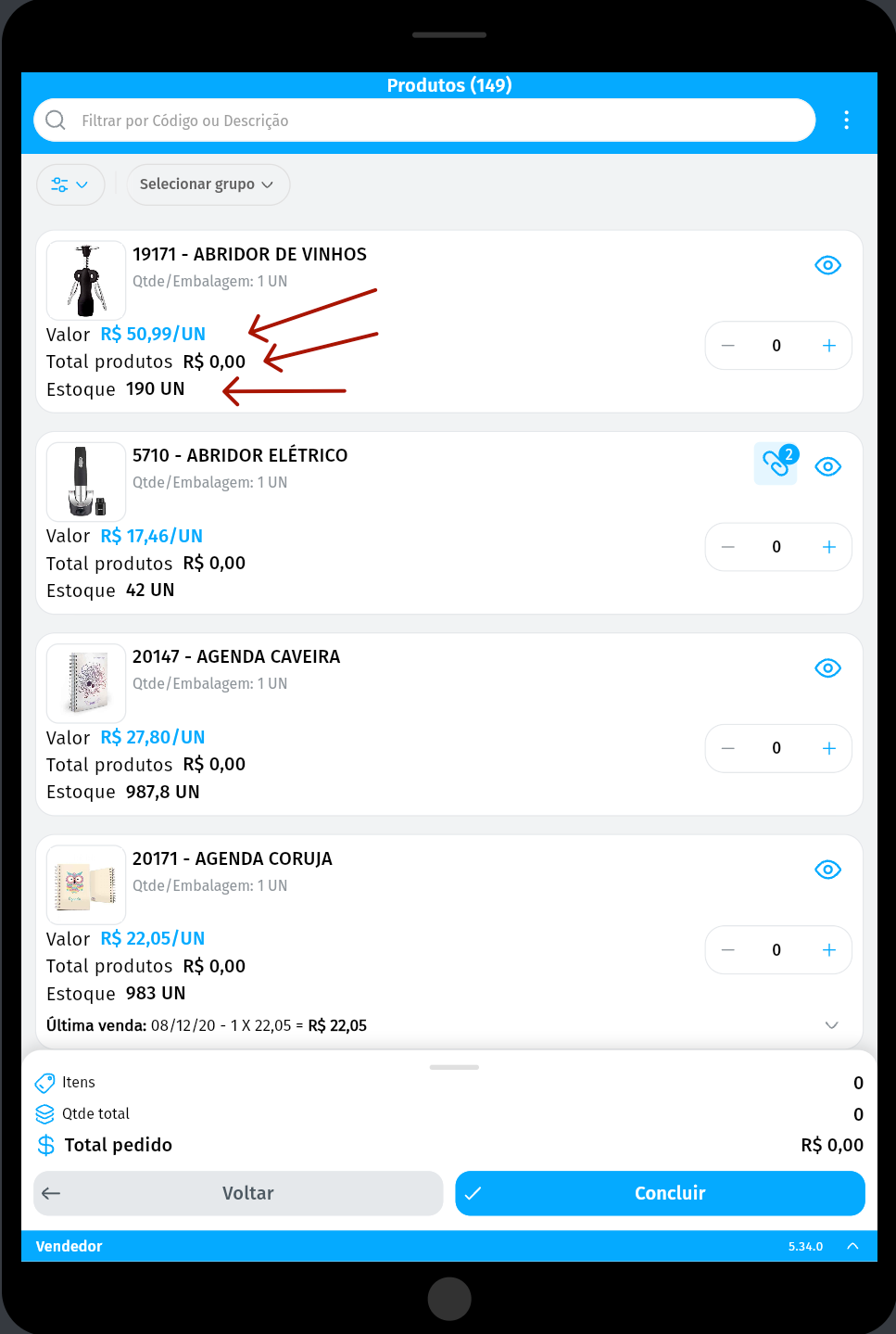
Section titled “Prices closer to the labels in the order items”- On tablets and with the phone in landscape, the Value, Products total, and Stock amounts appear right next to their labels in the order product list, making them easier to read.
Deleting the sales actions linked to the order
Section titled “Deleting the sales actions linked to the order”- Situation: When deleting an order with linked sales actions, App Demander did not ask what to do with those actions, as Demander Android does.
- Solution: When deleting the order, the app asks whether the linked sales actions should also be deleted, respecting the module setting.
Redispatch in offline mode
Section titled “Redispatch in offline mode”- Situation: In offline mode, the redispatch field did not appear in the order items and the amount was not calculated, even with the price list set to use redispatch.
- Solution: Redispatch is shown and filled in automatically again in offline mode, as already happened in Demander Web. Orders already issued are not recalculated.
Empty Products tab with stock balance
Section titled “Empty Products tab with stock balance”- Situation: In companies that use stock balance, the Products tab could be empty when no branch was selected, although the same products appeared when creating an order.
- Solution: The stock filter by branch has been fixed, and the Products tab lists the available products again, following the same rule as the order.
Customer already registered for another seller
Section titled “Customer already registered for another seller”- Situation: When the manager, with a seller selected, looked up the document of a customer already registered for another seller, the app did not offer a way to link that customer to the selected seller.
- Solution: The app now offers to link the customer to the selected seller. When you confirm, the seller is related to the customer and the record opens.
Restoring a new customer record
Section titled “Restoring a new customer record”- Situation: When the registration of a new customer or prospect was interrupted before saving, for example when closing the app, the typed data was not recovered when opening a new registration. When the restore did happen, the visit interval came back as 7.
- Solution: The app now saves the typed data every few seconds and when switching tabs, and offers to restore it in the next new registration, including auxiliary fields, contacts, delivery addresses, and the visit interval entered. The draft is removed when saving the record, discarding the restore, or confirming Exit without saving.
New customer delivery address
Section titled “New customer delivery address”- Situation: When registering a delivery address for a new customer, both in the app and on the Web, and agreeing to fill it with the customer’s address, the fields remained empty.
- Solution: When you confirm with Yes, the delivery address is filled in with the customer’s ZIP code, street, number, neighborhood, city, and coordinates. The address complement is copied to the Reference field.
Completed field in the no-sale visit
Section titled “Completed field in the no-sale visit”- Situation: The App Demander no-sale visit form did not show the Completed field, available in Demander Android.
- Solution: The Completed field has been added to the form and the chosen value is saved correctly.
Customer retention counter
Section titled “Customer retention counter”- Situation: In customer retention, quantities with many digits were cut off in the indicator.
- Solution: The indicator now adapts to the size of the number, showing the full quantity.
Fixes in version 5.05.1 — 11/06/2026
Section titled “Fixes in version 5.05.1 — 11/06/2026”Locked value fields for products without a pricing policy
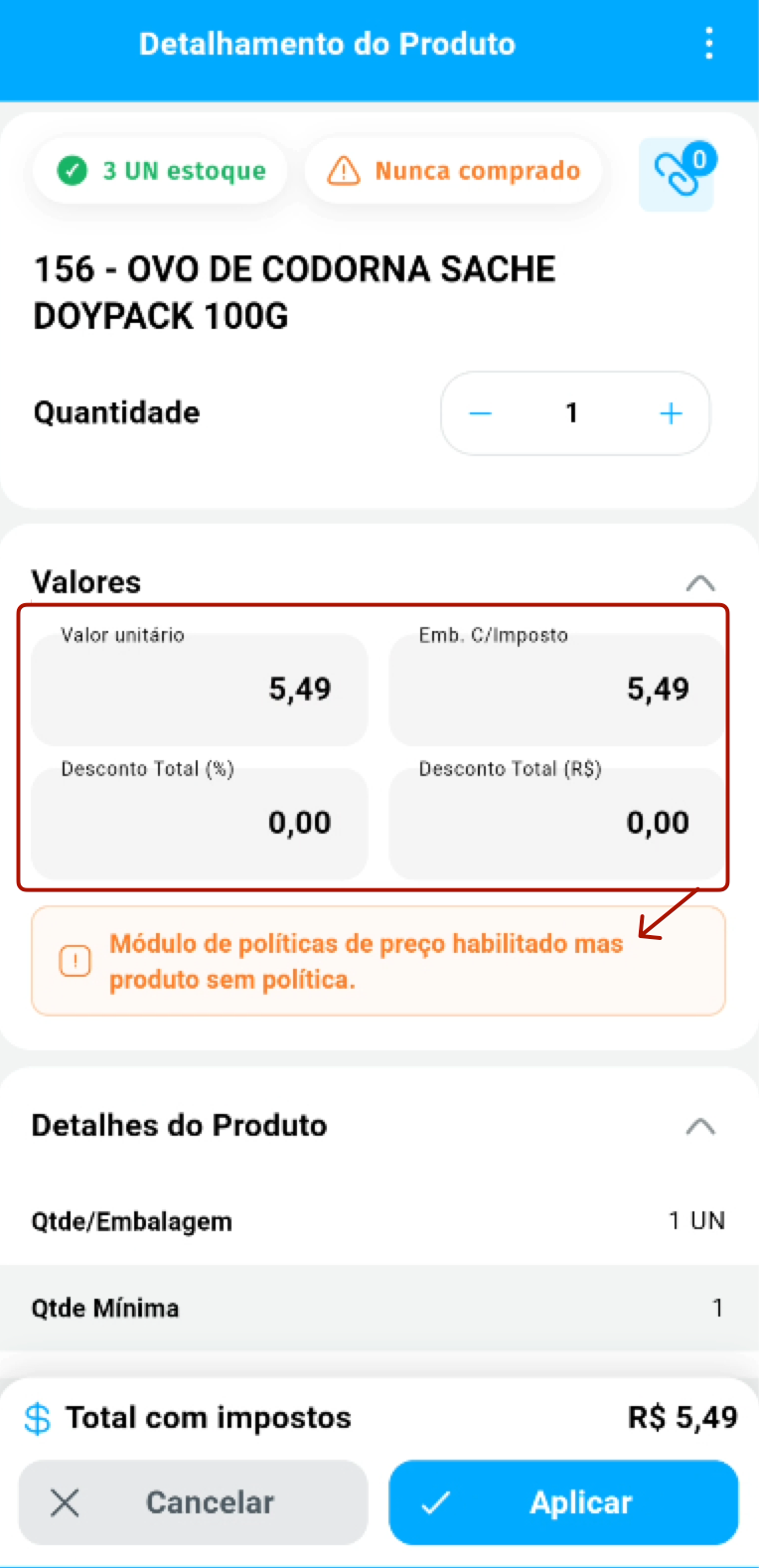
Section titled “Locked value fields for products without a pricing policy”- Situation: Even with the pricing policies module enabled, value and discount fields could remain editable for products without a pricing policy.
- Solution: Even if the settings allow editing values for products with a pricing policy, when a product has no policy, the unit price, price including taxes and discount fields are locked for editing. The product details also explain the reason with the message: Pricing policies module enabled but product has no policy.
Allowed range in the pricing policy
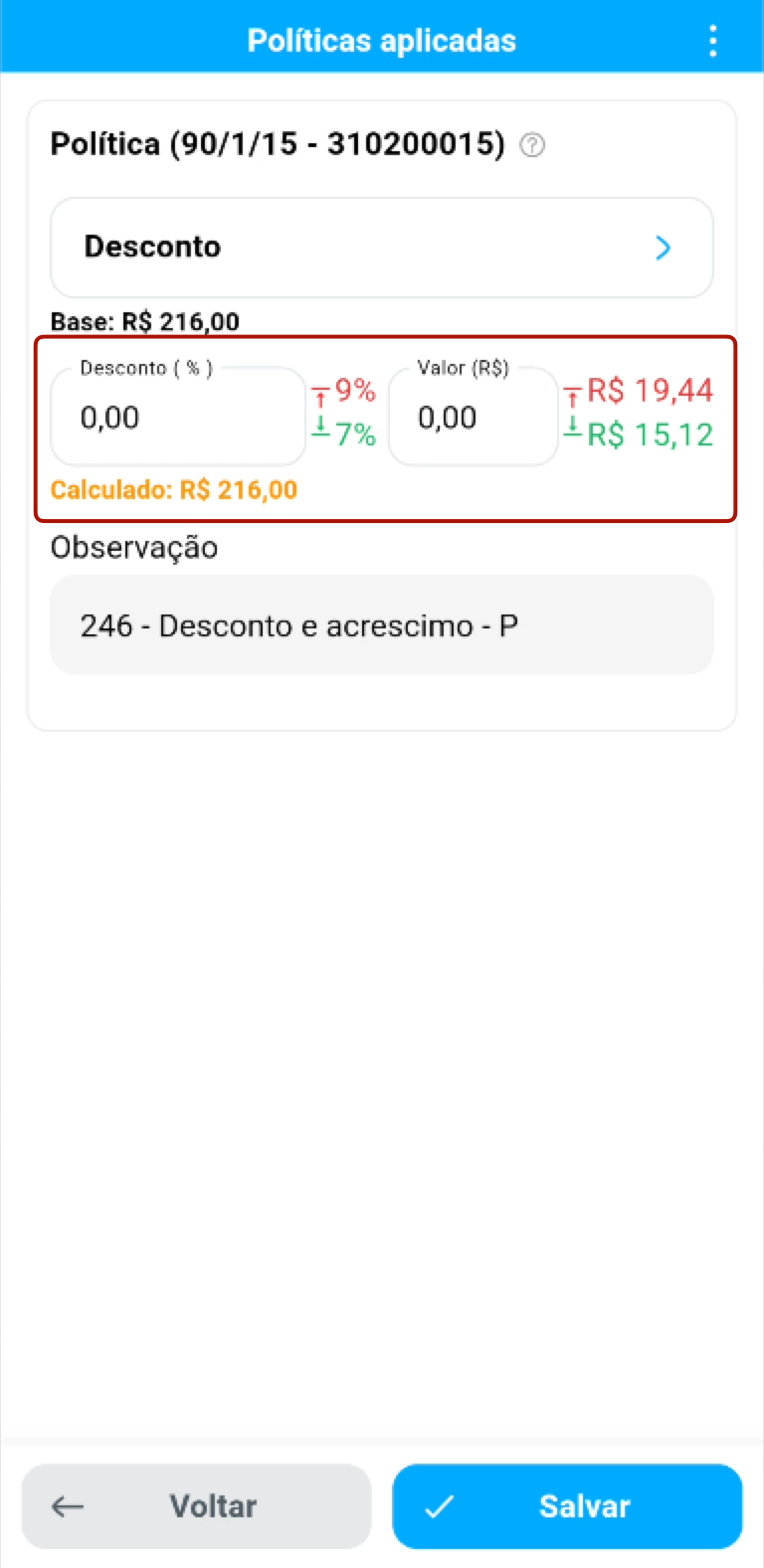
Section titled “Allowed range in the pricing policy”- Situation: In the pricing policy, the salesperson could not clearly see the allowed price range.
- Solution: The app now displays the price range allowed by the policy when the setting is enabled.
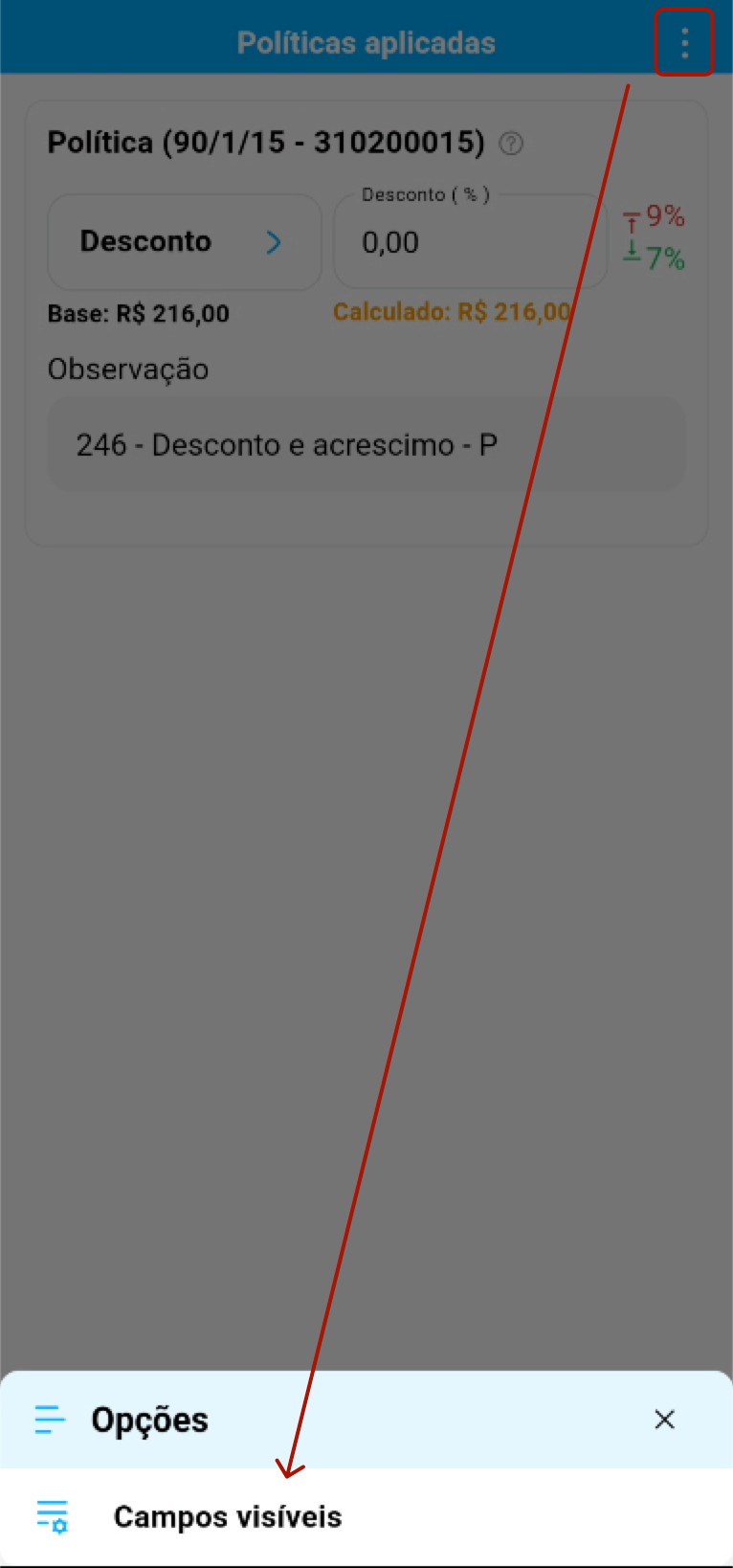
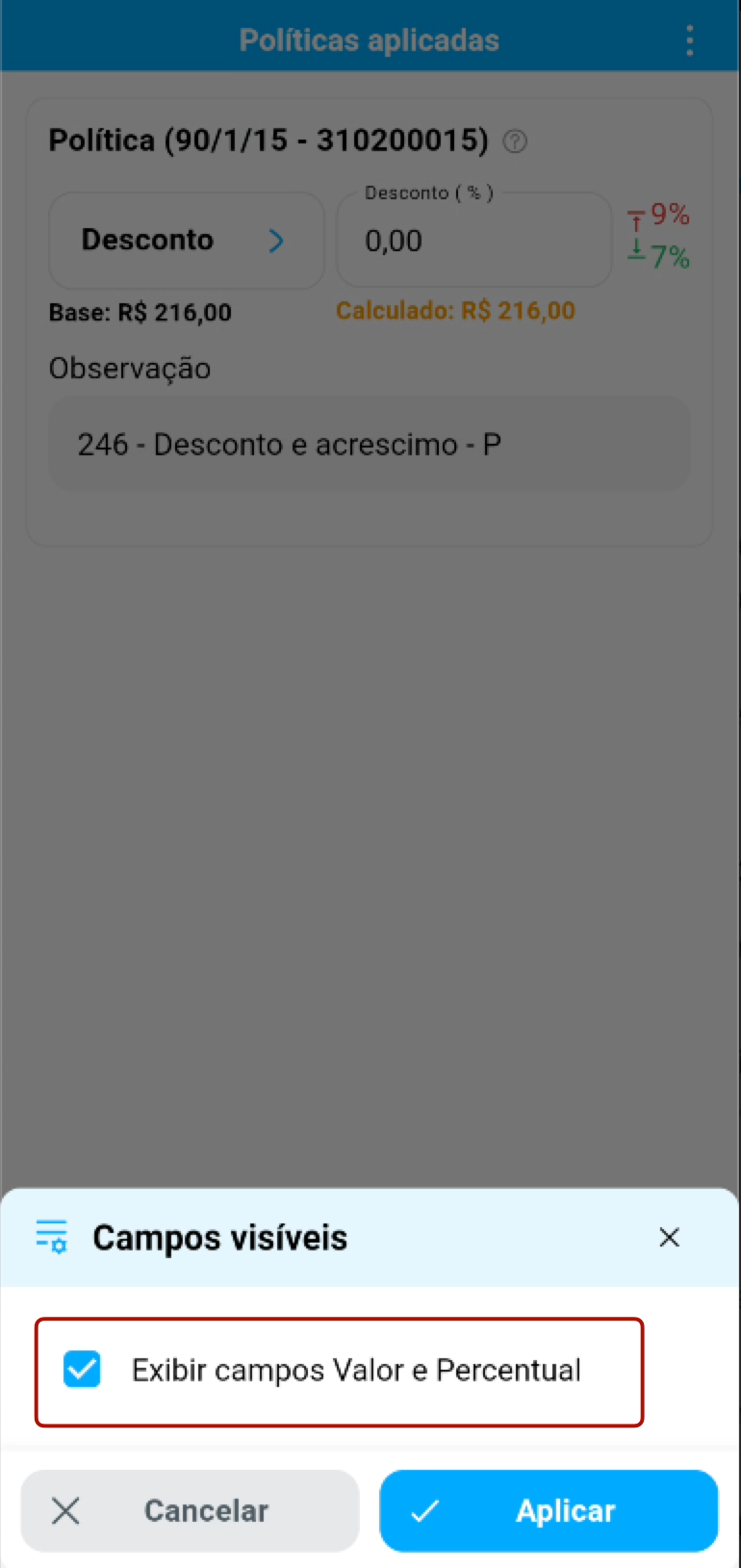
On the Applied policies screen, you can check the allowed limits next to the discount fields. To view the fields as amounts and percentages:
- Open the Options menu (three dots) and select Visible fields.
- Select Show Amount and Percentage fields and tap Apply.
- Check the limits next to the Discount (%) and Amount (R$) fields.
Choose the highlighted price in the product list
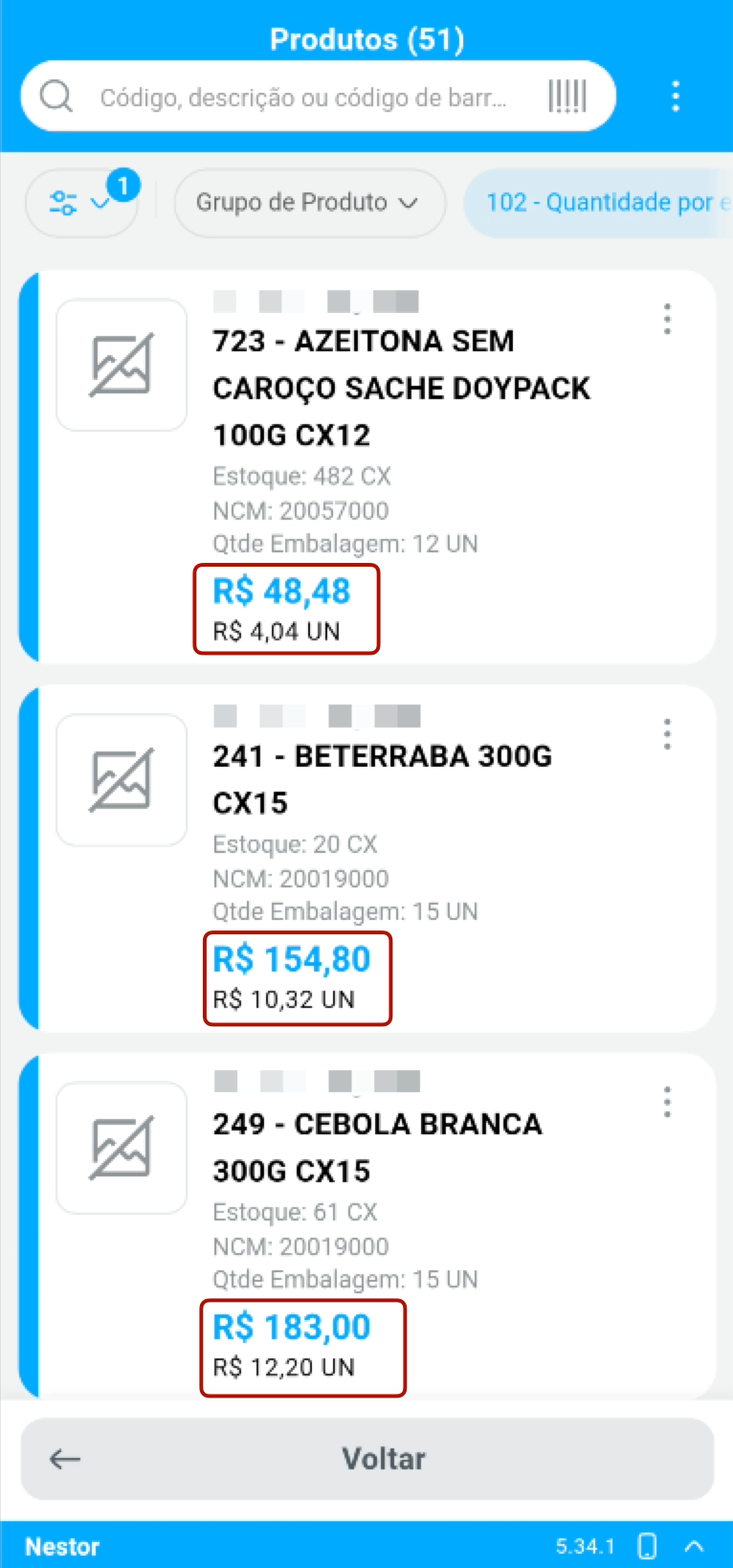
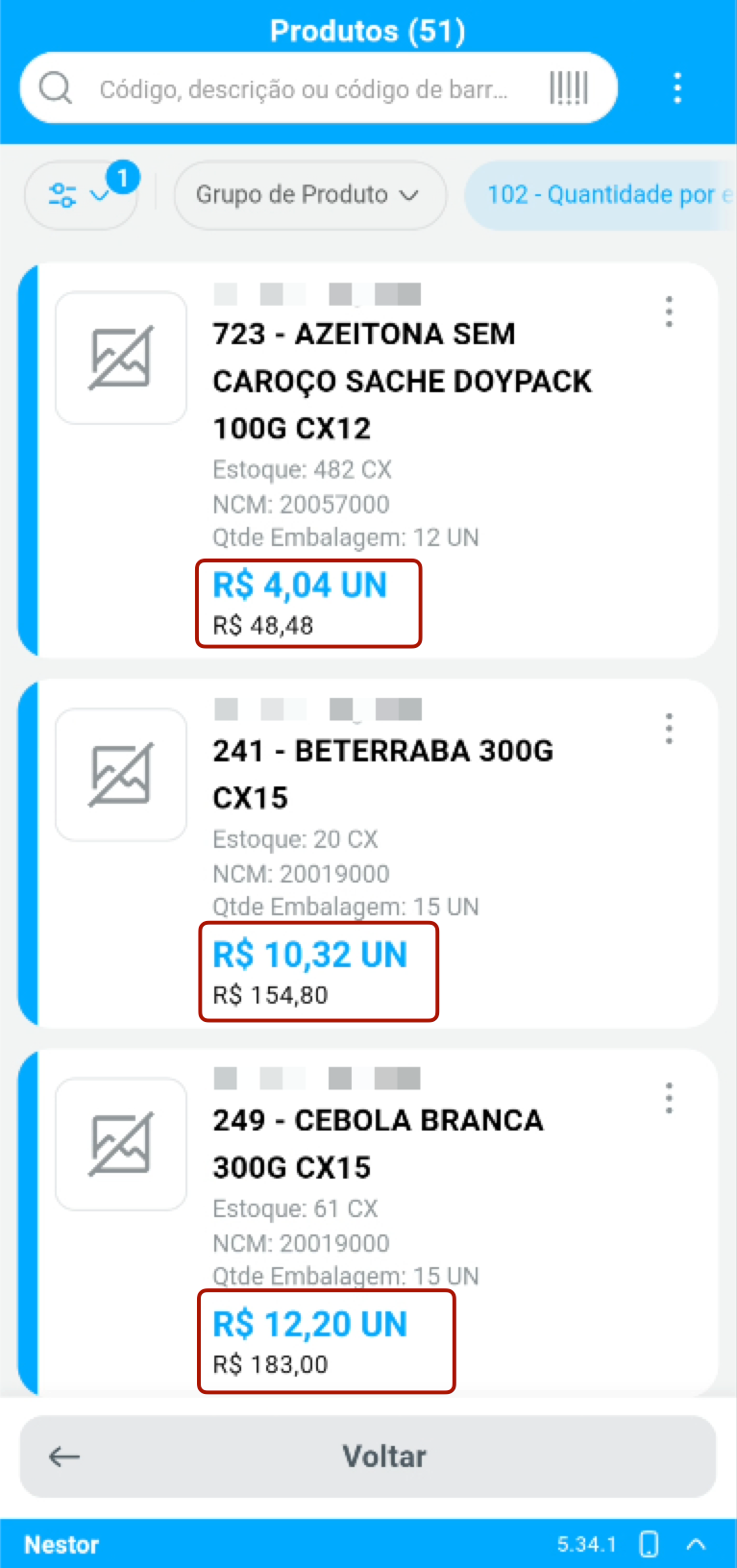
Section titled “Choose the highlighted price in the product list”You can choose which price appears first and is highlighted both in the main Products list and in the product list when creating an order: Product price or Price per unit. This makes it easier to check prices according to how you sell, for example, by box or by individual unit in a package.
To configure:
- In the Products list, open the Options menu (three dots) and select Visible fields.
- Under Show first, choose Product price or Price per unit.
- Keep Unit price and Price per packaging unit selected to view both prices, then tap Apply.
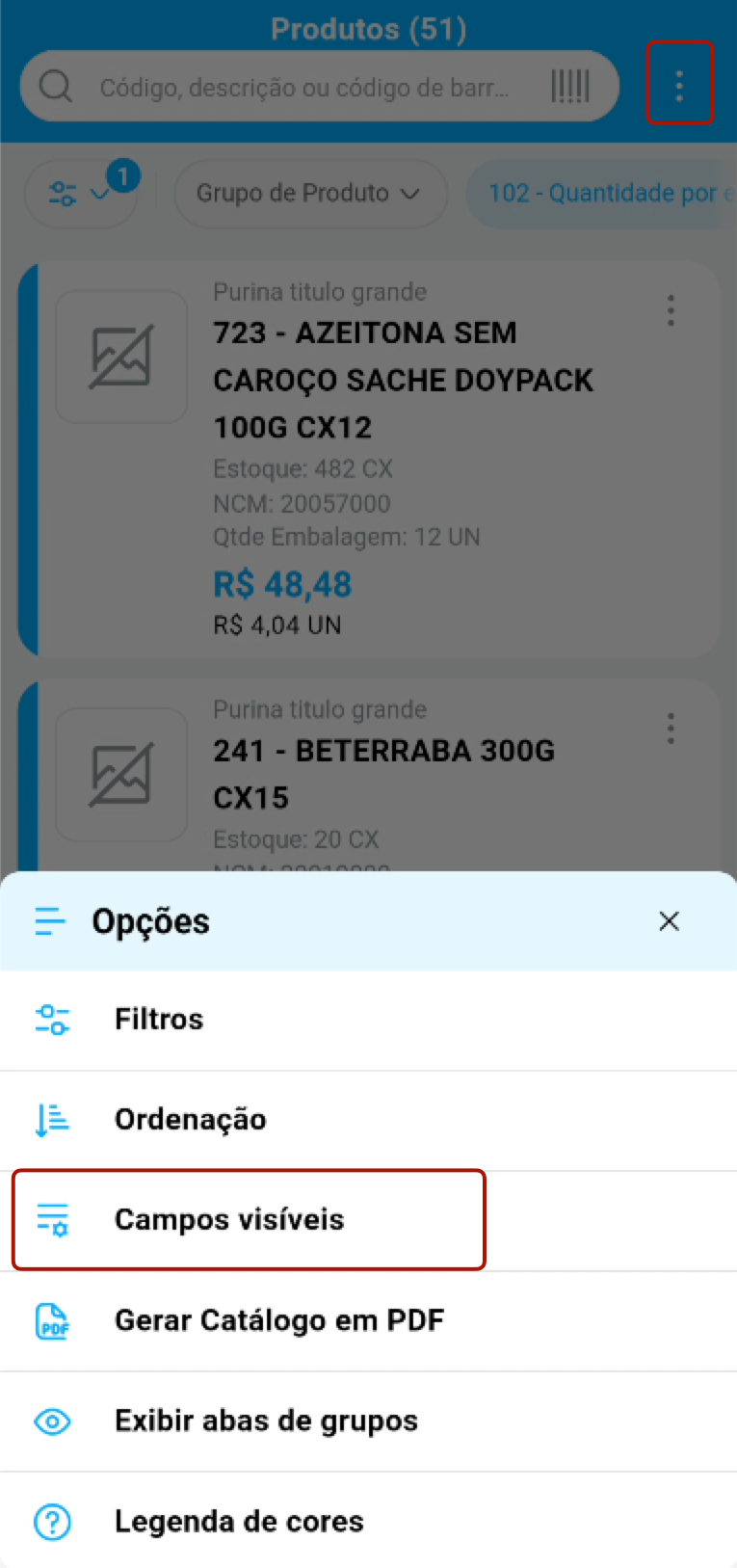
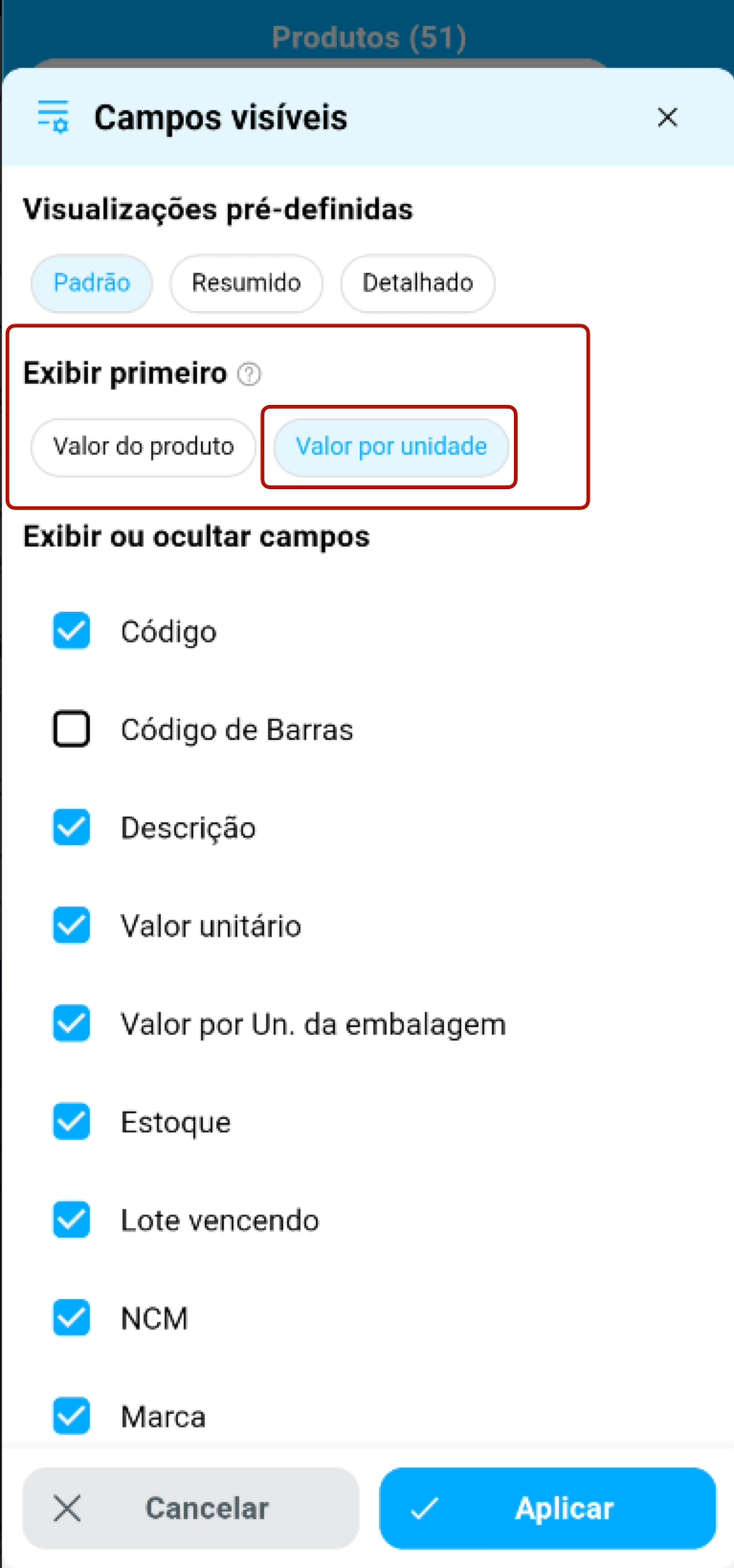
In the main product list
In the example below, a box of 12 units costs R$ 48,48, equivalent to R$ 4,04 per unit. When you change the selection, the selected price moves to the first line, in blue and more prominently, while the other price appears just below.
When creating an order
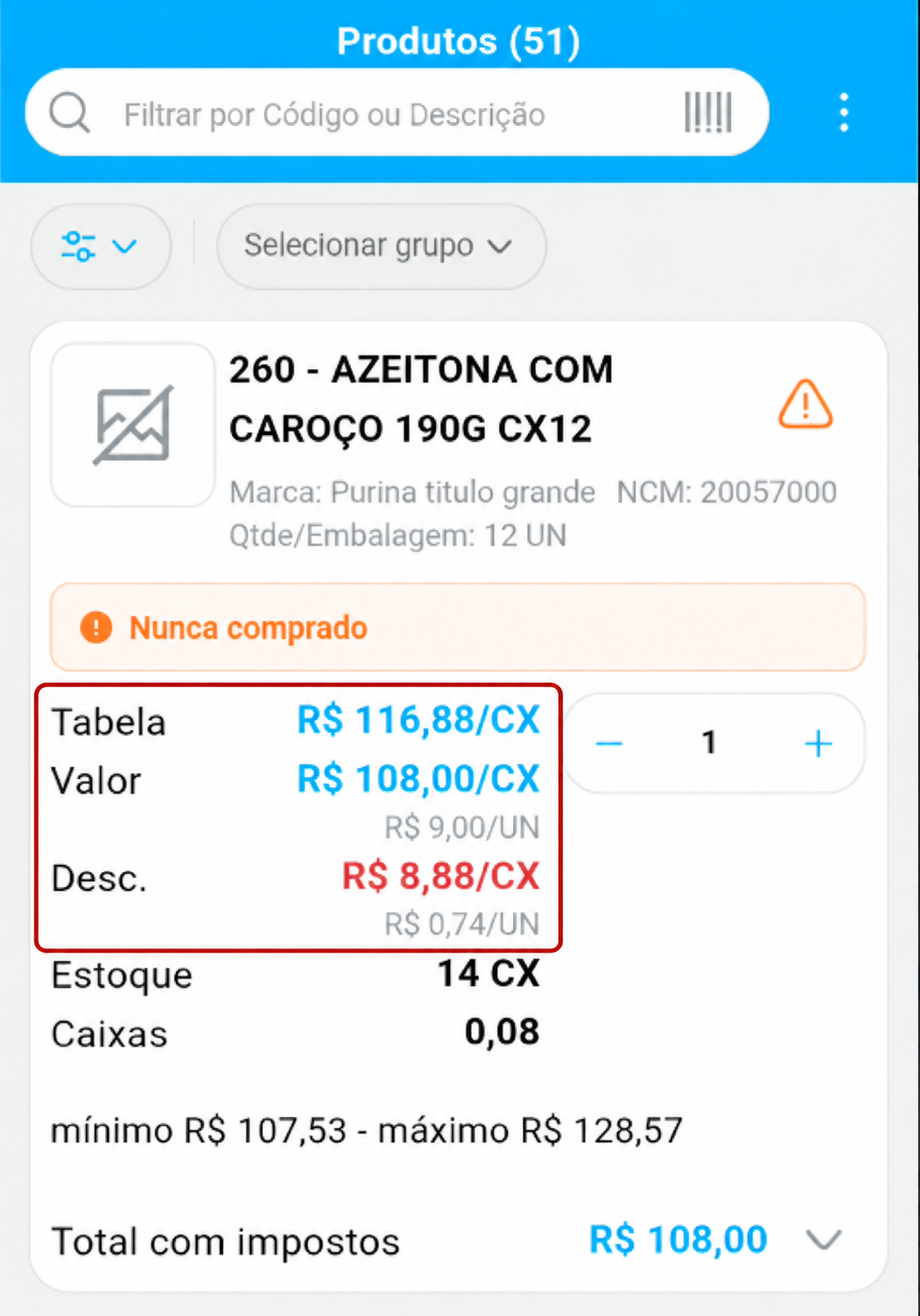
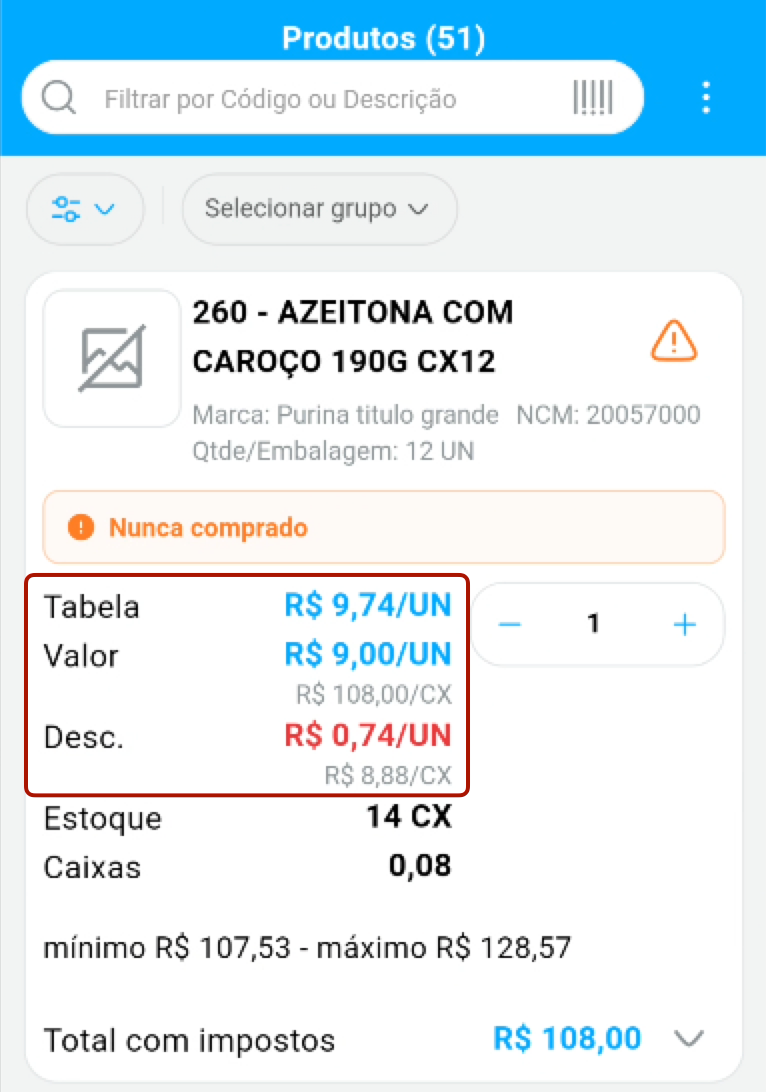
In the product list when creating an order, this choice also determines which price appears first in the List price, Price and Discount fields. The previous examples show the main product screen; the comparison below is within an order.
- With Product price, prices per box (CX) are highlighted. In the example, the selling price appears as R$ 108,00/CX, with R$ 9,00/UN just below.
- With Price per unit, prices per unit (UN) are highlighted. The same product shows R$ 9,00/UN first, with R$ 108,00/CX below. The list price and discount also highlight the unit price.
This choice changes how prices are displayed. In the example, the Total including taxes remains R$ 108,00 in both views.
Better contrast for the saved draft indicator
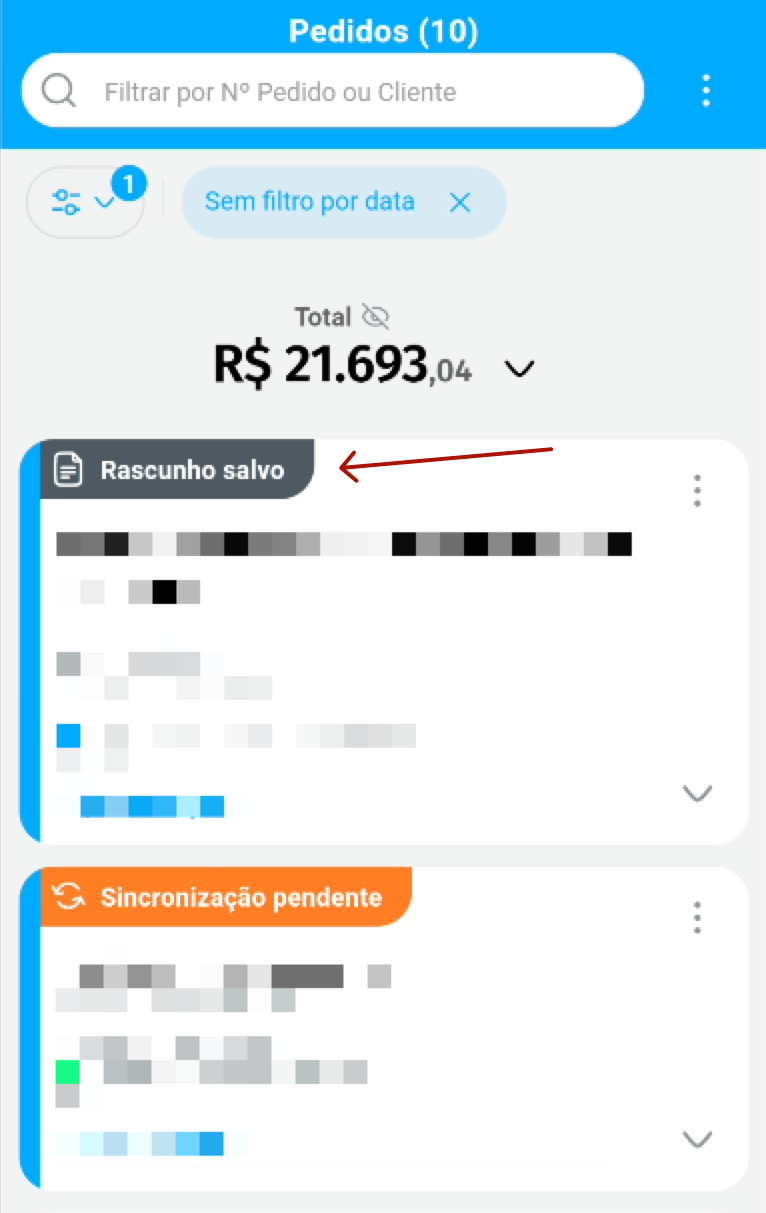
Section titled “Better contrast for the saved draft indicator”- Situation: The Draft saved indicator used an orange background similar to other notices, making the order status harder to identify.
- Solution: We improved the contrast of the Draft saved indicator, which now shows white text and an icon on a dark gray background. This makes it easier to identify the draft and distinguish it from the Sync pending notice.
Search position in the product list
Section titled “Search position in the product list”- Situation: When searching for products, the list returned to the top instead of staying at the result, requiring the user to scroll again.
- Solution: The list keeps its position after a search, making it easier to find the product.
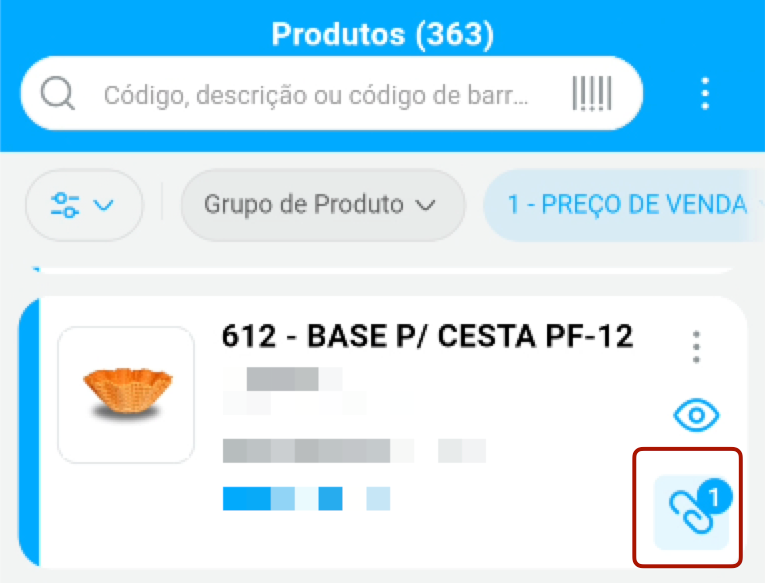
Product attachments on the main screen
Section titled “Product attachments on the main screen”- Situation: Even with the attachments field set to visible, the attachments icon appeared only on the order screen, not in the main product list.
- Solution: The attachments icon now also appears in the main Products list when the field is set to visible, showing the number of attachments available for each product.
Individual customer registration with an international document
Section titled “Individual customer registration with an international document”- Situation: With the international setting enabled, registering an individual customer in the app failed with an invalid CPF error, although the same registration worked on the Web.
- Solution: Registering an individual customer with an international document works again in the app, matching the Web behavior.
Minimum freight amount in the order field policy
Section titled “Minimum freight amount in the order field policy”- Situation: It was not possible to require a minimum freight amount through the order field policy independently of the carrier.
- Solution: The order field policy now validates the minimum freight amount received through integration. When completing or saving an order, the app requires the minimum freight configured in the current policy. Learn more in Order field policy.
Size grid quantity when editing an order
Section titled “Size grid quantity when editing an order”- Situation: When editing an order item, the size grid quantity already used was not visible, making it harder to check and adjust.
- Solution: When editing an item, the app displays the size grid quantity used, making it easier to check.
Product list performance
Section titled “Product list performance”- Situation: On some devices, the product list was slow or failed to load products even after syncing, affecting use of the app.
- Solution: We fixed product list loading to improve performance and item display.
Opening Routes without internet
Section titled “Opening Routes without internet”- Situation: The Routes screen required a connection even with data already synced to the device, preventing offline access to routes and their customers.
- Solution: Routes and route customer lists open again using local data without internet. The map still requires a connection.
Fixes in version 5.05.2 — 11/13/2026
Section titled “Fixes in version 5.05.2 — 11/13/2026”Minimum order value in the field policy
Section titled “Minimum order value in the field policy”- Situation: It was not possible to require a minimum order value through the field policy.
- Solution: The order field policy now validates the minimum value received through integration. When completing or saving an order, the app compares the total order value with the minimum in the current policy and blocks completion when the total is below that minimum. Learn more in Minimum order value.
Support for the Bolívar currency
Section titled “Support for the Bolívar currency”- Situation: App values were not yet formatted in the Bolívar currency.
- Solution: The app now formats values in Bolívar (Bs).
Tax notice when saving or completing an order
Section titled “Tax notice when saving or completing an order”- Situation: With online tax calculation enabled, the app already calculated taxes when saving or completing an order, but the result was not announced.
- Solution: When saving or completing an order, the app reports the applied taxes. If the total does not change, the message Tax calculation completed. The order total was not changed. appears. If the total changes, a dialog opens with the previous and new totals, so you can choose Continue or Back.
Error when opening the Products tab with a saved filter
Section titled “Error when opening the Products tab with a saved filter”- Situation: When opening the Products tab with a saved filter, the app showed an error if the filter’s customer had no default price list, preventing use of the tab.
- Solution: The Products tab opens normally again in this scenario, even when the customer in the saved filter has no default price list.
Release schedule
Section titled “Release schedule”Default release plan, subject to adjustments as the rollout progresses.
| Date | Release percentage |
|---|---|
| 11/04 - Wednesday | Beta 50% |
| 11/05 - Thursday | Beta 100% |
| 11/06 - Friday | 1% |
| 11/09 - Monday | 2% |
| 11/10 - Tuesday | 3% |
| 11/11 - Wednesday | 5% |
| 11/12 - Thursday | 7% |
| 11/13 - Friday | 8% |
| 11/16 - Monday | 10% |
| 11/17 - Tuesday | 15% |
| 11/18 - Wednesday | 20% |
| 11/19 - Thursday | 30% |
| 11/20 - Friday | 50% |
| 11/23 - Monday | 80% |
| 11/24 - Tuesday | 100% |