

Access to the beta version of Demander Android
Available at:

This article aims to explain how to participate in the beta version of the Demander app.
Users with access to the beta version are the first to receive fixes and new features from Demander. Typically, the version remains in beta for about a week before being made available to all users on Google Play.
✅ Important:
Section titled “✅ Important:”To access the beta version, you must register once for the Play Store Beta Testing Program. No need to repeat the process for each new beta version
- How to access the beta version:
- Access the Demander app on the Play Store
Open the Play Store on your device, go to the search bar and search for:
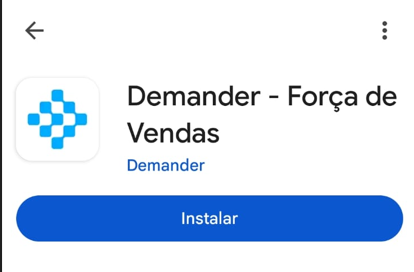
- Participate in the “Beta Program”
On the app information screen, scroll down until you find the “Join the Beta Program” section.
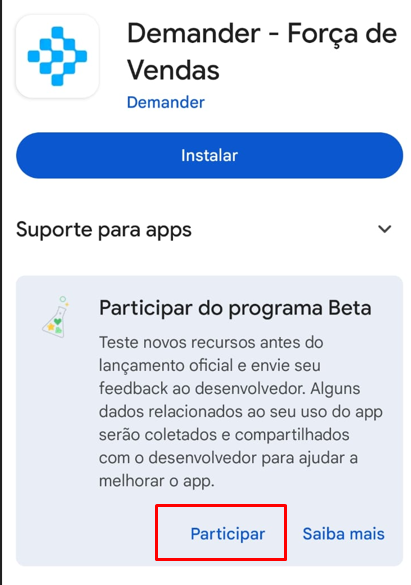
Click “Participate” and confirm your registration.
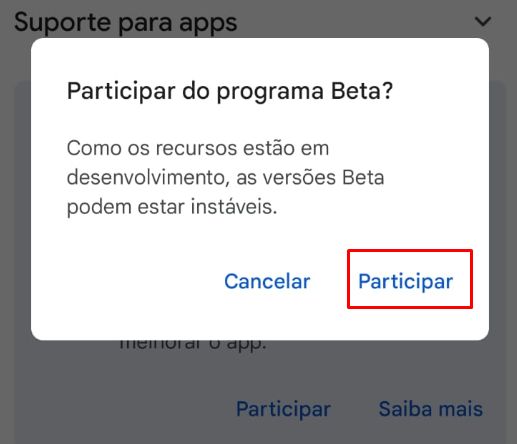
Access the application in Beta version
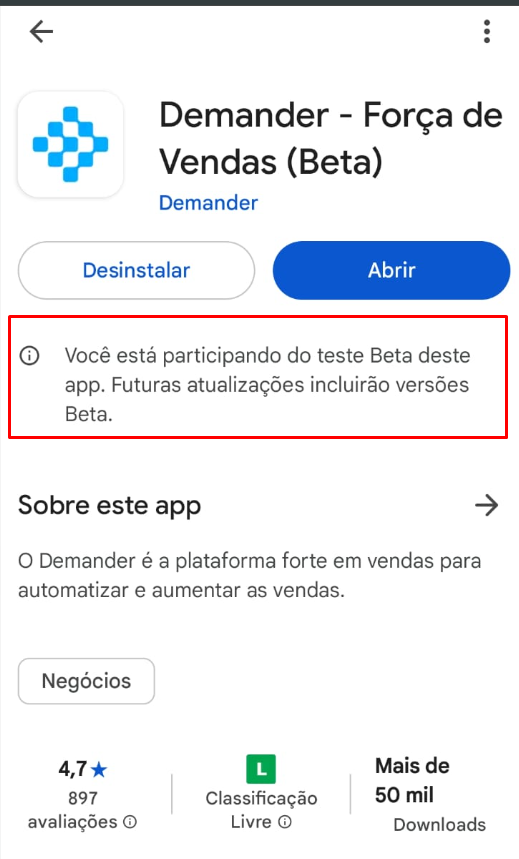
Section titled “Access the application in Beta version”After clicking “Join”, wait approximately 1 minute and then:
Return to the Play Store, search for the Demander app again. You will see that the Beta Program message has been updated, indicating that your account is now part of the program.
📱 Installation and use of the beta version:
Section titled “📱 Installation and use of the beta version:”If the application is not installed:
Section titled “If the application is not installed:”After completing the steps above, simply install Demander normally. Then, log in with your email and password and perform the synchronization.
If the application is already installed:
Section titled “If the application is already installed:”It is recommended to follow the following steps:
- Sync all orders in the current app
- Uninstall Demander
- Reinstall the app — you will now receive the beta version automatically